How Do I Change My WiFi From 24GHz To 5GHz Right Now
Changing your WiFi from 2.4GHz to 5GHz is easier than you think. This guide walks you through accessing your router settings, switching frequency bands, and optimizing your wireless network for faster speeds. Whether you want better streaming, lower latency, or improved performance, switching to the 5GHz band can make a huge difference.
Have you ever noticed your WiFi slowing down at the worst possible moment? Maybe your video call keeps freezing, or your movie keeps buffering no matter how close you sit to the router. The problem might be your frequency band. Switching from 2.4GHz to 5GHz can transform your wireless experience. In this guide, I’ll show you exactly how to do it right now.
Most people never think about their WiFi frequency band. They just connect and hope for the best. But understanding the difference between 2.4GHz and 5GHz can help you get the most out of your home network. The 2.4GHz band has been around for decades. It covers longer distances and passes through walls better. But it also suffers from more interference. Microwaves, baby monitors, and even Bluetooth devices all use the same frequency. This creates congestion and slows things down.
The 5GHz band is newer and faster. It offers more channels and less interference. Think of it like a highway with fewer cars. Your data moves quicker and more smoothly. But there’s a tradeoff. The 5GHz signal doesn’t travel as far. It also struggles more with thick walls and long distances. That said, for most homes, the benefits far outweigh the downsides. Let’s dive into how you can make the switch.
Key Takeaways
- Faster Speeds: The 5GHz band delivers higher data rates and less congestion than the 2.4GHz band.
- Better for Streaming: 5GHz WiFi handles HD and 4K streaming with far less buffering.
- Shorter Range: 5GHz signals don’t travel as far as 2.4GHz, so placement matters.
- Dual Band Routers: Most modern routers support both bands simultaneously.
- Easy Access: You can change frequency settings through your router’s admin panel or app.
- Device Compatibility: Not all devices support 5GHz, so check before switching.
📑 Table of Contents
- Understanding the Difference Between 2.4GHz and 5GHz
- How to Change Your WiFi From 2.4GHz to 5GHz
- Common Router Brands and How to Access Their Settings
- Tips to Get the Best Performance on 5GHz
- When to Stick With 2.4GHz
- Can You Add a 2.4GHz Band to a Router That Only Has 5GHz?
- Troubleshooting Common Issues After Switching to 5GHz
- Expert Insights on WiFi Frequency Optimization
- Final Thoughts
Understanding the Difference Between 2.4GHz and 5GHz
Before you change anything, it helps to understand what you’re working with. Both frequency bands serve the same purpose. They transmit wireless internet to your devices. But they do it very differently. The 2.4GHz band operates at a lower frequency. This means it can travel farther and penetrate obstacles better. It’s great for large homes or spaces with lots of walls. However, the 2.4GHz band only has 11 to 14 channels depending on your region. That’s not a lot of room for multiple devices.
The 5GHz band operates at a higher frequency. This gives it more available channels, often up to 23 non-overlapping channels. More channels mean less congestion. Your devices can communicate faster and with fewer interruptions. But the higher frequency also means shorter range. The signal weakens faster when it passes through walls or furniture. If your router is far from your device, you might notice a weaker connection on 5GHz.
Which Band Should You Use?
Think about what you do online. If you browse the web or check email, 2.4GHz works fine. But if you stream videos, play games, or video call, 5GHz is the better choice. Here’s a quick comparison:
- 2.4GHz: Longer range, slower speeds, more interference, better for smart home devices.
- 5GHz: Shorter range, faster speeds, less interference, better for streaming and gaming.
Many modern routers use a feature called dual band. This means they broadcast both bands at the same time. Your phone or laptop might even show two separate WiFi networks. One ends in “2G” or “2.4” and the other ends in “5G” or “5.” If your router does this, you’re already set. You just need to connect to the right one.
How to Change Your WiFi From 2.4GHz to 5GHz
Now let’s get into the practical steps. Changing your WiFi frequency band is straightforward. But the exact process depends on your router brand and model. Don’t worry. I’ll cover the general steps that work for most setups.
Step 1: Find Your Router’s IP Address
First, you need to access your router’s settings. You’ll do this through a web browser on your computer or phone. To find your router’s IP address, open a command prompt on Windows or Terminal on Mac. Type ipconfig or ifconfig and look for the “Default Gateway” number. It usually looks something like 192.168.1.1 or 192.168.0.1. Write that number down.
Step 2: Log Into Your Router’s Admin Panel
Open your web browser and type the IP address into the address bar. Press Enter. You’ll see a login page. Enter your router’s username and password. If you never changed these, the defaults are often “admin” for both. You can also check the sticker on the back of your router. It usually lists the default login info.
Step 3: Navigate to Wireless Settings
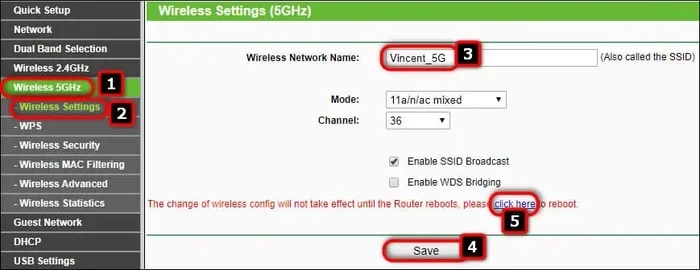
Once logged in, look for a section called “Wireless,” “WiFi Settings,” or “Network Settings.” The exact name varies by router. Inside this section, you should see options for your frequency bands. Look for something labeled “Band,” “Frequency,” or “Mode.”
Step 4: Switch to 5GHz
You’ll see options like “2.4GHz Only,” “5GHz Only,” or “Dual Band.” Select the 5GHz option. Some routers let you choose “Auto” or “Band Steering,” which automatically assigns devices to the best band. After making your selection, click “Save” or “Apply.” Your router may restart. Give it a minute or two to come back online.
Step 5: Reconnect Your Devices
Now go to your device’s WiFi settings. You should see the network name. If your router broadcasts separate names for each band, connect to the 5GHz version. If it uses the same name, your device should automatically connect to the faster band. If not, you may need to forget the network and reconnect.
Common Router Brands and How to Access Their Settings
Every router brand has a slightly different interface. Here are some of the most common ones and where to find the wireless settings.
Netgear Routers
Log into your Netgear router at routerlogin.net or 192.168.1.1. Go to “Wireless” in the top menu. Under the “Basic” or “Advanced” tab, you’ll find the frequency band options. Netgear routers often use “Smart Connect” by default. This feature combines both bands under one name. You can turn it off to manage bands separately.
TP-Link Routers
Access TP-Link routers at tplinkwifi.net or 192.168.0.1. Click on “Wireless” in the left sidebar. Look for “Wireless Settings.” You’ll see options for 2.4GHz and 5GHz bands. You can enable or disable each band independently. TP-Link also offers a mobile app that makes this process even easier.
ASUS Routers
ASUS routers are accessed at 192.168.1.1 or router.asus.com. Go to “Wireless” in the top navigation. You’ll see separate tabs for 2.4GHz and 5GHz. You can toggle each band on or off. ASUS routers also have a feature called “Adaptive QoS” that prioritizes traffic on the 5GHz band automatically.
Linksys Routers
Log into Linksys routers at 192.168.1.1 or linksyssmartwifi.com. Click on “Wireless” and then “Basic Wireless Settings.” You’ll see a dropdown for “Wireless Band.” Select “5GHz Only” or “Auto.” Linksys also has a great mobile app that lets you manage everything from your phone.
Tips to Get the Best Performance on 5GHz
Switching to 5GHz is only half the battle. To really get the most out of it, follow these tips.
Place Your Router in a Central Location
Because 5GHz signals don’t travel as far, placement matters a lot. Put your router in a central spot in your home. Keep it elevated on a shelf or mounted on a wall. Avoid hiding it in closets or behind furniture. The more open space around the router, the better the signal spreads.
Reduce Interference
Even though 5GHz has less interference than 2.4GHz, it can still be affected. Keep your router away from microwaves, cordless phones, and large metal objects. If you live in an apartment building, there may be a lot of neighboring WiFi networks. In that case, you can change your 5GHz channel to a less crowded one. Most routers let you select a specific channel in the wireless settings.
Update Your Router Firmware
Router manufacturers release firmware updates regularly. These updates often include performance improvements and bug fixes. Check your router’s admin panel for a “Firmware Update” section. Keeping your router up to date ensures you get the best possible speeds on your 5GHz band.
Check Your Device Compatibility
Not all devices support 5GHz WiFi. Older laptops, smart home gadgets, and budget devices may only work on 2.4GHz. Before switching entirely, make sure your main devices can handle the higher frequency. You can usually find this info in your device’s specifications or WiFi settings.
Consider a WiFi Range Extender
If you have a large home, the 5GHz signal might not reach every room. A WiFi range extender or WiFi signal booster can help. These devices pick up your 5GHz signal and rebroadcast it in areas with weak coverage. This way, you get fast speeds in every corner of your home.
When to Stick With 2.4GHz
5GHz is faster, but 2.4GHz still has its place. Here are some situations where you should keep using the 2.4GHz band.
- Smart Home Devices: Many smart plugs, cameras, and sensors only support 2.4GHz. If you want to add WiFi to your garage door opener or similar devices, you’ll need the 2.4GHz band.
- Large Homes: If your router is far from certain rooms, 2.4GHz provides better coverage through walls and floors.
- Older Devices: Devices that only support 802.11b/g/n on 2.4GHz won’t connect to 5GHz.
- Outdoor Use: If you need WiFi in your yard or garage, 2.4GHz travels farther outside.
The best approach for many people is to use both bands together. Let your router handle the smart decisions. Modern dual-band routers with band steering automatically assign devices to the best band based on their needs and location.
Can You Add a 2.4GHz Band to a Router That Only Has 5GHz?
Some newer routers only broadcast on the 5GHz band. If your router doesn’t have a 2.4GHz option, you might wonder if you can add one. The short answer is no, not really. WiFi bands are built into the router’s hardware. You can’t simply add a band through software settings. However, some routers offer a feature that allows you to configure or enable a 2.4GHz band if the hardware supports it. Check your router’s specifications to see what it supports.
If your router truly only has 5GHz, that’s actually a good thing for most users. You’ll get faster speeds with less interference. Just be aware that older smart home devices might not connect. You may need to replace those devices or use a separate 2.4GHz access point.
Troubleshooting Common Issues After Switching to 5GHz
Sometimes things don’t go smoothly after switching bands. Here are some common problems and how to fix them.
Your Device Won’t Connect to 5GHz
If a device refuses to connect to the 5GHz network, first make sure the device actually supports it. Check the device specs or WiFi settings. If it does support 5GHz, try forgetting the network and reconnecting. You can also restart both your device and your router. Sometimes a simple reboot fixes everything.
Slow Speeds on 5GHz
If your 5GHz connection is slower than expected, try changing the wireless channel. Channels 36, 40, 44, and 48 are usually the least crowded in the US. You can also move your router to a more central location. Walls and distance are the biggest enemies of 5GHz signals.
Devices Keep Switching Between Bands
If your router uses the same network name for both bands, your devices might keep jumping between 2.4GHz and 5GHz. This can cause annoying disconnects. The fix is to give each band a unique name. Add “2G” or “5G” to the end of each network name. That way, your devices stay on the band you want them to use.
Expert Insights on WiFi Frequency Optimization
Networking experts agree that the 5GHz band is the future of home WiFi. As more devices support the faster frequency, the 2.4GHz band becomes less essential for everyday use. However, the transition isn’t instant. Many households still have a mix of old and new devices. The key is finding the right balance. Use 5GHz for your high-performance devices like laptops, gaming consoles, and streaming boxes. Use 2.4GHz for smart home gadgets and devices that don’t need the extra speed.
Experts also recommend checking your WiFi settings regularly. Over time, neighbors may add new networks that interfere with yours. A quick channel scan can help you find the clearest frequency. Many modern routers have a built-in WiFi analyzer that does this automatically. Taking five minutes every few months to review your settings can keep your network running at peak performance.
If you’re serious about optimizing your home network, consider upgrading to a WiFi 6 router. These routers handle both frequency bands more efficiently. They also support more devices simultaneously without slowing down. You can learn more about mesh WiFi systems and how they work with existing routers here in our guide on connecting WiFi 6 mesh to WiFi 5 routers.
Final Thoughts
Changing your WiFi from 2.4GHz to 5GHz is one of the simplest upgrades you can make. It takes just a few minutes and can dramatically improve your internet experience. Faster downloads, smoother streaming, and less lag during video calls are just the beginning. The process is the same whether you use a Netgear, TP-Link, ASUS, or Linksys router. Once you know where to look, it’s a breeze.
Remember that 5GHz isn’t perfect for every situation. It has a shorter range and may not work well with older devices. But for most modern households, the speed boost is well worth it. Start by checking your router’s settings today. Make the switch and feel the difference. Your WiFi experience will never be the same.
Take a few minutes to explore your router’s admin panel. Experiment with different settings. Find the perfect balance between speed and coverage. Once you make the change, you’ll wonder why you didn’t do it sooner. Switching to 5GHz WiFi is one of those small tweaks that makes a big impact.
Frequently Asked Questions
Can I use both 2.4GHz and 5GHz at the same time?
Yes, most modern routers support both bands simultaneously. This is called dual-band WiFi. You can connect some devices to 2.4GHz and others to 5GHz. Many routers also offer a feature called band steering that automatically assigns devices to the best band.
Why is my 5GHz WiFi slower than 2.4GHz?
5GHz is typically faster but has a shorter range. If your device is far from the router or separated by thick walls, the 5GHz signal may weaken. This can result in slower speeds. Try moving closer to the router or switching back to 2.4GHz for distant devices.
Do all devices support 5GHz WiFi?
No, not all devices support 5GHz. Older laptops, smart home devices, and budget gadgets may only work on 2.4GHz. Check your device’s WiFi specifications before assuming it can connect to the 5GHz band.
Will switching to 5GHz improve my internet speed?
Switching to 5GHz can improve your local WiFi speed significantly. However, your overall internet speed also depends on your internet plan and ISP. If your plan is slow, 5GHz won’t make your internet faster. It will just make your wireless connection as fast as possible within your plan.
How do I know if my router supports 5GHz?
Check your router’s specifications on the manufacturer’s website or the label on the back of the router. Look for “Dual Band” or “5GHz” in the model name or description. If you see these terms, your router supports 5GHz WiFi.
What is the best channel for 5GHz WiFi?
Channels 36, 40, 44, and 48 are the most commonly recommended 5GHz channels in the US. They are non-overlapping and typically less congested. If you live in a dense area with many WiFi networks, try switching to one of these channels for better performance.