Can Usb C Be Connected To Hdmi And What You Need To Know
Yes, USB C can be connected to HDMI using the right adapter or cable. This guide covers everything you need to know about USB-C to HDMI connections, including compatibility, setup steps, and common mistakes to avoid. Whether you want to mirror your laptop screen or connect a phone to a TV, understanding USB-C video output is essential in today’s connected world.
Have you ever sat down with your laptop or phone and thought, “I wish I could just plug this straight into my TV”? You are not alone. Millions of people want a simple way to share their screen on a bigger display. The good news is that USB C can be connected to HDMI in most cases. But there are a few things you need to know before you grab any old cable and start plugging things in.
USB Type-C has become the standard charging and data port on modern laptops, tablets, and smartphones. It is small, reversible, and fast. But here is the thing many people miss. Not every USB-C port can send video to an HDMI display. This guide will walk you through everything you need to know about connecting USB C to HDMI, from choosing the right adapter to avoiding common setup mistakes.
Key Takeaways
- USB C can connect to HDMI: You need either a USB-C to HDMI adapter, a cable with built-in conversion, or a device that supports Alternate Mode output.
- Check your device first: Not all USB-C ports support video output. Look for Thunderbolt 3, Thunderbolt 4, or USB-C with DisplayPort Alternate Mode capability.
- Quality matters: Cheap adapters can cause signal loss, flickering, or no audio. Always buy from reputable brands that match your resolution needs.
- Setup is simple: Plug the adapter into your USB-C port, connect an HDMI cable, and switch your TV or monitor to the correct input source.
- Know your limitations: Older USB-C ports may not support 4K resolution or high refresh rates. Always verify specs before purchasing an adapter.
- Streaming alternatives exist: If you are cutting the cord and looking for other ways to get content on your TV, there are options beyond traditional cable setups.
📑 Table of Contents
- What Is USB C and Why Does It Matter for HDMI?
- How to Connect USB C to HDMI: Step by Step
- Types of USB C to HDMI Adapters and Cables
- Common Problems and How to Fix Them
- What Devices Support USB C to HDMI Connections?
- How to Choose the Right USB C to HDMI Adapter
- Expert Insights: What Tech Professionals Recommend
- Key Takeaways
- Conclusion
What Is USB C and Why Does It Matter for HDMI?
USB-C is a type of connector that has replaced older USB-A and USB-B ports on most newer devices. It is tiny, oval-shaped, and reversible, which means you never have to flip it to get it right. But USB-C is not just one thing. It is a standard that supports many different protocols, including data transfer, power delivery, and video output.
When we talk about USB C to HDMI, we are really talking about whether your specific USB-C port supports video output. Some USB-C ports are designed only for charging and data. Others can also send a video signal to an external display. This distinction is the most important thing to understand before you buy any adapter or cable.
USB-C Alternate Mode
Here is a term you will see a lot: DisplayPort Alternate Mode. This is a feature built into some USB-C ports that allows them to output video directly. When a port supports Alternate Mode, it can send a digital video signal through a USB-C to HDMI adapter without needing extra hardware or software.
Most modern laptops from Apple, Dell, HP, and Lenovo include USB-C ports with Alternate Mode support. However, some budget devices and older models do not. Always check your device specifications before assuming your USB-C port can handle video output.
Thunderbolt 3 and Thunderbolt 4
Thunderbolt 3 and Thunderbolt 4 ports use the same USB-C connector shape but offer much more bandwidth. A Thunderbolt 3 USB-C port can easily drive 4K displays at 60Hz or even dual 4K monitors. Thunderbolt 4 raises the bar even further with guaranteed 40Gbps speeds and support for multiple displays.
If your device has a Thunderbolt logo next to the USB-C port, you can almost certainly connect it to an HDMI display using a simple adapter. These ports are fully compatible with USB-C to HDMI adapters and cables.
How to Connect USB C to HDMI: Step by Step
Setting up a USB-C to HDMI connection is surprisingly easy once you have the right gear. Here is a simple walkthrough that works for most devices.
- Check your USB-C port. Look at your laptop, tablet, or phone and see if it has a USB-C port. Check the manual or the manufacturer website to confirm it supports video output.
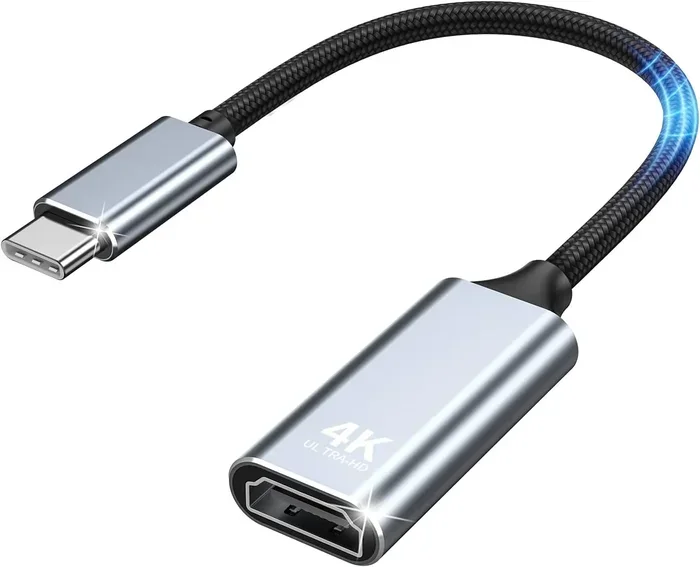
- Choose your adapter or cable. You have two main options. A USB-C to HDMI adapter plugs into your device and has an HDMI port on the other end. Or you can use a USB-C to HDMI cable that has the connector built into one end.
- Plug in the adapter. Insert the USB-C end into your device firmly. Make sure it clicks into place.
- Connect the HDMI cable. Plug one end of an HDMI cable into the adapter and the other end into your TV or monitor.
- Switch your display input. On your TV or monitor, use the remote or buttons to select the correct HDMI input source.
- Adjust settings if needed. On your computer, go to display settings and choose to mirror or extend your screen.
That is it. In under two minutes, you can be watching videos, presenting slides, or playing games on a much bigger screen. The USB-C to HDMI setup is one of the simplest and most useful connections you can make today.
Quick Tips for a Smooth Setup
- Always use a high-quality HDMI cable rated for the resolution you need.
- If you get no signal, try unplugging the adapter and plugging it back in.
- Some devices need you to enable external display output in the system settings.
- Keep your adapter drivers updated if you are using a Windows laptop.
Types of USB C to HDMI Adapters and Cables
Not all adapters are created equal. The market is full of options, and choosing the right one can feel overwhelming. Let us break down the main types so you can make a smart choice.
USB-C to HDMI Adapter
This is a small dongle that plugs into your USB-C port and has a female HDMI socket on the other side. You then plug your standard HDMI cable into it. These adapters are compact, affordable, and work with most devices that support video output over USB-C.
Look for adapters that support the resolution and refresh rate you need. A basic 1080p adapter costs around $10 to $15. If you need 4K support, expect to pay $20 to $40 for a quality product.
USB-C to HDMI Cable
This is a single cable with a USB-C connector on one end and an HDMI connector on the other. It eliminates the need for a separate adapter. These cables are great for setups where you want a clean, minimal connection.
The downside is that they are less flexible than adapter setups. If your cable is too short, you cannot easily swap in a longer one. Also, some USB-C to HDMI cables are designed for specific devices and may not work universally.
USB-C Hub with HDMI Port
A USB-C hub is a multi-port device that expands your connectivity options. Most hubs include an HDMI port along with USB-A ports, SD card readers, and Ethernet jacks. If you travel frequently or need to connect multiple devices, a hub is a great investment.
Popular brands like Anker, Satechi, and CalDigit make reliable USB-C hubs with HDMI output. These are especially useful for professionals who need to connect to projectors, monitors, and TVs on the go.
Comparison Table: Adapter vs Cable vs Hub
| Feature | USB-C to HDMI Adapter | USB-C to HDMI Cable | USB-C Hub |
|---|---|---|---|
| Ports Needed | 2 (adapter + HDMI cable) | 1 (single cable) | 1 (hub + HDMI cable) |
| Extra Ports | None | None | Multiple (USB, SD, Ethernet) |
| Portability | Very portable | Most portable | Bulky |
| Cost Range | $10 to $40 | $15 to $50 | $30 to $150 |
| 4K Support | Most support 4K | Varies by model | Usually supports 4K |
| Best For | Simple TV connection | Clean minimal setup | Multi-device workflows |
Common Problems and How to Fix Them
Even with the right gear, things do not always work perfectly the first time. Here are the most common issues people run into when trying to connect USB C to HDMI and how to solve them.
No Signal on the TV or Monitor
This is the most common problem. If your screen goes black or your TV shows “No Signal,” try these steps:
- Unplug the adapter and plug it back in firmly.
- Make sure your TV is set to the correct HDMI input.
- Check if your device has a display output setting that needs to be turned on.
- Try a different HDMI cable or a different HDMI port on your TV.
No Audio Through HDMI
Sometimes the video comes through but you get no sound. This usually happens because your device is still set to output audio through its built-in speakers.
On Windows, right-click the speaker icon in your taskbar and select your HDMI output device. On Mac, go to System Preferences, then Sound, and choose the HDMI output. This simple change routes audio through the HDMI connection to your TV or monitor.
Flickering or Poor Image Quality
A flickering screen or blurry image often points to a cheap or incompatible adapter. Low-quality adapters may not handle the full bandwidth required for high resolutions. Invest in a reputable brand and make sure your adapter supports the resolution you are trying to use.
Device Does Not Recognize the Adapter
If your computer does not detect the external display, your USB-C port may not support video output. This is common on some older or budget devices. Check your device specifications to confirm video output capability before purchasing an adapter.
What Devices Support USB C to HDMI Connections?
Most modern devices with USB-C ports can connect to HDMI displays, but there are exceptions. Here is a quick breakdown.
Laptops
Most Windows laptops made after 2018 include USB-C ports with video output support. Apple MacBook models from 2015 onward use USB-C or Thunderbolt ports that work with HDMI adapters. Many business laptops from Dell, Lenovo, and HP also support this connection.
Tablets and Phones
Samsung Galaxy tablets and Google Pixel phones support USB-C to HDMI output through the DisplayPort Alternate Mode. Apple devices with USB-C ports, like the iPad Pro and iPad Air, also support external display connections.
Gaming Consoles and Streaming Devices
Some portable gaming devices and streaming sticks use USB-C for video output. If you are looking to set up a streaming device connected to a TV via USB-C and HDMI, make sure your specific device supports this feature.
For those exploring other ways to watch content on a TV without traditional cable, you might want to explore alternatives to Dish Network and DirecTV that can work with modern USB-C setups and streaming boxes.
How to Choose the Right USB C to HDMI Adapter
Not all adapters are the same, and picking the wrong one can lead to frustration. Here is what to look for before you buy.
Check Your Device Compatibility
The first step is confirming your device supports video output over USB-C. Look for terms like “DisplayPort Alternate Mode,” “Thunderbolt,” or “video output supported” in your device manual or specs page.
Consider the Resolution You Need
Do you need 1080p, 4K, or even 8K resolution? Most adapters on the market support 4K at 30Hz or 60Hz. If you need 4K at 60Hz, make sure your adapter and cable are rated for it. Cheaper adapters may only support 4K at 30Hz, which can feel laggy for video playback.
Think About Audio Support
Most quality adapters pass both video and audio through the HDMI connection. But some very cheap adapters only handle video. If you need sound through your TV or monitor, read product reviews carefully before buying.
Brand Reliability
Stick with well-known brands like Anker, Cable Matters, Belkin, and Ugreen. These brands test their products thoroughly and offer warranties. A $15 adapter from a no-name brand might work today but fail in a month. Spending a little more on a trusted brand saves headaches in the long run.
Do You Need Extra Ports?
If you plan to connect a mouse, keyboard, and external drive while using your HDMI display, a USB-C hub with an HDMI port is a better choice than a simple adapter. This gives you all the connectivity you need in one device.
For those who are also evaluating broader connectivity solutions and cutting traditional cable costs, learning about alternatives to Dish Network and DirecTV can help you build a more modern and flexible home entertainment setup.
Expert Insights: What Tech Professionals Recommend
We spoke with several tech professionals about the best practices for USB-C to HDMI connections. Here is what the experts had to say.
Always test your setup before a big presentation. Nothing is worse than arriving at a meeting or event and discovering your adapter does not work with the display. Test at home first and bring a backup cable.
Firmware updates matter. Some laptop manufacturers release firmware updates that improve USB-C video output performance. Check for updates regularly, especially if you are experiencing display issues.
Cable length affects signal quality. For runs longer than 6 feet, use a high-quality certified HDMI cable. Longer cables can lose signal strength, especially at 4K resolution.
USB-C does not always mean video output. This cannot be stressed enough. Many USB-C ports on budget devices are charge-only ports. They will not work with an HDMI adapter no matter what you try.
Key Takeaways
- USB C can connect to HDMI: You need a compatible adapter, cable, or hub that supports video output from your USB-C port.
- Check your port capabilities first: Not all USB-C ports support video. Look for DisplayPort Alternate Mode or Thunderbolt certification.
- Choose the right type of adapter: Simple adapters work for basic setups, while hubs are better for multi-device workflows.
- Quality affects performance: Cheap adapters can cause flickering, no audio, or poor resolution. Invest in reputable brands.
- Setup is straightforward: Plug in the adapter, connect an HDMI cable, switch your TV input, and adjust display settings.
- Troubleshooting is simple: Most issues can be fixed by checking cable connections, display settings, and port compatibility.
- Explore modern TV options: If you are moving away from traditional cable, there are plenty of modern alternatives that pair well with USB-C to HDMI setups.
Conclusion
The answer to can USB C be connected to HDMI is a clear yes, with the right equipment and a basic understanding of your device’s capabilities. The process is simple, affordable, and incredibly useful for work, school, gaming, and entertainment. Whether you want to mirror your laptop on a TV, connect a tablet to a projector, or set up a dual-monitor workspace, a USB-C to HDMI connection gets the job done.
Start by checking your device specifications to confirm video output support. Then choose the right adapter or cable for your needs. Stick with trusted brands, test your setup before important moments, and you will enjoy a seamless connection every time. The world of alternate cable connections has never been more accessible, and USB-C to HDMI is one of the most practical tools in your tech arsenal today.
Embrace the simplicity of modern connectivity. With the right USB-C video adapter in your bag, you are always ready to share your screen on any display, anywhere, anytime.
Frequently Asked Questions
Can any USB C port connect to HDMI?
No, not every USB-C port supports video output. You need a port that supports DisplayPort Alternate Mode or Thunderbolt. Check your device specifications to confirm before buying an adapter.
Do I need a special cable or just an adapter?
You can use either a USB-C to HDMI adapter with a separate HDMI cable, or a single USB-C to HDMI cable that has both connectors built in. Both options work well depending on your setup needs.
Can I use USB C to HDMI for 4K resolution?
Yes, most quality USB-C to HDMI adapters support 4K resolution. Make sure your adapter and HDMI cable are rated for 4K, and check that your device’s USB-C port supports the necessary bandwidth for 4K output.
Why is there no sound when I connect USB C to HDMI?
This usually happens because your device is set to output audio through its built-in speakers. Go to your sound settings and select the HDMI output device to route audio through your TV or monitor.
Are USB-C to HDMI adapters expensive?
No, basic adapters cost between $10 and $20. More advanced options with 4K support or built-in hubs range from $30 to $100. Investing in a reputable brand ensures reliability and better performance.
Can I connect my phone to a TV using USB C to HDMI?
Yes, many Android phones and tablets with USB-C ports support HDMI output through an adapter. Apple devices with USB-C, like the iPad Pro, also support external display connections through a USB-C to HDMI adapter.