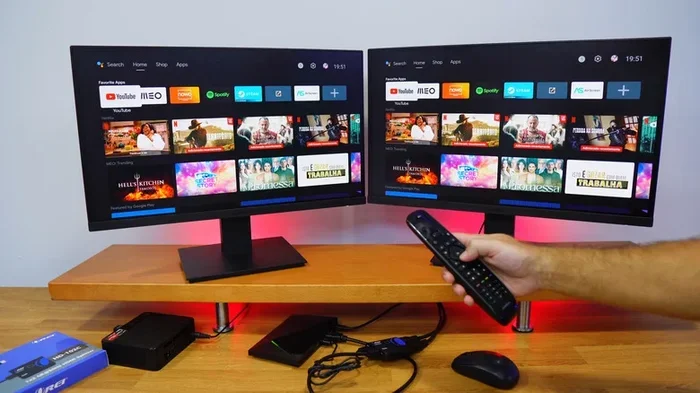
Do I Really Need An Hdmi Splitter For Dual Monitors
An HDMI splitter duplicates your screen across multiple displays, but it may not be the best solution for dual monitors. Many users actually need an HDMI adapter or a KVM switch instead. This guide breaks down every option so you can choose the right display setup for your home office or gaming display without wasting money.
This is a comprehensive guide about Do I Need A Hdmi Splitter For Dual Monitors.
Key Takeaways
- HDMI splitters duplicate screens: They mirror the same content on two displays, which is not the same as extending your desktop.
- You may not need a splitter at all: Most modern graphics cards support dual outputs natively.
- An HDMI adapter is often a better choice: It allows extended desktop mode for true dual-monitor productivity.
- A KVM switch offers more control: It lets you share peripherals and switch between computers.
- Check your graphics card first: The right solution depends on your PC’s output ports and capabilities.
- Resolution matters: Not all splitters support 4K or high refresh rates.
[FEATURED_IMAGE_PLACEHOLDER]
Do I Really Need An HDMI Splitter For Dual Monitors
Setting up dual monitors can transform your workspace. More screen space means better multitasking, smoother workflows, and a more immersive experience. But when it comes to connecting two displays, many people get stuck on one question: do I need an HDMI splitter?
The short answer is: probably not. An HDMI splitter does something very specific. It takes one signal and copies it to two screens. But that is not always what you want. Most of the time, you actually need an HDMI adapter or a direct connection from your graphics card. Let us walk through everything you need to know so you can make the right choice.
Whether you are building a home office setup, upgrading your gaming display, or just trying to get more screen real estate, this guide has you covered. We will look at how splitters work, when they make sense, and what alternatives might save you money and frustration.
What Does An HDMI Splitter Actually Do
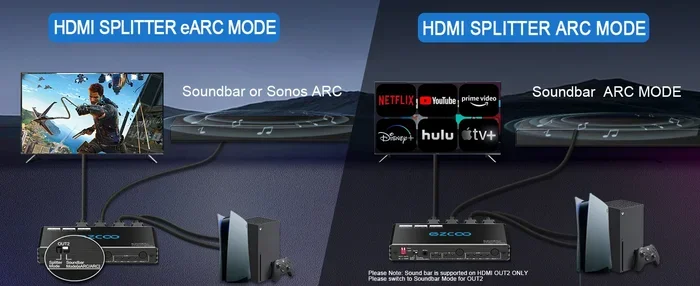
An HDMI splitter takes a single HDMI input and sends the same signal to multiple outputs. Think of it like a water pipe splitter. The water flows one way, but it reaches two destinations. In the display world, this means both screens show the exact same image at the same time.
How Screen Mirroring Works
When you use a video splitter, you get screen mirroring. Both monitors display identical content. This is useful in certain situations. For example, you might want to show the same presentation on a projector and a laptop screen at the same time. Or you might want a second screen in the kitchen while cooking and following a recipe on your TV.
But here is the thing. Most people who ask about HDMI splitters for dual monitors actually want to extend their desktop. They want one screen for email and another for their work document. A splitter cannot do that. It only mirrors.
Key Differences Between Splitting and Extending
- Splitting (mirroring): Both screens show the same content.
- Extending: Each screen shows different content, creating one large workspace.
- Splitters do not change resolution per screen. Both displays run at the same resolution as the source.
- Extending allows different resolutions. You can set each monitor to its native resolution independently.
Understanding this difference is the first step to choosing the right display setup. If you want mirroring, a splitter works. If you want an extended desktop, keep reading.
When You Actually Need An HDMI Splitter
Not everyone needs an extended desktop. Some people genuinely want mirrored displays. Here are the scenarios where an HDMI splitter makes real sense.
Presentations And Public Displays
If you give presentations at work or school, a splitter is handy. You connect your laptop to the splitter. One output goes to your laptop screen. The other goes to a projector or large TV. Your audience sees the same thing you see. No cables flying around. No awkward screen-sharing setups.
Digital Signage And Security Setups
Many businesses use HDMI splitters for digital signage. A restaurant might display the menu on two TVs at the entrance. A security desk might mirror camera feeds on two monitors. In these cases, screen mirroring is exactly what you need.
Gaming On Two Screens
Some gamers use splitters to show the same game on two TVs in different rooms. This is not super common, but it happens. Just know that both screens will show the same view. You cannot play on one screen and watch something else on the other.
One thing to watch out for: cheap splitters can degrade your signal distribution. Always buy a powered splitter with good reviews. A bad splitter can cause flickering, lag, or no signal at all.
Why Most People Do Not Need A Splitter
Here is the truth. Most computers today come with multiple video outputs. You probably do not need a splitter at all. Let us break down why.
Your Graphics Card Likely Has Multiple Outputs
Almost every modern graphics card comes with at least two video outputs. You might see two HDMI ports. Or one HDMI and one DisplayPort. Some cards even have three or four outputs. This means you can plug in two monitors directly. No splitter required.
Before buying any adapter or splitter, check the back of your PC. Look at your graphics card. Count the video outputs. If you have two or more, you are already set for a true dual-monitor setup.
The Problem With Splitters For Dual Monitors
Here is where things get tricky. An HDMI splitter creates a mirror. It does not create two independent displays. Your operating system sees the splitter as one single display. You cannot drag a window from one screen to the other. You cannot have different wallpapers. You cannot extend your taskbar across two screens.
For a home office setup, this is a dealbreaker. For productivity work, you need extended mode. For gaming, you usually want one primary display anyway. So a splitter often adds cost without adding value.
What You Really Need Instead
Instead of a splitter, consider these alternatives:
- Direct dual connections: Plug each monitor into a separate output on your graphics card.
- An HDMI adapter: If your card has only one HDMI output but also a DisplayPort, use an adapter to connect the second monitor.
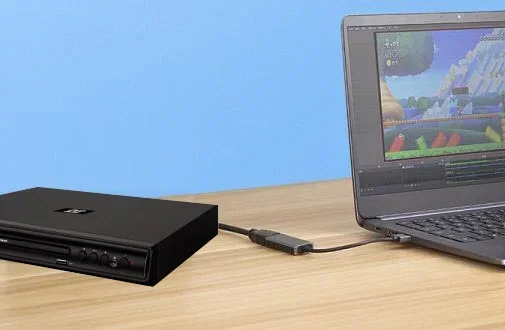
- A USB-to-HDMI adapter: These add an extra video output through a USB port. They are affordable and work well for most tasks.
Each of these options gives you true extended desktop mode. That is what most dual-monitor users actually want.
HDMI Splitter vs HDMI Adapter: What Is The Difference
These two devices look similar but do very different things. Understanding the difference saves you from buying the wrong product.
HDMI Splitter
An HDMI splitter takes one input and copies it to multiple outputs. Every connected screen shows the same image. It is like looking in a mirror. The content does not change between screens. All screens show the same resolution, the same window layout, and the same everything.
HDMI Adapter
An HDMI adapter converts one type of video signal to another. For example, it might convert DisplayPort to HDMI. This lets you connect a second monitor that uses a different port type. The key difference is that an adapter gives you a separate, independent display output. Your operating system treats each monitor as its own screen.
Quick Comparison Table
| Feature | HDMI Splitter | HDMI Adapter |
|---|---|---|
| Screen Mode | Mirroring (same content) | Extended (different content) |
| Number of Displays | Duplicates one screen | Adds a new independent screen |
| Resolution Control | Same on all screens | Custom per monitor |
| Best For | Presentations, signage | Productivity, gaming, office work |
| Cost | Low to moderate | Low to moderate |
| Setup Complexity | Very simple | Simple |
As you can see, the right choice depends entirely on what you want to accomplish. If you want two screens showing different things, skip the splitter and get an adapter instead.
How To Set Up Dual Monitors Without A Splitter
Setting up dual monitors without a splitter is straightforward. Here is a step-by-step guide that works for most desktop computers.
Step 1: Check Your Graphics Card Outputs
Look at the back of your PC or your graphics card. Identify the available video ports. Common options include HDMI, DisplayPort, DVI, and VGA. You need at least two ports for a direct dual-monitor setup.
Step 2: Connect Your Monitors
Plug each monitor into a separate port. Use the best cable your ports support. For example, if one monitor has HDMI and your card has HDMI and DisplayPort, use an HDMI cable for that monitor and a DisplayPort cable for the other.
Step 3: Configure Display Settings
On Windows, right-click your desktop and select Display Settings. On macOS, go to System Settings and click Displays. You should see two monitor icons. Arrange them to match your physical setup. Then choose “Extend these displays” instead of “Duplicate.”
Step 4: Adjust Resolution And Orientation
Set each monitor to its native resolution. If one monitor is landscape and the other is portrait, you can rotate the display in settings. This is great for coding, writing, or reading documents.
Quick tip: Use short, high-quality cables. Long or cheap cables can cause signal loss, especially at higher resolutions. If you notice flickering, try a shorter cable or a better brand.
Common Mistakes People Make With HDMI Splitters
Buying an HDMI splitter seems simple. But people make mistakes that lead to frustration. Here are the most common ones.
Buying A Passive Splitter For 4K Content
Not all splitters handle high resolutions well. A passive splitter might work fine for 1080p but fail at 4K. If you want high-resolution support, look for an active splitter with its own power source. These handle bandwidth better and deliver a cleaner signal.
Assuming A Splitter Will Extend Your Desktop
This is the biggest mistake. People buy a splitter expecting two independent screens. They get one mirrored image instead. Always check what the device actually does before you buy. Read the product description carefully. Look for words like “mirror” or “duplicate” in the specs.
Ignoring Cable Quality
Even the best HDMI splitter will underperform with cheap cables. Low-quality cables can introduce interference, reduce bandwidth, and cause audio-video sync issues. Invest in good cables. They make a real difference in your display setup.
Overlooking Wireless Display Options
Some people do not even need a physical splitter or adapter anymore. Wireless display technologies like Miracast or Chromecast let you send your screen to a TV or second monitor without cables. However, wireless options can introduce latency. For gaming or video editing, a wired connection is always better. For casual browsing or presentations, wireless works fine.
Interestingly, wireless connectivity has evolved a lot. Just as baby monitors now connect to Wi-Fi for wireless streaming, display technologies are also moving toward wireless solutions. But for reliable, lag-free dual monitors, wired connections still win.
Expert Insights On Choosing The Right Display Solution
We talked to several tech experts about the best ways to set up dual monitors. Here is what they had to say.
Start With Your Hardware
The first thing to check is your graphics card and motherboard. Many modern systems support dual outputs out of the box. You do not need any extra hardware if your PC has two video ports. Start there before spending money on splitters or adapters.
Consider A KVM Switch For Multi-PC Setups
If you use two computers but want to share one set of monitors, keyboard, and mouse, a KVM switch is the answer. It lets you switch between computers using one display setup. Some KVM switches support dual monitors too. This is different from a splitter because it gives you full control over which computer feeds which screen.
Wireless technology continues to evolve. While some people explore options like 5G towers being used for Wi-Fi connectivity, the reality is that wired HDMI connections remain the most reliable for dual-monitor setups. Latency, bandwidth, and stability all favor cables over wireless for demanding tasks.
Match Your Splitter Or Adapter To Your Needs
Think about what you actually do. If you game, prioritize high refresh rates and low latency. If you work from home, prioritize screen space and resolution flexibility. If you present at meetings, a simple splitter might be all you need. Match the tool to the task.
Here is a quick tip from the pros: always buy from reputable brands. Cheap no-name splitters and adapters often fail within months. Spending a little more upfront saves you from buying a replacement later.
Key Takeaways
- An HDMI splitter mirrors your screen: It copies the same image to two displays. It does not extend your desktop.
- Check your graphics card first: Most modern cards have two or more outputs. You may not need any extra hardware.
- An HDMI adapter is better for extending: It gives you independent displays with different content on each screen.
- Resolution and cable quality matter: Use active splitters for 4K and high-quality cables for the best experience.
- Wireless options exist but have limits: They work for casual use but lag behind wired connections for gaming and professional work.
- A KVM switch is ideal for multi-PC setups: It lets you share monitors and peripherals across multiple computers.
- Know what you need before you buy: Mirror mode, extended mode, or multi-PC switching? Each needs different hardware.
Final Thoughts
So, do you really need an HDMI splitter for dual monitors? In most cases, the answer is no. An HDMI splitter mirrors your screen. It does not give you the extended desktop that most dual-monitor users want. Your best bet is to use the native outputs on your graphics card or pick up an HDMI adapter if you need to convert a port type.
There are valid uses for splitters, though. If you need mirrored displays for presentations, digital signage, or shared viewing, a splitter does the job. The key is understanding what you want before you spend a dime.
Take a moment to look at your setup. Count your ports. Think about how you use your screens. Then choose the solution that fits. Whether it is a splitter, an adapter, or nothing at all, the right choice is the one that matches your actual needs. You will save money, avoid frustration, and enjoy a better display setup from day one.
Happy computing, and enjoy that extra screen space!
Frequently Asked Questions
Can I Use An HDMI Splitter To Extend My Desktop Across Two Monitors?
No, an HDMI splitter only mirrors content. It duplicates the same image on both screens. To extend your desktop, you need either dual outputs on your graphics card, an HDMI adapter, or a USB-to-HDMI adapter. These give you independent displays with different content on each screen.
Do I Need A Powered HDMI Splitter Or Will A Passive One Work?
For 1080p content, a passive splitter might work fine. But for 4K or high-refresh-rate displays, you need an active splitter with its own power source. Active splitters handle bandwidth better and deliver a more stable signal. Always check the resolution support before buying.
Will An HDMI Splitter Reduce My Display Quality?
A good quality splitter should not reduce quality significantly. However, cheap or passive splitters can cause signal degradation, especially at higher resolutions. Using short, high-quality cables and a powered splitter helps maintain crisp image quality on all connected displays.
Can I Connect More Than Two Monitors With An HDMI Splitter?
Yes, some splitters offer three or more outputs. But remember, all screens will mirror the same content. If you want multiple independent displays, you need a graphics card with multiple outputs or a dedicated multi-display adapter. Splitters are not designed for independent extended mode.
Is A KVM Switch Better Than An HDMI Splitter For Dual Monitors?
It depends on your goal. A KVM switch lets you share peripherals and switch between computers. An HDMI splitter duplicates one signal across multiple screens. For multi-PC setups, a KVM switch is usually the better choice. For simple mirroring, a splitter works fine.
Can I Use A USB-C To HDMI Adapter Instead Of A Splitter For Dual Monitors?
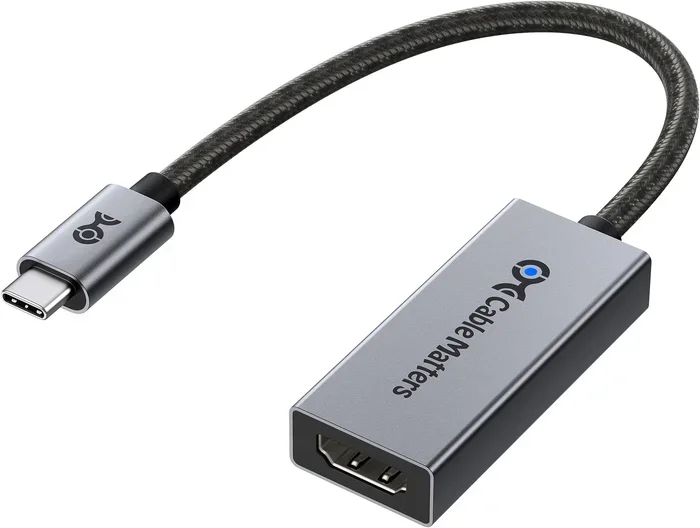
Yes, a USB-C to HDMI adapter is often a better alternative. It gives you a new, independent video output. You can extend your desktop across both monitors. This is ideal for productivity and gaming setups where each screen shows different content. Just make sure your laptop or PC supports video output through USB-C.
Frequently Asked Questions
What is Do I Need A Hdmi Splitter For Dual Monitors?
Do I Need A Hdmi Splitter For Dual Monitors is an important topic with many practical applications.