Can I Connect A DVD Player To My Laptop With HDMI Cable
Yes, you can connect a DVD player to your laptop with an HDMI cable if your laptop has an HDMI input port. This setup lets you use your laptop screen as an external display for watching movies and shows. We will walk you through the entire process, from checking your ports to solving common problems. You will also learn about adapters, audio settings, and alternative connection methods.
So, you want to watch your favorite DVDs on a bigger screen. Maybe your laptop monitor is too small, or maybe you just want a better viewing setup. The idea of using a DVD player with your laptop sounds simple enough. But can you actually connect a DVD player to your laptop with an HDMI cable? The answer is yes, but with some important caveats. This guide will show you exactly how to make it work.
Many people assume that plugging in an HDMI cable is all it takes. In reality, the process depends on your laptop’s ports and the type of DVD player you own. You might need an adapter, a capture card, or even a different cable altogether. Do not worry, though. By the end of this article, you will know exactly what you need and how to set it up. We will cover every step in plain, simple language.
Key Takeaways
- HDMI input on laptops is rare: Most laptops only have HDMI output, so you may need a special capture card or USB HDMI adapter.
- Check your laptop model first: Some business and gaming laptops do support HDMI input, which makes the connection straightforward.
- You will likely need extra hardware: A USB HDMI capture device or an HDMI-to-USB adapter is often required for this setup.
- Audio routing matters: You may need to adjust your sound settings to get audio from the DVD player through your laptop speakers.
- Alternative options exist: If HDMI input is not available, you can use VGA, USB, or wireless streaming solutions.
- Setup is simple once you have the right gear: With the correct cable and adapter, connecting a DVD player to a laptop takes just minutes.
📑 Table of Contents
- Can I Connect A DVD Player To My Laptop With HDMI Cable?
- What You Need Before You Start
- Step-by-Step Guide to Connecting Your DVD Player
- Common Problems and How to Fix Them
- Alternative Ways to Connect a DVD Player to a Laptop
- Comparing Connection Methods
- Tips for the Best Viewing Experience
- Expert Insights on DVD-to-Laptop HDMI Connections
- Key Takeaways
- Conclusion
Can I Connect A DVD Player To My Laptop With HDMI Cable?
The short answer is yes, but the long answer depends on your laptop. Most laptops come with HDMI output ports only. This means they can send video to a TV or monitor. They cannot receive video from an external device like a DVD player. To connect a DVD player to your laptop using HDMI, you need an HDMI input port on your laptop.
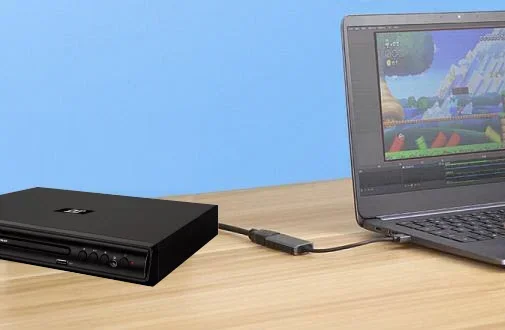
Some laptops do have HDMI input ports. These are usually found on certain gaming models and business-grade machines. If your laptop has an HDMI input, the process is simple. You just plug one end of the HDMI cable into the DVD player and the other end into the laptop’s HDMI input. Your laptop screen will then display the DVD player’s output.
If your laptop does not have an HDMI input, you are not stuck. There are several workarounds. You can use a USB HDMI capture device. You can also try a VGA connection or even a wireless solution. Let us explore all of these options in detail below.
Understanding HDMI Input vs HDMI Output
This is a key distinction that many people miss. HDMI output sends video and audio from your laptop to another screen. HDMI input receives video and audio from an external device into your laptop. Most laptops only support HDMI output. This is why connecting a DVD player to a laptop with HDMI is not always a plug-and-play experience.
Think of it like this. Your laptop is a TV. The DVD player is a cable box. You would not plug a cable box into the output port of a TV and expect it to work. You need the input port. The same logic applies here. Check your laptop’s ports before you buy any cables or adapters.
What You Need Before You Start
Before you try to connect a DVD player to your laptop, gather the right equipment. Having everything ready saves time and frustration. Here is what you will likely need:
- DVD player: A standard standalone DVD player with an HDMI output port.
- HDMI cable: A standard HDMI cable that fits both your DVD player and your laptop or adapter.
- USB HDMI capture device: This is essential if your laptop only has HDMI output. Popular options include Elgato HD60 and AVerMedia capture cards.
- Laptop with sufficient USB ports: You need a free USB port for the capture device.
- Updated drivers: Make sure your laptop has the latest drivers for the capture device.
- Audio cable (optional): Sometimes the HDMI cable handles audio. Other times, you may need a separate 3.5mm audio cable.
Checking Your Laptop’s Ports
Look at the sides of your laptop. Do you see an HDMI port labeled “Input” or “HDMI In”? If yes, you are in luck. If you only see an HDMI port labeled “Output” or just “HDMI,” then you need a capture device. Some laptops also have USB-C or Thunderbolt ports. These can sometimes be used with a USB-C to HDMI capture adapter.
Take a photo of your laptop’s ports if you are unsure. This makes it easier to research your specific model online. You can also check your laptop’s manual or the manufacturer’s website for port details. Knowing exactly what your laptop supports prevents wasted time and money.
Step-by-Step Guide to Connecting Your DVD Player
Now that you have your equipment ready, let us walk through the setup process. Follow these steps carefully for the best results.
Step 1: Power Off All Devices
Turn off your DVD player and your laptop before making any connections. This protects both devices from potential electrical issues. It also helps the laptop recognize the new device properly when you turn it back on.
Step 2: Connect the HDMI Cable to the DVD Player
Plug one end of the HDMI cable into the HDMI output port on your DVD player. Make sure it clicks into place. The port is usually labeled “HDMI Out” or simply “HDMI.”
Step 3: Connect the Other End
If your laptop has an HDMI input port, plug the other end directly into it. If not, plug the HDMI cable into your USB HDMI capture device first. Then connect the capture device to your laptop’s USB port.
Step 4: Power On the Devices
Turn on the DVD player first. Then turn on your laptop. Wait a few moments for the laptop to detect the external video source.
Step 5: Adjust Display Settings
On Windows, go to Settings > System > Display. Look for the option to detect an external display. On Mac, go to System Preferences > Displays. You may need to select the HDMI input source manually.
Step 6: Configure Audio Settings
Right-click the speaker icon in your taskbar. Select “Open Sound Settings.” Make sure the output device is set to your laptop speakers or headphones. If the audio is not coming through, try switching the audio output manually.
Common Problems and How to Fix Them
Even with the right setup, things can go wrong. Here are the most common issues and their solutions.
No Signal on the Laptop Screen
If your laptop screen stays blank, the first thing to check is the HDMI cable connection. Make sure both ends are firmly plugged in. Try a different HDMI cable if the current one seems damaged. Also, check that your DVD player is set to the correct HDMI output channel.
Another common cause is the capture device not being recognized. Unplug the USB capture device and plug it back in. Make sure the capture device drivers are up to date. You can usually download the latest drivers from the manufacturer’s website.
No Sound from the Laptop
HDMI cables carry both video and audio. But sometimes the audio does not route correctly to your laptop speakers. Check your sound settings and make sure the HDMI or capture device is not set as the default audio output. You want the audio to play through your laptop, not the DVD player’s built-in speakers.
If you are using a separate audio cable, make sure it is plugged into the correct jack on your laptop. The 3.5mm audio-in port is usually marked with a headphone icon and a small arrow pointing inward.
Poor Video Quality or Flickering
Low-quality HDMI cables can cause flickering or blurry images. Use a high-speed HDMI cable rated for at least HDMI 1.4 or higher. Also, check your display settings. Make sure the resolution matches what your DVD player supports. Most DVDs play at 480p or 720p, so setting your laptop to a matching resolution can help.
Laptop Does Not Recognize the Capture Device
This is a frequent issue with USB capture devices. Try a different USB port, preferably a USB 3.0 port for better bandwidth. Restart both the capture device and the laptop. If the problem persists, uninstall and reinstall the capture device drivers. Some capture devices also require specific software to function properly.
Alternative Ways to Connect a DVD Player to a Laptop
If the HDMI route does not work for you, do not worry. There are other ways to connect a DVD player to your laptop. Let us look at the most popular alternatives.
Using a VGA Cable
VGA is an older analog connection, but it still works. Many DVD players have a VGA output. You can use a VGA cable to connect the DVD player to your laptop’s VGA port. The downside is that VGA only carries video, not audio. You will need a separate audio cable for sound.
VGA connections tend to produce lower image quality than HDMI. The picture may look slightly blurry or washed out. But for watching DVDs, the difference is usually not very noticeable. VGA is a solid backup option if HDMI is not available.
Using a USB DVD Drive
If you have a USB external DVD drive, you can skip the standalone DVD player entirely. Just insert the DVD into the USB drive and connect it to your laptop. Your laptop should recognize it as a disc drive. You can then play the DVD using your laptop’s media player software.
This method is often the simplest and most convenient. You do not need any extra cables or adapters. The only requirement is a USB DVD drive, which is inexpensive and widely available. This approach also gives you more control over playback settings.
Wireless Streaming Options
Some modern DVD players come with built-in Wi-Fi and streaming capabilities. You can stream DVD content wirelessly to your laptop using apps or software. This eliminates the need for any cables at all.
Another wireless option is to use a screen mirroring app. Apps like AirScreen or Miracast allow you to mirror your DVD player’s screen to your laptop over Wi-Fi. The quality depends on your Wi-Fi signal strength. For the best experience, a wired connection is still preferred.
Using an HDMI-to-USB Adapter
An HDMI-to-USB adapter can convert the HDMI signal from your DVD player into a USB signal that your laptop can read. These adapters are available online and in electronics stores. They work similarly to capture cards but are usually simpler and more affordable.
Keep in mind that not all HDMI-to-USB adapters work the same way. Some are designed for output only. Make sure you buy an adapter that supports HDMI input for your specific use case. Reading product reviews before purchasing can save you from buying the wrong one.
Comparing Connection Methods
Not sure which method is best for you? Here is a quick comparison of the most popular ways to connect a DVD player to a laptop.
- HDMI with capture device: Best video and audio quality. Requires extra hardware. Works with most laptops.
- VGA cable: Decent video quality. No audio included. Requires a separate audio cable.
- USB DVD drive: Simplest setup. No extra cables needed. Requires a compatible USB DVD drive.
- Wireless streaming: No cables at all. Quality depends on Wi-Fi. Not all DVD players support this.
- HDMI-to-USB adapter: Affordable option. May have compatibility issues. Check reviews before buying.
Tips for the Best Viewing Experience
Once you have your DVD player connected to your laptop, you want the best possible picture and sound. Here are some tips to help you get the most out of your setup.
- Use a high-quality HDMI cable: A good cable makes a noticeable difference in picture clarity and signal stability.
- Close unnecessary programs: Running too many apps on your laptop can slow down video playback. Close background programs for smoother performance.
- Adjust your laptop’s display settings: Set the resolution to match the DVD’s native resolution for the sharpest image.
- Use external speakers: If you want better sound, connect external speakers to your laptop. This greatly improves the audio experience.
- Keep your laptop plugged in: Watching DVDs can drain your battery. Keep your laptop connected to power for uninterrupted viewing.
- Clean your DVD lens: A dirty DVD lens can cause skipping or freezing. Clean it regularly for smooth playback.
- Update your media player software: Use the latest version of VLC Media Player or Windows Media Player for the best compatibility with DVDs.
Expert Insights on DVD-to-Laptop HDMI Connections
Technology experts often recommend using a USB HDMI capture device as the most reliable method. These devices handle the signal conversion efficiently and support a wide range of resolutions. They also tend to have low latency, which means the video and audio stay in sync.
Experts also suggest checking your laptop’s specifications before purchasing any equipment. Some newer laptops are moving away from traditional HDMI ports altogether and using USB-C or Thunderbolt ports instead. In these cases, you will need a USB-C to HDMI capture adapter. Always verify compatibility before buying.
Another pro tip is to test your setup with a short DVD first. This lets you confirm everything works before you settle in for a long movie. It also gives you time to adjust the display and audio settings to your preferences. A little preparation goes a long way toward a hassle-free experience.
Key Takeaways
- HDMI input on laptops is rare: Most laptops only have HDMI output, so you may need a special capture card or USB HDMI adapter.
- Check your laptop model first: Some business and gaming laptops do support HDMI input, which makes the connection straightforward.
- You will likely need extra hardware: A USB HDMI capture device or an HDMI-to-USB adapter is often required for this setup.
- Audio routing matters: You may need to adjust your sound settings to get audio from the DVD player through your laptop speakers.
- Alternative options exist: If HDMI input is not available, you can use VGA, USB, or wireless streaming solutions.
- Setup is simple once you have the right gear: With the correct cable and adapter, connecting a DVD player to a laptop takes just minutes.
Conclusion
So, can you connect a DVD player to your laptop with an HDMI cable? Absolutely. The key is understanding your laptop’s capabilities and having the right equipment. If your laptop has an HDMI input port, you are good to go with just an HDMI cable. If not, a USB HDMI capture device will do the trick. The setup process is straightforward and does not require advanced technical skills.
Remember to check your ports first, gather your equipment, and follow the step-by-step guide above. If you run into any issues, the troubleshooting tips in this article should help you resolve them quickly. Whether you choose HDMI, VGA, USB, or a wireless option, you can enjoy your DVD collection on your laptop screen anytime you want.
Do not let a simple connection problem stop you from watching your favorite movies. With the right approach, your laptop can become a versatile DVD viewing station. Grab your DVD player, find the right cable or adapter, and get ready to enjoy your films on a bigger, better screen. Happy viewing.
Frequently Asked Questions
Can all laptops accept HDMI input from a DVD player?
No, most laptops only have HDMI output ports. You need a laptop with a dedicated HDMI input port, or you will need a USB HDMI capture device to receive the signal from the DVD player.
What is a USB HDMI capture device and do I need one?
A USB HDMI capture device is a small adapter that converts an HDMI input signal into a USB signal your laptop can read. You will need one if your laptop does not have an HDMI input port. Popular brands include Elgato and AVerMedia.
Can I use a VGA cable instead of HDMI to connect my DVD player to my laptop?
Yes, VGA cables work as an alternative. However, VGA only carries video signals, so you will need a separate audio cable to get sound from the DVD player through your laptop speakers.
Why is there no sound when I connect my DVD player to my laptop via HDMI?
This usually happens when the audio output is set to the wrong device. Go to your laptop’s sound settings and make sure your laptop speakers or headphones are selected as the default audio output device.
Is it better to use a USB DVD drive instead of a standalone DVD player?
For most people, yes. A USB DVD drive is simpler to set up and does not require extra cables or adapters. You just plug it in, insert the disc, and play. It is also more portable and convenient.
Will connecting a DVD player to my laptop affect its performance?
Not significantly. Watching a DVD is a lightweight task for most modern laptops. However, if your laptop is older or has limited processing power, you might notice slight lag. Closing other programs during playback helps maintain smooth performance.