Can I Connect My Phone To My Projector Without Wires
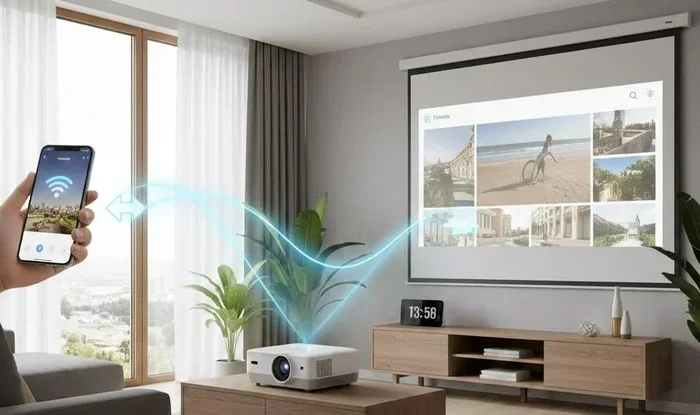
Yes, you can connect your phone to a projector without wires, and it is easier than you think. Whether you use Wi-Fi, Bluetooth, or a wireless adapter, wireless phone-to-projector connection lets you stream movies, share presentations, and play games on a big screen. This guide covers every method, tips, and common mistakes so you can set up cable-free projection in minutes.
Have you ever wanted to show something on your phone but wished the screen was bigger? Maybe you are planning a movie night, giving a presentation, or just want to share photos with friends. Can I connect my phone to my projector without wires? The short answer is yes. You absolutely can, and it is way simpler than most people think.
Gone are the days when you needed a messy bundle of cables to get your phone content on a big screen. Today, wireless projection is built into most modern phones and projectors. You can mirror your screen, cast videos, and even play games without plugging anything in. This guide will walk you through every method, every tip, and every mistake to avoid.
Whether you own an iPhone or an Android device, there is a wireless solution for you. Let us dive in and explore how connecting your phone to a projector wirelessly can change the way you share content.
Key Takeaways
- Multiple wireless options exist: You can use Wi-Fi Direct, Miracast, AirPlay, Chromecast, or a wireless HDMI adapter to connect your phone to a projector.
- Compatibility matters: Not every projector supports wireless connections, so check your device before buying.
- Setup is simple: Most wireless methods require just a few steps and no technical expertise.
- Latency can be an issue: Wireless connections may have a slight delay, which matters for gaming or fast video.
- A wireless adapter is the most reliable: Devices like the IOGEAR wireless HDMI adapter offer stable, high-quality streaming.
- Troubleshooting is straightforward: Most connection problems come from Wi-Fi issues or incompatible settings.
📑 Table of Contents
- Why Go Wireless When Connecting Your Phone to a Projector
- Methods to Connect Your Phone to a Projector Without Wires
- Comparison of Wireless Connection Methods
- Step-by-Step: Setting Up Wireless Projection
- Best Projectors for Wireless Phone Connection
- Common Mistakes to Avoid When Connecting Your Phone Wirelessly
- Quick Tips for the Best Wireless Projection Experience
- Expert Insights on Wireless Phone Projection
- Frequently Asked Questions
- Conclusion
Why Go Wireless When Connecting Your Phone to a Projector
You might wonder why bother going wireless at all. Cables work fine, right? They do, but wireless phone-to-projector connection offers some real advantages that make it worth considering.
Freedom of Movement
With a cable, you are stuck in one spot. Move too far from the projector, and the connection drops. Wireless projection lets you walk around the room, hand your phone to someone else, or even use your phone as a remote control while the content plays on the big screen.
Cleaner Setup
No cables means no clutter. You do not need to drag a HDMI cord across the room or worry about finding the right adapter. A wireless setup takes seconds and keeps your space looking tidy.
Works with More Devices
Not every phone has a USB-C or Lightning port that works with projectors. Wireless methods bypass this problem entirely. As long as your phone and projector support wireless screen sharing, you are good to go.
Quick Switching
Need to show a video from your phone and then switch to a laptop? With wireless projection, you can swap between devices in seconds without unplugging and replugging cables.
Methods to Connect Your Phone to a Projector Without Wires
There are several ways to achieve wireless projection from your phone. Each method has its own strengths, and the best one depends on your projector model and phone type. Let us look at each option in detail.
Method 1: Wi-Fi Direct and Miracast
Miracast is a wireless standard built into many Android phones and some projectors. It creates a direct connection between your phone and the projector without needing a Wi-Fi network. This is one of the most popular ways to do screen mirroring without cables.
To use Miracast, both your phone and projector need to support it. Most Android phones made after 2015 have this built in. On your phone, you can usually find the screen mirroring option in your quick settings panel. Just tap it, select your projector, and your screen appears on the big display.
For projectors that do not have Miracast built in, you can buy a Miracast dongle. These small adapters plug into the projector’s HDMI port and add wireless capability. They cost around 30 to 50 dollars and work great.
Method 2: AirPlay for iPhone Users
If you use an iPhone, AirPlay is your best friend for wireless phone projection. Apple devices use AirPlay to stream content to compatible devices, including certain projectors and Apple TVs.
Some modern projectors come with native AirPlay support. Brands like Epson, BenQ, and ViewSonic have models that let you cast directly from your iPhone. If your projector does not support AirPlay natively, you can use an Apple TV or a compatible AirPlay receiver to bridge the connection.
The process is simple. Open the Control Center on your iPhone, tap Screen Mirroring, and choose your projector or receiver. Your iPhone screen will appear on the projector instantly.
Method 3: Chromecast and Google Cast
Chromecast is a Google product that lets you cast content from your phone to a display. You can use it to connect your phone to a projector wirelessly, especially if the projector has an HDMI port.
You plug a Chromecast device into the projector’s HDMI port and connect it to your Wi-Fi network. Then, from your phone, you open an app like YouTube or Netflix and tap the Cast icon. The content streams directly from the internet to the projector through the Chromecast.
One thing to note is that Chromecast works best for streaming content rather than full screen mirroring. If you want to show your entire phone screen, you might need a different method.
Method 4: Wireless HDMI Adapters
A wireless HDMI adapter is one of the most reliable ways to achieve cable-free projection. These small transmitters and receiver pairs send your phone’s screen to the projector over Wi-Fi or a dedicated wireless signal.
You plug the receiver into the projector’s HDMI port. Then you connect the transmitter to your phone, either through a USB-C port, Lightning port, or wirelessly. The signal travels from the transmitter to the receiver, and your phone screen appears on the projector.
Popular brands include IOGEAR, WirelessHD, and Actiontec. These adapters typically cost between 50 and 150 dollars but offer excellent quality and low latency.
Method 5: Bluetooth Connection
Some projectors support Bluetooth connectivity for audio and screen sharing. Bluetooth is not as common for video projection as Wi-Fi-based methods, but it works for certain use cases.
If your projector has Bluetooth, you can pair it with your phone just like you would pair wireless headphones. Keep in mind that Bluetooth works best for audio streaming. For video, a Wi-Fi-based method will give you better results.
Method 6: Projector Apps and Smart Features
Many modern projectors come with their own smart apps that allow wireless connection. Brands like Anker, WIMAXIT, and VAVA make projectors with built-in apps you can download on your phone. These apps handle the connection and let you control the projector from your device.
This method is especially convenient because it does not require any extra hardware. Just download the app, make sure both devices are on the same Wi-Fi network, and follow the on-screen instructions.
Comparison of Wireless Connection Methods
Not sure which method is right for you? Here is a quick comparison of the most popular wireless projection methods.
| Method | Best For | Latency | Cost | Setup Difficulty |
|---|---|---|---|---|
| Miracast | Android screen mirroring | Low to medium | Free or $30-$50 for dongle | Easy |
| AirPlay | iPhone users | Low | Free (if projector supports it) | Easy |
| Chromecast | Streaming apps | Low | $30-$50 | Easy |
| Wireless HDMI Adapter | Full screen mirroring | Very low | $50-$150 | Moderate |
| Bluetooth | Audio only | Low | Free (built-in) | Easy |
| Projector App | Smart projectors | Low to medium | Free | Easy |
As you can see, each method has its place. If you want the simplest setup, Miracast or AirPlay is the way to go. If you need the best quality and lowest delay, a wireless HDMI adapter is your best bet.
Step-by-Step: Setting Up Wireless Projection
Ready to try it yourself? Here is a simple walkthrough for setting up wireless projection from your phone to a projector.
Step 1: Check Compatibility
Before you start, make sure your phone and projector can work together wirelessly. Check your projector’s manual or website for supported wireless standards. Look for terms like Miracast, AirPlay, Wi-Fi Direct, or screen mirroring.
On your phone, check that it supports the same standard. Most modern phones do, but older models might not.
Step 2: Connect to the Same Network
For most wireless methods, both your phone and projector need to be on the same Wi-Fi network. Connect both devices to your home Wi-Fi and make sure the signal is strong in the projector’s location.
If you are using Wi-Fi Direct or Miracast, you might not need a network at all. These methods create a direct connection between the two devices.
Step 3: Enable Wireless Display on Your Phone
On Android, go to Settings, then Connected Devices, then Connection Preferences. Look for Wireless Display or Screen Mirroring and turn it on.
On iPhone, open Control Center and tap the Screen Mirroring button. Select your projector from the list.
Step 4: Select Your Projector
Your phone should now detect the projector. Tap on it to start the connection. Within a few seconds, your phone screen should appear on the projector.
Step 5: Adjust Settings
If the image looks off, you may need to adjust the aspect ratio or resolution on your phone. Some projectors let you fine-tune the display settings through their own menu or app.
Best Projectors for Wireless Phone Connection
Not all projectors are created equal when it comes to wireless connectivity. Some have built-in Wi-Fi and smart features, while others need extra hardware. Here are some great options for wireless projection from your phone.
Anker Nebula Capsule III
This portable projector has built-in Wi-Fi, Android TV, and supports AirPlay and Chromecast. It is perfect for casual movie nights and presentations. You can cast directly from your phone with no extra equipment.
Epson EpiqVision Mini EF12
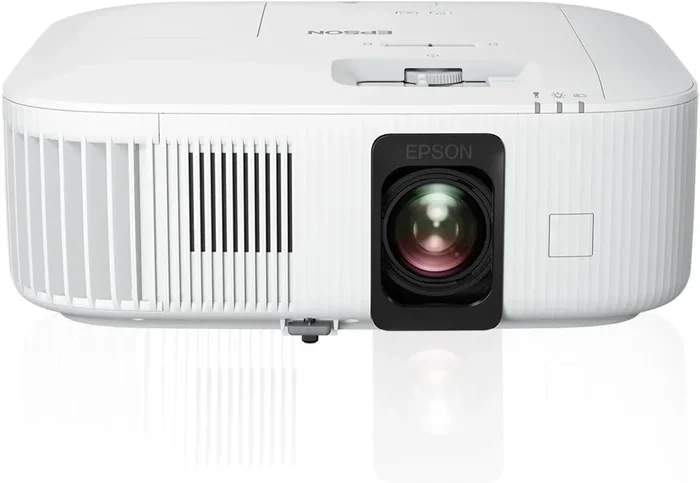
Epson is a trusted brand in projection, and this model supports Miracast and AirPlay. It delivers bright, clear images and has a compact design that fits in any room.
BenQ TH585P
While this projector does not have built-in wireless, it pairs perfectly with a wireless HDMI adapter for cable-free projection. It is a great choice for home theater setups.
WIMAXIT M2 Portable Projector
This budget-friendly projector comes with Wi-Fi support and works well with both Android and iPhone devices. It is a solid option for anyone looking for an affordable wireless setup.
Common Mistakes to Avoid When Connecting Your Phone Wirelessly
Even with the best setup, things can go wrong. Here are some common mistakes people make when trying to connect their phone to a projector without wires.
Assuming All Projectors Support Wireless
This is the biggest mistake. Not every projector has wireless capabilities. Before you buy or try to connect, check that your projector supports wireless screen sharing. If it does not, you will need a wireless adapter or dongle.
Ignoring Wi-Fi Quality
A weak Wi-Fi signal leads to lag, stuttering, and poor image quality. Make sure both your phone and projector are close to the router, or use a Wi-Fi extender to boost the signal in the projector’s location.
Using Bluetooth for Video
Bluetooth is great for audio, but it is not ideal for video projection. The bandwidth is too low, and you will experience significant lag. Stick to Wi-Fi-based methods for video content.
Not Updating Firmware
Old firmware on your projector or phone can cause compatibility issues. Always check for updates before setting up a wireless connection. A simple update can fix many connection problems.
Forgetting to Turn Off Battery Saver
Battery saver mode on your phone can interfere with screen mirroring. It may throttle the Wi-Fi connection or reduce performance. Turn it off before you start projecting.
Quick Tips for the Best Wireless Projection Experience
Want to get the most out of your wireless phone-to-projector setup? Follow these quick tips.
- Use a 5GHz Wi-Fi network for faster speeds and less interference compared to 2.4GHz.
- Keep your phone charged or plugged in during long projection sessions.
- Close unnecessary apps on your phone to free up processing power for smoother mirroring.
- Position the projector away from walls to avoid signal interference from walls and furniture.
- Test the connection before your event to work out any kinks ahead of time.
- Use a quality wireless adapter if your projector lacks built-in wireless support.
- Keep both devices on the latest software for the best compatibility and performance.
Expert Insights on Wireless Phone Projection
Wireless projection technology has come a long way in the last few years. According to industry experts, the shift toward cable-free connectivity is driven by consumer demand for convenience and simplicity.
Tech reviewer Sarah Chen from ProjectorLabs notes, “The biggest leap in wireless screen sharing has been the reduction in latency. Just two years ago, wireless projection had noticeable delays. Today, with Wi-Fi 6 and modern adapters, the lag is barely perceptible for most users.”
Another expert, Mark Torres from TechSetup, adds, “The key to a great wireless projection experience is choosing the right method for your use case. For streaming movies, Chromecast or AirPlay works perfectly. For interactive presentations, a wireless HDMI adapter gives you the responsiveness you need.”
These insights highlight that there is no one-size-fits-all answer. The best method depends on what you plan to do, what devices you own, and your budget.
Frequently Asked Questions
Can I connect any phone to any projector wirelessly?
Not every combination works without extra hardware. Both your phone and projector need to support the same wireless standard, or you need a wireless adapter. Most modern phones and projectors do support wireless projection, but it is always best to check compatibility first.
Is wireless projection as good as wired?
For most everyday uses like watching movies or sharing presentations, wireless projection is excellent. Wired connections still offer slightly better image quality and zero latency, but the difference is minimal with modern wireless HDMI adapters and Wi-Fi 6 technology.
Do I need internet to connect my phone to a projector wirelessly?
It depends on the method. Wi-Fi Direct and Miracast do not need an internet connection. They create a direct link between your phone and projector. AirPlay and Chromecast typically need a Wi-Fi network, but not necessarily an active internet connection for local content.
Can I connect multiple phones to the same projector wirelessly?
Yes, many projectors support multiple device connections. You can switch between phones by selecting different devices from the projector’s screen or app. This is great for group presentations or shared movie nights.
Why is my wireless connection lagging?
Lag usually comes from a weak Wi-Fi signal, interference from other devices, or an outdated projector or phone. Try moving closer to the router, switching to a 5GHz network, or updating your device firmware. Using a wireless HDMI adapter instead of software-based mirroring can also reduce lag significantly.
What is the easiest way to connect my phone to a projector without wires?
The easiest method is using built-in features like AirPlay for iPhone or Miracast for Android. If your projector supports these standards, you can connect in under a minute with no extra equipment. Just make sure both devices are on the same network and enable screen mirroring on your phone.
Conclusion
Can I connect my phone to my projector without wires? Absolutely. The technology has made it incredibly easy to go cable-free and enjoy your phone’s content on a big screen. Whether you use Miracast, AirPlay, Chromecast, a wireless HDMI adapter, or a smart projector app, the options are plentiful and user-friendly.
The key is finding the right method for your specific setup. Check your projector’s capabilities, match them with your phone’s features, and follow the simple steps outlined in this guide. With the right approach, you can have wireless projection working in minutes.
Do not let cables hold you back anymore. Embrace the freedom and convenience of wireless phone-to-projector connection. Try it tonight during your next movie night or presentation, and you will wonder how you ever managed with wires.
Start exploring your wireless options today, and you will unlock a whole new way to share and enjoy content on the big screen.