Do Hp Printers Need Wi Fi Here Is Everything You Need
Do Hp Printers Need Wi Fi? The answer depends on your printing needs. Many modern HP printers include WiFi capabilities, but you can also print via USB, Ethernet, or WiFi Direct without a home network. This guide covers everything from setup steps to troubleshooting tips so you can choose the best connection method for your HP printer.
Do Hp Printers Need Wi Fi? It is a question many new buyers ask before unboxing their printer. The short answer is no, not all HP printers need WiFi to function. However, WiFi opens up a world of convenience that wired connections simply cannot match. In this article, we will walk you through everything you need to know about HP printer connectivity. Whether you are setting up a new device or troubleshooting an old one, this guide has you covered.
Wireless printing has become the standard in most homes and offices. But not everyone needs it. Some users prefer the reliability of a cable connection. Others want the freedom to print from anywhere in the house. Whatever your situation, understanding your HP printer’s connectivity options helps you get the most out of your device. Let us dive into the details.
Key Takeaways
- WiFi is optional: Many HP printers work fine without WiFi using USB or Ethernet cables.
- WiFi Direct is a game-changer: You can print from your phone or laptop without a router.
- Setup is simple: Most HP printers have a touchscreen or the HP Smart app to guide you through WiFi setup.
- Troubleshooting is common: WiFi connection issues are usually fixable with a few basic steps.
- Not all HP printers are the same: Budget models may lack WiFi, while premium models offer full wireless features.
- Ethernet is a reliable backup: A wired connection provides stability for home offices and heavy printing.
📑 Table of Contents
- Do Hp Printers Need Wi Fi To Work?
- How To Connect Your HP Printer To WiFi
- What Is WiFi Direct And Why Does It Matter?
- HP Printer Connectivity Options Compared
- Common HP Printer WiFi Problems And How To Fix Them
- Can You Use An HP Printer Without WiFi At All?
- Do Hp Printers Need Wi Fi For Scanning And Copying?
- Should You Choose A WiFi HP Printer Or A Non-WiFi Model?
- Conclusion
Do Hp Printers Need Wi Fi To Work?
The short answer is no. HP printers do not need WiFi to print. You can connect most HP printers using a USB cable directly to your computer. This method works without any internet connection or WiFi router. It is simple, fast, and very reliable. Many people use USB connections for their home offices because there is no lag or signal interference.
However, WiFi adds a layer of convenience. With WiFi, you can print from your phone, tablet, or laptop without plugging in any cables. You can also print from different rooms in your house. If you have a family, WiFi printing lets everyone share one printer easily. So while WiFi is not required, it is certainly a nice feature to have.
Some older HP printer models do not have WiFi built in at all. These printers rely solely on USB or parallel connections. If you own one of these models, you can still use it effectively. You just will not have the wireless flexibility that newer models offer. Do Hp Printers Need Wi Fi is really about understanding what you need from your printing experience.
When You Do Not Need WiFi
There are several situations where WiFi is simply not necessary:
- Single user setup: If only one person uses the printer, a USB cable works perfectly.
- Temporary printing: You need to print a document right now and do not want to deal with WiFi setup.
- Older HP printer models: Some models simply do not support WiFi at all.
- Security concerns: Some users prefer a wired connection for better security and privacy.
- No home network: If you do not have a WiFi router, a USB connection is your best bet.
When WiFi Makes Sense
WiFi becomes essential when you want flexibility. Here are some scenarios where WiFi is a must-have:
- Family sharing: Multiple people need access to the same printer.
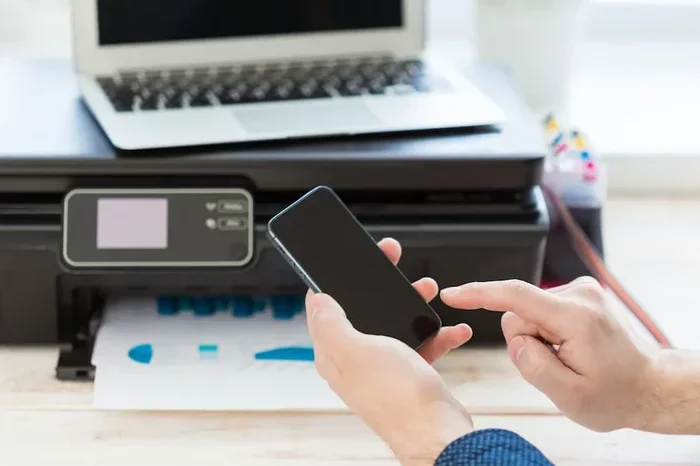
- Mobile printing: You want to print directly from your phone or tablet.
- Home office: You move around the house and need to print from different locations.
- Smart home integration: You want your printer to work with smart home devices and apps.
How To Connect Your HP Printer To WiFi
Setting up WiFi on your HP printer is straightforward. Most modern HP printers make the process easy with on-screen instructions. You can also use the HP Smart app on your phone to guide you through the steps. The entire process usually takes about five to ten minutes.
Method 1: Using the Printer Control Panel
Most HP printers with WiFi have a touchscreen or a small display panel. Here is how to set it up:
- Turn on your HP printer and make sure it is on the home screen.
- Navigate to the Setup or Settings menu.
- Select Network or Wireless Settings.
- Choose Wireless Setup Wizard.
- The printer will scan for available WiFi networks.
- Select your network and enter your WiFi password.
- Wait for the printer to connect. You will see a confirmation message.
Once connected, your printer should appear on your computer’s list of available printers. You can now print wirelessly from any device on the same network.
Method 2: Using the HP Smart App
The HP Smart app is a free app available for iOS and Android. It makes WiFi setup even easier:
- Download the HP Smart app from the App Store or Google Play.
- Open the app and tap Add Printer.
- The app will detect your HP printer automatically.
- Follow the on-screen instructions to connect to your WiFi network.
- Once connected, you can print, scan, and manage your printer from your phone.
The HP Smart app also lets you check ink levels, order replacements, and troubleshoot common issues. It is a great tool for anyone who wants a seamless wireless printing experience.
Method 3: WPS Push Button
If your WiFi router supports WPS (Wi-Fi Protected Setup), you can connect your HP printer in seconds:
- Press the WPS button on your router.
- Within two minutes, press the WiFi button on your HP printer.
- The printer will connect automatically without you entering a password.
This is the fastest method, but it only works if your router has a WPS button. Most modern routers do, so this is worth trying first.
What Is WiFi Direct And Why Does It Matter?
WiFi Direct is a feature available on many HP printers. It allows you to connect directly to the printer without a WiFi router. This means you can print from your phone or laptop even if you do not have a home network. It is perfect for quick prints on the go.
Here is how WiFi Direct works: Your HP printer creates its own WiFi network. You connect your phone or computer to that network, just like you would connect to any WiFi hotspot. Once connected, you can send print jobs directly to the printer.
When to Use WiFi Direct
WiFi Direct is incredibly useful in several situations:
- No router available: You are at a friend’s house or a hotel and need to print something.
- Guest network issues: Your main WiFi network is too crowded or has restrictions.
- Quick print jobs: You need to print something fast without going through your router.
- Mobile printing: You want to print directly from your phone without any extra setup.
To use WiFi Direct, you typically need to enable it from your printer’s settings. The printer will display a network name and password. Connect your device to that network, and you are ready to print. Keep in mind that WiFi Direct works best for short-range printing. It is not designed for large office networks.
HP Printer Connectivity Options Compared
Not sure which connection method is right for you? Here is a comparison of the most common HP printer connectivity options.
| Feature | USB | WiFi | WiFi Direct | Ethernet |
|---|---|---|---|---|
| Requires Router | No | Yes | No | No |
| Wireless Printing | No | Yes | Yes | No |
| Mobile Printing | No | Yes | Yes | No |
| Speed | Fast | Good | Good | Very Fast |
| Setup Difficulty | Very Easy | Easy | Easy | Moderate |
| Multiple Devices | No | Yes | Limited | Yes |
| Best For | Single user | Home/Office | Quick prints | Large offices |
As you can see, each option has its strengths. USB is the simplest and most reliable. WiFi offers the most flexibility. WiFi Direct is great for quick, on-the-go printing. Ethernet provides the fastest and most stable connection for heavy-duty use.
Quick Tips for Choosing the Right Connection
- Tip 1: If you only print from one computer, USB is all you need.
- Tip 2: If you have a family or office, WiFi is the best choice.
- Tip 3: Use WiFi Direct for emergency prints when the router is down.
- Tip 4: For large files or frequent printing, consider Ethernet for stability.
- Tip 5: Many HP printers support multiple connection methods at the same time.
Common HP Printer WiFi Problems And How To Fix Them
Even with the best setup, WiFi connection issues can happen. Here are the most common problems and their solutions.
Printer Not Finding WiFi Network
If your HP printer cannot find your WiFi network, try these steps:
- Make sure your WiFi router is turned on and working.
- Move the printer closer to the router. WiFi signal strength matters a lot.
- Restart both your printer and your router.
- Check if your router is using a 5GHz band. Some older HP printers only support 2.4GHz.
- Make sure the network name (SSID) is not hidden.
Printer Connected But Not Printing
If your HP printer shows as connected to WiFi but will not print:
- Check that your computer and printer are on the same network.
- Restart the print spooler on your computer.
- Update your HP printer drivers through the HP Smart app or HP website.
- Try printing a network configuration page from the printer menu.
- Check for any firewall or antivirus software that might be blocking the connection.
WiFi Keeps Disconnecting
A printer that keeps losing its WiFi connection can be frustrating. Here is what to do:
- Move the printer closer to the WiFi router.
- Avoid placing the printer near microwaves, cordless phones, or other interference sources.
- Update your router firmware.
- Try changing the WiFi channel on your router to reduce congestion.
- If the problem persists, consider using an Ethernet cable or WiFi Direct instead.
Expert Insight
Most WiFi connection issues with HP printers come down to signal strength or router settings. Moving the printer closer to the router or switching to the 2.4GHz band solves the problem in most cases. For persistent issues, a wired Ethernet connection provides a stable alternative while you troubleshoot the wireless setup.
Can You Use An HP Printer Without WiFi At All?
Absolutely. Many people use HP printers without any WiFi connection at all. You can connect your printer directly to your computer using a USB cable. This method works for printing, scanning, and copying. You do not need internet access or a WiFi network to use your HP printer in this way.
Some HP printers also support Bluetooth connectivity. This allows you to print from your phone without WiFi. Bluetooth printing has a shorter range than WiFi, but it works well for quick, nearby print jobs.
If you are worried about WiFi security, a USB connection is the most secure option. Your data stays on the cable and does not travel through a wireless network. For sensitive documents, this can be an important consideration.
HP Printers That Work Without WiFi
Many HP printer models work perfectly without WiFi. Here are some popular options:
- HP LaserJet Pro M110w: A compact monochrome laser printer with USB and optional WiFi.
- HP DeskJet 2755e: A budget inkjet printer that includes WiFi but works fine with USB only.
- HP OfficeJet 3830: A versatile all-in-one printer with multiple connectivity options.
- HP Envy 5055: A popular home printer that supports WiFi, USB, and mobile printing.
When shopping for a new HP printer, check the product specifications to see which connectivity options are included. Not every HP printer needs WiFi, and that is perfectly fine.
Do Hp Printers Need Wi Fi For Scanning And Copying?
Great question. The answer depends on the type of scanning and copying you need. If you connect your HP printer to your computer via USB, you can still scan documents. The HP Smart app or HP Scan software will let you scan and save files to your computer. You do not need WiFi for basic scanning.
However, some advanced scanning features require WiFi. For example, scanning documents directly to your email or cloud storage services like Google Drive or Dropbox needs an internet connection. If you only scan to your computer or a USB drive, WiFi is not necessary.
Copying does not require WiFi at all. When you use the copy function on the printer’s control panel, the printer uses its internal processor to make copies. This works whether or not the printer is connected to WiFi.
Quick Tips for Scanning Without WiFi
- Use the HP Smart app over a USB connection for easy scanning.
- Save scanned documents directly to your computer or an external drive.
- Use the scanner glass on the printer for single-page scans.
- For batch scanning, consider a dedicated document feeder model.
Should You Choose A WiFi HP Printer Or A Non-WiFi Model?
This decision depends on your needs and budget. WiFi HP printers cost a bit more, but they offer much more convenience. If you plan to share the printer with family members or print from multiple devices, WiFi is definitely worth it.
On the other hand, if you only print from one computer and do not mind a cable, a non-WiFi model can save you money. These printers are often simpler to set up and maintain. There are no WiFi connection issues to deal with.
Here are some factors to consider when making your decision:
- Number of users: More users means WiFi is more valuable.
- Device types: If you print from phones and tablets, WiFi is a must.
- Budget: WiFi models cost slightly more but offer better long-term value.
- Office setup: A home office benefits greatly from wireless flexibility.
- Future needs: WiFi printers are more future-proof as more devices go wireless.
Most experts recommend getting a WiFi HP printer even if you do not need it right now. The flexibility it provides is hard to beat. Technology is moving toward wireless, and having WiFi built in ensures your printer stays useful for years to come.
Common Mistakes To Avoid When Setting Up HP Printer WiFi
Many users make avoidable mistakes during WiFi setup. Here are the most common ones:
- Using the wrong WiFi band: Some HP printers do not support 5GHz networks. Always check your printer specifications first.
- Entering the wrong password: WiFi passwords are case-sensitive. Double-check before entering.
- Ignoring firmware updates: Outdated firmware can cause connection problems. Always update your printer firmware after setup.
- Placing the printer too far from the router: WiFi signal weakens with distance. Keep the printer within reasonable range.
- Skipping the HP Smart app: The app makes setup and troubleshooting much easier. Do not skip it.
Key Takeaways
Do Hp Printers Need Wi Fi? Not necessarily, but WiFi adds tremendous convenience. You can use a USB cable for basic printing, or you can set up WiFi for wireless freedom from any device. WiFi Direct gives you even more flexibility for quick prints without a router. Choose the connection method that fits your lifestyle and needs best.
Conclusion
So, do Hp Printers Need Wi Fi? The answer is no, they do not need WiFi to function. You can connect most HP printers using a USB cable and print without any wireless connection at all. However, WiFi opens up a world of convenience that makes printing from multiple devices simple and easy.
Whether you choose WiFi, USB, Ethernet, or WiFi Direct depends on your personal needs. Families and home offices benefit most from WiFi connectivity. Solo users who print occasionally may prefer the simplicity of a USB connection. The good news is that most modern HP printers support multiple connection methods, giving you the best of both worlds.
Take the time to set up your printer the right way. Follow the steps in this guide, and you will have a smooth printing experience no matter which connection method you choose. If you run into any issues, the troubleshooting tips above should help you get back on track quickly.
Remember, your HP printer is a tool that should work for you. Choose the connection method that fits your life, and you will enjoy hassle-free printing for years to come. For more information on printer connectivity, check out our guides on are baby monitors connected to WiFi and are 5G towers for WiFi to understand how wireless technology works across different devices.
Frequently Asked Questions
Can I connect my HP printer to WiFi without a router?
Yes, you can use WiFi Direct to connect your HP printer directly to your device without a router. The printer creates its own WiFi network, and you connect your phone or laptop to it. This works great for quick print jobs when you do not have access to a WiFi router.
Do all HP printers come with WiFi built in?
No, not all HP printers have WiFi. Budget models and some older models may only support USB or wired connections. Always check the product specifications before buying if WiFi is important to you.
Can I print from my phone without WiFi?
Yes, you can print from your phone using WiFi Direct or Bluetooth, depending on your HP printer model. WiFi Direct creates a direct connection between your phone and printer without needing a home WiFi network.
How far can my HP printer be from the WiFi router?
Most HP printers work well within 30 to 50 feet of a WiFi router. Walls and other obstacles can reduce the range. If your printer has trouble connecting, try moving it closer to the router or using a WiFi extender.
Is it safe to use WiFi printing?
Yes, WiFi printing is generally safe. Most modern HP printers use WPA2 or WPA3 encryption to protect your data. For extra security, you can use a USB connection for sensitive documents or set up a guest network for your printer.
What should I do if my HP printer keeps disconnecting from WiFi?
First, try moving the printer closer to your router. If that does not work, restart both the printer and the router. You can also check for firmware updates or switch to the 2.4GHz WiFi band, which is more compatible with most HP printers.
=== CONCLUSION ===
Do Hp Printers Need Wi Fi is a question with a flexible answer. HP printers can work with or without WiFi, giving you the freedom to choose the connection method that suits your needs. WiFi offers convenience and wireless freedom, while USB and Ethernet provide reliable, stable connections. Use the tips and guides in this article to set up your HP printer with confidence. Whether you are a tech beginner or a seasoned user, understanding your printer’s connectivity options helps you get the best printing experience every single time.