How Do I Change My Router Admin Username And Password
Changing your router admin username and password is one of the easiest ways to protect your home network. You will learn how to log into your router, find the right settings, and create a strong new password that keeps strangers out. This guide covers every major router brand and common problems you might face.
Your router is the gateway to everything you do online. It handles your browsing, streaming, gaming, and smart home devices every single day. But did you know that most routers come with default admin credentials that anyone can look up online?
That means a neighbor or even a stranger could access your router settings if you never change the default login. The good news is that updating your router admin username and password takes just a few minutes. In this guide, we walk you through every step, from finding your gateway address to creating a rock-solid new password.
Whether you use a Netgear, TP-Link, ASUS, or any other brand, the process is surprisingly similar. We will also share tips on choosing a strong password and avoiding common mistakes. By the end of this article, you will feel confident locking down your network like a pro.
Key Takeaways
- Accessing your router admin panel is simple: Just type your gateway address into a browser and log in with your current credentials.
- Changing your username and password boosts network security: Default credentials are easy for hackers to guess, so updating them is essential.
- Every router brand has a slightly different process: We cover step-by-step instructions for popular brands like Netgear, TP-Link, and ASUS.
- You can reset your router if you forget your new password: A factory reset restores default settings, but you will lose custom configurations.
- Strong passwords make a big difference: Use a mix of letters, numbers, and symbols to keep your network safe.
📑 Table of Contents
- Why You Should Change Your Router Admin Password
- How to Find Your Router Gateway Address
- Step-by-Step: Changing Your Router Admin Username and Password
- How to Choose a Strong Router Password
- What to Do If You Forget Your New Password
- Common Mistakes to Avoid When Changing Router Passwords
- How Often Should You Change Your Router Password?
- Extra Tips for Securing Your Home Network
- Conclusion
Why You Should Change Your Router Admin Password
Most people never think about their router settings until something goes wrong. But leaving default credentials in place is one of the biggest security risks a homeowner can take. Here is why changing your router admin password matters so much.
Default Credentials Are Public Knowledge
Every router manufacturer uses standard default usernames and passwords. For example, many Netgear routers use “admin” and “password” as the login. TP-Link often uses “admin” for both fields. These combinations are printed in manuals and posted online for anyone to find.
If a stranger connects to your Wi-Fi network, they can type in those default credentials and take full control. They could change your wireless password, redirect your traffic, or even access devices on your network. This is not just theoretical. It happens more often than most people realize.
Protect Your Personal Data
Your router sees everything that passes through it. That includes emails, banking details, and browsing history. A hacker with admin credentials can intercept sensitive data or install malicious firmware. Changing your login details is the first line of defense.
Think of it this way. You lock your front door when you leave the house. Your router admin panel deserves the same protection. A strong, unique password makes it nearly impossible for unauthorized users to break in.
Prevent Bandwidth Theft
Have you ever noticed your internet slowing down for no obvious reason? Someone might be using your Wi-Fi without permission. When a person gains access to your router settings, they can share your connection with others. This slows down your speeds and could even get you in trouble if illegal activity occurs on your network.
Changing your admin username and password closes this gap. You keep your bandwidth and your reputation intact.
How to Find Your Router Gateway Address
Before you can change anything, you need to access your router admin panel. Every router has a gateway address that you type into your browser. This address is also called a default gateway or router IP address. Here is how to find it on different devices.
On Windows
Open the Command Prompt by typing “cmd” in the search bar. Type ipconfig and press Enter. Look for the line that says “Default Gateway.” That number is your router login address. It usually looks something like 192.168.1.1 or 192.168.0.1.
On Mac
Click the Apple menu and select System Settings. Go to Network and click on your active connection. Your gateway address appears next to “Router.” Write it down or keep the window open.
On iPhone or Android
Go to your Wi-Fi settings and tap on the network you are connected to. Look for the “Router” or “Gateway” entry. That is the address you need to type into your browser.
Once you have the address, open any web browser and type it into the URL bar. Press Enter. You should see a login page asking for your current admin credentials. If you have never changed them, try the defaults listed in your router manual or on the manufacturer website.
Step-by-Step: Changing Your Router Admin Username and Password
Now that you are logged in, the actual process of changing your router password is straightforward. However, the exact steps vary slightly depending on your router brand. Below, we cover the general process and then highlight differences for popular brands.
General Steps for Most Routers
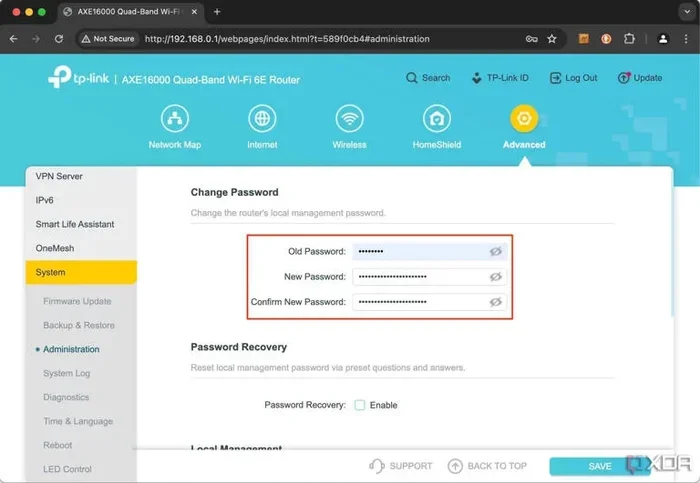
- Log into your router admin panel using the gateway address and your current credentials.
- Navigate to the Administration or Settings tab. This is usually found in the top menu or left sidebar.
- Look for a section labeled “Router Password,” “Admin Password,” or “Login Credentials.”
- Enter your current password if prompted, then type in your new username and password.
- Save your changes. The router may restart or apply the settings immediately.
- Write down your new credentials and store them somewhere safe.
Changing the Password on Netgear Routers
Log into your Netgear router and go to “Advanced” in the top menu. Select “Administration” from the left sidebar. Click “Set Password” and enter your old password followed by your new one. Make sure your new admin password is different from your wireless password. Many people confuse the two, and that can cause confusion later.
For more details on managing your Netgear router, check out our guide on Can I Change My Wi Fi Router for additional tips.
Changing the Password on TP-Link Routers
On TP-Link routers, go to “System Tools” and then “Password.” Enter your old username and password, then set a new username and password. TP-Link allows you to keep the same username or change it entirely. We recommend changing both for better network security.
Changing the Password on ASUS Routers
ASUS routers have a clean, user-friendly interface. Log in and click “Administration” in the left menu. Go to “System” and find the “Router Password” field. Enter your old password and your new one, then click Apply. ASUS also lets you enable two-factor authentication for an extra layer of protection.
Changing the Password on Linksys Routers
Linksys routers use a simple setup page. Log in and go to the “Administration” tab. Find the “Router Password” section and enter your new credentials. Linksys also offers a “Smart Wi-Fi” portal where you can manage settings from your phone. This is a great option if you want to manage your router settings on the go.
How to Choose a Strong Router Password
Now that you know how to change your password, let us talk about what makes a password truly strong. A weak password defeats the purpose of changing it in the first place. Here are the best practices for creating a secure admin password.
Use a Mix of Characters
A strong password includes uppercase letters, lowercase letters, numbers, and special symbols. For example, “Router2024!” is much harder to crack than “password123.” The longer and more varied your password, the better.
Avoid Common Words and Personal Info
Do not use your name, birth date, street address, or common words like “admin” or “router.” Hackers use automated tools that guess these combinations in seconds. Stay away from anything that someone could find on social media or public records.
Make It at Least 12 Characters
Short passwords are easy to crack. Aim for 12 to 16 characters minimum. A passphrase like “BlueTiger$RunsFast2024” is both long and memorable. It is also much harder for attackers to guess than a short, complex string.
Use a Password Manager
If you worry about forgetting your new router login, use a password manager. These apps store all your passwords securely and auto-fill them when needed. You only need to remember one master password. Popular options include Bitwarden, 1Password, and LastPass.
What to Do If You Forget Your New Password
Forgetting a password is more common than you think. It happens to everyone at some point. The good news is that you can recover access to your router admin panel even if you forget your new credentials.
Perform a Factory Reset
Every router has a small reset button, usually on the back or bottom. Press and hold it for 10 to 15 seconds using a paperclip or pin. The router will restart and restore all settings to factory defaults. This means your admin username and password will go back to the original defaults printed on the router label.
Keep in mind that a factory reset erases all custom settings. You will need to set up your Wi-Fi name, wireless password, and port forwarding rules again. Write down your new credentials this time!
Try the Default Credentials
After a reset, check the label on the bottom of your router for the default username and password. If the label is worn off, visit the manufacturer’s website and look up the defaults for your model. Common combinations include “admin” and “admin,” or “admin” and “password.”
Contact Your Internet Service Provider
If a factory reset does not work or you are unsure about the process, call your ISP. They can walk you through the steps or remotely access your router settings to restore access. Many providers also let you request a replacement router if your current one is not working properly.
Common Mistakes to Avoid When Changing Router Passwords
Even when people mean well, they sometimes make mistakes that weaken their network security. Here are the most common errors and how to avoid them.
- Using the same password for your router and Wi-Fi. These should be two different passwords. If one gets compromised, the other stays safe.
- Writing passwords on sticky notes. It is tempting to stick your credentials on the router itself. Anyone who visits your home could see them. Use a digital password manager instead.
- Never changing the default username. Many people only change the password but leave “admin” as the username. Changing both makes it much harder for attackers to gain access.
- Skipping firmware updates. Outdated firmware has known security holes. Check for updates in your router settings at least once a month.
- Sharing credentials freely. Only give your admin login to people you trust completely. If you need to share Wi-Fi access, use a guest network instead.
How Often Should You Change Your Router Password?
Security experts recommend updating your router admin password at least every three to six months. This might sound frequent, but it is a small effort that pays off big time. If you ever suspect someone has accessed your network, change your password immediately.
You should also update your password after any major changes. For example, if a roommate moves out or a guest had access to your router settings, a quick password change keeps your network secure. Think of it like changing the batteries in your smoke detector. It is a small task that protects everything.
Beyond the admin password, consider updating your wireless password regularly as well. This prevents unauthorized users from leeching off your connection and ensures that only trusted devices stay on your network.
Extra Tips for Securing Your Home Network
Changing your password is just the beginning. Here are a few more steps you can take to lock down your home network and stay safe online.
Enable WPA3 Encryption
If your router supports WPA3, enable it in your wireless settings. WPA3 is the latest and most secure encryption standard. It protects your data from eavesdroppers and makes it much harder for attackers to crack your wireless password. If WPA3 is not available, use WPA2 at minimum.
Disable WPS
Wi-Fi Protected Setup (WPS) is convenient but has known security flaws. Hackers can exploit WPS to gain access to your network. Go to your router settings and disable it. You can always connect new devices manually using your password.
Create a Guest Network
Most modern routers let you set up a separate guest network. This gives visitors internet access without exposing your main network and connected devices. It is a simple way to add a layer of network security without extra cost.
Keep Your Router Firmware Updated
Router manufacturers release firmware updates to fix security vulnerabilities and improve performance. Check for updates in your admin panel every few weeks. Some routers even offer automatic updates. Keeping your firmware current is one of the easiest things you can do to protect your home network.
For more information on optimizing your home network setup, you might find our article on Can I Extend My Wifi To My Shed helpful for expanding your coverage. Also, if you are interested in learning about your options for router ownership, read our piece on Can I Buy My Own Router For Internet to understand what works best for your household.
Conclusion
Changing your router admin username and password is one of the simplest yet most effective things you can do for network security. It takes less than ten minutes and protects everything connected to your internet. From personal data to bandwidth, the stakes are too high to leave default credentials in place.
Now you know how to find your gateway address, log into your router admin panel, and update your login details for any major brand. You also know how to choose a strong password, recover access if you get locked out, and avoid common mistakes. These skills give you confidence and control over your home network.
Take a few minutes today to update your router admin password. Your future self will thank you. A little effort now saves a lot of headaches later. Stay safe, stay secure, and enjoy peace of mind knowing your network is protected.
Frequently Asked Questions
What is the default router admin username and password?
It depends on your router brand. Many routers use “admin” for both the username and password. Check the label on the bottom of your router or the manufacturer’s website for the exact defaults. Always change these as soon as you set up your device.
Can I change my router password without logging in?
No, you need to log into your router admin panel to change the admin password. However, you can change your wireless password without logging in if your router supports a mobile app. Check your router brand’s app for this feature.
Will changing my router password disconnect all devices?
Yes, changing your wireless password will disconnect all devices from your Wi-Fi. They will need the new password to reconnect. However, changing your admin password only affects the router settings page and does not disconnect your devices.
How do I find my router IP address?
On Windows, open Command Prompt and type ipconfig. Look for “Default Gateway.” On Mac, go to Network settings and find the “Router” entry. On phones, check your Wi-Fi network details. This address is what you type into your browser to access the router login page.
What if my router does not have a reset button?
Most routers have a reset button, but some models require you to hold the reset button for a longer period or use a software reset through the admin panel. Check your router manual or the manufacturer’s website for model-specific instructions on performing a router reset.
Is it safe to use a password manager for my router credentials?
Yes, using a password manager is one of the safest ways to store your router login details. Password managers encrypt your data and protect it with a single master password. Just make sure your master password is strong and unique.