Can Usb C Run Hdmi Here Is The Full Answer You Need
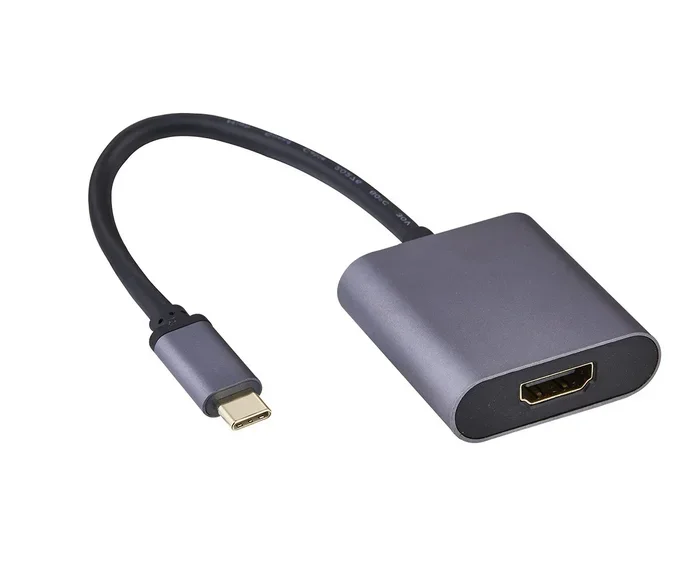
Can USB C Run HDMI? Yes, absolutely. USB Type-C ports can carry HDMI signals to your TV, monitor, or projector with the right adapter or cable. You just need to check your device’s USB C HDMI capabilities and grab the correct USB C to HDMI adapter for your setup.
Can USB C Run HDMI? The short answer is yes. USB Type-C ports can absolutely carry HDMI signals to your TV, monitor, or projector. You just need the right USB C to HDMI adapter or cable to make the connection work. This guide covers everything you need to know about USB C HDMI connections. We will walk you through compatibility, adapters, resolutions, and common problems so you can get your display working fast.
Many people wonder whether their laptop or phone can output video through a USB-C port. The good news is that most modern devices support this feature. Whether you want to connect your laptop to a big screen for a presentation or hook your phone up to a TV for movie night, USB C HDMI makes it possible. But not all USB-C ports are the same, and not all adapters work with every device.
In this article, we will explain exactly how USB C to HDMI connections work. You will learn about Alt Mode, active and passive adapters, resolution limits, and the best gear to buy. By the end, you will know everything you need to make your USB C HDMI setup work perfectly.
Key Takeaways
- USB C Can Run HDMI: Most modern USB-C ports support HDMI output through Alt Mode or adapters
- You Need the Right Adapter: A USB C to HDMI adapter or cable is essential for connecting to HDMI displays
- Check Your Port Type: Not all USB-C ports are created equal — Thunderbolt and DisplayPort Alt Mode ports offer the best video output
- Resolution Depends on Bandwidth: USB-C HDMI can support 4K at 60Hz with the right cable compatibility and adapter
- Active vs Passive Matters: Active adapters are needed for some devices, while passive adapters work with others
- Audio and Video Together: USB-C HDMI carries both audio and video signals in one cable
- Common Issues Have Simple Fixes: Most USB C HDMI problems can be solved with a firmware update or adapter swap
📑 Table of Contents
- What Is USB C and Why Does It Matter for HDMI?
- Can USB C Run HDMI? The Short Answer
- How USB C to HDMI Technology Works
- USB C to HDMI Adapter vs Cable – Which Do You Need?
- What Resolutions and Refresh Rates Can You Get?
- Common Problems and How to Fix Them
- Best USB C to HDMI Adapters and Hubs on the Market
- Conclusion
What Is USB C and Why Does It Matter for HDMI?
USB Type-C is a small, reversible connector that has become the standard on most modern laptops, tablets, and phones. It is tiny but powerful. A single USB-C port can charge your device, transfer data, and send video to an external display. This versatility is why so many people love it. Instead of carrying three or four different cables, you can use one USB-C cable for almost everything.
The USB-C connector is oval-shaped and symmetrical. You can plug it in either way, which is a huge improvement over older USB types. But here is the thing — not every USB-C port does the same things. Some only handle charging and data transfer. Others can also send video signals to an HDMI display. This is where USB C HDMI compatibility comes in. Your device needs to support a feature called Alt Mode. Without Alt Mode, your USB-C port cannot output video through an adapter.
Understanding USB Type-C Ports
The USB-C port is not just one thing. It is a connector standard that can support many different protocols. Some USB-C ports only support USB 3.0 or USB 3.1 for data transfer. Others support Thunderbolt 3 or Thunderbolt 4, which offer much higher bandwidth and can carry video signals. There are also ports that support DisplayPort Alt Mode, which is specifically designed for video output.
Before you buy any USB C to HDMI adapter, check if your device supports video output over USB-C. You can usually find this information in your device manual or on the manufacturer’s website. Look for terms like “DisplayPort Alt Mode,” “Thunderbolt,” or “video output supported.” If you see any of these, your USB C HDMI setup should work.
How HDMI Connects to Displays
HDMI has been the go-to standard for connecting devices to TVs and monitors for years. It carries both audio and video in one cable. When you use a USB C to HDMI cable or adapter, you are essentially converting the USB-C signal into an HDMI signal. This lets you plug your laptop or phone into any HDMI-ready display.
The beauty of this setup is simplicity. One cable from your device to your TV or monitor. You get picture and sound without any extra wires. It works great for presentations, gaming, streaming movies, and everyday use. Whether you are at home, in a conference room, or at a coffee shop, USB C HDMI gives you a quick and reliable way to share your screen.
Can USB C Run HDMI? The Short Answer
The answer is yes, but with some conditions. Whether your USB C HDMI setup will work depends on your device, its ports, and the adapter you use. Let us break this down so you know exactly what to expect before you buy anything.
When USB C Can and Cannot Support HDMI
Most laptops made after 2018 support USB C HDMI output. Apple MacBook Pro, Dell XPS, HP Spectre, Lenovo ThinkPad, and many other brands use USB-C ports that can carry video. These devices support DisplayPort Alt Mode or Thunderbolt, which is the technology that makes it possible. Even some Android phones and tablets can output video through USB-C to HDMI.
However, some USB-C ports are limited. They may only support charging and data transfer. If your device falls into this category, you will need a USB C to HDMI adapter with a built-in chip that can convert the signal. This is where active adapters come in. They do the conversion work that your device cannot do on its own.
Here are a few quick things to check before you buy:
- Does your device have a USB-C port that supports video output?
- Does your device support DisplayPort Alt Mode or Thunderbolt?
- What resolution does your display need — 1080p, 4K, or higher?
- Do you need audio support through the HDMI connection?
- Will you be using the adapter at a desk or on the go?
If you answer yes to the first two questions, you are in great shape. Your USB C HDMI setup should work with the right adapter. If you are unsure, check your device specifications online or look for the USB-C logo next to the port on your laptop.
How USB C to HDMI Technology Works
Understanding how USB C to HDMI technology works helps you choose the right gear. It is not magic — it is clever engineering. Let us look at the two main ways this connection happens and what makes each one different.
DisplayPort Alt Mode Explained
DisplayPort Alt Mode is the most common way USB-C ports send video to HDMI displays. When your device supports Alt Mode, it can send a raw video signal through the USB-C port. An adapter then converts that signal into HDMI format. This is a clean and efficient way to get video output from a USB-C device.
Think of it like a translator. Your laptop speaks USB-C, and your TV speaks HDMI. The adapter translates between the two so they can understand each other. When your device supports Alt Mode natively, this is a passive process. That means no extra power is needed, and the adapter can be very small and simple. This is why passive USB C to HDMI adapters are so popular and affordable.
Most modern ultrabooks and smartphones use DisplayPort Alt Mode. If your device has a Thunderbolt 3 or Thunderbolt 4 port, it definitely supports this mode. The same goes for most Windows laptops and Android phones made in the last few years. Even some Chromebooks and iPads now support USB C HDMI output through Alt Mode.
Active vs Passive Adapters
This is where things get a little tricky. There are two types of USB C to HDMI adapters: active and passive. Knowing the difference saves you money and frustration.
A passive adapter simply converts the signal. It does not need external power. These work great when your device supports DisplayPort Alt Mode. They are small, cheap, and reliable. You can find them for as little as $10 online. If your laptop or phone supports Alt Mode, a passive adapter is all you need.
An active adapter has a built-in chip and sometimes needs power from a USB-C port. These are necessary when your device does not support Alt Mode natively. The chip inside does the heavy lifting to convert the USB-C signal into HDMI. Active adapters are a bit bulkier and sometimes cost more, but they open up USB C HDMI connectivity to more devices. They are especially useful for older laptops or devices with limited USB-C capabilities.
Quick Tip: If your adapter has a USB-C power pass-through port, it is likely an active adapter. This extra port lets you charge your laptop while using the HDMI output. It is very handy for docking setups where you want one cable to rule them all.
USB C to HDMI Adapter vs Cable – Which Do You Need?
Choosing between a USB C to HDMI adapter and a USB C to HDMI cable depends on your setup. Both options work, but they serve different needs. Let us look at the pros and cons of each so you can make the right choice.
| Feature | USB C to HDMI Adapter | USB C to HDMI Cable |
|---|---|---|
| Portability | Slightly bulkier | Very compact and lightweight |
| Compatibility | Works with more devices | Requires both ends to support video |
| Price Range | $10 to $50 | $8 to $30 |
| Power Pass-Through | Often includes charging port | Usually no extra ports |
| Setup | Adapter plus separate HDMI cable | All-in-one connection |
| Best For | Desks, docking stations, presentations | Travel, quick connections, minimal setup |
If you travel often, a USB C to HDMI cable is the way to go. It is simple and takes up almost no space in your bag. Just plug one end into your laptop and the other into the TV or monitor. Done. But if you work at a desk and need to connect multiple devices, an adapter with a docking station might be a better choice.
A USB-C hub or docking station gives you multiple ports in one device. You get HDMI output, USB ports for peripherals like keyboards and mice, an SD card reader, and sometimes even Ethernet for a wired internet connection. This is perfect for a home office setup where you want one cable to connect everything and switch between your laptop screen and a big display with ease.
Common Mistake: Do not buy the cheapest adapter you find online. Very cheap adapters often have poor cable compatibility and may not support higher resolutions like 4K. Stick with reputable brands to avoid frustration and wasted time. A small extra investment saves you a lot of headaches.
What Resolutions and Refresh Rates Can You Get?
The video output you get from a USB C HDMI connection depends on several factors. Your device, the adapter, the cable, and the display all play a role. Let us break down what you can realistically expect in different scenarios.
4K and Beyond
Most USB C to HDMI adapters support 4K resolution at 60Hz. This is more than enough for streaming movies, giving presentations, and general use. 4K at 60Hz delivers smooth motion and sharp detail. You will not notice any lag or stutter for everyday tasks like browsing, watching videos, or working on documents.
If you are a content creator or a gamer, you may want to check the specific bandwidth of your adapter. Some premium adapters support 4K at 120Hz or even 8K resolution. These are usually Thunderbolt-certified adapters with higher bandwidth capabilities. For most people, though, 4K at 60Hz is the sweet spot. It gives you excellent picture quality without breaking the bank.
HDMI 2.0 vs HDMI 2.1 Bandwidth
The HDMI version on your display also matters a lot. HDMI 2.0 supports 4K at 60Hz. HDMI 2.1 supports 4K at 120Hz and even 8K at 60Hz. If you have a 4K TV with HDMI 2.1, you will need a USB C to HDMI adapter that supports the same bandwidth to take full advantage of it.
Most standard USB C HDMI adapters work perfectly with HDMI 2.0 displays. If you need HDMI 2.1 speeds, look for adapters specifically rated for it. These tend to cost more but deliver the best performance. Always check the adapter specifications before you buy to make sure it matches your display’s capabilities.
Expert Insight: When shopping for a USB C to HDMI cable, look for the “Certified Premium” label from HDMI Licensing. This ensures the cable meets the bandwidth requirements for the resolution you want. Cheap uncertified cables often fail at higher resolutions or cause flickering and signal drops. Spending a few extra dollars on a certified cable is always worth it.
Common Problems and How to Fix Them
Even with the right gear, you might run into issues with your USB C HDMI setup. Most problems have simple fixes. Let us go through the most common ones and how to solve them quickly.
Quick Tips for Troubleshooting
- Check your adapter connection. Make sure it is fully plugged into the USB-C port. A loose connection is the most common cause of no signal on your display.
- Try a different HDMI port. Your TV or monitor might have multiple ports. Switch to another one to rule out a bad or damaged port on the display side.
- Update your display drivers. On Windows, go to Device Manager and update your graphics driver. On Mac, check for system updates in the App Store. Outdated drivers are a surprisingly common cause of USB C HDMI issues.
- Restart both devices. A simple reboot of your laptop and display can fix communication issues between the two. It sounds basic, but it works more often than you would think.
- Check the resolution setting. Your laptop might be outputting a resolution your TV does not support. Lower the resolution in your display settings and try again.
- Test with a different cable or adapter. If nothing else works, swap out your gear. A faulty adapter or cable is often the hidden culprit.
Common Mistakes to Avoid
Here are some mistakes that trip people up with their USB C HDMI setup every day:
- Using the wrong adapter type. Not all adapters are the same. Some only support 1080p resolution. Make sure your adapter matches your display’s capabilities before you buy it.
- Ignoring audio settings. Sometimes video works perfectly but there is no sound. Go into your display settings and make sure HDMI audio is enabled as the output device.
- Buying a passive adapter for a device that needs active. If your USB-C port does not support Alt Mode, a passive adapter will not work. You need an active adapter with a conversion chip inside.
- Using a damaged cable. Frayed or bent cables can cause signal loss or intermittent connections. Inspect your USB C to HDMI cable before you start troubleshooting anything else.
- Overloading the USB-C port. If you are using a USB-C hub with many devices connected, the port may not have enough power for video output. Disconnect other devices and try again.
- Forgetting about firmware updates. Some devices need a firmware update to properly support USB C HDMI output. Check your manufacturer’s website for the latest updates.
Best USB C to HDMI Adapters and Hubs on the Market
Not all USB C to HDMI adapters are created equal. Some are cheap and unreliable. Others deliver rock-solid performance at 4K resolution. Here are some of the best options available right now for different needs and budgets.
1. Apple USB-C Digital AV Multiport Adapter. This is the go-to choice for MacBook users. It supports 4K HDMI output, has a USB-C charging port, and includes a USB-A port for older peripherals. It is expensive but very reliable and well-built. If you are in the Apple ecosystem, this adapter just works.
2. Anker USB-C to HDMI Adapter. Anker makes affordable and dependable adapters. Their USB C HDMI adapter supports 4K at 60Hz and works with most laptops and tablets. It is compact and easy to carry in your laptop bag. Anker is a trusted brand with excellent customer support and a solid warranty.
3. Satechi USB-C Slim Multiport Adapter. Satechi offers a sleek and minimal design with HDMI output, USB-A ports, and a USB-C charging port. It is perfect for professionals who need a clean, minimal setup on their desk. The slim profile makes it easy to travel with.
4. Ugreen USB-C to HDMI Cable. If you prefer an all-in-one solution, this cable eliminates the need for a separate adapter. It supports 4K at 60Hz and works with most USB-C devices. It is a great option for people who want simplicity and do not want to carry extra accessories.
5. CalDigit USB-C Dock. For power users, a full docking station is the best choice. The CalDigit dock supports multiple 4K displays, fast charging, and plenty of data ports. It turns your laptop into a desktop workstation with one connection. This is ideal for anyone who works from a fixed desk setup every day.
Quick Tip: If you use a docking station for port replication, make sure it supports the resolution and refresh rate of your display. Not all docks are created equal, and some may bottleneck your video output. Always check the dock’s specifications before you buy.
Expert Insight: When building a USB C HDMI setup for professional use, invest in Thunderbolt-certified gear. Thunderbolt 3 and Thunderbolt 4 ports offer the highest bandwidth and the most reliable video output. They also support daisy-chaining multiple displays, which is a huge advantage for creative professionals who need to run several monitors at once.
Conclusion
Can USB C Run HDMI? Yes, it absolutely can. With the right USB C to HDMI adapter or cable, you can connect any USB-C device to an HDMI display. Whether you are at home, in the office, or on the go, this connection makes it easy to share your screen with a larger display. The technology is mature, the adapters are affordable, and the results are excellent.
The key is understanding your device’s capabilities. Check if your USB-C port supports video output, choose the right type of adapter, and make sure your cable compatibility matches your display’s resolution needs. With these simple steps, you will be up and running in minutes. Do not let confusion stop you from using your USB C HDMI setup to its full potential.
Grab the right gear, follow the tips in this guide, and enjoy your big-screen experience. Whether you are giving a presentation at work, watching a movie on the couch, or gaming on a bigger display, USB C HDMI gives you the freedom to connect anything to anything. It is one of the most useful features of modern USB-C technology, and now you know exactly how to make it work for you.
Frequently Asked Questions
Can all USB C ports run HDMI?
No, not all USB-C ports support HDMI output. Your device needs to support DisplayPort Alt Mode or Thunderbolt for native video output. If your port does not support these, you will need an active adapter with a built-in conversion chip to make the connection work.
Do I need a special cable to connect USB C to HDMI?
You can use either a USB C to HDMI cable or a USB C to HDMI adapter with a separate HDMI cable. Both work well. The choice depends on your setup and how often you need to connect and disconnect. A cable is more portable, while an adapter offers more flexibility and often extra ports.
Can USB C HDMI support 4K resolution?
Yes, most USB C to HDMI adapters support 4K at 60Hz. Some premium adapters and Thunderbolt connections can push 4K at 120Hz or even higher. Make sure your adapter, cable, and display all support the resolution you want for the best results.
Why is there no sound when I connect USB C to HDMI?
This is a common issue. First, check your display settings and make sure HDMI audio is enabled. On Windows, right-click the sound icon in your taskbar and select your HDMI output as the audio device. On Mac, go to Sound Preferences and choose the HDMI display as your output source.
Is a USB C hub the same as a USB C to HDMI adapter?
Not exactly. A USB-C hub adds multiple ports to your device, and HDMI output is usually one of them. A dedicated USB C to HDMI adapter only converts the video signal. A hub is better if you need multiple connections like USB ports, an SD card reader, and Ethernet along with HDMI output.
Can I use a USB C HDMI adapter with a gaming console or Blu-ray player?
No, USB-C to HDMI adapters are designed for devices with USB-C ports like laptops, tablets, and phones. Gaming consoles and Blu-ray players use standard HDMI outputs directly. You do not need an adapter for those devices. The adapter is specifically for connecting USB-C source devices to HDMI displays.