Can You Connect Sonos Via Bluetooth And How To Do It
You can connect Sonos via Bluetooth on select models, but most Sonos speakers rely on WiFi instead. This guide walks you through every step, from pairing your device to fixing common connection issues. You will learn which Sonos speakers support Bluetooth, how to use a Bluetooth adapter, and expert tips for better wireless audio quality.
So you just got a Sonos speaker and want to stream music from your phone. The first thing you probably want to know is whether you can connect Sonos via Bluetooth. The answer is both yes and no, and it depends on your specific Sonos model.
Sonos is known for its amazing wireless speaker systems. But unlike many other brands, Sonos does not give every speaker built-in Bluetooth. This confuses a lot of new users. They assume all wireless speakers work with Bluetooth right out of the box.
In this article, we will clear up all the confusion. You will learn exactly which Sonos speakers support Bluetooth, how to connect them, and what to do if your speaker does not have Bluetooth built in. We will also share tips to get the best sound quality from your wireless connection.
Whether you own a Sonos One, Sonos Beam, Sonos Roam, or another model, this guide has you covered. Let us dive into everything you need to know about connecting Sonos via Bluetooth.
Key Takeaways
- Not all Sonos speakers have built-in Bluetooth: Only newer models like the Sonos Roam and Sonos Move support direct Bluetooth pairing.
- Use the Sonos app for WiFi streaming: Most Sonos systems work best over WiFi, not Bluetooth, for multi-room audio.
- A Bluetooth adapter solves the problem: You can add Bluetooth to any Sonos speaker using a simple adapter like the Sonos Port or a third-party device.
- Pairing is quick and easy: The Bluetooth connection process takes less than two minutes on supported devices.
- Audio quality may vary: Bluetooth has limits compared to WiFi, so expect slightly lower sound quality on wireless connections.
- Common issues are easy to fix: Most Bluetooth problems with Sonos come from distance, interference, or outdated firmware.
📑 Table of Contents
- Can You Connect Sonos Via Bluetooth Directly?
- How To Connect Sonos Via Bluetooth Step By Step
- What If Your Sonos Speaker Does Not Have Bluetooth?
- Bluetooth vs WiFi On Sonos Systems
- Common Problems When Connecting Sonos Via Bluetooth
- Expert Tips For The Best Bluetooth Experience With Sonos
- Final Thoughts On Connecting Sonos Via Bluetooth
Can You Connect Sonos Via Bluetooth Directly?
The short answer is yes, but only on certain Sonos speakers. Sonos has chosen a unique path in the wireless speaker world. Most of their speakers use WiFi for audio streaming instead of Bluetooth. This decision has both pros and cons.
Let us break down exactly which Sonos speakers support direct Bluetooth and which do not. This will save you a lot of confusion and frustration.
Sonos Speakers With Built-In Bluetooth
The following Sonos models have Bluetooth built right in:
- Sonos Roam — This portable speaker is one of the few Sonos devices with native Bluetooth support. It is designed for both indoor and outdoor use.
- Sonos Move — Another portable option, the Sonos Move lets you switch between WiFi and Bluetooth easily through the Sonos app.
- Sonos Era 100 — This newer model added Bluetooth as a key feature, making it more versatile than older Sonos speakers.
- Sonos Era 300 — The spatial audio flagship also supports Bluetooth for direct device pairing.
These speakers let you go into the Sonos app, find the Bluetooth settings, and pair your phone or tablet directly. No extra gear is needed. The process is simple and takes less than two minutes.
Sonos Speakers Without Bluetooth
Here is where things get tricky. Many popular Sonos speakers do not have Bluetooth at all:
- Sonos One — This popular smart speaker relies solely on WiFi for audio streaming.
- Sonos Five — A powerful home speaker with no Bluetooth built in.
- Sonos Beam — This soundbar uses WiFi and HDMI eARC instead of Bluetooth for audio input.
- Sonos Arc — The premium soundbar also lacks Bluetooth support.
- Sonos Sub and Sub Mini — These subwoofers are always controlled through a Sonos system over WiFi.
Sonos made this choice on purpose. WiFi gives better audio quality and lower latency than Bluetooth. It also allows multi-room audio, where you can play the same song in different rooms at the same time. Bluetooth simply cannot do that.
How To Connect Sonos Via Bluetooth Step By Step
If you own a Sonos speaker with Bluetooth support, the pairing process is straightforward. Here is exactly how to do it.
Step One: Prepare Your Sonos Speaker
First, make sure your Sonos speaker is powered on and connected to your WiFi network. Open the Sonos app on your phone or tablet. Go to the home screen and select the speaker you want to pair.
Next, look for the Bluetooth option. On most Sonos devices, you can find this under Settings, then Bluetooth. Some models let you swipe down from the top of the Sonos app home screen to access quick settings.
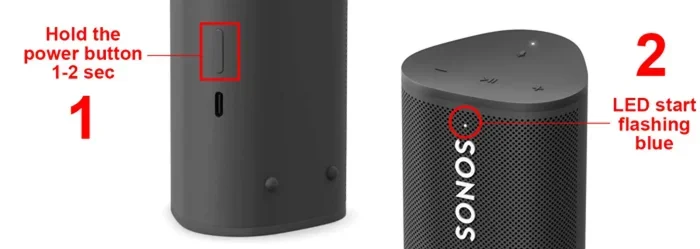
Step Two: Put Your Speaker In Pairing Mode
On the Sonos app, tap the Bluetooth toggle to turn it on. Your speaker will now enter pairing mode. You should see a message that says the speaker is ready to be discovered. On the Sonos Roam, you can also hold down the Bluetooth button on the side of the speaker to enter pairing mode manually.
Make sure your phone or tablet has Bluetooth turned on. Go to your device’s Bluetooth settings and look for your Sonos speaker in the list of available devices.
Step Three: Pair The Devices
Tap on your Sonos speaker name from the list on your phone. Within a few seconds, the two devices will connect. You will hear a confirmation sound from the speaker, and the Sonos app will show a connected status.
Now you can play music from any app on your phone. Spotify, Apple Music, YouTube, podcasts, everything will stream through your Sonos speaker over Bluetooth. The connection range is typically about 30 feet, though walls and obstacles can reduce this distance.
Step Four: Disconnect When Done
When you are finished, go back to the Sonos app and turn off Bluetooth. This frees up the speaker for other Sonos features. You can also disconnect from your phone’s Bluetooth settings by forgetting the device. This ensures a clean reconnection next time you want to use Bluetooth again.
What If Your Sonos Speaker Does Not Have Bluetooth?
This is where many people get stuck. If you own a Sonos One, Sonos Five, Sonos Beam, or Sonos Arc, you cannot connect Sonos via Bluetooth directly. But do not worry. There are workarounds that work really well.
Use The Sonos Port
The Sonos Port is a great solution for adding Bluetooth to any Sonos system. It is a small device that plugs into your speaker or soundbar through an audio cable. The Port has Bluetooth built in, so your non-Bluetooth Sonos speaker can receive wireless audio from your phone.
Here is how it works. You connect the Sonos Port to your speaker using a 3.5mm audio cable or RCA cable. Then you pair your phone with the Port over Bluetooth. The Port receives the audio signal and sends it to your Sonos speaker through the cable. It is not as clean as native Bluetooth, but it gets the job done.
Use A Third-Party Bluetooth Adapter
Another option is to buy a third-party Bluetooth audio adapter. These small devices plug into your speaker’s audio input and create a Bluetooth receiver. They are usually cheap, costing between 20 and 40 dollars.
Look for adapters that support aptX or AAC codecs for better audio quality. Some popular options include the 1Mii Bluetooth receiver and the Avantree aptX adapter. These devices give your older Sonos speaker a Bluetooth upgrade without spending a lot of money.
Use AirPlay Or Chromecast Instead
Many Sonos speakers support AirPlay 2 or Chromecast built in. These are wireless streaming protocols that work similarly to Bluetooth but over WiFi. AirPlay lets you stream from iPhones and iPads, while Chromecast works with Android devices and Chrome browsers.
These options give you better range and audio quality than Bluetooth. They also let you use your Sonos speaker as part of a multi-room setup. If you are trying to avoid buying extra hardware, AirPlay and Chromecast are great alternatives.
Bluetooth vs WiFi On Sonos Systems
You might wonder why Sonos prefers WiFi over Bluetooth for most of its speakers. There are some clear reasons for this design choice. Understanding the differences helps you decide which connection method works best for your needs.
Audio Quality Comparison
WiFi streaming generally delivers better audio quality than Bluetooth. This is because WiFi can handle more data at once. Sonos uses high-resolution audio codecs over WiFi that Bluetooth simply cannot support. When you stream over WiFi, you get richer bass, clearer highs, and more detailed sound overall.
Bluetooth compresses audio data to save bandwidth. This means some audio details get lost during transmission. For casual listening, the difference might not be obvious. But for audiophiles who care about sound quality, WiFi is the clear winner.
Range And Stability
WiFi has a much longer range than Bluetooth. A Sonos speaker connected to your home WiFi network can reach up to 150 feet indoors. Bluetooth, on the other hand, typically maxes out at around 30 feet. Walls, furniture, and other electronics can weaken the Bluetooth signal even more.
WiFi connections are also more stable. Bluetooth connections can drop or stutter if you move too far away or if there is too much interference from other devices. This is especially true in apartments or homes with lots of wireless devices competing for the same signal.
Multi-Room Audio
This is where WiFi really shines. With a Sonos system, you can play the same song in every room of your house or play different songs in different rooms. Bluetooth simply cannot do this. Bluetooth connects one device to one speaker at a time.
If you want to build a whole-home audio system, WiFi-based Sonos is the way to go. You get seamless control through the Sonos app, and setting up new speakers is incredibly easy. Just plug them in, open the app, and follow the prompts.
| Feature | Bluetooth | WiFi |
|---|---|---|
| Audio Quality | Good | Excellent |
| Range | Up to 30 feet | Up to 150 feet |
| Multi-Room Support | No | Yes |
| Setup Complexity | Very Easy | Easy |
| Latency | Higher | Lower |
| Extra Hardware Needed | No (on supported models) | No |
Common Problems When Connecting Sonos Via Bluetooth
Even when everything works correctly, you might run into some issues. Bluetooth connections can be finicky at times. Here are the most common problems and how to fix them.
Speaker Not Showing Up In Bluetooth List
If your phone cannot find your Sonos speaker, try these fixes. First, make sure Bluetooth is turned on both on your phone and in the Sonos app. Restart both devices. Sometimes a simple reboot solves the problem instantly.
Next, check that your Sonos speaker is not already connected to another device. Bluetooth can only connect to one source at a time. If another phone or tablet is paired, disconnect it first, then try again.
Audio Keeps Cutting Out
Intermittent audio drops are a common Bluetooth issue. The most likely cause is distance. Move your phone closer to the Sonos speaker and see if the problem goes away. Also, check for physical obstacles between the two devices. Walls and large metal objects can block Bluetooth signals.
Other wireless devices in your home can cause interference too. Microwaves, baby monitors, and even USB 3.0 cables can disrupt Bluetooth signals. Try turning off nearby devices to see if that helps.
Poor Audio Quality
Bluetooth audio quality is inherently lower than WiFi streaming. But if the sound seems especially bad, check a few things. Make sure your phone is not in a low-power mode, as this can limit Bluetooth performance. Also, check if your Sonos speaker firmware is up to date through the Sonos app.
If you are using a third-party Bluetooth adapter, the adapter quality matters a lot. Cheap adapters often have poor audio quality and weak signals. Investing in a good adapter can make a noticeable difference.
Connection Keeps Dropping
A Bluetooth connection that keeps disconnecting is frustrating. This often happens when your phone goes to sleep or when other apps demand attention. Try disabling battery optimization for the Sonos app on your phone. This keeps the app active in the background and maintains a stable connection.
You should also check that your Sonos speaker firmware is current. Sonos regularly releases updates that fix Bluetooth bugs and improve connection stability. Keeping your system updated prevents many common issues.
Expert Tips For The Best Bluetooth Experience With Sonos
Want to get the most out of your Sonos Bluetooth connection? These expert tips will help you enjoy a smoother, better-sounding wireless experience.
Keep Your Firmware Updated
Sonos releases regular firmware updates that improve Bluetooth performance. Open the Sonos app, go to Settings, then System, then System Update. Install any available updates. These updates often fix bugs and add new features that make Bluetooth connections more reliable.
Use The Right Bluetooth Codec
Not all Bluetooth audio codecs are created equal. Newer codecs like aptX and LDAC deliver much better sound quality than the standard SBC codec. If your phone and Sonos speaker both support aptX, make sure it is enabled in the Bluetooth settings for the best audio experience.
Keep Your Devices Close
For the most stable connection, keep your phone within 10 to 15 feet of your Sonos speaker. This minimizes signal loss and audio dropouts. If you need more range, consider using a WiFi-based streaming method instead.
Disable Battery Saver Mode
Battery saver mode on your phone can limit Bluetooth performance. It reduces the power allocated to the Bluetooth radio, which can cause connection issues. Turn off battery saver mode when streaming audio to your Sonos speaker for the best results.
Reset Bluetooth If Needed
If you are having persistent Bluetooth problems, try resetting the Bluetooth connection entirely. On your phone, forget the Sonos speaker from your Bluetooth settings. On the Sonos app, turn Bluetooth off and back on again. Then re-pair the devices from scratch. This clears any corrupted connection data and often fixes stubborn issues.
Use Sonos Bluetooth For Guests
One great use case for Sonos Bluetooth is hosting guests. When friends visit, they can easily connect their phones to your Sonos speaker without needing the WiFi password or the Sonos app. This makes your speaker more versatile and guest-friendly. Just remember to switch back to WiFi streaming when your guests leave for the best audio quality.
Final Thoughts On Connecting Sonos Via Bluetooth
So, can you connect Sonos via Bluetooth? Yes, but with some important caveats. Only select Sonos speakers support direct Bluetooth, and most Sonos systems work best over WiFi. Understanding this difference helps you get the most out of your Sonos setup.
If your speaker supports Bluetooth, the pairing process is simple and takes just a couple of minutes. If your speaker does not have Bluetooth, you can use a Sonos Port, a third-party adapter, or wireless protocols like AirPlay and Chromecast to stream audio from your phone.
Remember that WiFi is always the preferred connection method for Sonos speakers. It delivers better audio quality, longer range, and multi-room capabilities that Bluetooth simply cannot match. Use Bluetooth as a convenient backup for quick connections and guest streaming.
With the right setup and a few simple tips, you can enjoy wireless audio from your Sonos speaker no matter which connection method you choose. The flexibility of the Sonos ecosystem means you always have options.
Now that you know how to connect Sonos via Bluetooth and the alternatives available, you are ready to start streaming. Grab your phone, pick your favorite music app, and enjoy your Sonos speaker the way you want it.
Frequently Asked Questions
Can all Sonos speakers connect via Bluetooth?
No, not all Sonos speakers have built-in Bluetooth. Only the Sonos Roam, Sonos Move, Sonos Era 100, and Sonos Era 300 support direct Bluetooth. Most other Sonos speakers rely on WiFi for wireless audio streaming.
How do I turn on Bluetooth on my Sonos speaker?
Open the Sonos app on your phone, select your speaker, and go to Settings. Look for the Bluetooth option and toggle it on. Your speaker will enter pairing mode and show up in your phone’s Bluetooth device list.
Can I add Bluetooth to a Sonos speaker that does not support it?
Yes, you can use a Sonos Port or a third-party Bluetooth audio adapter. These devices connect to your speaker through an audio cable and receive Bluetooth signals from your phone, then send the audio to your Sonos speaker.
Is Bluetooth audio quality as good as WiFi on Sonos?
No, WiFi audio quality is generally better than Bluetooth on Sonos. WiFi supports higher-resolution audio codecs and delivers richer, more detailed sound. Bluetooth compresses audio data, which can reduce overall sound quality.
Why does my Sonos Bluetooth connection keep dropping?
Bluetooth connections can drop due to distance, physical obstacles, or interference from other wireless devices. Try moving closer to your Sonos speaker, reducing interference, and updating your firmware to fix connection stability issues.
Can I use Bluetooth and WiFi at the same time on Sonos?
No, Sonos speakers typically cannot use Bluetooth and WiFi simultaneously. When you connect via Bluetooth, the speaker disconnects from WiFi. For the best multi-room experience, use WiFi streaming through the Sonos app.
=== CONCLUSION ===
Connecting Sonos via Bluetooth is possible on select models, but it is just one part of the Sonos experience. The Sonos ecosystem is built around WiFi streaming, and that is where you get the best sound quality and the most features. Use Bluetooth when it is convenient, but rely on WiFi for your everyday listening.
Now you have all the information you need to make the most of your Sonos speaker. Whether you are using built-in Bluetooth, a Sonos Port, or an alternative streaming method, you can enjoy your favorite music wirelessly. Start experimenting with different connection options today and find what works best for your setup.