Can We Connect Bluetooth Speaker To Monitor For Better Sound
Yes, you can connect a Bluetooth speaker to a monitor for better sound, and it is easier than you think. Whether you use a Bluetooth adapter, a 3.5mm audio cable, or an HDMI audio extractor, this guide walks you through every method step by step. You will learn how to pair devices, fix common audio issues, and get the best sound quality from your setup.
Have you ever watched a movie or played a game on your monitor and thought the sound just does not do it justice? You are not alone. Many people use monitors for work, gaming, or entertainment, but the built-in speakers are often weak and flat. The good news is that you can fix this problem easily. In this guide, we will show you exactly how to connect a Bluetooth speaker to monitor setups for much better sound. You do not need to be a tech expert either. We will walk you through every method, every tip, and every troubleshooting trick you need. By the end of this article, you will know the best way to get great audio from your monitor using a Bluetooth speaker.
Connecting a Bluetooth speaker to a monitor is one of the simplest upgrades you can make. It instantly improves your listening experience for movies, music, gaming, and video calls. The process is straightforward, and there are several ways to do it depending on your equipment. Some methods use wireless connections, while others use simple cables. We will cover all of them in detail. So whether you are using a desktop computer setup, a home theater monitor, or a portable display, this guide has you covered. Let us dive in and explore how you can get better sound today.
Key Takeaways
- Multiple Connection Methods: You can connect a Bluetooth speaker to a monitor using a Bluetooth adapter, a 3.5mm cable, an HDMI audio extractor, or a Bluetooth transmitter.
- Better Sound Quality: External speakers dramatically improve audio compared to built-in monitor speakers.
- Easy Setup: Most methods take less than 10 minutes and require no technical expertise.
- Watch Out for Latency: Wireless connections may introduce slight audio delay, which matters for gaming and video editing.
- Compatibility Matters: Not all monitors support Bluetooth natively, so check your monitor specs first.
- Troubleshooting Is Simple: Most connection issues can be fixed by resetting Bluetooth, updating drivers, or adjusting audio settings.
📑 Table of Contents
- Why Connect a Bluetooth Speaker to Your Monitor
- Methods to Connect Bluetooth Speaker to Monitor
- Step-by-Step Guide to Pairing Your Bluetooth Speaker
- Tips for Getting the Best Sound Quality
- Common Problems and How to Fix Them
- Bluetooth Speaker vs. Monitor Speakers: A Comparison
- Expert Insights on Bluetooth Speaker and Monitor Setups
- Quick Tips for a Better Audio Setup
- Frequently Asked Questions
- Conclusion
Why Connect a Bluetooth Speaker to Your Monitor
Most monitors come with small built-in speakers that sound okay for basic tasks. But when you want to watch a film, play a game, or listen to music, those tiny speakers just do not cut it. Connecting a Bluetooth speaker to your monitor changes everything. You get richer bass, clearer vocals, and a much more immersive experience. Here are some of the main reasons why people make this upgrade.
Better Sound Quality
Built-in monitor speakers are designed to be compact and affordable. They do not have the power or the drivers to produce rich, full sound. A Bluetooth speaker, on the other hand, is built specifically for audio performance. Even a budget Bluetooth speaker will sound noticeably better than most monitor speakers. You get deeper bass, clearer midrange, and brighter highs. The difference is immediate and easy to hear.
Wireless Freedom
One of the biggest advantages of using a Bluetooth speaker is the freedom it gives you. You do not need long cables running across your desk. You can place the speaker anywhere in the room within Bluetooth range. This is especially helpful if your monitor is mounted on a wall or sitting in a tight space. Wireless audio setups look cleaner and feel more modern.
Portability and Versatility
Many Bluetooth speakers are small and portable. You can use them with your monitor at home and then take them to the kitchen, the backyard, or a friend’s house. This versatility makes them a great investment. You are not stuck with one setup in one room. Your Bluetooth speaker becomes a multi-use device that enhances sound wherever you go.
Easy to Set Up
You do not need any special tools or technical skills to connect a Bluetooth speaker to a monitor. Most methods take less than five minutes. Whether you use a Bluetooth transmitter, a cable, or a native Bluetooth connection, the process is simple and user-friendly. Anyone can do it.
Methods to Connect Bluetooth Speaker to Monitor
There are several ways to connect a Bluetooth speaker to a monitor. The right method for you depends on your monitor’s features, your speaker type, and your budget. Below, we cover each method in detail so you can choose the one that works best for your setup.
Method 1: Using a Bluetooth Transmitter
A Bluetooth transmitter is one of the most popular and reliable ways to add wireless audio to your monitor. This small device plugs into your monitor’s audio output and sends sound to your Bluetooth speaker. It is a great option if your monitor does not have built-in Bluetooth.
Here is how it works. You plug the Bluetooth transmitter into the 3.5mm audio jack on your monitor or use an HDMI audio extractor to get the audio signal first. Then you pair the transmitter with your Bluetooth speaker. Once paired, the audio streams wirelessly from the monitor to the speaker. The whole process takes just a few minutes.
When choosing a Bluetooth transmitter, look for one that supports aptX or aptX Low Latency. These codecs reduce audio delay, which is important if you are watching videos or playing games. Some transmitters also act as receivers, giving you more flexibility for future setups.
Method 2: Using a 3.5mm Audio Cable
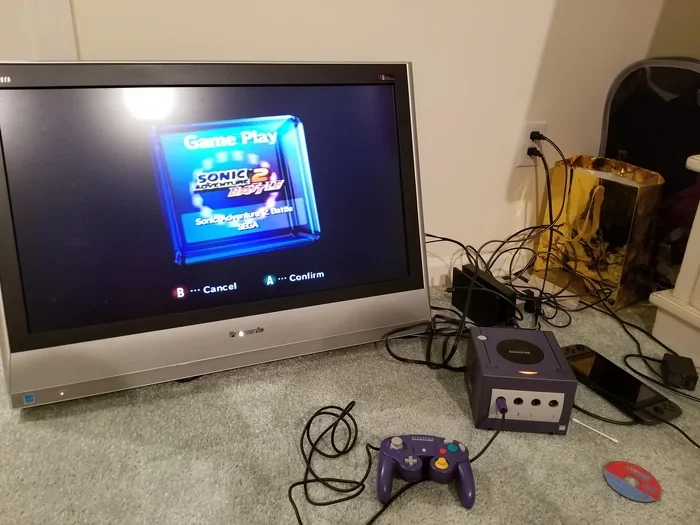
If you do not want to deal with wireless connections, a 3.5mm audio cable is the simplest option. Most monitors have a headphone jack or a 3.5mm audio output. You just plug one end of the cable into the monitor and the other end into the AUX input on your Bluetooth speaker.
This method works well, but there is one catch. You need your Bluetooth speaker to have an AUX input. Many speakers do, but some newer models skip it to save space. Check your speaker specs before buying a cable. If your speaker has an AUX port, this is the easiest and most affordable way to connect.
The sound quality with a 3.5mm cable is usually very good. There is no wireless compression or latency to worry about. It is a solid choice for people who want a simple, reliable connection without any extra equipment.
Method 3: Using an HDMI Audio Extractor
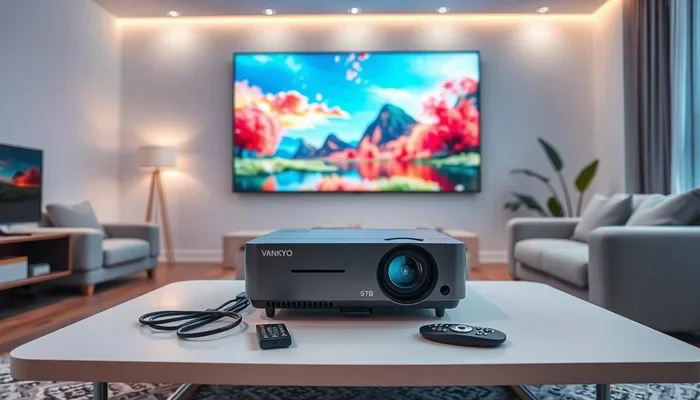
Some monitors only output audio through HDMI and do not have a separate audio jack. In this case, an HDMI audio extractor is the best solution. This device splits the HDMI signal into two outputs: one for video and one for audio.
You connect your monitor or computer to the HDMI audio extractor using an HDMI cable. Then you run the video output to your monitor and the audio output to your Bluetooth transmitter or speaker. The audio extractor separates the sound from the video signal and sends it to your speaker wirelessly or through a cable.
HDMI audio extractors are affordable and widely available online. They support high-definition video and audio, so you do not lose any quality. This method is ideal for desktop setups where the monitor is connected to a PC or laptop via HDMI.
Method 4: Using a Monitor with Built-In Bluetooth
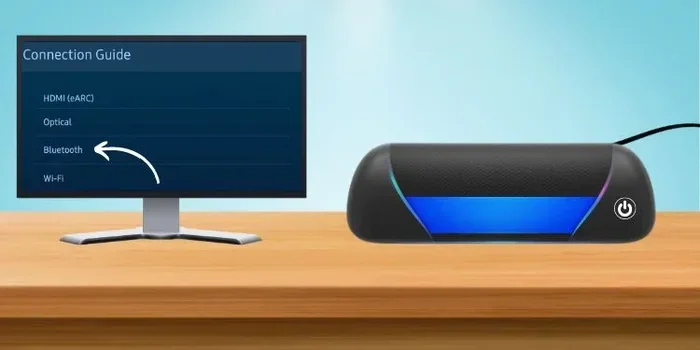
A few modern monitors come with built-in Bluetooth support. If your monitor has this feature, you can skip all the extra equipment and pair your Bluetooth speaker directly. This is the most convenient option because it requires no additional devices or cables.
To use this method, go to your monitor’s settings menu and look for the Bluetooth option. Turn it on and put your speaker in pairing mode. The monitor should detect the speaker, and you can connect them with just a few taps. Once connected, the monitor sends audio directly to the speaker over the air.
Keep in mind that built-in Bluetooth on monitors is still relatively rare. Most monitors do not have this feature. If yours does, consider yourself lucky because this is the easiest setup of all.
Step-by-Step Guide to Pairing Your Bluetooth Speaker
Once you have chosen your connection method, the next step is to pair your Bluetooth speaker with the monitor or transmitter. The pairing process is similar across most devices. Here is a simple step-by-step guide that works for most setups.
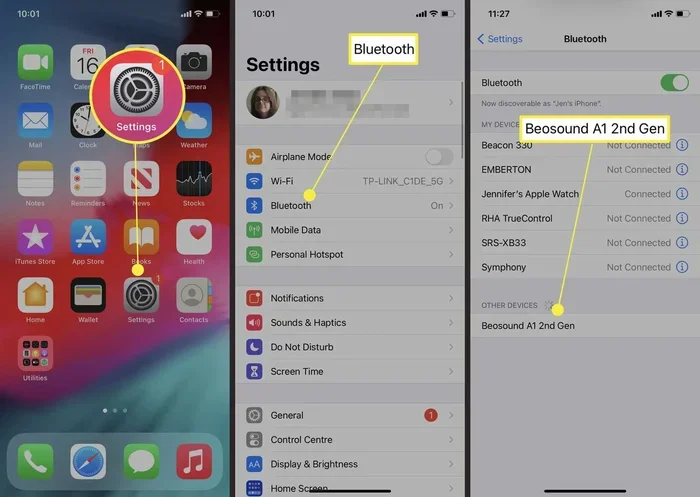
- Turn on your Bluetooth speaker and make sure it has enough battery.
- Put the speaker in pairing mode. Usually, you hold down the Bluetooth button until the LED light flashes.
- Go to your monitor’s Bluetooth settings if it has built-in Bluetooth, or turn on your Bluetooth transmitter.
- Search for available devices on the monitor or transmitter.
- Select your speaker from the list of detected devices.
- Wait for the connection to complete. You should hear a confirmation sound from the speaker.
- Test the audio by playing a video or music to make sure everything works.
If the speaker does not show up in the list, try moving it closer to the monitor or transmitter. Bluetooth range is typically around 30 feet, but walls and obstacles can reduce that distance. Also make sure your speaker is not already connected to another device, as this can interfere with pairing.
Tips for Getting the Best Sound Quality
Connecting a Bluetooth speaker to your monitor is only half the battle. To get the best possible sound, you need to pay attention to a few details. These tips will help you maximize audio quality and get the most out of your setup.
Choose the Right Bluetooth Codec
Bluetooth codecs determine how audio is compressed and transmitted wirelessly. Some codecs sacrifice quality for range, while others prioritize sound fidelity. If your speaker and transmitter support aptX or aptX HD, enable these in your settings. They provide much better audio quality than the standard SBC codec.
Position Your Speaker Properly
Where you place your Bluetooth speaker matters a lot for sound quality. Place it on a flat surface at ear level when you are sitting in your main viewing position. Avoid putting it in a corner or behind objects, as this can muffle the sound. Good placement makes a big difference even with a high-quality speaker.
Adjust Your Monitor Audio Settings
Go to your monitor’s audio settings and set the output to the correct source. If you are using a Bluetooth transmitter, make sure the monitor is set to output audio through the 3.5mm jack or HDMI audio extractor. Adjust the volume levels on both the monitor and the speaker to avoid distortion.
Keep Your Devices Updated
Bluetooth technology improves with firmware updates. Check if your monitor, transmitter, or speaker has any available updates. Updated firmware often fixes connectivity issues and improves audio performance. It is a simple step that many people overlook.
Minimize Wireless Interference
Bluetooth operates on the 2.4 GHz frequency band, which is shared with Wi-Fi and other wireless devices. If you experience audio dropouts or static, try moving your setup away from your Wi-Fi router or other wireless electronics. Reducing interference leads to a cleaner and more stable audio connection.
Common Problems and How to Fix Them
Even though connecting a Bluetooth speaker to a monitor is straightforward, you might run into some issues along the way. Here are the most common problems and their solutions.
Speaker Not Showing Up in Bluetooth List
This is the most common issue. First, make sure your speaker is in pairing mode and fully charged. Then check that your monitor or transmitter has Bluetooth enabled. If the speaker still does not appear, try turning Bluetooth off and on again on both devices. Restarting both devices often fixes this problem too.
Audio Delay or Latency
If you notice that the sound does not match the video, you are experiencing audio latency. This is common with wireless Bluetooth connections. To reduce latency, use a Bluetooth transmitter that supports aptX Low Latency. Alternatively, switch to a wired connection using a 3.5mm cable, which has zero latency.
Audio Cuts Out Intermittently
Intermittent audio dropouts are usually caused by distance or interference. Move your speaker closer to the monitor or transmitter. Also, remove any physical obstacles between the two devices. If you are in a crowded space with many wireless devices, the Bluetooth signal can get crowded. Moving to a less congested area helps.
Poor Sound Quality
If the sound is muffled or distorted, check your volume levels on both the monitor and the speaker. Playing audio at maximum volume on either device can cause distortion. Also, make sure your Bluetooth codec is set to the highest quality available. If you are using a 3.5mm cable, inspect the cable for damage or loose connections.
Connection Keeps Disconnecting
Frequent disconnections can happen if your speaker is trying to connect to multiple devices at once. Turn off Bluetooth on other nearby devices that might be competing for the connection. Also, check if your speaker has an auto-pause feature that activates when it loses signal. Resetting the Bluetooth connection on both devices usually resolves this issue.
Bluetooth Speaker vs. Monitor Speakers: A Comparison
To help you understand why connecting a Bluetooth speaker to your monitor is worth it, here is a quick comparison between built-in monitor speakers and external Bluetooth speakers.
| Feature | Monitor Built-In Speakers | Bluetooth Speaker |
|---|---|---|
| Sound Quality | Basic and flat | Rich and full |
| Bass Response | Very weak | Strong and deep |
| Volume | Low | High |
| Wireless Freedom | No | Yes |
| Portability | No | Yes |
| Price | Included with monitor | $20 to $200+ |
| Setup Complexity | None | Very simple |
As you can see from the comparison table, Bluetooth speakers win in almost every category that matters for sound quality. The only advantage monitor speakers have is that they are already built in and cost nothing extra. But for a small investment, the audio upgrade is well worth it.
Expert Insights on Bluetooth Speaker and Monitor Setups
We asked a few audio enthusiasts and tech reviewers about their favorite ways to connect Bluetooth speakers to monitors. Here is what they had to say.
Use a dedicated Bluetooth transmitter for the cleanest setup. Many people try to use cables and adapters when a simple transmitter does the job better. A good Bluetooth transmitter with aptX support gives you wireless freedom without sacrificing sound quality.
Do not cheap out on the speaker. A $15 Bluetooth speaker will sound noticeably worse than a $50 or $80 one. If you are investing in better audio, invest in a speaker that can deliver. Look for speakers with good reviews and solid battery life.
Consider your room size. If you have a large room, you might need a bigger speaker or even two speakers for stereo sound. Small Bluetooth speakers work great in small rooms but may struggle to fill larger spaces.
Test before you commit. If possible, try the speaker in your actual setup before buying it permanently. Some speakers pair better with certain transmitters or monitors than others. Compatibility can vary, so a quick test saves time and money.
Quick Tips for a Better Audio Setup
- Always keep your Bluetooth speaker charged for uninterrupted use.
- Place the speaker in the center of your room for the best stereo effect.
- Use a Bluetooth transmitter with a rechargeable battery for flexibility.
- Clean the audio jacks on your monitor and speaker regularly.
- Turn off unused Bluetooth devices to reduce interference.
- Experiment with speaker placement to find the sweet spot for your room.
- Save your paired devices in your monitor or transmitter for quick reconnection.
Frequently Asked Questions
Can I connect any Bluetooth speaker to any monitor?
Most Bluetooth speakers can connect to most monitors, but the method depends on your monitor’s output options. If your monitor has built-in Bluetooth, you can pair directly. If not, you will need a Bluetooth transmitter, a 3.5mm cable, or an HDMI audio extractor. Check your monitor’s ports and features to determine the best approach.
Does connecting a Bluetooth speaker cause audio delay?
Wireless Bluetooth connections can introduce slight audio delay, also known as latency. This is more noticeable when watching fast-paced videos or playing games. Using a Bluetooth transmitter with aptX Low Latency or switching to a wired AUX connection eliminates this problem almost entirely.
What is the best Bluetooth speaker for monitor use?
The best Bluetooth speaker depends on your budget and needs. For small desks, a compact speaker like the JBL Flip or Anker Soundcore works great. For larger rooms, consider a bigger speaker with more bass. Look for speakers with good battery life, clear sound, and reliable Bluetooth connectivity.
Can I connect two Bluetooth speakers to one monitor for stereo sound?
Yes, some Bluetooth speakers support stereo pairing, which lets you connect two speakers for left and right audio channels. Check your speaker’s manual for stereo or dual speaker pairing instructions. You will need two matching speakers for this to work.
Do I need any special equipment to connect a Bluetooth speaker to a monitor?
It depends on your monitor. If your monitor has built-in Bluetooth, you need nothing extra. If it does not, you will need a Bluetooth transmitter or an HDMI audio extractor. A simple 3.5mm audio cable works if your speaker has an AUX input. Most of this equipment is affordable and easy to find online.
Is the sound quality as good as a wired speaker?
Bluetooth audio is very close to wired quality with modern codecs like aptX and aptX HD. You may notice a slight difference in the highest frequencies, but for most listening situations, the difference is minimal. A wired connection still offers the most consistent and lag-free audio, but Bluetooth is excellent for everyday use.
Conclusion
Connecting a Bluetooth speaker to monitor setups is one of the easiest and most rewarding upgrades you can make. Whether you choose a Bluetooth transmitter, a 3.5mm cable, or an HDMI audio extractor, the process is simple and the results are immediate. You get better sound, more freedom, and a more enjoyable experience every time you use your monitor.
We covered every method, every tip, and every common problem you might face. Now you have the knowledge to pick the best connection method for your setup and get the most out of your Bluetooth speaker. Do not settle for weak, flat monitor sound when a simple upgrade can transform your listening experience.
Try one of the methods we described today and see the difference for yourself. Once you experience rich, clear audio coming from a Bluetooth speaker paired with your monitor, you will never go back to built-in speakers again. Take action now, set up your Bluetooth speaker, and enjoy better sound today.