Can I Use Usb 3 2 In 3 0 Port And What Happens Next
Yes, you can use a USB 3.2 device in a USB 3.0 port, but the speed drops to USB 3.0 levels. Your device will still work thanks to backward compatibility, but you won’t get the full USB 3.2 performance. Let’s break down exactly what happens and how to get the best results.
You just bought a shiny new USB 3.2 external drive or flash drive. You plug it in, and then you notice something. The port on your computer or laptop says USB 3.0. A quick thought crosses your mind. Can I use USB 3.2 in a USB 3.0 port? The short answer is yes. But the full story has some important details you need to know.
Whether you are a casual user, a creative professional, or someone who just wants faster file transfers, understanding USB compatibility matters. Using the wrong combination of ports and cables can slow you down. Or worse, it can lead to confusion about why your device isn’t performing as expected.
In this guide, I will walk you through everything you need to know. We will cover what happens when you plug a USB 3.2 device into a USB 3.0 port. We will look at speeds, cable types, and real-world performance. By the end, you will have a clear picture of how to get the best results from your USB setup.
Let us start with the basics. Understanding how USB standards work makes everything else much easier to follow.
Key Takeaways
- USB 3.2 works in USB 3.0 ports: Backward compatibility ensures your devices function, just at slower speeds.
- Speed caps at USB 3.0 levels: You’ll get up to 5 Gbps instead of 10 or 20 Gbps.
- USB-C cables matter: The connector type and cable quality affect performance more than people realize.
- No damage risk: Plugging USB 3.2 into USB 3.0 won’t harm your devices.
- Check your cable and port: Both the port and cable need to support higher speeds for full USB 3.2 performance.
- Use the right cable: A USB 3.2 Gen 2 cable is essential if you want to future-proof your setup.
📑 Table of Contents
What Is USB 3.2 and How Does It Differ from USB 3.0?
Before we answer the main question, it helps to understand the differences between these two USB standards. USB technology has evolved a lot over the years. Each new version brought faster speeds and better features.
The USB Standard Timeline
USB stands for Universal Serial Bus. It is the standard connection used to link computers, phones, external drives, and thousands of other devices. Here is a quick look at how the standards evolved:
- USB 3.0 (2008): Also called SuperSpeed USB. It offers transfer speeds up to 5 Gbps. This was a huge jump from USB 2.0.
- USB 3.1 (2013): Renamed to USB 3.1 Gen 1 (same as USB 3.0) and USB 3.1 Gen 2 (10 Gbps speeds).
- USB 3.2 (2017): Introduced USB 3.2 Gen 1 (5 Gbps), Gen 2 (10 Gbps), and Gen 2×2 (20 Gbps). This is where things got more confusing.
So USB 3.2 is the newer standard. It uses better signaling technology to push more data through the same or similar connectors. USB 3.2 Gen 2×2 can hit 20 Gbps, which is four times faster than USB 3.0.
Why the Naming Is Confusing
Here is the tricky part. USB-IF, the group that manages USB standards, changed the naming rules. USB 3.0 became USB 3.2 Gen 1. USB 3.1 became USB 3.2 Gen 2. And the new 20 Gbps version became USB 3.2 Gen 2×2. This means when people say “USB 3.0” and “USB 3.2,” they might actually be talking about different generations of the same basic technology.
Most people still call it USB 3.0 or USB 3.2 out of habit. That is perfectly fine. Just know that USB 3.2 is the newer, faster family of standards.
Can I Use USB 3.2 in a USB 3.0 Port?
Now for the big question. The answer is yes. USB 3.2 devices are designed to be backward compatible with USB 3.0 ports. This is one of the best things about the USB standard. It means older and newer devices can work together.
What Happens When You Plug In a USB 3.2 Device?
When you connect a USB 3.2 device to a USB 3.0 port, the connection will work. Your computer will recognize the device. You can transfer files, charge your phone, or use a docking station. But here is the catch. The speed will be limited by the slower port.
Think of it like a highway. USB 3.2 is a multi-lane highway that can handle a lot of traffic. USB 3.0 is a smaller road. Even if your car (the USB 3.2 device) is built for speed, it can only go as fast as the road allows.
So what does this mean in real terms?
- A USB 3.2 Gen 2 device (10 Gbps) in a USB 3.0 port: It will run at USB 3.0 speeds, which is 5 Gbps.
- A USB 3.2 Gen 2×2 device (20 Gbps) in a USB 3.0 port: It will also run at 5 Gbps.
- A USB 3.2 Gen 1 device (5 Gbps) in a USB 3.0 port: It runs at full speed since both are 5 Gbps.
The device will not break. Nothing will get damaged. It just operates at the slower speed of the USB 3.0 port.
Does the Connector Type Matter?
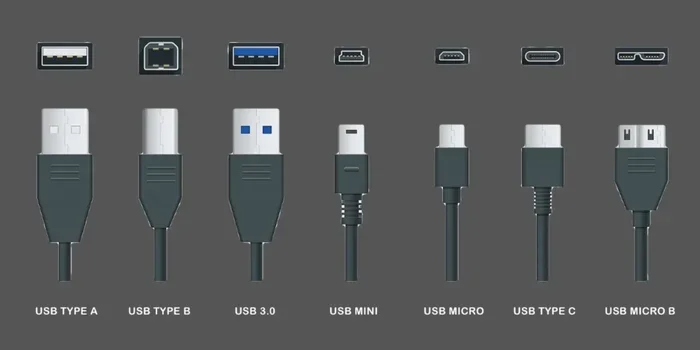
Yes, it does. USB 3.2 devices can come with different connectors. Some use USB-C, while others use USB-A. The connector type does not affect backward compatibility. A USB 3.2 device with a USB-C plug will work in a USB 3.0 port with a USB-A receptacle, as long as you use the right cable.
But here is where it gets interesting. USB-C is a connector shape, not a speed standard. USB 3.0 can use USB-C connectors too. So a USB-C port on your laptop might actually be a USB 3.0 port, not a faster one. Always check the specs of your device.
What Speeds Will You Actually Get?
Real-world speeds are always lower than the theoretical maximums. But understanding the numbers helps you set realistic expectations.
Theoretical vs. Real-World Speeds
USB 3.0 has a theoretical maximum of 5 Gbps. In practice, most users see real-world speeds between 300 and 450 MB/s. USB 3.2 Gen 2 hits 10 Gbps theoretically, with real-world speeds around 800 MB/s to 1000 MB/s. USB 3.2 Gen 2×2 can reach 20 Gbps on paper, but real-world results depend on the device and cable quality.
When a USB 3.2 device connects to a USB 3.0 port, you will see USB 3.0 speeds. That means your transfer rate will cap around 450 MB/s at best. For most everyday tasks like moving documents or photos, this is still very fast.
Speed Comparison Table
| USB Standard | Theoretical Max Speed | Real-World Speed | Works in USB 3.0 Port? |
|---|---|---|---|
| USB 3.0 | 5 Gbps | 300-450 MB/s | Yes (native speed) |
| USB 3.2 Gen 1 | 5 Gbps | 300-450 MB/s | Yes (same as USB 3.0) |
| USB 3.2 Gen 2 | 10 Gbps | 800-1000 MB/s | Yes (caps at 5 Gbps) |
| USB 3.2 Gen 2×2 | 20 Gbps | 1000-1800 MB/s | Yes (caps at 5 Gbps) |
As you can see from the table, every USB 3.2 device works in a USB 3.0 port. But the speed drops to USB 3.0 levels for anything faster than Gen 1.
Does the Cable Matter?
Many people overlook the cable. They think the port alone determines speed. But the cable plays a huge role in USB performance.
USB Cable Types and Their Capabilities
Not all USB cables are created equal. Here is what you need to know:
- USB 3.0 cables: These support up to 5 Gbps. They have 9 pins inside the connector.
- USB 3.1/3.2 cables: These support 10 Gbps or 20 Gbps depending on the version. They have better shielding and more pins.
- USB-C cables: The shape does not guarantee speed. A USB-C cable can be USB 2.0, USB 3.0, or USB 3.2. Check the specs.
- USB 3.2 Gen 2 cables: These are specifically rated for 10 Gbps. They are required for full USB 3.2 Gen 2 performance.
If you want to use a USB 3.2 device at its full speed, you need a USB 3.2 cable and a USB 3.2 port. Using a USB 3.2 device with a USB 3.0 cable in a USB 3.0 port will give you USB 3.0 speeds. Simple as that.
Quick Tips for Choosing the Right Cable
- Always check the cable’s rated speed on the packaging or product listing.
- Look for cables marked “USB 3.2” or “SuperSpeed USB 10 Gbps.”
- Avoid cheap, unbranded cables. They often cannot handle higher speeds.
- Keep cables short for best performance. Longer cables can lose signal strength.
Common Mistakes People Make with USB Compatibility
Even tech-savvy people make mistakes when it comes to USB standards. Here are some common errors to avoid.
Assuming USB-C Means USB 3.2
This is the biggest mistake. USB-C is just a connector shape. It does not tell you the speed. A USB-C port could be USB 2.0, USB 3.0, USB 3.1, or USB 3.2. Always check the device specifications.
Using the Wrong Cable
Plugging in a USB 2.0 cable with a USB 3.2 device will limit you to USB 2.0 speeds. That is 480 Mbps, which is dramatically slower than USB 3.0 or 3.2. Always match your cable to the speed you need.
Ignoring Port Capabilities on Hubs and Docks
If you use a USB hub or docking station, check each port’s specifications. Some hubs have a mix of USB 3.0 and USB 3.2 ports. Plugging your USB 3.2 device into a USB 3.0 port on the hub will still limit your speed.
Thinking Backward Compatibility Means Full Speed
Backward compatibility means the device will work. It does not mean it will work at full speed. Keep this distinction clear in your mind, and you will never be disappointed.
Expert Insights: How to Get the Best USB 3.2 Performance
Want to make sure you are getting the most out of your USB 3.2 devices? Here are some expert tips that make a real difference.
Check Your Motherboard or Laptop Specs
Before buying a USB 3.2 device, check what ports your computer has. Look for “USB 3.2 Gen 2” or “SuperSpeed USB 10 Gbps” labels. If your computer only has USB 3.0 ports, you will not get the full speed benefit of a USB 3.2 Gen 2 device.
Invest in Quality USB 3.2 Cables
A good cable costs a few dollars but makes a big difference. Look for cables from reputable brands like Cable Matters, Anker, or Sabrent. These cables are properly shielded and rated for the speeds they advertise.
Use Direct Ports When Possible
USB hubs are great for adding more ports. But each hub adds a small amount of latency. For the fastest transfers, plug your USB 3.2 device directly into your computer’s port. If you need a hub, choose one with a USB 3.2 upstream connection.
Update Your USB Drivers
Sometimes slow speeds come from outdated drivers. Go to your computer manufacturer’s website and download the latest USB drivers. This is especially important for Windows users, but Mac users should keep their operating system updated too.
Future-Proof Your Setup
If you are buying new devices or cables, go with USB 3.2 where possible. USB 3.2 is backward compatible with older ports, so it works everywhere. You get the best of both worlds. It works now and is ready for faster ports later.
Key Takeaways
- USB 3.2 works in USB 3.0 ports: Backward compatibility ensures your devices function, just at slower speeds.
- Speed caps at USB 3.0 levels: You will get up to 5 Gbps instead of 10 or 20 Gbps.
- USB-C cables matter: The connector type and cable quality affect performance more than people realize.
- No damage risk: Plugging USB 3.2 into USB 3.0 will not harm your devices.
- Check your cable and port: Both the port and cable need to support higher speeds for full USB 3.2 performance.
- Use the right cable: A USB 3.2 Gen 2 cable is essential if you want to future-proof your setup.
Conclusion
So can you use USB 3.2 in a USB 3.0 port? Absolutely. Your device will work just fine. You will not break anything, and you will not lose any data. The only trade-off is speed. A USB 3.2 Gen 2 or Gen 2×2 device will run at USB 3.0 speeds when plugged into a USB 3.0 port.
For most everyday tasks, this is perfectly fine. Moving documents, photos, and videos will still happen quickly. But if you need the fastest possible transfer speeds for large video files or massive backups, you will want a USB 3.2 port on your computer.
The best approach is to understand your setup. Know what ports you have. Use the right cables. And buy devices that match your needs. USB technology is designed to be flexible and backward compatible. That is its biggest strength. So plug in your USB 3.2 device with confidence. Just know what to expect, and you will be just fine.
Take a moment today to check your USB ports and cables. A small upgrade or adjustment can make a big difference in your daily workflow. Your future self will thank you for it.
Frequently Asked Questions
Will plugging a USB 3.2 device into a USB 3.0 port damage anything?
No, it will not. USB standards are designed with backward compatibility in mind. Your USB 3.2 device will work safely in a USB 3.0 port. The only difference is the speed will be limited to USB 3.0 levels.
Can I use a USB 3.2 Gen 2×2 cable in a USB 3.0 port?
Yes, you can. The cable will work, but the speed will be capped at USB 3.0 speeds. The cable itself is not the problem. The port’s maximum speed is what limits the performance.
How do I know if my port is USB 3.0 or USB 3.2?
Check your computer or motherboard specifications. Look for labels like “SuperSpeed USB 5 Gbps” for USB 3.0 or “SuperSpeed USB 10 Gbps” for USB 3.2 Gen 2. You can also check your device manager on Windows or system information on Mac.
Do I need a special cable for USB 3.2 devices?
You do not need a special cable for basic functionality. But if you want to get the full USB 3.2 speeds, you need a cable rated for that speed. A standard USB 3.0 cable works fine in USB 3.0 ports.
What happens if I use a USB 2.0 cable with a USB 3.2 device?
Your device will still work, but the speed will drop to USB 2.0 levels. That is only 480 Mbps, which is much slower than USB 3.0 or 3.2. Always use a USB 3.0 or higher cable for best performance.
Is USB 3.2 backward compatible with USB 2.0 ports?
Yes, USB 3.2 is backward compatible with USB 2.0 ports. Your device will work, but the speed will be limited to USB 2.0 speeds, which is 480 Mbps. This is much slower than USB 3.0 or 3.2, so it is best to use USB 3.0 or higher ports when possible.