Can You Connect Hdmi To Dvi A Complete Step By Step
Connecting HDMI to DVI is absolutely possible and easier than most people think. You just need the right cable or adapter to bridge the gap between these two popular video connection types. This guide walks you through every step, from understanding the basics to solving common problems. Whether you are setting up a monitor, home theater, or desktop workstation, you will find clear answers here.
Have you ever looked at the back of your TV or monitor and wondered if you could plug in an HDMI cable to a DVI port? Maybe you have an older display and a newer device, and you are not sure if they will work together. The good news is that connecting HDMI to DVI is something you can do with the right tools and a little know-how.
In this guide, we will walk you through every single step of the process. You will learn what HDMI and DVI are, how they differ, and exactly what you need to make them work as a team. We will also cover common problems and quick fixes so you can get your display up and running fast. By the end, you will feel confident tackling any HDMI to DVI connection project at home.
Key Takeaways
- HDMI and DVI can work together: You can connect them using a simple HDMI to DVI cable or adapter.
- Video works, but audio may not: DVI does not carry audio, so you need a separate audio connection.
- Choose the right adapter: DVI-I supports both digital and analog, while DVI-D only supports digital signals.
- Quality stays high: HDMI to DVI connections deliver full high definition video without loss.
- Troubleshooting is simple: Most issues come from wrong adapter types or missing audio cables.
- Check your ports first: Identify whether your DVI port is DVI-D, DVI-A, or DVI-I before buying anything.
📑 Table of Contents
What Is HDMI and What Is DVI?
Before we dive into the connection process, let us break down what these two types of ports actually are. Understanding the basics makes everything else much easier to follow.
What Does HDMI Stand For?
HDMI stands for High Definition Multimedia Interface. It is a digital connection that carries both video and audio signals through a single cable. Almost every modern TV, laptop, gaming console, and streaming device uses HDMI today. It supports high resolutions like 4K and even 8K on newer versions. Most people have at least a few HDMI cables lying around the house already.
What Is a DVI Port?
DVI stands for Digital Visual Interface. It was introduced in the late 1990s as a way to connect displays to computers. DVI was a big step forward from older VGA connections because it carries a digital signal instead of an analog one. You will still find DVI ports on many desktop monitors and some older TVs. There are three types of DVI you should know about:
- DVI-D: Digital only. It does not carry an analog signal.
- DVI-A: Analog only. It is basically like a VGA port in disguise.
- DVI-I: Integrated. It supports both digital and analog signals.
Knowing which type of DVI you have is super important. It determines which adapter or cable you need to buy. Take a look at your port and compare it to these descriptions. If you are still unsure, check the label on your monitor or computer manual.
Can You Connect HDMI to DVI Directly?
The short answer is yes. You can absolutely connect an HDMI output to a DVI input. The video signal is compatible between the two, which means you will get a clear, sharp picture on your display. However, there is one important catch that you need to keep in mind.
Video Works, But Audio Does Not
DVI was designed before HDMI added audio capabilities. Because of this, DVI does not carry sound. When you use an HDMI to DVI adapter or cable, the video signal passes through just fine. But the audio signal gets left behind. You will need a separate way to get sound, such as a 3.5mm audio cable or connecting speakers directly to your source device.
This is not a dealbreaker for most people. Many users set up their displays in rooms where audio is not the main focus, or they already have speakers connected another way. If you are setting up a home theater system or a monitor for watching TV, just make sure you plan for audio separately.
If you are looking for alternatives to traditional cable setups, you might also want to explore alternatives to Dish Network and DirectTV that work well with modern display connections like HDMI to DVI.
When HDMI to DVI Works Best
There are several situations where connecting HDMI to DVI makes a lot of sense. Here are some common examples:
- You have a newer laptop with only HDMI output but an older monitor with a DVI port.
- You want to use a desktop computer with a high quality DVI monitor.
- You are setting up a second display and one of your ports is DVI.
- You have a streaming device that outputs HDMI but your TV only has DVI inputs.
In all of these cases, a simple adapter or cable solves the problem. The connection quality remains excellent because both HDMI and DVI use digital signals for video.
What You Need: Cables and Adapters
Now that you know HDMI to DVI connections are possible, let us talk about what you actually need to buy. The right hardware makes all the difference.
Option 1: HDMI to DVI Cable
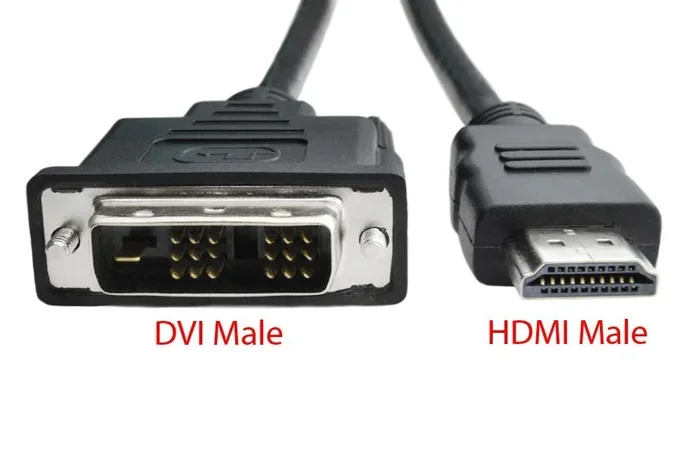
This is the simplest option. An HDMI to DVI cable has an HDMI connector on one end and a DVI connector on the other. You plug one end into your source device and the other into your display. These cables are easy to find online and at most electronics stores. They work great for video-only connections.
Make sure you buy a cable that matches your DVI type. If you have a DVI-D port, get a cable with a DVI-D connector. If you have a DVI-I port, a DVI-D cable will still work perfectly fine.
Option 2: HDMI to DVI Adapter
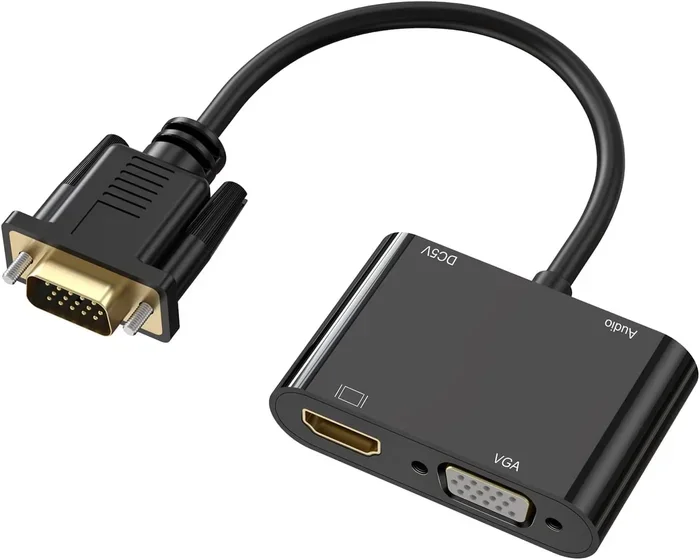
An adapter is a great choice if you want to keep your existing HDMI cable. You plug your HDMI cable into the adapter, and then plug the adapter into your DVI port. Adapters come in many shapes and sizes. Some are small dongles that plug directly into the port, while others are larger units with extra ports for audio output.
Here are some tips for choosing the right adapter:
- Check whether your DVI port is DVI-D or DVI-I before buying.
- Choose a gold-plated adapter for better signal quality and durability.
- Look for adapters that include a 3.5mm audio jack if you need sound.
- Buy from a reputable brand to avoid signal loss or compatibility issues.
Option 3: Active Adapter for Longer Runs
If you need to run a cable over a longer distance, a standard passive adapter might not work well. In that case, an active HDMI to DVI adapter includes a built-in signal booster. This keeps the signal strong even over longer cable runs. Active adapters cost a bit more, but they are worth it for setups where your devices are far apart.
If you are building a display setup and also looking at broader entertainment options, consider exploring alternatives to Dish Network and DirectTV that pair well with versatile connection setups.
Quick Comparison Table
| Option | Pros | Cons |
|---|---|---|
| HDMI to DVI Cable | Simple, no extra parts, affordable | Fixed length, no audio support |
| HDMI to DVI Adapter | Keeps your HDMI cable, flexible | May need separate audio cable |
| Active Adapter | Works over long distances, reliable | More expensive, needs power |
Step-by-Step Connection Guide
Ready to make the connection? Follow these steps carefully and you will have your display working in minutes.
Step 1: Turn Off Both Devices
Before you plug anything in, power off both your source device and your display. This protects your ports and prevents any signal interference during setup. It is a small step that saves a lot of headaches later.
Step 2: Identify Your DVI Port Type
Look closely at the DVI port on your monitor or TV. Count the pin holes. A DVI-D port has only digital pins. A DVI-A port has only analog pins. A DVI-I port has both sets of pins. Take a photo or write down what you see so you do not forget.
Step 3: Choose Your Cable or Adapter
Based on the DVI type you identified, pick the right cable or adapter. If you have a DVI-D port, a standard HDMI to DVI-D cable or adapter works perfectly. If you have a DVI-I port, you have even more flexibility.
Step 4: Connect the Cable or Adapter
Plug the HDMI end into your source device, whether that is a laptop, streaming box, or gaming console. Then plug the DVI end into your display. Push the connector in firmly until it clicks into place. Do not force it. If it does not fit easily, double-check that you have the right type of adapter.
Step 5: Connect Audio Separately
Since DVI does not carry audio, you need a separate audio connection. The easiest way is to use a 3.5mm aux cable from your source device to your speakers or headphones. Some adapters also have a built-in audio output jack, which makes this step even easier.
Step 6: Power On and Test
Turn on both devices. Switch your display to the correct input source. You should see a picture on your screen right away. If you do not see anything, check your connections and try a different port. Most of the time, the picture shows up immediately and looks great.
If you are setting up a complete entertainment station and also exploring broader viewing options, you may want to look into alternatives to Dish Network and DirectTV for content sources that work seamlessly with your new HDMI to DVI setup.
Common Problems and How to Fix Them
Even with the right gear, you might run into a few hiccups. Here are the most common issues people face when setting up an HDMI to DVI connection and how to solve them.
No Picture on the Screen
This is the most common complaint. The first thing to check is whether both ends of the cable or adapter are fully seated. A loose connection will prevent any signal from passing through. Next, make sure your display is set to the correct input source. Sometimes a monitor has multiple DVI ports and you need to select the right one manually.
Also, try a different HDMI port on your source device. Some devices have multiple ports and one might be faulty. If none of that works, test your cable with another device to rule out a bad cable.
Picture Shows but No Sound
Remember, DVI does not carry audio. If you have a picture but no sound, this is completely normal. You need to connect audio separately using a 3.5mm cable, optical cable, or Bluetooth speakers. Check your device sound settings to make sure audio is not being routed to the DVI output only.
Fuzzy or Low Quality Image
A blurry or pixelated picture usually means one of two things. Either your cable is low quality, or your resolution settings need adjustment. Try a higher quality HDMI cable or a different adapter. Then go into your display settings and make sure the output resolution matches your monitor’s native resolution.
Adapter Keeps Disconnecting
Some adapters fit loosely in the port. This can cause the screen to flicker or go dark. Look for adapters with a tight fit or consider using a cable that has the DVI connector built in. You can also try wrapping a small piece of tape around the adapter to give it a tighter grip in the port.
HDMI to DVI vs Other Connection Types
How does HDMI to DVI compare to other common video connections? Let us look at the big picture.
HDMI vs DVI
HDMI carries both video and audio, while DVI only carries video. HDMI is newer and more common on modern devices. DVI is older but still widely found on desktop monitors. When you connect the two, you get excellent video quality but must handle audio separately.
HDMI vs VGA
VGA is an older analog connection that does not support high definition resolutions well. HDMI is digital and much sharper. If you have a choice between VGA and DVI, always choose DVI for better picture quality.
HDMI vs DisplayPort
DisplayPort is a modern digital connection found on many computer monitors. It carries both video and audio, just like HDMI. If your monitor has DisplayPort, you might not need an HDMI to DVI connection at all. However, DisplayPort to HDMI adapters are also widely available if you ever need them.
Quick Tips for the Best Results
Here are some fast tips to make sure your HDMI to DVI setup works perfectly every time:
- Always buy cables and adapters from trusted brands.
- Keep your cables as short as possible for the best signal quality.
- Update your graphics drivers before setting up a new display connection.
- Use a DVI-I port if you want the most flexibility with different cable types.
- Label your cables so you always know which one goes where.
- Keep a spare adapter on hand in case one gets lost or damaged.
Final Thoughts
Connecting HDMI to DVI is a straightforward process that anyone can do. You do not need to be a tech expert or have expensive equipment. With the right cable or adapter, a few simple steps, and a basic understanding of your ports, you can get any display working with any source device in no time.
Remember the key points: video works perfectly, but you need a separate audio connection. Always check your DVI port type before buying an adapter. And if you run into trouble, most problems have simple fixes. The world of display connections does not have to be confusing. With this guide, you now have the knowledge to tackle any HDMI to DVI setup with confidence.
Go ahead and give it a try. Your display is waiting, and the connection is simpler than you think. Once you make it work, you will wonder why you ever hesitated. Happy connecting!
Frequently Asked Questions
Do I need a special cable to connect HDMI to DVI?
You need either an HDMI to DVI cable or an HDMI to DVI adapter. A regular HDMI cable alone will not work because the connectors are different shapes. Both options are affordable and easy to find online or at electronics stores. Just make sure the DVI end matches your port type.
Will I lose video quality when using an HDMI to DVI adapter?
No, you will not lose quality. Both HDMI and DVI use digital signals for video, so the picture stays sharp and clear. As long as you buy a good quality adapter or cable, your high definition video will look just as good as a direct HDMI connection.
Can I get sound through an HDMI to DVI connection?
No, DVI does not carry audio signals. You will need to connect sound separately using a 3.5mm audio cable, optical cable, or external speakers. This is the main limitation of the HDMI to DVI setup, but it is easy to work around.
What is the difference between DVI-D and DVI-I?
DVI-D is digital only, while DVI-I supports both digital and analog signals. For an HDMI to DVI connection, DVI-D works perfectly fine. DVI-I gives you even more flexibility if you ever need to connect an older analog device as well.
Can I use an HDMI to DVI cable for gaming?
Yes, absolutely. The digital video signal provides a clear and responsive picture for gaming. Just make sure you handle audio separately through your speakers or headset. Most gamers find the setup works great for both PC and console gaming.
How long can my HDMI to DVI cable be?
A standard HDMI cable works well up to about 15 feet. If you need a longer run, consider an active adapter with a signal booster. Passive cables and adapters can lose signal strength over longer distances, so keeping the length reasonable is always a good idea.
=== CONCLUSION ===
Setting up an HDMI to DVI connection is one of the easiest and most useful tech skills you can learn. Whether you are connecting an older monitor to a new laptop or setting up a second display for your desktop, the process is simple and reliable. You just need the right cable or adapter, a basic understanding of your port types, and a plan for audio if needed.
This guide covered everything from the basics of HDMI and DVI to step-by-step setup instructions and common troubleshooting tips. You now have all the knowledge you need to make any connection work flawlessly. The next time someone asks if you can connect HDMI to DVI, you will be the expert they turn to for help.