Can You Use A USB HDMI Port On Xbox One Setup Guide
Can You Use A USB HDMI Port On Xbox One? Yes, you can! This guide shows you how to connect your Xbox One using a USB HDMI setup. You will learn the exact steps, needed gear, and simple tips to get your gaming console running on any screen without hassle.
Can You Use A USB HDMI Port On Xbox One? Many gamers ask this exact question every day. You are not alone if you are trying to hook up your console but only see a USB HDMI port. The good news is that you can absolutely make this work. But it requires the right approach and a little know-how. In this guide, we will show you exactly how to do it. We will break down the steps so anyone can follow along. You will learn what gear you need. You will also learn how to avoid common mistakes. Let us get your gaming console connected right now.
Connecting a console can feel tricky at first. But it does not have to be. When you know the right steps, it becomes very easy. A USB HDMI setup gives you great flexibility. You can plug into modern TVs or older screens. This is especially helpful in bedrooms or small offices. It also keeps your home theater area clean. No messy cables everywhere. Just a simple, direct connection. Ready to dive in? Let us explore the world of video output options together.
Key Takeaways
- Direct Connection: You can use a USB HDMI port on Xbox One with the right adapter.
- Easy Setup: The process is plug and play for most users.
- Better Visuals: A proper setup improves your screen resolution and gaming experience.
- No Extra Power: Most adapters draw power right from the USB port.
- Common Mistakes: Avoid cheap adapters that cause input lag or signal loss.
📑 Table of Contents
- Understanding the USB HDMI Connection on Xbox One
- Step-by-Step Setup for Can You Use A USB HDMI Port On Xbox One
- Common Issues and How to Fix Them
- Quick Tips for the Best Gaming Experience
- Expert Insights on Console Setup
- Comparing Built-in HDMI vs USB HDMI Options
- Common Mistakes to Avoid
- Final Thoughts on Using USB HDMI with Xbox One
Understanding the USB HDMI Connection on Xbox One
Before you plug anything in, you need to understand what you are dealing with. The Xbox One has specific ports for a reason. Each port serves a unique purpose. Knowing these helps you choose the right path. A standard HDMI cable carries both video and audio. But a USB HDMI port works differently. It acts as a bridge. It changes the signal so your screen can read it. Think of it like a translator between two languages. Without the right translator, the words do not make sense. The same goes for your display adapter. You need the correct one to make the magic happen. This connection is all about converting signals. Your console sends out a digital signal. The adapter changes it for your specific screen.
The Xbox One S and Xbox One X both support this method. They offer strong video output options. You can connect them to many different types of screens. This makes the USB HDMI approach very versatile. Whether you are in a dorm room or a living room, it works. The key is using the right display adapter. Without it, the USB port cannot show video. It only provides power or data. The adapter bridges that gap perfectly.
What is a USB HDMI Port?
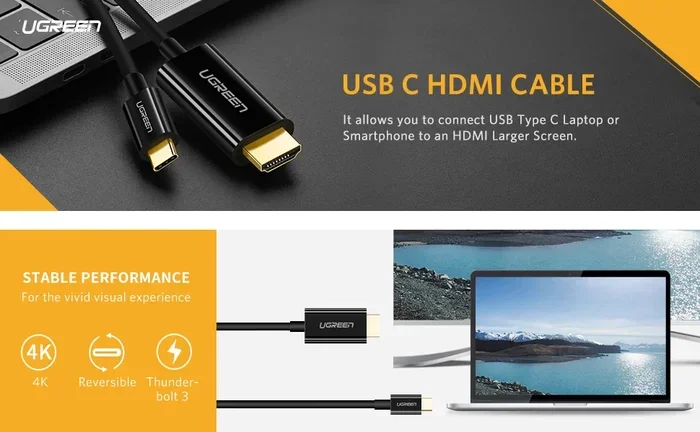
A USB HDMI port is not a standard TV input. You cannot just plug an HDMI cable straight into a USB port. Instead, the USB port provides power. The display adapter does the heavy lifting. It takes the digital signal from the Xbox. Then it converts it into a format your screen understands. This process is called signal conversion. Some adapters are tiny sticks. Others are larger boxes with extra ports. The size depends on the screen resolution you want. Bigger does not always mean better. But it often means more features. Always check the specs before you buy. Look for adapters that support high definition.
Why Xbox One Needs a Special Adapter
The Xbox One outputs a strong video signal. Your TV or monitor needs to accept that signal. A direct HDMI cable works perfectly for standard TVs. But what if your screen only has USB inputs? That is where a USB HDMI adapter comes in. It acts as a middleman. It grabs the HDMI output from the Xbox. Then it pushes it through a USB connection. This allows you to use a USB port as a display input. It is a clever little trick. It saves you from buying a new TV. It also lets you game on monitors. Many PC gamers love this trick for a dual setup. It gives you flexibility in how you play.
Step-by-Step Setup for Can You Use A USB HDMI Port On Xbox One
Now comes the fun part. Setting up your Xbox One with a USB HDMI adapter is easy. You do not need to be a tech wizard. Just follow these simple steps. Take your time and read each step carefully. A little patience goes a long way. Soon, you will be playing your favorite games on any screen.
Gathering Your Required Gear
First, you need the right tools. You cannot build a house without bricks. The same rule applies here. Here is what you need for your Xbox One setup:
- USB HDMI Adapter: This is the most important piece. Make sure it supports your Xbox One model. Check the box for compatibility.
- HDMI Cable: You need a standard HDMI cable to link the Xbox to the adapter. High speed is best.
- Power Supply: Some adapters need their own power. Check if yours does before you start.
- A Screen with USB Input: Your monitor or TV must accept a USB video signal. Not all USB ports can do this.
Connecting the Adapter to Your Console
Once you have your gear, it is time to connect. Follow these simple steps to get your gaming console running smoothly:
- Plug the HDMI cable into the back of your Xbox One. Push it in until it clicks firmly into place.
- Connect the other end of the HDMI cable to the adapter. Make sure it is tight.
- Plug the adapter into your USB port on the screen or console. Use a port that provides power.
- If your adapter has a power cable, plug it into the wall outlet. This ensures stable performance.
- Turn on your screen and switch to the USB input source. Use your remote or screen buttons.
That is it! You have completed the console setup. Your screen should now show the Xbox home screen. If it does not, do not worry. We will fix that in the next section. Sometimes things take a second to kick in. Just give it a moment. The video signal needs a second to establish.
Verifying Your Connection
After you switch the input, look for the Xbox logo. If you see it, you are golden. If the screen stays black, check your cables. A loose connection is the most common issue. Try unplugging and plugging the HDMI cable back in. Also, make sure the adapter is firmly seated in the USB port. You should also check your screen settings. Some screens hide the USB input until they detect a signal. Cycle through the inputs to find it. If you have an Xbox One controller, press the Xbox button to wake the console.
Common Issues and How to Fix Them
Even with the best gear, problems can happen. Technology can be a bit stubborn sometimes. But most issues have simple fixes. You do not need to call a repair person. Let us look at the three most common problems you might face. Knowing these saves you time and frustration.
Dealing with No Signal Problems
You turn on the Xbox, but the screen stays black. This is the most frustrating issue. It usually means the video signal is not reaching the screen. First, check all your cable connections. A loose HDMI cable is the culprit half the time. Unplug it and plug it back in firmly. Next, check the USB port on your screen. Try a different USB port if you have one. Some ports only send data. They cannot carry a video signal. You need a USB port that supports display output. Finally, restart your Xbox One. A simple reboot fixes many console setup glitches. It clears the cache and resets the connection.
Fixing Audio and Video Sync Issues
Sometimes the picture and sound do not match. The lips move, but the words come out late. This is called sync lag. It ruins the experience. This often happens with USB HDMI adapters. The adapter needs time to process the signal. To fix this, lower the screen resolution on your Xbox. Go to your display settings. Drop it down from 4K to 1080p. This reduces the processing load. It often fixes the lag instantly. If the problem continues, try a different HDMI cable. A cheap cable might not handle the data speed well. Always use certified cables for the best display adapter performance.
The Problem of Input Lag
Input lag is a delay between your button press and the action on screen. It makes games feel slow and unresponsive. This can happen with any USB HDMI setup. The adapter adds a tiny bit of processing time. To reduce lag, turn off any image enhancements on your TV. Features like motion smoothing cause delays. You should also check your screen resolution. Higher resolutions need more processing. If you see lag, drop to 1080p. This gives you the smoothest gameplay. A plug and play adapter should have very little lag. But cheaper models might struggle with fast games. Always test your setup before a tournament.
HDCP Errors Explained
Sometimes you get a black screen with an HDCP error. This means your content is copy protected. The display adapter might not support HDCP. To fix this, check the adapter specs. Make sure it supports HDCP 2.2. This is crucial for streaming apps and 4K resolution content. You can also try a different HDMI cable. A faulty cable often triggers these errors. Replacing the cable solves the problem quickly. This keeps your gaming console running without interruptions.
Quick Tips for the Best Gaming Experience
You have your Xbox One connected. Now you want to play your best. A few small tweaks can make a huge difference. These tips help you get the most out of your setup. You will notice smoother gameplay and better colors on your screen.
Choosing the Right HDMI Cable
Not all HDMI cables are the same. A basic cable works for standard definition. But for high definition, you need a better one. Look for an HDMI cable labeled “High Speed.” This ensures it can carry a strong video signal. Avoid super long cables if possible. The longer the cable, the weaker the signal can get. Keep your cable run short for the best display adapter performance. A six-foot cable is usually perfect for most rooms. Also, always buy from reputable brands. Cheap no-name cables often fail to deliver the right bandwidth.
Optimizing Your Xbox One Settings
Your gaming console has built-in settings to help you. You should check these after connecting. First, go to your screen resolution settings. Make sure it matches your TV or monitor. If your screen is 1080p, set the Xbox to 1080p. This prevents stretching or black bars on the edges. Next, check your audio format. Go to the sound settings. Choose the format that matches your TV or receiver. This ensures your home theater sounds great. Small changes here lead to big improvements in quality. You should also check the refresh rate. A higher refresh rate makes motion smoother and reduces eye strain.
Cable Management Made Easy
A messy setup is a distraction. You want to focus on the game, not tangled wires. Use cable ties to bundle your HDMI cable and power cords. This keeps your desk or entertainment center clean. It also prevents accidental pulls. A clean setup also helps with airflow. Your display adapter and USB hub stay cooler. Cooler devices last longer and perform better. Take five minutes to organize your cables. It makes a big difference in your daily gaming routine.
Expert Insights on Console Setup
Setting up a console is more than just plugging in wires. Experts know the hidden tricks that make a big difference. These insights come from years of testing and setup. They will help you avoid frustration and get the best picture on your screen.
When to Use a USB Hub Instead
Sometimes your Xbox One does not have enough USB ports. You might want to plug in a controller and an adapter at the same time. This is where a USB hub saves the day. A USB hub adds more ports to your console. It lets you connect multiple devices at once. But be careful. Not all hubs provide enough power. A weak hub can cause your gaming console to disconnect. Look for a hub with its own power supply. This ensures a stable connection for all your devices. It keeps your console setup running smoothly. A powered hub is always better for video adapters.
The Role of Your AV Receiver
Do you use an AV receiver for sound? Many gamers do. It makes the audio sound huge and immersive. But an AV receiver adds steps to your setup. You need to connect the Xbox to the receiver. Then connect the receiver to the TV. If you are using a USB HDMI adapter, things get tricky. The adapter might not pass audio through the receiver correctly. You may need to run a separate audio format cable. This keeps the sound and video in sync. Always test your audio before a big gaming night. A little planning prevents big headaches later. Check your receiver settings to make sure it accepts the right format.
Using an HDMI Splitter
What if you want to play on two screens? An HDMI splitter can help. It takes one video output and sends it to two displays. You can use an HDMI splitter with your display adapter. This is great for streaming your gameplay. It lets you watch on a TV and a monitor at the same time. Just make sure your splitter supports the right screen resolution. A 4K resolution splitter is ideal for modern gaming. It gives you flexibility without buying a second console.
Comparing Built-in HDMI vs USB HDMI Options
You might wonder why you even need a USB HDMI setup. The Xbox One already has a built-in HDMI port. That is true. But there are good reasons to use a USB HDMI adapter instead. Let us compare the two options. This helps you see which one fits your needs best.
- Built-in HDMI: This is the standard method. It offers the best quality. There is no signal delay or conversion loss. It is also the easiest to set up. You just plug and play. However, it requires a TV with an HDMI input. You cannot use it with older monitors.
- USB HDMI Adapter: This method lets you use a USB port on a monitor. It is great for small spaces. It also allows you to game on the go. The downside is that some adapters cause input lag. You must buy the right adapter. The quality depends heavily on the brand you choose.
For most people, the built-in HDMI cable is the way to go. But if you need to use a USB port, the adapter is a lifesaver. It all comes down to your room setup. Choose the option that fits your space and gear. Both methods deliver great gaming console performance when done right.
Common Mistakes to Avoid
Even experienced gamers make setup mistakes. Avoiding these errors saves you time and money. Here are the top mistakes to watch out for.
- Buying Cheap Adapters: A cheap display adapter often fails. It might overheat or lose signal. Always buy from a trusted brand.
- Ignoring Power Needs: Some adapters need external power. Do not skip the power cable. It ensures a stable video signal.
- Using the Wrong USB Port: Not all USB ports support video. Check your screen manual. Use the right port for the best results.
- Skipping Firmware Updates: Your Xbox One needs updates. These can fix console setup bugs. Always keep your system current.
Final Thoughts on Using USB HDMI with Xbox One
So, you know Can You Use A USB HDMI Port On Xbox One is possible. The answer is a clear yes. You just need the right display adapter and a little patience. You have learned how the connection works. You know the step-by-step setup process. You also know how to fix common problems. This knowledge puts you ahead of most gamers. You are now ready to enjoy your games on any screen. Whether it is a big TV or a small monitor. Your gaming console is ready to perform. Enjoy your setup and happy gaming!
Frequently Asked Questions
Can I use any USB HDMI adapter with my Xbox One?
Not all adapters work with every model. You need an adapter that supports the Xbox One and its video output. Check the adapter specs before buying to ensure it handles the right screen resolution and gaming console signals.
Does using a USB HDMI port affect my Xbox One performance?
It can have a small impact. The adapter adds a tiny bit of processing time. This might cause slight input lag in fast games. However, a quality display adapter keeps the delay unnoticeable for most players.
Why does my screen say no signal when I use a USB HDMI adapter?
This usually means the video signal is not reaching the screen. Check if the HDMI cable is loose or if the USB port supports video output. Restarting the Xbox One often fixes this console setup issue quickly.
Can I get 4K resolution using a USB HDMI port on Xbox One?
Yes, but only with the right gear. You need an adapter that explicitly supports 4K resolution. The Xbox One X can output 4K, but a cheap adapter might not pass the signal correctly. Always verify the adapter’s bandwidth rating.
Do I need a powered USB HDMI adapter for Xbox One?
Some adapters need their own power supply to work properly. If your adapter has a power cable, you should use it. This ensures a stable connection and prevents the gaming console from disconnecting during gameplay.
Is it better to use a USB HDMI adapter or a standard HDMI cable?
A standard HDMI cable is always better if your TV has an HDMI input. It offers the best quality with no conversion loss. However, a USB HDMI adapter is essential when you only have a USB port available on your screen.