Can You Use A USB To HDMI Converter On A TV With No Problem
Yes, you can use a USB to HDMI converter on most modern TVs, but compatibility depends on your TV’s USB port type and the converter you choose. This guide walks you through everything you need to know, from setup to troubleshooting common issues with USB to HDMI adapters and TV connectivity.
Have you ever wanted to connect a laptop, a camera, or another device to your TV using a USB to HDMI converter? Maybe you have files on a USB drive and want to watch them on the big screen. Or perhaps you need to mirror your computer display during a presentation. Whatever the reason, a USB to HDMI converter can make it happen.
The good news is that using a USB to HDMI adapter with your TV is often straightforward. Most modern TVs come with USB ports that do more than just power a streaming stick. These ports can sometimes handle video input, which opens up a lot of possibilities. But not every setup works perfectly, and that is what this guide is all about.
In this article, we will walk you through everything you need to know about using a USB to HDMI converter on your TV. You will learn how these devices work, which types of converters to buy, and how to set them up in just a few minutes. We will also cover common problems and share quick tips to save you time and frustration. Let us dive right in.
Key Takeaways
- USB to HDMI converters work on most TVs: As long as your TV has a USB port that supports data or video input, a USB to HDMI converter can connect your devices easily.
- Not all USB ports are the same: Some TV USB ports only supply power, while others support data transfer and video converter functions for display output.
- Setup is usually simple: Most USB to HDMI adapters are plug and play and require no extra software or drivers.
- Resolution matters: Check that your converter supports the resolution support your TV can display for the best digital display quality.
- Common issues are fixable: Problems like no signal or poor quality often have simple solutions you can try at home.
- Know when to skip it: Some TVs and devices won’t work together, and that is perfectly okay. There are always other options.
📑 Table of Contents
- What Is a USB to HDMI Converter and How Does It Work?
- Can You Use a USB to HDMI Converter on Any TV?
- Types of USB to HDMI Converters You Can Buy
- How to Set Up a USB to HDMI Converter on Your TV
- Common Problems When Using a USB to HDMI Converter on a TV
- When a USB to HDMI Converter May Not Be the Right Choice
What Is a USB to HDMI Converter and How Does It Work?
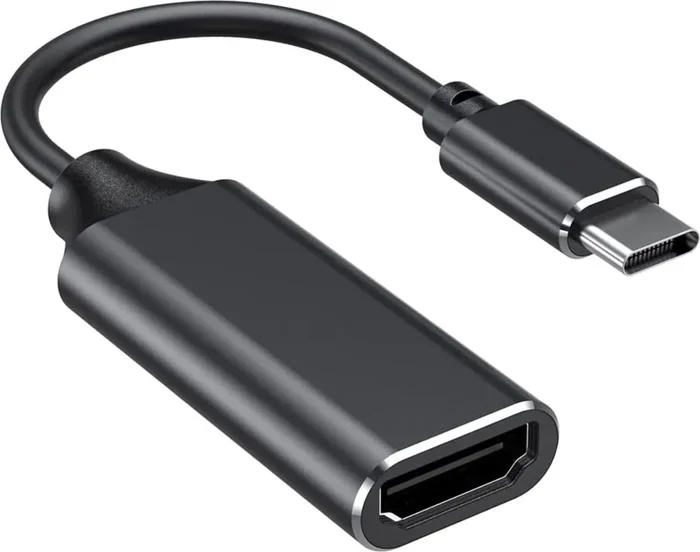
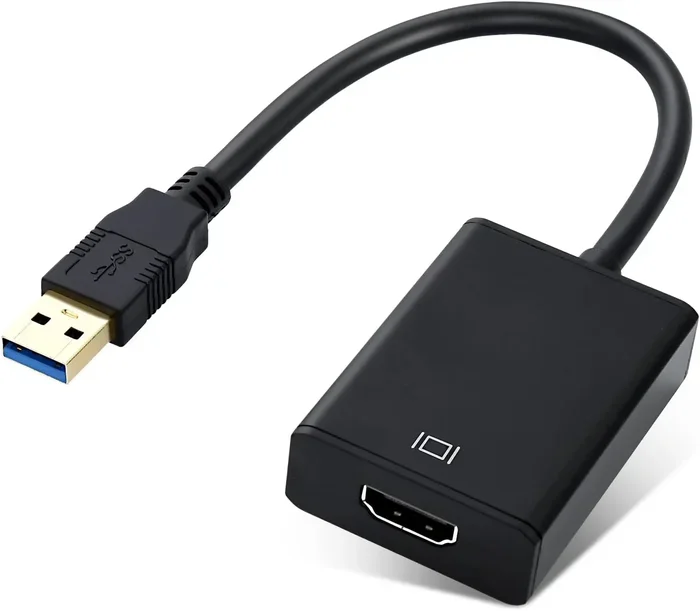
A USB to HDMI converter is a small device that changes a USB signal into an HDMI signal. This lets you connect devices like laptops, tablets, or cameras to a TV through the HDMI port. The converter acts as a bridge between your source device and your display. It takes the data coming through the USB connection and translates it into a format your TV can read.
How the Converter Translates Signals
Inside a USB to HDMI adapter, there is a tiny processor chip. This chip receives the USB data and converts it into an HDMI output. Think of it like a translator between two languages. Your device speaks USB, and your TV speaks HDMI. The converter makes sure both sides understand each other. Most converters handle both video and audio at the same time. This means you get picture and sound through a single cable connection.
Not all converters work the same way. Some are plug and play, which means you just plug them in and they start working. Others may need a driver or software installed on your computer first. The type of converter you buy will determine how much setup is involved. Always check the product details before you purchase.
Devices You Can Connect Through a Converter
A USB to HDMI converter opens up many possibilities for TV connectivity. Here are some common devices you can connect:
- Laptops and computers: Mirror your screen or extend your display to the TV for movies or work.
- Digital cameras: View your photos and videos directly on the big screen.
- USB flash drives: Play media files stored on a drive through your TV.
- Gaming consoles: Some older or portable consoles can output through USB to HDMI.
- Raspberry Pi or mini PCs: Great for building a home media center with media playback on your TV.
Each device may behave differently depending on the converter and TV you use. Compatibility plays a big role in how well things work.
Can You Use a USB to HDMI Converter on Any TV?
The short answer is no, not every TV will work with a USB to HDMI converter. The success of your setup depends heavily on the type of USB port your TV has and what it supports. Let us break this down so you know exactly what to expect.
Check Your TV’s USB Port Capabilities
Not all USB ports on a TV are created equal. Some TV USB ports are designed only to supply power. They can run a streaming stick or charge a phone, but they cannot receive video input. Other USB ports on TVs support data transfer and can even accept video signals from external devices.
Here is how to tell the difference:
- Look for a symbol: Many TVs have a small icon next to the USB port. A lightning bolt usually means it only provides power. A rectangle with an arrow may mean it supports data.
- Check your TV manual: The user guide will list what each USB port can do. Look for terms like “media player” or “input supported.”
- Try it out: Plug in a USB drive with a video file. If the TV plays it, the port likely supports media playback and may also accept a USB to HDMI converter.
If your TV’s USB port supports media playback, there is a good chance a USB to HDMI adapter will work with it. But always double-check before buying.
When the USB Port Only Charges Devices
Some TVs have USB ports that only deliver power. These are common on older TV models or budget TVs. If your TV falls into this category, a USB to HDMI converter will not work through the TV’s own USB port. You will need to use a different connection method, like plugging the converter into a wall outlet or a powered USB hub.
In these cases, you can still use the converter, but it will not draw power from the TV. You will need to supply power separately. Some converters come with a USB power cable that plugs into a wall adapter. This setup works fine, but it adds an extra cable to manage.
Types of USB to HDMI Converters You Can Buy
Not all converters are the same. The market has several types, and each one serves a slightly different purpose. Understanding your options helps you pick the right one for your needs.
Active USB to HDMI Adapters
An active USB to HDMI converter has its own processing chip. It does the heavy lifting of converting the signal all by itself. These adapters usually work with a wide range of devices and do not put much strain on your TV’s USB port. They are the most popular choice for home use.
Active converters often support higher resolutions like 1080p or even 4K HD video output. They also tend to handle audio video conversion more reliably. If you want a dependable setup, an active adapter is the way to go. Look for well-known brands that offer good compatible devices support.
Passive Converters vs Active Converters
A passive converter does not have its own chip. It relies on the connected device to do the conversion work. Passive adapters are cheaper but less reliable. They may not work with all TVs or devices. For most users, an active converter is the safer bet.
Here is a quick comparison to help you decide:
- Active converters: Built-in chip, more reliable, supports more devices, costs a bit more.
- Passive converters: No chip, budget-friendly, limited compatibility, may need extra power.
For the best TV accessory experience, go with an active USB to HDMI converter. The small extra cost is worth the reliability.
What to Look for When Shopping
When buying a USB to HDMI adapter, keep these factors in mind:
- Resolution support: Make sure the converter supports at least 1080p. If your TV is 4K, look for a converter that handles 4K resolution support.
- Audio support: Check that the converter handles both video and audio. You do not want to watch a movie with no sound.
- Plug and play design: The easiest converters need no software installation. They work the moment you plug them in.
- Cable length: A longer cable gives you more flexibility in where you place your devices.
- Brand reputation: Stick with trusted brands that have good reviews and solid customer support.
How to Set Up a USB to HDMI Converter on Your TV
Setting up a USB to HDMI converter is easier than most people think. You can have it running in just a few minutes. Here is a step-by-step guide to get you started.
Step-by-Step Setup Guide
- Check your TV USB port: Make sure your TV’s USB port supports data or media playback. If it only charges devices, you will need a powered USB hub or a wall adapter.
- Connect the converter: Plug the USB end of the USB to HDMI adapter into your TV’s USB port. If the port does not provide enough power, use a powered USB hub instead.
- Connect the HDMI cable: Plug one end of an HDMI cable into the converter and the other end into an available HDMI port on your TV.
- Switch the TV input: Use your TV remote to switch to the HDMI input you just plugged into. Most TVs have an “Input” or “Source” button on the remote.
- Power on your source device: If you are connecting a laptop or camera, turn it on. The USB to HDMI converter should detect it and display the signal on your TV.
- Adjust settings if needed: Go to your TV’s display settings and make sure the resolution matches what your converter supports. Adjust the screen size or aspect ratio if the picture does not fit correctly.
That is it. In six simple steps, you are up and running. Most USB to HDMI converters follow this same basic process.
Quick Tips for the Best Results
Here are a few tips that make a big difference in your setup:
- Use a high-quality HDMI cable: Cheap cables can cause signal loss or poor digital display quality. A good cable ensures a clean connection.
- Keep your converter cool: Some converters get warm during use. Place them in a well-ventilated area and avoid covering them with other devices.
- Update your device drivers: If you are using a computer, make sure your graphics drivers are up to date. This helps with screen mirroring and smooth performance.
- Test with a known file first: Before troubleshooting, play a file you know works. This helps you figure out if the problem is with the converter or the file itself.
- Avoid long USB cables: Long USB cables can weaken the signal. Keep the connection between your device and the converter as short as possible for the best TV connectivity.
Common Problems When Using a USB to HDMI Converter on a TV
Even with the right setup, you may run into some issues. Do not worry. Most of these problems have simple fixes. Let us look at the most common ones and how to solve them.
No Signal or Black Screen Issues
This is the most common problem people face with a USB to HDMI converter. You plug everything in, but the TV shows nothing. Here is what to do:
- Check the HDMI connection: Make sure the HDMI cable is firmly plugged into both the converter and the TV. A loose connection is the easiest fix.
- Switch the TV input: Press the Input or Source button on your remote and make sure you are on the correct HDMI port.
- Try a different USB port: If your TV has multiple USB ports, try another one. Some ports may not support video input.
- Restart both devices: Turn off the TV and the source device. Unplug the converter, wait a few seconds, and plug everything back in.
If none of these steps work, your converter may not be compatible with your TV. Not every USB to HDMI adapter works with every TV model.
Poor Video Quality or Flickering
If your picture looks blurry, pixelated, or keeps flickering, the problem is usually with the signal quality. Here are some fixes:
- Lower the resolution: Your converter may not support the resolution your TV is set to. Try reducing the output resolution on your source device.
- Shorten the USB cable: A long USB cable can weaken the signal. Use the shortest cable possible for the best display output.
- Check for interference: Keep the converter away from other electronic devices that might cause interference. Wi-Fi routers and microwaves are common culprits.
Good video converter quality depends on clean signals and proper connections. Take your time to set things up right.
Audio Sync Problems
Sometimes the video plays fine, but the audio is out of sync. Or you may get no audio at all. Here is how to fix it:
- Check audio settings on your TV: Make sure the TV is set to receive audio through the HDMI input, not through the TV speakers or optical output.
- Update audio drivers: If you are using a computer, update the audio drivers. This often fixes sync issues with USB streaming setups.
- Try a different HDMI port: Some HDMI ports on TVs handle audio better than others. Switch to a different port if you are having trouble.
Audio issues are usually easy to fix with a few small adjustments to your settings.
When a USB to HDMI Converter May Not Be the Right Choice
A USB to HDMI converter is a handy tool, but it is not the right solution for every situation. Sometimes a different approach works better. Let us look at when you might want to skip the converter and try something else.
Devices and TVs That Won’t Work Together
Some combinations simply will not work no matter what you do. Here are a few examples:
- Very old TVs without HDMI ports: If your TV only has composite or RCA inputs, a USB to HDMI converter will not help. You would need a different type of adapter.
- Devices with proprietary connectors: Some cameras or tablets use special connectors that a standard USB to HDMI adapter cannot handle.
- TVs with locked-down USB ports: Some smart TVs restrict their USB ports to only work with branded accessories. In these cases, a third-party converter may not be recognized.
Before buying a converter, make sure both your TV and your source device are compatible. Check the specs and read user reviews to avoid disappointment.
Alternative Solutions Worth Considering
If a USB to HDMI converter does not work for your setup, do not worry. There are other ways to get content on your TV. Here are some alternatives:
- Wireless screen mirroring: Many modern TVs support screen mirroring through Wi-Fi. You can mirror your phone or computer screen without any cables at all.
- Streaming devices: Devices like Roku, Chromecast, or Amazon Fire Stick offer easy ways to stream content. They connect to your TV through HDMI and use your home Wi-Fi network.
- Smart TV apps: If your TV is a smart TV, you can download apps directly to it. This lets you watch content from the internet without any extra devices.
- Cable alternatives: If you are looking to cut the cord and explore other ways to get content on your TV, there are plenty of options beyond traditional cable. Check out our guide on alternatives to Dish Network and DirectTV for more ideas on affordable TV viewing options.
Sometimes the best solution is not a converter at all. Think about what you are trying to achieve and pick the method that fits your needs best.
Using a USB to HDMI converter on your TV can be a game changer. It lets you turn any TV with an HDMI port into a versatile display for work, entertainment, or home monitoring. Just remember that compatibility is key. Check your TV’s USB port, choose the right converter, and follow the setup steps carefully. Most of the time, things work smoothly right out of the box. When they do not, the fixes are usually simple and quick.
If you are also interested in using your TV for other smart home purposes, you might want to learn more about whether baby monitors connect to Wi-Fi and how your TV can fit into a broader home setup. The more you understand about your TV’s capabilities, the more you can do with it.
A USB to HDMI converter is a small accessory that opens up big possibilities. Whether you want to watch movies, give presentations, or display photos on the big screen, this little device delivers. Pick the right one, set it up with care, and enjoy your media playback experience on the television you already own.
Frequently Asked Questions
Will any USB to HDMI converter work with my TV?
Not every converter works with every TV. Your TV’s USB port must support data transfer or video input for a USB to HDMI converter to function. Check your TV manual or try playing a file from a USB drive first to confirm your port supports media playback.
Do I need to install software for a USB to HDMI converter?
Most modern USB to HDMI adapters are plug and play and do not need any software. However, some converters may require drivers, especially when used with computers. Always check the product description before buying to know what to expect.
Can I use a USB to HDMI converter to stream content from a USB drive?
Yes, many TVs can play media files from a USB drive directly. A USB to HDMI converter can help if your TV’s USB port does not support video input. In that case, you would connect the drive to a computer, use the converter to send the signal to the TV, and enjoy media playback on the big screen.
Why does my USB to HDMI converter show no signal on the TV?
No signal usually means a loose connection, the wrong TV input, or incompatible devices. Try unplugging everything and reconnecting firmly. Switch to the correct HDMI input on your TV. If the problem continues, your converter may not be compatible with your TV’s USB port.
Can I use a USB to HDMI converter for 4K video?
Only if your converter and TV both support 4K resolution. Not all USB to HDMI converters handle 4K output. Check the converter’s specs for resolution support and make sure your TV has a 4K-capable HDMI input before purchasing.
Are USB to HDMI converters the same as screen mirroring devices?
No, they are different. A USB to HDMI converter creates a wired connection between your device and TV. Screen mirroring uses Wi-Fi to wirelessly send your screen to the TV. Both have their benefits, but a converter offers a more stable and lag-free display output.
=== CONCLUSION ===
A USB to HDMI converter is a simple yet powerful TV accessory that can expand what your TV can do. Whether you want to connect a laptop, view photos from a camera, or play files from a USB drive, a USB to HDMI adapter makes it possible. The key is understanding your TV’s USB port capabilities and choosing a compatible converter.
Most setups work smoothly with just a few simple steps. And when problems come up, the fixes are usually quick and easy. Remember to check your connections, match your resolution settings, and use quality cables for the best digital display experience. With the right USB to HDMI converter, your TV becomes a flexible screen for work, entertainment, and more. Give it a try and enjoy the results.