Can You Run 2 Monitors Off 1 Usb Port Without Limits
Yes, you can run 2 monitors off 1 USB port using a USB display adapter or docking station. This works with both USB-A and USB-C connections, but performance depends on your port version and the adapter quality. Read on to find the best solution for your dual monitor setup and avoid common pitfalls.
Have you ever looked at your desk and thought, “I need more screen space”? You are not alone. Millions of workers, gamers, and creatives want to expand their workspace without buying new hardware. The question can you run 2 monitors off 1 USB port comes up all the time. And the short answer is yes. But the full answer is a bit more interesting than a simple yes or no.
This guide walks you through everything you need to know. We will cover adapters, docking stations, DisplayLink technology, and real-world performance. By the end, you will know exactly what to buy and how to set it up. Let us dive in.
Key Takeaways
- It works: You can absolutely run 2 monitors off a single USB port using the right adapter or docking station.
- USB-C is better: USB-C ports offer more bandwidth, making them ideal for multi-monitor setups.
- DisplayLink matters: DisplayLink technology enables USB-based video output and is the backbone of most USB display adapters.
- Resolution limits exist: Running 2 high-resolution monitors on one USB port may reduce frame rates or cause lag.
- Docking stations are best: A USB-C docking station provides the most stable and feature-rich dual monitor experience.
- Driver setup is key: Installing the correct DisplayLink driver ensures smooth performance and avoids display glitches.
- Bandwidth is the bottleneck: USB 2.0 ports cannot handle dual monitors well, but USB 3.0 and USB 3.1 can.
📑 Table of Contents
- Can You Run 2 Monitors Off 1 Usb Port?
- USB-C vs USB-A: Which Port Works Best?
- Types of Adapters and Docking Stations
- Setting Up Two Monitors From One USB Port
- Performance Expectations and Limitations
- Common Mistakes to Avoid
- Expert Tips for the Best Dual Monitor Experience
- Who Benefits Most From Running 2 Monitors Off 1 USB Port?
- How to Choose the Right Adapter for Your Needs
- Can You Run 2 Monitors Off 1 Usb Port for Gaming?
- Conclusion
Can You Run 2 Monitors Off 1 Usb Port?
The short answer is yes. You can run two external monitors from a single USB port. But there are some important details you should understand first. Not all USB ports are created equal. And not all adapters perform the same way.
When you ask can you run 2 monitors off 1 USB port, you are really asking about bandwidth. A single USB port has limited data transfer capacity. Video signals need a lot of bandwidth. So the type of USB port and the adapter you use make a big difference.
Here is what determines success:
- The version of your USB port (USB 2.0, 3.0, or USB-C)
- The type of adapter or docking station you choose
- The resolution and refresh rate of your monitors
- Whether you use DisplayLink technology
- Your computer’s processor and graphics capabilities
Most modern laptops and desktops come with USB 3.0 or USB-C ports. These have enough bandwidth to support a dual monitor setup through a single port. Older machines with only USB 2.0 ports will struggle. So check your ports first before buying any adapter.
How USB Display Adapters Work
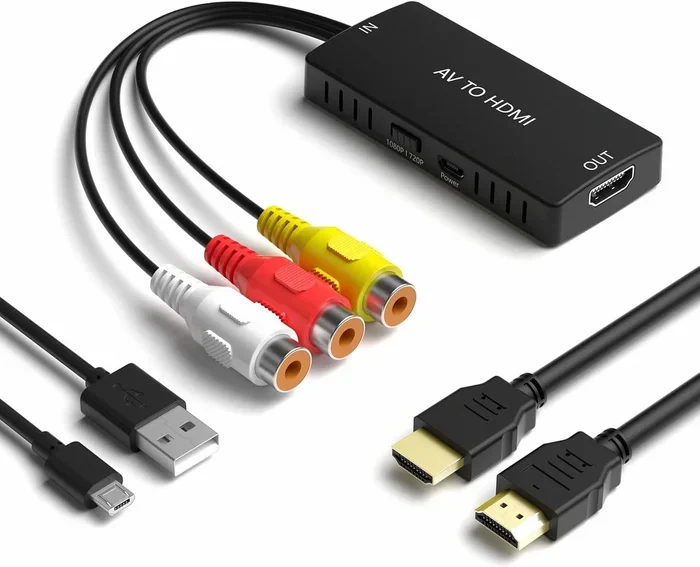
A USB display adapter is a small device that plugs into your USB port and creates an additional video output. It acts like a mini graphics card. Inside the adapter is a chip that processes video data and sends it to your monitor through HDMI or DisplayPort.
The most common technology behind these adapters is called DisplayLink. DisplayLink uses the USB connection to transmit video data. Your computer’s CPU handles the video processing. This means you do not need a dedicated graphics card to run a second monitor. That is a huge advantage for laptop users and anyone working with a compact setup.
DisplayLink adapters come in different versions. Some support only one monitor. Others can drive two or even three screens from a single USB connection. The key is to check the adapter specs before you buy. Look for models that explicitly state they support dual monitors.
USB-C vs USB-A: Which Port Works Best?
Not all USB ports are the same. The type of port on your computer affects how well you can run two monitors from one connection. Let us break down the differences.
USB-A Ports
USB-A is the classic rectangular port found on most desktop computers and older laptops. USB 3.0 USB-A ports can support a dual monitor setup. But the bandwidth is limited compared to USB-C. You can expect smooth performance at 1080p resolution on both screens.
For higher resolutions like 1440p or 4K, you may notice some lag. The USB-A port simply does not have enough bandwidth to push high-resolution video to two displays at once. If you only need 1080p monitors, USB-A adapters work great.
USB-C Ports
USB-C is the newer, smaller, and more versatile port. It offers significantly more bandwidth than USB-A. This makes it much better for running two monitors from one port. USB-C also supports alternate modes like DisplayPort Alt Mode, which can carry video signals directly.
With a USB-C docking station, you can connect two monitors and still have charging and data transfer capabilities. USB-C is the clear winner for anyone asking can you run 2 monitors off 1 USB port and wanting the best performance.
Types of Adapters and Docking Stations
Not all adapters are the same. There are several types available, and each has its strengths. Let us look at the most popular options.
USB DisplayLink Adapters
These are the most common type of USB monitor adapter. They use DisplayLink technology to create additional video outputs. You plug the adapter into your USB port and connect your monitor via HDMI or DisplayPort.
Pros of DisplayLink adapters:
- Affordable and easy to set up
- Work with most laptops and desktops
- No need for a dedicated graphics card
- Available in single and dual monitor versions
Cons include some CPU usage and occasional driver issues. But for most users, these are minor concerns. The convenience and cost savings make them a popular choice.
USB-C Docking Stations
A USB-C docking station is a more complete solution. It connects to your laptop or computer through one USB-C cable and provides multiple ports. Most docking stations offer at least two video outputs for dual monitors.
These stations also typically include:
- USB-A ports for peripherals
- Ethernet jack for wired internet
- SD card reader
- Power delivery for charging your laptop
If you want a clean desk setup with two monitors, a docking station is the way to go. Brands like CalDigit, Anker, and Dell make reliable options that handle dual monitors with ease.
USB Hub with Video Output
Some USB hubs include built-in HDMI or DisplayPort outputs. These are a good middle-ground option. They expand your USB ports and add a video output at the same time. However, most hubs only support one video output. You would need a hub with dual video capability to run two monitors.
Setting Up Two Monitors From One USB Port
Setting up a multi-monitor setup using a single USB port is easier than you might think. Here is a step-by-step guide to get you started.
Step 1: Check Your USB Port
First, identify what type of USB port you have. Look for the USB symbol next to the port. USB 3.0 ports are usually blue inside. USB-C ports are small and oval-shaped. If you only have USB 2.0 ports, consider upgrading your setup or using a different computer.
Step 2: Choose the Right Adapter
Based on your port type, pick the right adapter. For USB-A, get a USB 3.0 DisplayLink adapter. For USB-C, a USB-C docking station works best. Make sure the adapter supports the number of monitors you need.
Step 3: Install the Drivers
Most DisplayLink adapters require drivers. Visit the manufacturer’s website and download the latest DisplayLink driver for your operating system. Install it and restart your computer. This step is crucial. Skipping it can cause display issues and poor performance.
Step 4: Connect Your Monitors
Plug your monitors into the adapter using HDMI or DisplayPort cables. Then plug the adapter into your USB port. Your computer should recognize the new displays. Go to your display settings and arrange the monitors to match your physical setup.
Step 5: Adjust Display Settings
In your operating system settings, you can choose how each monitor works. You can extend your desktop across both screens, duplicate the display, or set one as the primary monitor. Take a few minutes to tweak the resolution and scaling for the best experience.
Performance Expectations and Limitations
Running two monitors off one USB port is practical, but it comes with some limitations. Understanding these helps you set realistic expectations.
Resolution and Refresh Rate
Most USB adapters handle 1080p at 60Hz on both monitors without issues. If you push to 4K resolution, the frame rate may drop. You might get 30Hz or lower on both screens. This is because USB bandwidth limits how much video data can transfer at once.
For office work and web browsing, 1080p is more than enough. For video editing or gaming, a dedicated graphics card is still the best option. USB adapters are designed for productivity, not high-end graphics.
CPU Usage
Since DisplayLink adapters use your computer’s CPU for video processing, you may notice some extra load. On modern processors, this is usually not a problem. But on older or low-powered laptops, it can cause slight lag during video playback or screen transitions.
Bandwidth Bottlenecks
USB 2.0 has very limited bandwidth. It simply cannot handle video output for even one modern monitor, let alone two. USB 3.0 offers much better speeds and works well for dual 1080p monitors. USB 3.1 and USB 4 provide even more headroom for higher resolutions.
Common Mistakes to Avoid
Many people run into problems when setting up two monitors from one USB port. Here are the most common mistakes and how to avoid them.
Using a USB 2.0 Adapter on a USB 2.0 Port
This is the number one mistake. USB 2.0 does not have enough bandwidth for video output. Always make sure your adapter and port match. If your computer only has USB 2.0, consider using a different port or upgrading your hardware.
Skipping Driver Installation
Some people plug in the adapter and expect it to work instantly. DisplayLink adapters need drivers. Without them, the monitors will not display properly. Always install the official driver from the manufacturer’s website.
Buying the Wrong Adapter Type
Not all adapters support two monitors. Some only offer a single video output. Before you buy, check the product description carefully. Look for adapters that explicitly mention dual monitor support.
Ignoring Cable Quality
Cheap cables can cause signal issues. A poor-quality HDMI cable might result in flickering or no signal at all. Invest in good-quality cables that match your monitor’s requirements. It is a small cost that makes a big difference.
Expert Tips for the Best Dual Monitor Experience
Want to get the most out of your single-USB dual monitor setup? Here are some expert tips that make a real difference.
- Use a powered USB hub. If your adapter needs more power than your laptop port can provide, a powered hub solves this problem. It ensures stable performance without disconnects.
- Keep your drivers updated. DisplayLink releases regular driver updates. These improve performance and fix bugs. Check for updates every few months.
- Match your monitor refresh rates. If both monitors run at 60Hz, you will get smoother visuals than mixing 60Hz and 144Hz displays.
- Close unnecessary apps. Running too many programs while using two USB-driven monitors can strain your system. Close apps you are not using.
- Use a docking station for the cleanest setup. Docking stations reduce cable clutter and provide a more reliable connection than standalone adapters.
- Consider your workflow. If you need two high-resolution monitors for creative work, a dedicated graphics card is still better. USB adapters shine for productivity and office tasks.
Who Benefits Most From Running 2 Monitors Off 1 USB Port?
This setup is perfect for certain types of users. Let us look at who benefits the most.
- Laptop users who need extra screen space on the go. A USB-C docking station turns any desk into a full workstation.
- Remote workers who want a clean, minimal setup without adding a graphics card.
- Students who need to multitask between research, notes, and assignments.
- Office professionals who use spreadsheets, email, and documents side by side.
- Travelers who need a portable dual monitor setup without carrying extra hardware.
If you fall into any of these categories, running two monitors from one USB port is a practical and cost-effective solution. It saves desk space, reduces cable clutter, and keeps your setup portable.
How to Choose the Right Adapter for Your Needs
With so many options on the market, choosing the right adapter can feel overwhelming. Here is a simple guide to help you decide.
For basic 1080p dual monitors: A USB 3.0 DisplayLink adapter works perfectly. These are affordable and reliable. Brands like Plugable and IOGEAR offer solid options in this category.
For 4K or high refresh rate monitors: Go with a USB-C docking station. These provide more bandwidth and better performance. Look for models with DisplayPort 1.2 or higher support.
For the cleanest desk setup: A USB-C docking station with power delivery is ideal. One cable connects to your laptop and handles video, data, and charging simultaneously. This is the ultimate multi-monitor setup for a single USB port.
Before you buy, check these three things:
- Does it support the number of monitors you need?
- Does it match your USB port type?
- Does it support your monitor resolution?
Answer yes to all three, and you are good to go.
Can You Run 2 Monitors Off 1 Usb Port for Gaming?
Here is the honest truth. USB adapters are not ideal for gaming. They use your CPU to process video, which adds latency. For casual games and older titles, you might get acceptable performance. But for modern gaming, a dedicated graphics card is still the way to go.
If you want to game on a second monitor while working on the primary one, a USB adapter can handle that. Just do not expect smooth frame rates on the USB-connected monitor during intensive games. Use the USB monitor for static content like chat windows, guides, or browser tabs while gaming on your primary display.
Conclusion
So, can you run 2 monitors off 1 USB port? Absolutely yes. With the right adapter or docking station, you can expand your workspace without adding a graphics card. USB-C ports make this easier than ever, offering the bandwidth needed for smooth dual monitor performance.
DisplayLink technology has made USB-based video output reliable and accessible. Whether you are a laptop user, remote worker, or student, a single-USB dual monitor setup can transform your productivity. Just remember to choose the right adapter, install the drivers, and manage your expectations for high-resolution gaming.
The key is to match your setup to your needs. For office work and multitasking, USB adapters are a game changer. For high-end gaming or video editing, pair them with a dedicated graphics card. Now you have all the knowledge to make the right choice. Set up your dual monitor setup and enjoy the extra screen space today.
Frequently Asked Questions
Can any USB port run 2 monitors?
Not all USB ports can handle two monitors. USB 3.0 and USB-C ports have enough bandwidth for a dual monitor setup. USB 2.0 ports do not have sufficient bandwidth and will not work well for video output. Always check your port type before buying an adapter.
Do I need to install drivers for a USB display adapter?
Yes, most USB display adapters use DisplayLink technology and require drivers. Visit the manufacturer’s website to download the latest driver for your operating system. Installing the driver is essential for smooth performance and proper display detection.
Will running 2 monitors slow down my computer?
It can use more of your CPU since the adapter processes video data. On modern computers, this is usually not noticeable. On older or low-powered laptops, you might see some extra load during video playback or screen transitions. Closing unused apps helps maintain performance.
What resolution can I expect on 2 monitors from 1 USB port?
Most USB adapters handle 1080p at 60Hz on both monitors smoothly. For 4K resolution, you may experience lower frame rates around 30Hz. USB-C docking stations handle higher resolutions better than standard USB-A adapters. Match your adapter to your resolution needs.
Is a USB-C docking station better than a USB display adapter?
Yes, a USB-C docking station offers more bandwidth, better stability, and extra features like power delivery and data ports. It provides a more complete solution for a multi-monitor setup. A standalone USB display adapter is more affordable and works well for basic dual monitor needs.
Can I use a USB adapter for gaming on a second monitor?
You can, but performance will be limited. USB adapters add latency because they use your CPU for video processing. They work fine for casual gaming or static content like browser tabs and chat windows. For serious gaming, a dedicated graphics card is still the best choice.
=== CONCLUSION ===
Running 2 monitors off 1 USB port is entirely possible and surprisingly practical. Whether you choose a simple DisplayLink adapter or a full-featured USB-C docking station, you can double your screen space without adding a graphics card. The key is understanding your port type, choosing the right adapter, and installing the correct drivers.
Keep your expectations realistic. USB adapters excel at productivity and multitasking. They may not replace a dedicated GPU for gaming or video editing. But for everyday work, they deliver excellent value and convenience.
Now that you know the answer to can you run 2 monitors off 1 USB port, it is time to take action. Pick the right setup for your needs and enjoy a bigger, more efficient workspace tomorrow.