Can Usb Type C Replace Hdmi And What You Need To Know
Can USB Type C Replace HDMI? The short answer is yes, in many cases. USB-C can carry video signals, audio, and data through a single cable, making it a powerful universal connector. However, whether it fully replaces HDMI depends on your device, your display, and the adapter you use. This guide breaks down everything you need to know about USB-C vs HDMI, including when USB-C works perfectly and when you still need that HDMI port.
Let us talk about something that has confused a lot of people lately. Can USB Type C Replace HDMI? It is a question that keeps popping up in tech forums, on social media, and in conversations between friends who are trying to simplify their cable setup.
The truth is, USB-C has come a long way in just a few years. What started as a simple charging and data port has evolved into a versatile connector that can handle video, audio, and power all at the same time. But does that mean it can fully take the place of HDMI? The answer is more nuanced than a simple yes or no.
In this guide, we will walk you through everything you need to know. We will cover how USB-C handles video output, where it falls short, when it works great, and what adapters or hubs you might need. By the end, you will have a clear picture of whether USB-C can replace HDMI for your specific setup.
Key Takeaways
- USB-C can replace HDMI for most modern devices: Laptops, phones, and tablets with USB-C can output video to external displays using Alt Mode or adapters.
- Not all USB-C cables are equal: Some only carry data or power, not video. You need a cable or adapter that supports video output.
- Thunderbolt 3 and 4 offer the best video experience: These USB-C variants deliver high bandwidth for 4K and even 8K resolutions.
- HDMI still has advantages for home theater: Dedicated HDMI ports offer better audio return, CEC control, and long cable runs without signal loss.
- Using the wrong adapter causes problems: A cheap or incompatible adapter can lead to no signal, low resolution, or no audio.
- USB-C hubs and docking stations simplify everything: They let you connect multiple displays, peripherals, and power through one connection.
- The future is moving toward USB-C as a universal port: More devices are dropping HDMI in favor of the smaller, versatile USB-C connector.
📑 Table of Contents
- What Is USB Type C and Why Is Everyone Talking About It?
- Can USB Type C Replace HDMI for Video Output?
- USB-C vs HDMI: Key Differences at a Glance
- When Can USB Type C Fully Replace HDMI?
- When You Still Need HDMI
- Best USB-C to HDMI Adapters and Hubs
- Common Mistakes People Make with USB-C and HDMI
- Quick Tips for Getting the Best Results
- Expert Insights on the Future of USB-C and HDMI
- Conclusion
What Is USB Type C and Why Is Everyone Talking About It?
The Basics of USB-C
USB Type C, often called USB-C, is a small, reversible connector that has become the standard on most modern devices. Unlike the older USB-A ports that were big and could only be plugged in one way, USB-C is compact and works either way. You can flip it around and insert it without thinking about orientation.
USB-C was designed to be a universal connector. It handles data transfer, power delivery, and video output through a single cable. This makes it incredibly convenient for laptops, tablets, smartphones, and even some desktop computers.
The connector itself is tiny compared to HDMI, which is one reason many manufacturers love it. It saves space inside devices and allows for thinner designs. But that small size also means there are some limitations when it comes to video performance, which we will get into shortly.
How USB-C Became So Popular
USB-C gained popularity fast because it solved a real problem. For years, people carried multiple cables for different purposes. One cable for charging, another for data, and yet another for connecting to a monitor. USB-C promised to replace all of those with one cable.
Major companies like Apple, Google, and Samsung adopted USB-C as their primary port. Even the European Union pushed for USB-C as a standard charging port across all electronics sold in the region. This widespread adoption means more devices support USB-C today than ever before.
But popularity does not automatically mean USB-C can do everything HDMI does. That is where things get interesting, and where we need to look more closely at video output capabilities.
Can USB Type C Replace HDMI for Video Output?
Understanding USB-C Alt Mode
Here is the key concept you need to understand. USB-C can carry video signals through something called Alternate Mode, or Alt Mode. When a USB-C port supports Alt Mode, it can send a video signal to an external display without needing any special hardware beyond the right cable or adapter.
Most modern laptops and phones with USB-C support DisplayPort Alt Mode. This means the USB-C port can output a video signal that is essentially the same as what DisplayPort carries. From there, you can use a simple adapter to connect to an HDMI monitor or TV.
So yes, USB-C can replace HDMI for video output in most cases. But there are catches. Not every USB-C port supports video output, and not every cable can carry a video signal. This is where many people run into trouble and wonder why their setup is not working.
What Is DisplayPort Alt Mode?
DisplayPort Alt Mode is the specific technology that allows USB-C to carry video. When a device supports this mode, the USB-C controller can send a DisplayPort signal through the cable. You can then use a passive adapter to convert that signal to HDMI, VGA, or other display formats.
DisplayPort Alt Mode supports high resolutions including 4K at 60Hz and even 8K at lower refresh rates on newer implementations. This is more than enough for most users, whether you are working on a desktop setup or connecting your laptop to a TV for movie night.
The important thing to remember is that the device itself must support DisplayPort Alt Mode. Check your device specifications before buying an adapter. If the port does not support Alt Mode, no adapter in the world will make it output video.
How Thunderbolt Fits Into the Picture
Thunderbolt takes USB-C video capabilities to the next level. Thunderbolt 3 and Thunderbolt 4 use the USB-C connector but offer much higher bandwidth. This means they can support multiple displays, higher resolutions, and faster data transfer all at the same time.
If you have a Thunderbolt port, you can connect directly to compatible displays without any adapter at all. Many external monitors now come with USB-C inputs that accept Thunderbolt signals. This makes the experience seamless and eliminates the need for any extra hardware.
Thunderbolt is the gold standard for USB-C video output. If you are shopping for a laptop or dock and video quality matters to you, look for Thunderbolt support. It gives you the most flexibility and the best performance.
USB-C vs HDMI: Key Differences at a Glance
Comparing Video and Audio Capabilities
Let us look at how USB-C and HDMI stack up against each other. Both can carry high-quality video and audio, but they do it in different ways. HDMI has been the standard for TVs, monitors, and home theater systems for over a decade. USB-C is the newer kid on the block, and it is catching up fast.
HDMI has built-in support for features like Consumer Electronics Control, or CEC. This lets you control multiple devices with one remote. USB-C does not have this native support, which can be a drawback for home theater setups.
HDMI also has the Audio Return Channel, or ARC, which sends audio from a TV back to a soundbar or receiver. USB-C does not support this feature natively. For pure video and audio quality, both connectors perform well, but HDMI has some advantages in smart features.
Speed and Bandwidth Comparison
Bandwidth is where things get really important. The more bandwidth a connection has, the higher the resolution and refresh rate it can support.
- HDMI 2.0: Supports 4K at 60Hz with up to 18 Gbps bandwidth.
- HDMI 2.1: Supports 4K at 120Hz and 8K at 60Hz with up to 48 Gbps bandwidth.
- USB-C with DisplayPort 1.2: Supports 4K at 60Hz with up to 17.28 Gbps bandwidth.
- USB-C with DisplayPort 1.4: Supports 8K at 60Hz with up to 32.4 Gbps bandwidth.
- Thunderbolt 3: Supports 4K at 60Hz and dual 4K at 30Hz with 40 Gbps bandwidth.
- Thunderbolt 4: Supports dual 4K at 60Hz and 8K with up to 40 Gbps bandwidth.
As you can see, the latest versions of both USB-C and HDMI can handle impressive resolutions. The right choice depends on your specific needs and the devices you are using.
Quick Comparison Table
| Feature | USB-C (Alt Mode) | HDMI 2.1 |
|---|---|---|
| Max Resolution | 8K with DP 1.4 | 10K with HDMI 2.1 |
| Max Bandwidth | 32.4 Gbps (DP 1.4) | 48 Gbps |
| Audio Return Channel | No | Yes |
| CEC Support | No | Yes |
| Reversible Connector | Yes | No |
| Power Delivery | Yes (up to 240W) | No |
| Common Devices | Laptops, phones, tablets | TVs, monitors, consoles |
| Long Cable Performance | Can degrade past 2m | Stable up to 5m+ |
When Can USB Type C Fully Replace HDMI?
Laptops and Ultrabooks
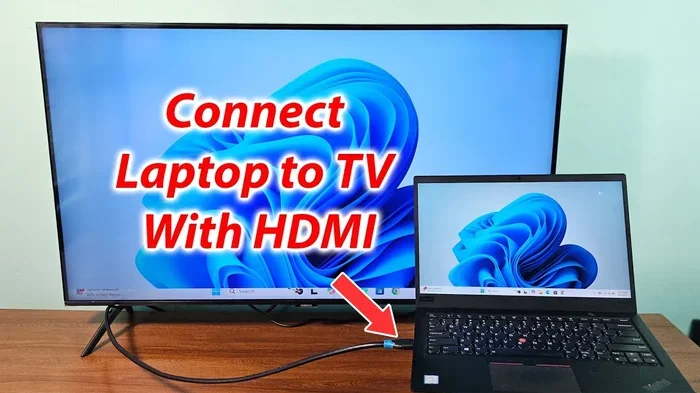
If you use a modern laptop with USB-C ports, you can almost certainly replace HDMI entirely. Most business laptops and consumer ultrabooks from the last three years support DisplayPort Alt Mode. This means you can connect to any external monitor using a USB-C to HDMI adapter or cable.
For everyday productivity, USB-C handles this perfectly. You can connect to a single monitor, a dual-monitor setup, or even a large 4K TV. The experience is smooth and reliable as long as you use a quality adapter.
Many professionals have fully made the switch. They carry a single USB-C cable and a small adapter in their bag. At the office, they plug in and get video, data, and power through docking stations. It works beautifully for most work scenarios.
Smartphones and Tablets
Smartphones and tablets have also embraced USB-C as their primary connection. Samsung, Google, and many other Android manufacturers use USB-C exclusively. These devices can output video to external displays through USB-C Alt Mode.
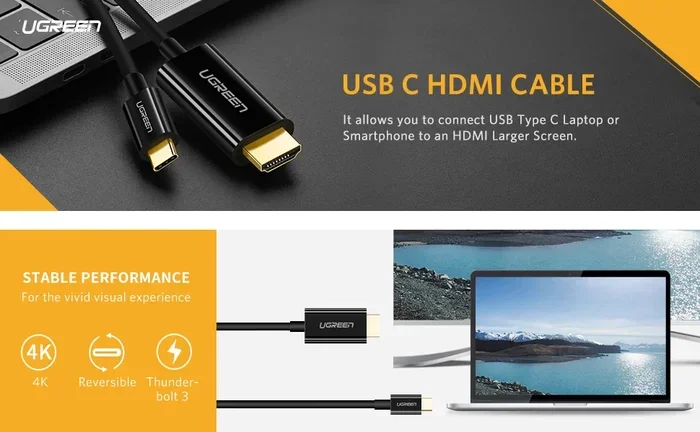
You can connect your phone to a TV using a simple USB-C to HDMI cable. This is great for sharing photos, watching videos, or giving presentations. The quality is surprisingly good for casual use, though it may not match the experience of a dedicated HDMI source.
Apple devices with USB-C, like the iPad Pro and MacBook, also support video output through USB-C. The iPad Pro in particular can connect to external displays and even supports ProMotion refresh rates with the right adapter.
Gaming Consoles and Portable Devices
Some portable gaming devices now use USB-C for video output. The Nintendo Switch, for example, uses USB-C for docked mode video. While the Switch uses a proprietary dock, the underlying connection is USB-C based.
Steam Deck and other portable gaming PCs also rely on USB-C for external display connections. These devices can output to monitors and TVs, making USB-C a practical replacement for HDMI in the portable gaming world.
For casual gaming, USB-C video output works great. Competitive gamers who need the lowest latency and highest refresh rates may still prefer a direct HDMI connection, but for most users, USB-C is perfectly fine.
When You Still Need HDMI
Large Displays and Projectors
There are situations where HDMI remains the better choice. Large venue projectors and commercial displays often only have HDMI inputs. If you are setting up a conference room or a home theater, HDMI is still the go-to connection.
Long cable runs also favor HDMI. USB-C video signals can degrade over distances longer than about two meters without active conversion. HDMI cables, especially premium ones, can maintain signal quality over much longer distances. For a classroom or auditorium setup, this matters a lot.
Home Theater Setups
If you are building a home theater system, HDMI is still king. The CEC feature lets you control your TV, soundbar, and streaming box with one remote. The Audio Return Channel sends TV audio back to your sound system without needing a separate cable.
These features are not available over USB-C natively. While you can work around them with additional hardware, it adds complexity. For a clean, simple home theater setup, HDMI is still the way to go.
Older Devices and Compatibility Issues
Many older monitors, TVs, and projectors only have HDMI inputs. If you are using legacy equipment, you will need an adapter no matter what. USB-C cannot directly connect to older HDMI-only displays without conversion hardware.
This is not really a weakness of USB-C so much as it is a reality of the current market transition. As more devices adopt USB-C, the need for HDMI will naturally decrease. But for now, many households and offices still have plenty of HDMI-only equipment.
Best USB-C to HDMI Adapters and Hubs
What to Look For When Buying
Not all USB-C to HDMI adapters are created equal. Some are cheap and unreliable, while others deliver excellent performance. Here is what you should look for before making a purchase.
- Check for DisplayPort Alt Mode support: The adapter must support video output, not just data transfer.
- Look for 4K at 60Hz support: This ensures smooth video on high-resolution displays.
- Check bandwidth requirements: If you need 8K or high refresh rates, make sure the adapter and cable can handle it.
- Choose a reputable brand: Brands like Anker, Belkin, and Cable Matters are known for quality adapters.
- Consider a USB-C hub: A hub gives you HDMI, USB ports, and power delivery all in one device.
Quick Tips for Choosing the Right Adapter
Always check your device specifications first. Not every USB-C port supports video output. If your laptop or phone says it supports DisplayPort Alt Mode or Thunderbolt, you are good to go. If it does not mention video output, the adapter will not work.
Buy from trusted retailers and avoid ultra-cheap adapters from unknown sellers. A bad adapter can cause no signal, flickering, low resolution, or no audio. Spending a little more on a quality adapter saves you frustration in the long run.
If you use a docking station, make sure it supports video output. Many docking stations are designed primarily for data and power and may not include video capabilities. Check the specifications carefully before purchasing.
Common Mistakes People Make with USB-C and HDMI
Buying the Wrong Adapter
The most common mistake is buying a USB-C adapter that does not support video output. Some adapters are data-only or power-only. They will charge your device or transfer files but will not send a video signal to your monitor.
Always look for adapters specifically labeled as supporting video output or DisplayPort Alt Mode. If the product description is vague, check the reviews or contact the manufacturer before buying.
Ignoring Bandwidth Limitations
Another mistake is assuming any USB-C cable can handle 4K or 8K video. Standard USB-C cables may only support lower resolutions. If you need high-resolution output, make sure your cable is rated for the bandwidth you need.
Thunderbolt cables are the safest choice for high-performance video. They are designed to handle the full bandwidth of Thunderbolt connections and work reliably with DisplayPort Alt Mode as well.
Assuming All USB-C Ports Are the Same
Not all USB-C ports on a single device are equal. Some may support video output while others only handle data and charging. Check your device manual or specifications to identify which ports support video and which do not.
This is especially common on laptops that have multiple USB-C ports with different capabilities. One port might support Thunderbolt and video output, while another is limited to data and power only.
Quick Tips for Getting the Best Results
- Use certified cables and adapters: Look for USB-IF certification or Thunderbolt certification for the best reliability.
- Keep cables short for best performance: USB-C video signals stay strongest under two meters. Use active cables for longer runs.
- Update your device drivers: Display issues can sometimes be resolved by updating graphics drivers and USB firmware.
- Test with multiple adapters: If one adapter does not work, try a different brand before assuming your device is the problem.
- Use a USB-C hub for desk setups: A single hub can connect your monitor, keyboard, mouse, and charger through one USB-C connection.
Expert Insights on the Future of USB-C and HDMI
The industry is clearly moving toward USB-C as the universal connector. HDMI is still widely used, but USB-C is gaining ground fast. Every year, more devices drop HDMI in favor of the smaller, more versatile USB-C port.
USB Power Delivery has already made USB-C the standard for charging. Video output through Alt Mode and Thunderbolt is the next frontier. As bandwidth improves with newer standards like USB4, USB-C will handle even more demanding video tasks.
However, HDMI is not going away anytime soon. The HDMI Forum continues to develop new versions with higher bandwidth and new features. For the next few years, we will likely see both connectors coexist, with USB-C leading the charge toward a universal connection future.
For consumers, this means you can confidently adopt USB-C for most of your connectivity needs. Just keep a few HDMI adapters handy for legacy devices and home theater setups. The transition is already well underway, and USB-C is well positioned to become the dominant video output standard.
Conclusion
So, can USB Type C Replace HDMI? The answer is a qualified yes. For most modern devices and everyday use, USB-C can handle video output just as well as HDMI. With the right adapter or a Thunderbolt connection, you can connect your laptop, phone, or tablet to any display with ease.
However, HDMI still holds advantages for home theater setups, large venue displays, and legacy equipment. The CEC features, Audio Return Channel, and long cable performance give HDMI a place in setups where those features matter.
The best approach is to understand your needs and choose accordingly. If you are a mobile professional who works with external monitors, USB-C is your best bet. If you are building a dedicated home theater, keep HDMI as your primary connection. And for many people, the answer is to use both, with a USB-C to HDMI adapter bridging the gap when needed.
The world of connectivity is evolving fast, and USB-C is at the center of that evolution. Embrace it, understand its capabilities, and you will be well prepared for whatever comes next.
Frequently Asked Questions
Can all USB-C ports output video?
No, not all USB-C ports support video output. You need to check if your device supports DisplayPort Alt Mode or Thunderbolt. Look for this feature in your device specifications or user manual before purchasing an adapter.
Do I need a special cable to get video from USB-C?
Yes, you need either a USB-C to HDMI cable or a USB-C cable paired with a DisplayPort Alt Mode adapter. Standard USB-C cables that only support data and charging will not carry a video signal to your display.
Can USB-C support 4K and 8K resolutions?
Yes, USB-C can support 4K at 60Hz and even 8K resolutions, but it depends on the specific standard your device uses. DisplayPort 1.4 over USB-C supports 8K, while Thunderbolt 3 and 4 support 4K at 60Hz and dual 4K displays.
Is USB-C better than HDMI for gaming?
For most casual and mid-range gaming, USB-C works great. However, competitive gamers who need the lowest input lag and highest refresh rates may prefer a direct HDMI 2.1 connection, especially for console gaming on PlayStation or Xbox.
Can I connect multiple monitors through USB-C?
Yes, if you use a Thunderbolt dock or a USB-C hub that supports multiple video outputs. Thunderbolt 4 can support dual 4K displays at 60Hz from a single connection, making it ideal for multi-monitor setups.
Will HDMI become obsolete because of USB-C?
HDMI is not going away anytime soon. While USB-C is growing rapidly, HDMI remains the standard for TVs, home theater systems, and many professional displays. The two will likely coexist for several more years before USB-C fully takes over.