Can I Use My Tv As A Monitor With Hdmi Setup Guide
Yes, you can use your TV as a monitor with an HDMI cable. This setup guide walks you through everything you need to know, from choosing the right HDMI cable to adjusting display settings for the best experience. Whether you want a bigger screen for work or gaming, using your TV as a monitor with HDMI is simpler than you think.
Have you ever looked at your big flat screen TV and thought, “Why am I staring at this tiny computer monitor when I could be watching everything on a much bigger display?” It is a thought that hits almost everyone at some point. The good news is that using your TV as a monitor with HDMI is not only possible but also incredibly easy. You do not need fancy equipment or a degree in technology to make it work.
In this guide, we will walk you through every single step of setting up your TV as a computer monitor using an HDMI connection. We will cover what you need, how to connect everything, and the settings you should adjust for the best experience. By the end, you will feel confident enough to ditch your small monitor and enjoy a bigger, more immersive display for work, gaming, or streaming.
Whether you are a student looking for a larger screen for online classes, a gamer who wants a bigger battlefield, or just someone who loves watching content on a large display, this TV as monitor HDMI guide has you covered. Let us dive right in.
Key Takeaways
- Easy Setup: Connecting your TV as a monitor with HDMI is a simple plug-and-play process that most people can do in minutes.
- Bigger Screen Advantage: Using a TV as a monitor gives you a much larger display, which is great for movies, gaming, and multitasking.
- Check Your Ports: Make sure both your TV and computer have matching HDMI ports before you start.
- Adjust Settings: You will need to tweak display resolution, picture mode, and audio settings for the best experience.
- Watch for Input Lag: TVs can have higher input lag than monitors, which matters for fast-paced gaming.
- Distance Matters: Sitting too far or too close to a big TV screen can strain your eyes during long work sessions.
📑 Table of Contents
- Why Use a TV as a Monitor With HDMI?
- What You Need for an HDMI TV Monitor Setup
- Step-by-Step HDMI Connection Guide
- TV vs Monitor: Key Differences You Should Know
- Best Settings for Using a TV as a Monitor
- Common Problems and How to Fix Them
- Expert Tips for the Best Experience
- Is Using a TV as a Monitor With HDMI Worth It?
Why Use a TV as a Monitor With HDMI?
You might wonder why anyone would want to replace their trusty computer monitor with a television. The reasons are actually pretty compelling, and once you make the switch, you may never want to go back.
First, size matters. A typical computer monitor ranges from 24 to 32 inches. A TV, on the other hand, starts at 43 inches and goes all the way up to 85 inches or more. When you connect a TV as a monitor via HDMI, you instantly get a much larger workspace. This makes a huge difference when you are working with spreadsheets, editing videos, or just browsing multiple windows at once.
Second, TVs offer better value for screen size. A 27-inch monitor can cost just as much as a 55-inch TV. If you want the biggest display for your money, a TV wins every time. This is especially true for 4K TV as monitor setups, where you get stunning ultra-high-definition detail on a large screen.
Third, modern TVs come packed with features. Many support HDR, have excellent color accuracy, and offer smooth motion handling. These qualities make a TV a fantastic display for both productivity and entertainment. When you use HDMI to hook up your PC, you get access to all of these features in one package.
Who Benefits Most From This Setup?
Several groups of people benefit greatly from using a TV as a monitor. Gamers love the big screen experience, especially for open-world or multiplayer games. Content creators appreciate the larger canvas for editing videos and images. Home office workers enjoy a more comfortable viewing experience during long workdays. And movie lovers get a cinematic experience right from their desk.
What You Need for an HDMI TV Monitor Setup
Before you start plugging things in, let us make sure you have everything you need. The good news is that the list is short and most of it is stuff you probably already own.
Here is a quick checklist of what you need to set up your TV as a monitor with HDMI:
- A TV with HDMI ports: Almost every modern TV has at least two HDMI inputs. Check the back or side of your TV for the HDMI ports.
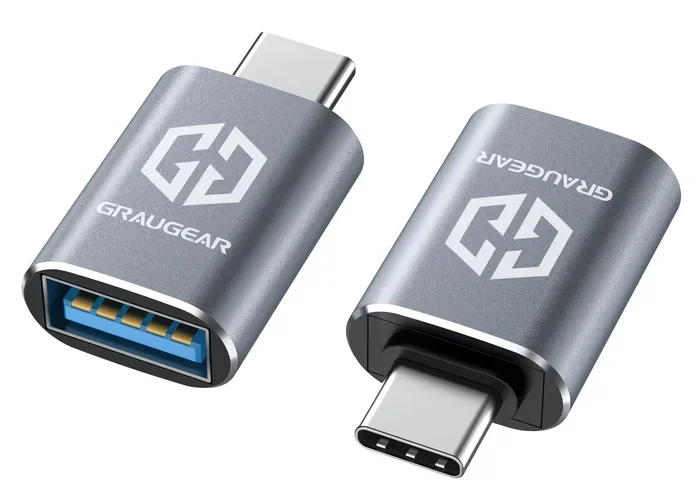
- A computer with an HDMI output: Most laptops and desktops have an HDMI port. If your computer only has DisplayPort or USB-C, you can use an adapter.
- An HDMI cable: This is the cable that carries both video and audio from your computer to your TV. Make sure it is a high-speed HDMI cable, especially if you want 4K resolution.
- A clean, accessible space: You need enough room to place your TV and position it at a comfortable viewing distance.
That is it. You do not need any special software, expensive adapters, or technical expertise. Just an HDMI cable and two devices with HDMI ports, and you are ready to go.
Choosing the Right HDMI Cable
Not all HDMI cables are the same. If you want the best picture quality, especially at 4K resolution, look for a cable labeled “High Speed HDMI” or “Premium High Speed HDMI.” These cables can handle the bandwidth needed for sharp, clear images. For most people, a standard HDMI 2.0 cable works perfectly fine. If you want to future-proof your setup, an HDMI 2.1 cable supports even higher resolutions and refresh rates.
Step-by-Step HDMI Connection Guide
Now comes the fun part. Let us walk through the actual process of connecting your TV to your computer using HDMI. It is simpler than you might expect.
Step 1: Turn Off Both Devices
Before you plug anything in, turn off both your TV and your computer. This is a good habit that protects your equipment and prevents any signal glitches during the connection process.
Step 2: Plug in the HDMI Cable
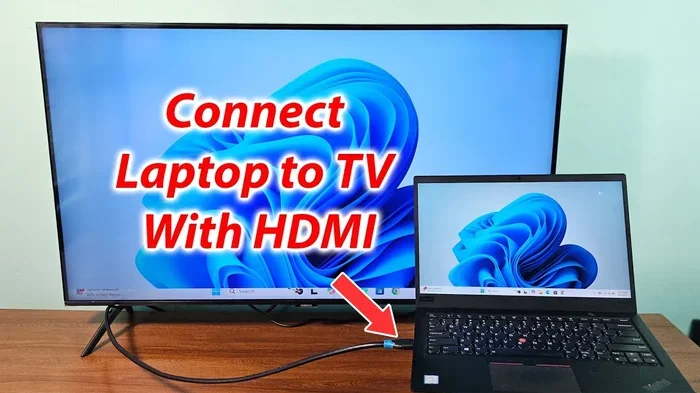
Take your HDMI cable and plug one end into the HDMI output port on your computer. Then plug the other end into one of the HDMI input ports on your TV. The ports are clearly labeled, usually as “HDMI 1,” “HDMI 2,” and so on. Make a note of which input you used.
Step 3: Turn on the TV and Select the Right Input
Turn on your TV and use your remote to select the HDMI input you plugged the cable into. Press the “Input” or “Source” button on your remote and choose the correct HDMI port. You should see your computer screen appear on the TV.
Step 4: Adjust Display Settings on Your Computer
Once you see the image, you need to adjust your display settings. On Windows, right-click on your desktop and select “Display Settings.” On a Mac, go to “System Preferences” and then “Displays.” Here, you can choose whether to mirror your screen or use the TV as an extended display.
Set the resolution to match your TV’s native resolution for the sharpest image. For most modern TVs, this is 1920 x 1080 (Full HD) or 3840 x 2160 (4K). You should also set the scaling to make text and icons a comfortable size for viewing.
Step 5: Adjust Audio Settings
By default, audio should come through your TV speakers when you use HDMI. However, if the sound is not working, go to your computer’s sound settings and select your TV as the output device. On Windows, click the speaker icon in your taskbar and choose the TV from the list. On a Mac, go to “Sound Preferences” and select the HDMI output.
TV vs Monitor: Key Differences You Should Know
While using a TV as a monitor with HDMI works great, it is important to understand how TVs differ from traditional monitors. These differences can affect your experience, especially during long work sessions or competitive gaming.
| Feature | TV | Monitor |
|---|---|---|
| Screen Size | 43 inches and up | 24 to 34 inches |
| Panel Type | Usually IPS or VA | IPS, TN, VA, or OLED |
| Input Lag | Higher (10-30ms typical) | Lower (1-5ms typical) |
| Refresh Rate | 60Hz to 120Hz | 60Hz to 360Hz |
| Color Accuracy | Good, varies by model | Excellent, designed for color work |
| Price for Large Sizes | More affordable | Expensive for large sizes |
| Built-in Speakers | Yes | Rarely |
| Port Selection | Multiple HDMI, USB | Limited, usually HDMI and DisplayPort |
As you can see, TVs and monitors each have strengths. TVs shine when it comes to size and value. Monitors win for speed, color accuracy, and pixel-perfect precision. For most people who want a bigger display for everyday use, a TV connected via HDMI is the better choice.
When a Monitor Is Still Better
There are times when a traditional monitor makes more sense. If you do competitive esports gaming where every millisecond counts, a gaming monitor with low input lag is the way to go. If you do professional photo or video editing where color accuracy is critical, a color-calibrated monitor will serve you better. But for general use, movie watching, casual gaming, and productivity, a TV works wonderfully.
Best Settings for Using a TV as a Monitor
Once your TV monitor HDMI setup is connected, you will want to tweak some settings to get the best experience. Default TV settings are optimized for watching movies and shows, not for reading text on a computer display. A few adjustments make a big difference.
Picture Mode
Most TVs have a “Game Mode” or “PC Mode” that reduces processing and improves responsiveness. Switch your TV to this mode when using it as a monitor. It lowers input lag and gives you a cleaner, sharper image. Look for this option in your TV’s picture settings menu.
Sharpness Setting
TVs often have sharpness set very high by default. This can make text look fuzzy or create unwanted halos around letters. Lower the sharpness to 50% or below for a much clearer text display. You want the image to look natural, not overly processed.
Overscan Adjustment
Some TVs crop the edges of the image slightly, a feature called overscan. This can cut off parts of your desktop. Go into your TV’s picture settings and look for “Overscan” or “Just Scan” and turn it off. This ensures your entire computer screen is visible on the TV.
Resolution and Scaling
Set your computer’s display resolution to match your TV’s native resolution. For a 4K TV, use 3840 x 2160. For a 1080p TV, use 1920 x 1080. Then adjust the scaling so that text and icons are comfortably readable. On Windows, you can find this under “Scale and Layout” in Display Settings. A scaling of 125% or 150% often works well on larger TV screens.
Refresh Rate
If your TV supports a higher refresh rate, make sure it is enabled in your display settings. A 60Hz refresh rate is fine for most tasks, but if your TV supports 120Hz, you will notice smoother motion, especially during gaming or video playback.
Common Problems and How to Fix Them
Even with a straightforward HDMI connection, you might run into a few hiccups along the way. Here are the most common issues and how to solve them.
No Signal on the TV: This is the most common problem. First, check that the HDMI cable is firmly plugged into both devices. Try a different HDMI port on your TV. If that does not work, try a different HDMI cable. Sometimes cables wear out or are not compatible with certain resolutions.
Audio Not Working: If the picture is fine but there is no sound, check your computer’s audio output settings. Make sure the TV is selected as the default audio device. You can also check the HDMI cable connection, as loose cables can sometimes cause audio issues.
Blurry or Fuzzy Text: This usually happens when the resolution is set incorrectly. Go to your display settings and set the resolution to your TV’s native resolution. Also check the sharpness setting on your TV and lower it if needed.
Screen Tearing or Stuttering: This can happen if your TV and computer are not syncing properly. Try enabling “Game Mode” on your TV. If you are gaming, check if your GPU has V-Sync or FreeSync/G-Sync options and enable them.
Distance and Eye Strain: Because TVs are much larger than monitors, sitting too close can cause eye strain. Position yourself at least 5 to 7 feet away from the screen for comfortable work sessions. If your desk is too close to the TV, consider mounting the TV on a wall or using a TV stand that places the screen at the right height.
Expert Tips for the Best Experience
Here are some extra tips from people who use their TV as a monitor every day. These small adjustments can make a huge difference in your daily experience.
- Use a wireless keyboard and mouse: With a big TV screen, you will likely be sitting farther away. A wireless keyboard and mouse give you more flexibility with your seating position.
- Consider a keyboard tray: If you are using a standing desk or a low table, a keyboard tray helps keep your hands at a comfortable angle.
- Calibrate your TV’s color settings: If you do any kind of creative work, take a few minutes to adjust the color temperature and brightness on your TV for more accurate colors.
- Use a soundbar for better audio: While TV speakers have improved, a budget soundbar can significantly enhance your audio experience for movies and games.
- Keep your HDMI cable short: Longer cables can sometimes cause signal degradation. Keep your cable as short as possible for the best picture quality.
Is Using a TV as a Monitor With HDMI Worth It?
The short answer is yes, absolutely. Using your TV as a monitor with an HDMI connection is one of the easiest and most affordable upgrades you can make to your workspace or entertainment setup. You get a bigger, more immersive display without spending a fortune on a large computer monitor.
The process is straightforward. You plug in an HDMI cable, adjust a few settings, and you are done. The experience is noticeably better for movies, gaming, and even everyday work. Yes, there are trade-offs like slightly higher input lag and potentially less color accuracy compared to a dedicated monitor. But for most people, these differences are minor and easily manageable.
Whether you are setting up a home office, a gaming station, or a media center, using your TV as a monitor with HDMI is a smart, practical choice. It brings your content to life on a big screen and transforms the way you interact with your computer. Give it a try, and you will wonder why you ever settled for a small monitor.
So go ahead, grab that HDMI cable, connect your TV, and enjoy a bigger, better display. Your eyes and your entertainment will thank you.
Frequently Asked Questions
Can I use any TV as a computer monitor with HDMI?
Yes, almost any TV made in the last 15 years has HDMI inputs and can be used as a computer monitor. You just need an HDMI cable and a computer with an HDMI output. If your computer has a different port, such as USB-C or DisplayPort, you can use an adapter to connect via HDMI.
Will using a TV as a monitor hurt my eyes?
Not if you set it up correctly. The key factors are sitting at the right distance, setting the correct resolution, and adjusting the brightness to match your room lighting. Sitting too close to a large TV screen can cause eye strain, so keep a comfortable distance of at least 5 feet from the screen.
Is HDMI good enough for a 4K TV monitor setup?
Yes, a standard HDMI 2.0 cable supports 4K resolution at 60Hz. If you want 4K at 120Hz or higher refresh rates, you will need an HDMI 2.1 cable. For most everyday uses, including work, browsing, and casual gaming, HDMI 2.0 is more than sufficient for a 4K TV monitor setup.
What is input lag and does it matter for using a TV as a monitor?
Input lag is the delay between when you click your mouse or press a key and when the action appears on screen. TVs tend to have higher input lag than monitors because of their image processing. For office work and casual gaming, this is barely noticeable. For competitive gaming, enable Game Mode on your TV to reduce input lag significantly.
Do I need a special HDMI cable to use a TV as a monitor?
You do not need a special cable, but you should use a High Speed HDMI cable for the best results. These cables support Full HD and 4K resolutions. If you have a 4K TV and want the sharpest picture, look for cables labeled “Premium High Speed HDMI” or “HDMI 2.1.”
Can I use my TV as a dual monitor with HDMI?
It depends on your computer’s graphics card. Most modern computers support multiple displays. If your computer has two HDMI outputs or one HDMI and one DisplayPort, you can use your TV as a second monitor. You may need a DisplayPort to HDMI adapter or a USB-to-HDMI adapter if your computer has limited outputs.
=== CONCLUSION ===
Using your TV as a monitor with HDMI is one of the simplest and most rewarding upgrades you can make. It gives you a bigger, more immersive screen for work, gaming, and entertainment without the high cost of a large computer monitor. The setup process is quick, the requirements are minimal, and the results are impressive.
Remember to choose the right HDMI cable, adjust your display and picture settings, and sit at a comfortable distance from the screen. With these tips, your TV as monitor HDMI setup will look and feel fantastic. Whether you are upgrading your home office or building the ultimate gaming setup, a TV connected via HDMI delivers a big-screen experience that is hard to beat. Give it a try today and enjoy your display like never before.