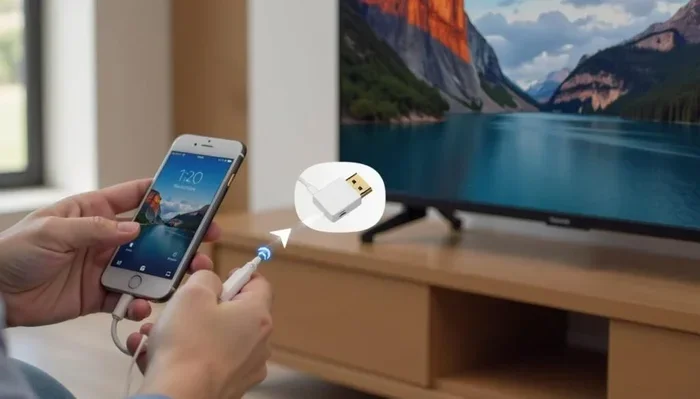
How Can I Watch My Iphone On My Tv Without Any Hassle
Learning how can I watch my iphone on my tv is easier than you think. You can use AirPlay, HDMI adapters, or smart TV apps to stream content from your phone to a bigger screen. This guide covers every method step by step so you can start watching right away. Whether you own an Apple TV, Roku, or a basic smart TV, there is a solution that fits your setup. Read on to find the best way to enjoy your iPhone content on the TV screen.
Key Takeaways
- AirPlay is the easiest wireless method: It lets you mirror your iPhone screen to a compatible TV or Apple TV without any cables.
- HDMI adapters work with any TV: Even older TVs without smart features can display your iPhone content using a simple cable connection.
- Smart TV apps offer built-in options: Many modern smart TVs have apps that let you stream directly from your iPhone.
- Chromecast and Roku are great alternatives: These devices add streaming power to any TV and work well with iOS devices.
- Troubleshooting is simple: Most connection issues can be fixed with a quick restart or network check.
📑 Table of Contents
- Why You Should Watch Your iPhone on Your TV
- Method 1: Use AirPlay for Wireless Streaming
- Method 2: Connect with an HDMI Adapter
- Method 3: Use a Smart TV App
- Method 4: Try Chromecast or Roku
- Common Problems and How to Fix Them
- Expert Tips for the Best Viewing Experience
- Comparison Table: Wireless vs Wired Methods
- Final Thoughts
Why You Should Watch Your iPhone on Your TV
There is something magical about seeing your iPhone content on a bigger screen. Whether you are watching a movie, scrolling through vacation photos, or playing a game, the TV screen makes everything more vivid and immersive. How can I watch my iphone on my tv is a question many people ask every day, and the good news is that there are more ways than ever to do it.
Watching content on a small phone screen can feel limiting. Your eyes strain after a while, and you miss out on the vibrant colors and sharp details that a larger display provides. By casting or mirroring your iPhone to your TV, you unlock a whole new level of home entertainment. Friends and family can gather around to enjoy the same content together, making movie nights and photo sharing much more fun.
The best part is that you do not need expensive equipment to get started. Many of the methods described below are free or cost very little. Whether your TV is a brand new smart model or an older set with basic inputs, there is a solution that will work for you. Let us explore the different options available.
Method 1: Use AirPlay for Wireless Streaming
AirPlay is Apple’s built-in wireless streaming technology. It allows you to mirror your iPhone screen or stream specific content directly to a compatible TV or device. This is often the simplest and most convenient option for iPhone users because it requires no cables and very little setup.
What Is AirPlay and How Does It Work?
AirPlay screen mirroring sends a live copy of your iPhone display to your TV over a wireless network. You can show apps, photos, videos, and even games on the big screen. The experience feels seamless because everything happens in real time. As long as your iPhone and the receiving device are on the same Wi-Fi network, the connection stays smooth.
AirPlay also supports streaming specific content from apps like Netflix, YouTube, and Apple TV+. Instead of mirroring your entire screen, you can send just the video to the TV while keeping your phone free for other tasks. This is called content sharing and it saves battery life on your device.
Step-by-Step Guide to Using AirPlay
Follow these steps to start using AirPlay today:
- Make sure your iPhone and your TV or Apple TV are connected to the same Wi-Fi network.
- Open the Control Center on your iPhone by swiping down from the top right corner of the screen.
- Tap the Screen Mirroring button, which looks like two overlapping rectangles.
- Select your TV or Apple TV from the list of available devices.
- Enter the verification code if prompted on your TV screen.
- Your iPhone screen will now appear on the TV.
That is all there is to it! Within seconds, you can be enjoying your iPhone content on the big screen. To stop mirroring, simply open the Control Center again, tap the Screen Mirroring button, and select “Stop Mirroring.”
Tips for a Smooth AirPlay Experience
- Keep your iPhone and TV close to your Wi-Fi router for a stronger signal.
- Use a 5GHz Wi-Fi network if your router supports it. It offers faster speeds than 2.4GHz.
- Close apps you are not using to free up memory and processing power.
- If you experience lag, restart both your iPhone and your TV.
- Make sure your TV firmware and your iOS device are both updated to the latest versions.
AirPlay compatibility depends on your TV model. Most smart TVs made after 2018 support AirPlay natively. If your TV does not, you can use an Apple TV box or a third-party AirPlay receiver to add this feature. The wireless connection makes AirPlay the go-to choice for most people who want a quick and cable-free solution.
Method 2: Connect with an HDMI Adapter
Not everyone has a smart TV or a Wi-Fi network that works well for streaming. In those cases, a physical cable connection is the most reliable option. Using an HDMI adapter lets you connect your iPhone directly to your TV with a simple cable. This method works with virtually any TV that has an HDMI input, regardless of how old or basic it is.
Choosing the Right Adapter
Apple makes a few official adapters that work perfectly with iPhones. The most popular option is the Lightning to HDMI adapter (for older iPhones) or the USB-C to HDMI adapter (for newer iPhone 15 and 16 models). These adapters plug directly into your iPhone and have an HDMI output port for your cable.
You will also need a standard HDMI cable, which is not usually included with the adapter. Look for a high-speed HDMI cable to ensure the best video quality. Brands like Belkin and Anker make reliable adapters that many users trust.
Setting Up Your Cable Connection
Here is how to get started with an HDMI adapter:
- Plug the adapter into the charging port on your iPhone.
- Connect one end of the HDMI cable to the adapter and the other end to an available HDMI port on your TV.
- Switch your TV to the correct HDMI input using your remote control.
- Your iPhone screen will now display on the TV.
The video output quality from an HDMI adapter is excellent. You get a crisp, clear image with no lag or compression. This makes it ideal for watching movies, presenting slideshows, or even playing games on the big screen. One downside is that the cable limits your movement, so you will need to stay near the TV while using this method.
Display mirroring through an HDMI adapter mirrors your entire iPhone screen, just like AirPlay does. The difference is that you get a more stable and consistent connection since it is a wired setup. For people who value reliability over convenience, this is the best choice.
Method 3: Use a Smart TV App
Many modern smart TVs come with built-in apps that allow you to stream content from your iPhone without any extra hardware. These apps use your home Wi-Fi network to connect your devices and let you send photos, videos, and audio to your TV. This method is convenient because it does not require adapters, cables, or additional devices sitting on your entertainment center.
Built-In Apps on Your Smart TV
Samsung TVs use a feature called SmartView, LG TVs use Screen Share, and Sony TVs have their own casting app. Each of these works similarly to AirPlay but is designed for specific TV brands. To use them, make sure your iPhone and TV are on the same Wi-Fi network, open the relevant app on your TV, and follow the on-screen instructions to connect.
Content sharing through smart TV apps is straightforward. You can mirror your entire screen or stream specific media files. Some apps even let you browse your iPhone photo library directly on the TV, which is great for sharing vacation photos with family and friends. The media playback quality is generally very good, though it may not be as smooth as AirPlay or a wired connection.
Using Third-Party Streaming Apps
If your TV does not have a built-in screen mirroring feature, you can download third-party apps from the App Store. Apps like AllCast, LocalCast, and AirScreen add casting capabilities to your iPhone and work with most smart TVs. These apps are especially useful if you have a TV that does not natively support AirPlay or your brand’s casting feature.
Most of these apps are free to download, though some offer premium features for a small fee. They are worth trying if the built-in options on your TV do not meet your needs. The setup process is usually simple and takes just a few minutes.
Method 4: Try Chromecast or Roku
Streaming devices like Chromecast and Roku are affordable ways to add smart features to any TV. These small devices plug into your TV’s HDMI port and connect to your Wi-Fi network. Once set up, they let you cast or mirror content from your iPhone to the TV screen. Both options are popular because they are easy to use and support a wide range of apps.
Setting Up Chromecast
Google Chromecast is a great choice for iPhone users. It connects to your TV’s HDMI port and uses your Wi-Fi network to receive content from your phone. To cast from your iPhone, make sure Chromecast and your iPhone are on the same network, open a supported app like YouTube or Netflix, and tap the Cast icon. The video will play on your TV while you can continue using your phone for other things.
Chromecast also supports Google Home for screen mirroring, though the experience is not as seamless as AirPlay. You may notice a slight delay or lower image quality compared to other methods. Still, Chromecast is an excellent budget option that costs around $30 to $50 and works well for most streaming needs.
Using Roku for iPhone Streaming
Roku devices are another popular choice for casting iPhone content to your TV. Roku has a dedicated app called Roku Mobile that lets you control your Roku player or Roku TV from your iPhone. You can also use the app to stream from iPhone directly to your Roku device.
The Roku Channel and many third-party apps support AirPlay, so you can mirror your iPhone screen just like you would with an Apple TV. Roku devices range in price from about $30 to $100 depending on the model. They offer a wide selection of streaming channels and a user-friendly interface that makes them a solid choice for home entertainment.
Common Problems and How to Fix Them
Even though watching your iPhone on your TV is generally straightforward, you may run into some issues along the way. Most problems are easy to fix with a few simple steps. Here are the most common issues and their solutions.
Connection Issues
If your iPhone does not detect your TV or the connection drops frequently, the first thing to check is your Wi-Fi network. Both devices need to be on the same network and have a strong signal. Try moving your router closer to your TV or restarting your router to refresh the connection.
For AirPlay issues, make sure AirPlay is turned on in your TV settings. On some smart TVs, you may need to enable it in the network or display settings menu. If you are using an HDMI adapter, try a different cable or adapter to rule out a hardware problem. Sometimes simply restarting both devices resolves the issue.
Audio and Video Sync Problems
If the audio and video are out of sync, this is usually caused by a weak Wi-Fi signal or network congestion. Switching to a wired HDMI connection will completely eliminate this problem. If you prefer to stay wireless, try reducing the number of devices connected to your network and close any apps running in the background on your iPhone.
Another common fix is to lower the video quality in your streaming app. High-definition content requires more bandwidth, and if your network cannot handle it, the audio and video may fall out of sync. Dropping the quality to 720p or 1080p often solves the problem immediately.
Expert Tips for the Best Viewing Experience
Getting your iPhone content on the TV is only half the battle. To truly enjoy the experience, you want to optimize your setup and get the best possible quality. Here are some expert tips that make a big difference.
Optimize Your Network
A strong and fast Wi-Fi network is the foundation of a great wireless streaming experience. If possible, use a router that supports the latest Wi-Fi standards like Wi-Fi 6. Position your router in a central location in your home, away from walls and electronic devices that might cause interference.
If your home is large or has thick walls, consider adding a Wi-Fi mesh system or a range extender. This ensures that the signal reaches your TV with full strength. A wired Ethernet connection for your TV or streaming device also helps by providing a stable, high-speed internet link that does not fluctuate like wireless signals do.
Choose the Right Content
Not all content looks equally good when streamed from your iPhone. Movies and TV shows from major streaming services like Netflix, Disney+, and Apple TV+ look fantastic on the big screen because they are optimized for high-quality playback. Photos and videos saved directly on your iPhone also look great, especially if they were recorded in high resolution.
For the best results, make sure your iPhone storage is not full. Low storage can slow down your device and affect the quality of streaming. Close all other apps before you start casting to free up memory and processing power. This ensures smooth playback without any stuttering or buffering.
Comparison Table: Wireless vs Wired Methods
Choosing between wireless and wired methods depends on your needs and setup. Here is a quick comparison to help you decide.
| Feature | Wireless (AirPlay/Chromecast) | Wired (HDMI Adapter) |
|---|---|---|
| Setup Difficulty | Very Easy | Easy |
| Cable Required | No | Yes |
| Video Quality | Good to Excellent | Excellent |
| Audio Sync | Usually Good | Perfect |
| Mobility | High | Low |
| Cost | Free to Low | Low |
| Best For | Casual streaming and sharing | High-quality presentations and gaming |
Both methods have their strengths. Wireless options offer convenience and freedom of movement, while wired connections provide the most reliable and highest quality output. Many people use both methods depending on the situation. For example, you might use AirPlay for everyday movie watching and an HDMI adapter when you need a perfect connection for a presentation or gaming session.
Final Thoughts
Figuring out how can I watch my iphone on my tv does not have to be complicated or frustrating. With so many options available today, you can find a method that fits your TV, your budget, and your lifestyle. AirPlay is the simplest wireless option for those with compatible devices, while HDMI adapters provide a reliable wired connection for any TV. Smart TV apps, Chromecast, and Roku all offer excellent alternatives that open up even more possibilities.
The key is to choose the method that works best for your specific setup and needs. Once you get it working, you will wonder how you ever watched content on a small phone screen. So pick your favorite method, follow the steps above, and start enjoying your iPhone content on the big screen today. Your movies, photos, and apps will never look better.
Frequently Asked Questions
Can I watch my iPhone on any TV?
Yes, you can watch your iPhone on almost any TV. If your TV is a smart TV, you can use AirPlay or a built-in casting app. For older TVs without smart features, an HDMI adapter will work with any TV that has an HDMI port. This makes screen mirroring accessible regardless of your TV model.
Do I need an Apple TV to use AirPlay?
No, you do not need an Apple TV to use AirPlay. Many modern smart TVs from brands like Samsung, LG, and Sony support AirPlay natively. If your TV does not support it, you can buy a third-party AirPlay receiver or use an Apple TV device to add this feature.
Why is my AirPlay connection lagging or delayed?
AirPlay lag is usually caused by a weak Wi-Fi signal or network congestion. Make sure both your iPhone and TV are connected to a strong 5GHz network. Restarting your router, moving closer to the router, or reducing the number of connected devices can also help fix video streaming delays.
Can I use my iPhone while casting to my TV?
Yes, you can continue using your iPhone while casting content to your TV. When you stream specific content from apps like Netflix or YouTube, your phone stays free for other tasks. However, if you are using full screen mirroring, your iPhone display will show the same content as your TV.
What is the difference between screen mirroring and casting?
Screen mirroring duplicates your entire iPhone screen on the TV, showing everything exactly as it appears on your phone. Casting sends specific content from an app to the TV while you can still use your phone for other things. Casting is more efficient and saves battery, while mirroring gives you full control over what appears on the TV screen.
Is it safe to cast from my iPhone to a public TV?
Casting to a public TV can pose privacy risks because your entire screen may be visible to others. Avoid casting sensitive content like banking apps or personal messages in public spaces. For private use at home, casting is completely safe and secure, especially when both devices are on your personal Wi-Fi network.
=== CONCLUSION ===
How can I watch my iphone on my tv has many answers, and now you have them all. From AirPlay to HDMI adapters, smart TV apps to streaming devices like Chromecast and Roku, there is a method that works for every setup and every budget. The wireless options offer convenience and simplicity, while wired connections deliver the most reliable quality. No matter which method you choose, the result is the same: a bigger, better viewing experience that brings your iPhone content to life on the TV screen.
Try a few of these methods and see which one fits your routine best. Once you start watching your favorite shows, photos, and videos on a larger screen, you will not want to go back to the small display. Share this guide with friends and family who are still wondering how to connect their iPhone to their TV. The big screen experience is just a few simple steps away.