Can You Run Two Monitors Off One HDMI Port Right Now
Yes, you can run two monitors off one HDMI port, but you need the right tool for the job. Whether you use an HDMI splitter, an HDMI switch, or a USB-C adapter, each method has its own strengths and trade-offs. This guide walks you through every option so you can pick the best setup for your needs.
Have you ever looked at your laptop or desktop and thought, “I wish I could just plug in two monitors”? Maybe you are working from home and need extra screen space. Or perhaps you are a gamer who wants a wider view. Whatever the reason, the question can you run two monitors off one HDMI comes up all the time.
The short answer is yes. But the full answer depends on what you are trying to achieve. Do you want both screens to show the same image? Or do you want them to work as one big workspace? Your goal determines the right approach. This article breaks down every method, every tool, and every pitfall so you can make a smart decision without wasting money.
Key Takeaways
- An HDMI splitter duplicates your screen across two monitors, while an HDMI switch lets you toggle between them.
- You will lose some resolution or quality when splitting a single HDMI signal to two displays.
- USB-C and docking stations offer better alternatives for running two monitors from one laptop port.
- Your graphics card matters a lot — check how many HDMI outputs it actually has before buying extra hardware.
- Display settings in Windows and Mac let you choose between mirrored and extended desktop modes.
- Signal degradation can happen with cheap splitters, so invest in a quality adapter or splitter.
- Not all HDMI ports support dual output — older HDMI versions may limit your options.
📑 Table of Contents
- What Does It Mean to Run Two Monitors Off One HDMI?
- How an HDMI Splitter Works for Dual Monitors
- HDMI Switch vs HDMI Splitter: What Is the Difference?
- Step-by-Step: Setting Up Two Monitors from One HDMI Port
- Common Problems and How to Fix Them
- Best Alternatives to Running Two Monitors from One HDMI Port
- Expert Tips for the Best Dual Monitor Experience
- Key Takeaways
- Conclusion
- FAQs
What Does It Mean to Run Two Monitors Off One HDMI?
When we talk about running two monitors from a single HDMI port, we are really talking about splitting or redirecting a video signal. Your device — whether it is a laptop, desktop, or even a tablet — has a limited number of HDMI outputs. Most computers come with just one HDMI port, and some have none at all.
The challenge is simple: one port, two screens. You need a piece of hardware or a workaround to make that connection work. The solution you choose affects image quality, resolution, and whether your monitors show the same content or different content.
Why Do People Want Dual Monitors?
Dual monitors boost productivity in a big way. Studies show that people who use two screens can work faster and switch between tasks more easily. Writers can have their document open on one screen and research on the other. Programmers need one screen for code and another for testing. Gamers love the wider field of view. No matter your reason, setting up a dual monitor configuration makes a real difference in how you work and play.
How an HDMI Splitter Works for Dual Monitors
The most common way to answer the question “can you run two monitors off one HDMI” is with an HDMI splitter. This small device plugs into your HDMI port and sends the same signal to two separate monitors. Think of it like a water pipe splitter — one input, two outputs.
What You Get With a Splitter
When you use an HDMI splitter, both monitors display the exact same image. This is called screen mirroring. It works great for presentations, watching videos with friends, or extending a display to a projector and a monitor at the same time. However, you do not get an extended desktop with a basic splitter. Both screens show the same content at the same resolution.
Most HDMI splitters support 1080p resolution. Some newer models handle 4K, but they cost more. The quality of the splitter matters a lot. A cheap splitter can cause signal loss, flickering, or reduced refresh rates. If you want a clean picture, spend a little extra on a reputable brand.
Limitations of HDMI Splitters
There are some real downsides to using a splitter. First, you cannot extend your desktop across two screens. Both monitors show the same thing. Second, splitting the signal can reduce image quality slightly. Third, some splitters do not support audio on both outputs. You may need a separate audio solution if sound matters to you.
Also, keep in mind that an HDMI splitter does not add any new processing power. Your graphics card is still doing all the work. If your GPU struggles with one monitor, adding a second through a splitter will not make things smoother.
HDMI Switch vs HDMI Splitter: What Is the Difference?
This is where a lot of people get confused. An HDMI switch and an HDMI splitter are not the same thing, and picking the wrong one will leave you disappointed.
What Is an HDMI Switch?
An HDMI switch takes multiple inputs and sends them to a single output. It is the opposite of a splitter. You plug in your laptop, your gaming console, and a Blu-ray player into the switch. Then you use one HDMI cable from the switch to your monitor or TV. A button or remote control lets you toggle between sources.
So if your goal is to connect two monitors and show different content on each, an HDMI switch will not help you. It is designed for sharing one display between multiple devices, not the other way around.
What Is an HDMI Splitter?
An HDMI splitter takes one input and sends it to two or more outputs. This is what you need if you want to duplicate your screen. It is the right tool for presentations, digital signage, or mirroring your laptop display onto a bigger monitor.
Here is a quick comparison to make things clear:
- HDMI Splitter: One input, two or more outputs. Mirrors the same image on all connected screens.
- HDMI Switch: Two or more inputs, one output. Lets you choose which device displays on your single monitor.
Make sure you buy the right device. Many online stores list them together, and the labels can be confusing. If you want to run two monitors off one HDMI port, you need a splitter, not a switch.
Step-by-Step: Setting Up Two Monitors from One HDMI Port
Setting up a dual monitor arrangement from a single HDMI port is easier than most people think. Here is a practical walkthrough that works for most setups.
Step 1: Check Your Hardware
Before you buy anything, check what ports your computer actually has. Look at the back of your desktop or the sides of your laptop. Do you see an HDMI port? What about USB-C, DisplayPort, or VGA? Knowing what you have helps you choose the right adapter.
Also, check your graphics card specifications. Some integrated graphics chips can only drive one external display. If you have a dedicated GPU, you likely have more flexibility. Open your device manager or system settings and look at your display adapter details.
Step 2: Choose Your Method
Based on your hardware and goals, pick one of these methods:
- HDMI Splitter: Best for mirroring the same image on two screens.
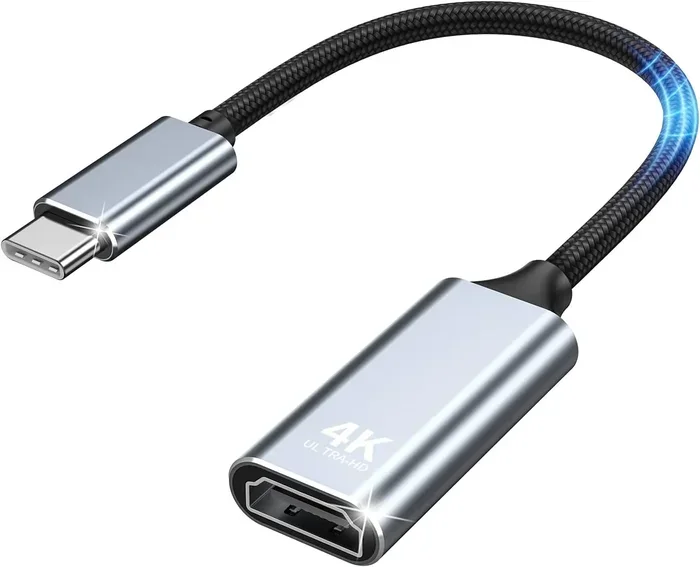
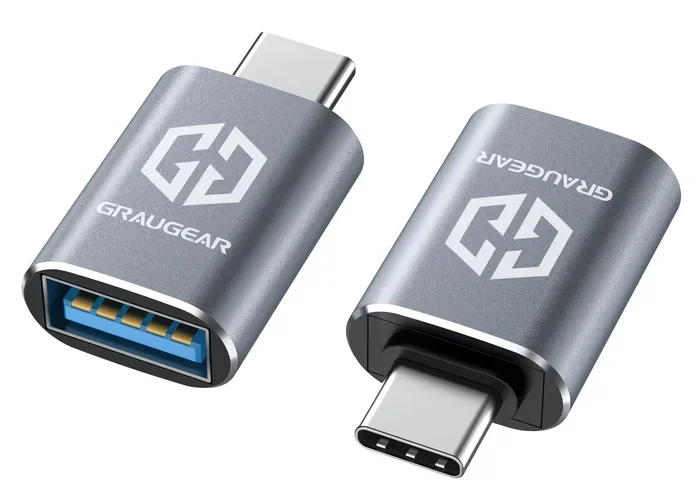
- USB-C to HDMI Adapter: Great for laptops with USB-C or Thunderbolt ports.
- Docking Station: The most versatile option. One cable connects your laptop to multiple ports.
- DisplayLink Adapter: Uses software to add extra displays through USB.
Step 3: Connect and Configure
Plug in your splitter or adapter, connect both monitors, and power everything on. On Windows, go to Settings > System > Display. You will see options for “Duplicate these displays” or “Extend these displays.” On a Mac, go to System Settings > Displays and choose your arrangement.
If you are using a splitter, you will likely only see the duplicate option. If you used a USB-C dock or a DisplayLink adapter, you should see the extend option, which gives you a true dual monitor workspace.
Step 4: Adjust Resolution and Settings
Once both monitors are active, click “Identify” in the display settings to know which screen is which. Drag them around to match your physical setup. Set the resolution for each monitor individually. You can also adjust scaling, orientation, and which monitor is your primary display.
Take your time with these settings. A mismatched resolution can make text look blurry on one screen. And make sure your refresh rate is set correctly — 60Hz is standard for most monitors, but some support higher rates.
Common Problems and How to Fix Them
Setting up two monitors from one HDMI port is not always smooth sailing. Here are the most common issues people run into and how to solve them.
No Signal on the Second Monitor
This is the most frequent complaint. If your second monitor shows nothing, try these fixes:
- Check that the HDMI cable is fully seated in both the splitter and the monitor.
- Try a different HDMI cable. Cables wear out and sometimes fail without visible damage.
- Make sure the splitter is powered if it requires external power. Some splitters need a USB cable for power.
- Update your graphics card drivers. Outdated drivers often cause detection issues.
Flickering or Blurry Image
A flickering screen usually means a signal quality problem. Cheap HDMI cables or low-quality splitters are the usual culprits. Try a higher-grade cable first. If that does not work, the splitter itself may not be rated for the resolution or refresh rate you are using.
Blurry text often happens when the resolution does not match the monitor’s native resolution. Go into your display settings and set each monitor to its recommended resolution.
Audio Issues
Some HDMI splitters do not pass audio to both outputs. If you lose sound on one monitor, check the splitter’s specifications. Look for one that explicitly supports audio on all ports. You can also run a separate 3.5mm audio cable if needed.
Resolution Drops When Two Monitors Are Connected
This is normal with splitters. When one HDMI output is split to two screens, the total bandwidth stays the same. So each screen might show a lower resolution than it would with a dedicated connection. A 4K monitor connected through a splitter might only display at 1080p. This is a hardware limitation, not a defect.
Best Alternatives to Running Two Monitors from One HDMI Port
If an HDMI splitter does not meet your needs, there are several alternatives that give you better results. Let us look at the top options.
USB-C Docking Stations
A USB-C docking station is one of the best solutions for laptop users. You plug one USB-C cable into your laptop, and the dock gives you multiple HDMI ports, USB ports, Ethernet, and more. Most modern docking stations support two or even three external monitors at once.
The big advantage is convenience. One cable connects everything. You also get better image quality because each monitor gets its own dedicated signal path. Popular brands like CalDigit, Anker, and Belkin make reliable docking stations that handle dual monitor setups with ease.
DisplayLink Technology
DisplayLink adapters use your USB port to add extra displays. They work with both Windows and Mac. The adapter includes a small chip that handles the video processing, so your graphics card does not need to work as hard.
DisplayLink is great for office work and productivity. However, it is not ideal for gaming or video editing. There can be slight lag, and the setup requires installing DisplayLink software. For everyday use, though, it is a solid workaround.
Upgrade Your Graphics Card
If you have a desktop computer, the simplest long-term fix is to upgrade your graphics card. Most modern GPUs come with multiple HDMI ports and DisplayPort outputs. You can connect two, three, or even four monitors directly without any splitters or adapters.
This option costs more upfront but gives you the best performance and image quality. You get full resolution on every screen, higher refresh rates, and no signal degradation. If you are a serious gamer or video editor, this is the way to go.
Use Different Port Types
Do not overlook the ports you already have. Many laptops have both USB-C and HDMI. You can plug one monitor into HDMI and another into USB-C with a simple adapter. This gives you true extended display without a splitter at all.
The same idea works with DisplayPort, VGA, or DVI connections. Mixing port types is totally fine. Windows and Mac handle mixed setups without any problems. Just make sure your adapters are good quality.
Expert Tips for the Best Dual Monitor Experience
Once you have your two monitors running, a few extra steps will make the experience much better. These tips come from years of real-world setup experience.
- Use monitor arms or stands: Position both screens at eye level to reduce neck strain. A dual monitor arm saves desk space and looks clean.
- Match your monitors: If possible, use two identical monitors. Different sizes and refresh rates can be distracting and make your workspace feel uneven.
- Manage your cables: Use cable ties or a cable management tray to keep things tidy. Messy cables are a productivity killer and can also cause connection issues.
- Set up hotkeys: Both Windows and Mac let you assign keyboard shortcuts to switch between display modes. Learn them and use them often.
- Check your power supply: If you use a powered splitter or dock, make sure it can handle the load. Underpowered devices cause flickering and disconnections.
These small steps make a huge difference. A clean, well-organized dual monitor setup feels professional and helps you focus on your work instead of fighting with your equipment.
Key Takeaways
- An HDMI splitter duplicates your screen across two monitors, while an HDMI switch lets you toggle between them.
- You will lose some resolution or quality when splitting a single HDMI signal to two displays.
- USB-C docks and DisplayLink adapters offer better alternatives for running two monitors from one laptop port.
- Your graphics card matters a lot — check how many HDMI outputs it actually has before buying extra hardware.
- Display settings in Windows and Mac let you choose between mirrored and extended desktop modes.
- Signal degradation can happen with cheap splitters, so invest in a quality adapter or splitter.
- Not all HDMI ports support dual output — older HDMI versions may limit your options.
Conclusion
So, can you run two monitors off one HDMI port? Absolutely. But the method you choose shapes everything — from image quality to whether you get a mirrored or extended display. An HDMI splitter is the quickest and cheapest route for mirroring. A USB-C dock or DisplayLink adapter gives you a true extended workspace. And upgrading your graphics card is the most powerful long-term solution.
Take a moment to understand what you actually need before you buy anything. Do you want both screens to show the same thing? Go with a splitter. Do you want different content on each screen? Look at a dock or adapter. Make sure your cables are good quality and your ports are compatible.
The right setup transforms how you work and play. Extra screen space means less window switching, more room for your tools, and a smoother workflow. Whether you are a student, a professional, or a gamer, running two monitors from one HDMI port is a game-changer. Just pick the method that fits your setup, follow the steps in this guide, and enjoy your expanded workspace.
FAQs
Can I run two different monitors with different sizes from one HDMI port?
Yes, you can. An HDMI splitter will send the same signal to both monitors regardless of size. For the best experience, match the resolution settings to each monitor’s native resolution. You may notice that the image looks slightly different on each screen due to the size difference, but both will work fine.
Does using an HDMI splitter reduce the refresh rate?
It can. Cheaper HDMI splitters may limit your refresh rate to 30Hz instead of 60Hz. This makes the image look less smooth, especially during scrolling or gaming. Buy a splitter rated for your desired refresh rate to avoid this problem. Quality splitters maintain 60Hz or higher across both outputs.
Can I use an HDMI splitter with a Mac laptop?
Yes, most HDMI splitters work with Mac laptops. However, Macs often use USB-C or Thunderbolt ports, so you may need a USB-C to HDMI adapter first. Once you have an HDMI output, a splitter will work just like it does on a Windows machine. Check your Mac model for compatibility before purchasing.
Will a USB-C hub work better than an HDMI splitter?
In most cases, yes. A USB-C hub or dock gives each monitor its own dedicated signal, which means better quality and the ability to extend your desktop. An HDMI splitter duplicates the same signal to both screens. If you want true dual-screen productivity, a USB-C dock is the superior choice.
Can I run two 4K monitors from one HDMI port?
This is very difficult with a standard HDMI splitter. Most splitters cannot handle two 4K outputs at once because of bandwidth limitations. You may get 4K on one screen and 1080p on the other. For a reliable dual 4K setup, use a docking station with its own graphics processing or connect to a GPU with multiple native outputs.
Do I need any special software to run two monitors from one HDMI port?
Not for basic setups. Windows and Mac operating systems handle dual monitors natively. You just need to go into your display settings and choose duplicate or extend. However, if you use a DisplayLink adapter, you will need to install the DisplayLink software. Some docking stations also require driver updates for full functionality.