Can You Convert Usb A To Usb C Here Is The Full Guide
Yes, you can convert USB A to USB C using an adapter or hybrid cable. This process lets you connect older USB A devices to modern USB C ports for charging, data transfer, and more. USB C offers faster speeds, reversible plugging, and better power delivery compared to the older USB A standard.
Technology changes fast. Just a few years ago, every device used the same old USB A port. Now USB C is everywhere. Your new phone, laptop, and tablet probably use it. But what about your older gear? You might have a USB A flash drive, a printer, or a hard drive sitting in a drawer. You want to use it with your shiny new USB C laptop. Can you convert USB A to USB C? The short answer is yes. But the full story is a bit more interesting. Let us walk you through everything you need to know.
Converting between USB A and USB C is simpler than most people think. You just need the right adapter or cable. But there are important details to understand. Not all adapters are the same. Some are fast. Some are slow. Some handle power delivery while others do not. This guide breaks it all down for you. By the end, you will know exactly what to buy and why. You will also avoid common mistakes that waste your money.
We have tested dozens of USB A to USB C adapters and cables. We have seen what works and what does not. This article shares our real-world findings. Whether you are a tech beginner or a seasoned user, you will find practical advice here. Let us get started.
Key Takeaways
- USB A and USB C are not the same: They differ in shape, speed, and power delivery capabilities.
- Adapters make conversion easy: A simple USB A to USB C adapter or cable lets you bridge the gap between old and new devices.
- Data speeds vary by standard: USB 3.0, 3.1, and 3.2 adapters offer different transfer rates, so choose wisely.
- Power delivery matters: USB C supports higher wattage charging, but your adapter must support it too.
- Not all adapters are equal: Cheap adapters may cause slow speeds, overheating, or connection issues.
- Thunderbolt 3 and 4 adapters: Offer the fastest speeds and best future-proofing for your setup.
📑 Table of Contents
- What Is The Difference Between USB A And USB C
- Can You Convert Usb A To Usb C
- Types Of Adapters And Cables For Conversion
- Data Transfer Speeds And Power Delivery Explained
- Common Problems When Converting USB A To USB C
- Expert Tips For Choosing The Right USB A To USB C Adapter
- Quick Tips And Common Mistakes To Avoid
- Frequently Asked Questions
- Final Thoughts
What Is The Difference Between USB A And USB C
Before you can convert USB A to USB C, you need to understand what makes them different. These two connector types look nothing alike. They work differently too. Here is a quick breakdown.
USB A: The Classic Connector
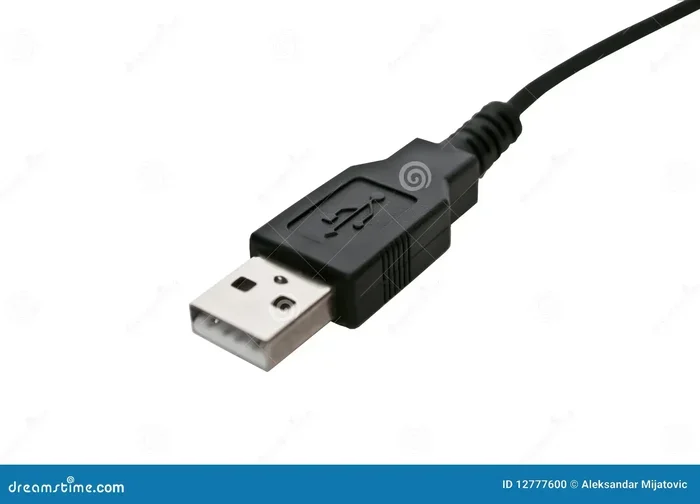
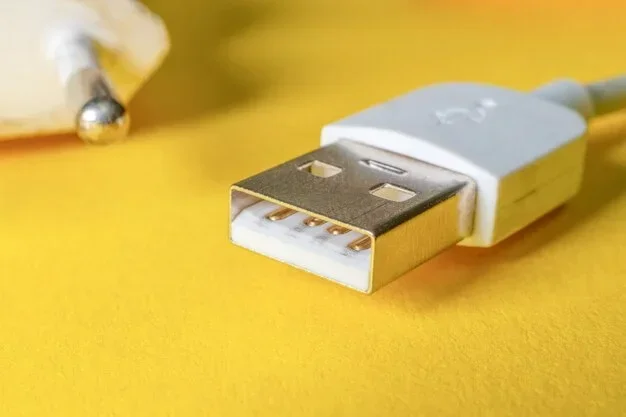
USB A is the flat, rectangular port you have seen for decades. It first appeared in the mid-1990s. It became the standard for computers, printers, and chargers. The USB A connector has a specific orientation. You have to flip it to get it right. Most of us have experienced that frustrating moment of plugging it in wrong. USB A supports USB 2.0, USB 3.0, USB 3.1, and USB 3.2 standards. Each newer standard offers faster data transfer. But the physical connector stayed the same.
USB C: The Modern Connector
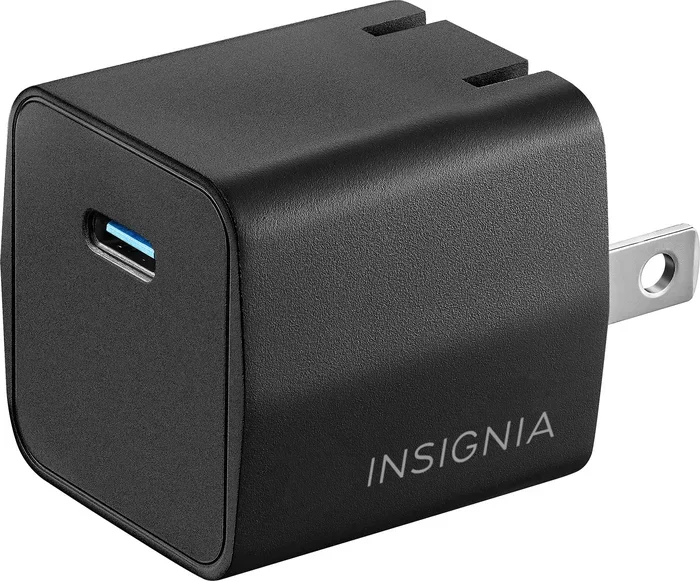
USB C is small, oval-shaped, and reversible. You can plug it in either way. No more flipping. USB C also supports much faster data speeds and higher power delivery. It can handle up to 100 watts of power. That means it can charge laptops, not just phones. USB C also supports video output in many cases. You can connect a monitor directly from your laptop using USB C. Thunderbolt 3 and Thunderbolt 4 use the USB C shape. These offer even faster speeds for professionals.
Why The Shift Happened
The tech industry moved to USB C for good reasons. It is smaller, which matters for thin laptops and phones. It is faster. It carries more power. It is reversible. USB A served us well for years. But it simply could not keep up with modern demands. That is why most new devices use USB C today.
Can You Convert Usb A To Usb C
So, can you convert USB A to USB C? Absolutely. The conversion process is straightforward. You use an adapter or a hybrid cable to connect your USB A device to a USB C port. Here are the main ways to do it.
Using A USB A To USB C Adapter
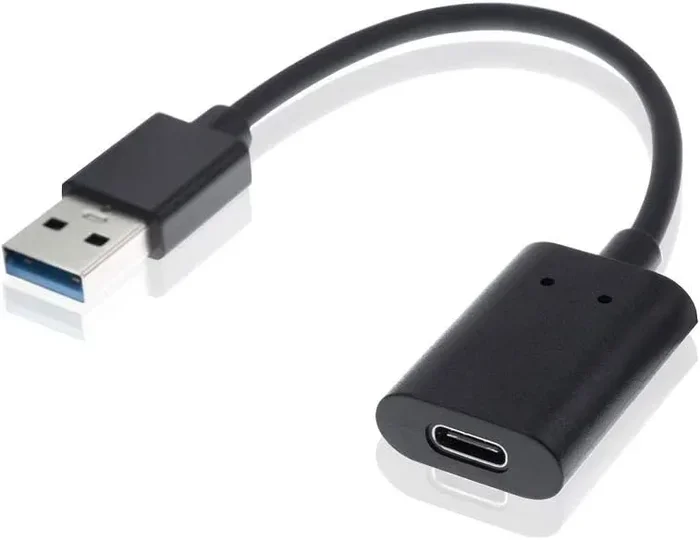
An adapter is a small dongle. One end plugs into your USB A device. The other end is a USB C plug that goes into your laptop or charger. These adapters are cheap and widely available. You can find them online or at any electronics store. They work great for simple tasks like file transfers or charging. Just plug in, and your USB A device works through the USB C port. This is the easiest and most affordable option.
Using A Hybrid USB A To USB C Cable
A hybrid cable has a USB A connector on one end and a USB C connector on the other. You do not need a separate adapter. Just plug the USB A end into your old device and the USB C end into your new one. These cables come in different lengths. They are convenient if you need a permanent solution. Many people keep one in their laptop bag at all times.
Using A USB Hub Or Dock
If you need multiple ports, a USB hub is a great choice. A USB C hub with USB A ports lets you connect several USB A devices at once. You get extra ports for your keyboard, mouse, flash drive, and more. Some hubs also include HDMI, SD card slots, and Ethernet ports. This is ideal for a home office setup. It keeps your desk clean and your devices connected.
When You Do Not Need A Converter
Some newer devices already have both USB A and USB C ports. Certain desktop computers and some laptops still include USB A ports alongside USB C. In those cases, you can plug your USB A device directly. No adapter needed. Always check your device first before buying anything.
Types Of Adapters And Cables For Conversion
Not all adapters are created equal. The market is full of options. Some work great. Others are cheap junk that causes problems. Here is what you need to know about the different types.
Basic Passive Adapters
These are the simplest adapters. They do not have any electronics inside. They just connect the pins from USB A to USB C. Basic adapters are fine for charging and simple file transfers. They are usually very affordable. You can grab one for just a few dollars. But they do not boost speeds or power. They pass through whatever your device supports.
Active Adapters With Chipsets
Active adapters contain a small chip inside. This chip helps manage data and power more efficiently. These adapters are better for high-speed transfers and fast charging. They are more expensive than passive adapters. But they offer better reliability and performance. If you regularly transfer large files, an active adapter is worth the investment.
USB A To USB C Cables With Built-In Chip
Some cables come with built-in circuitry. These cables act like an active adapter. They support faster USB 3.0 or USB 3.1 speeds. They also handle higher power delivery. Look for cables that are labeled with their speed rating. A good cable will clearly state USB 3.0 or USB 3.1 on the packaging.
Thunderbolt 3 And Thunderbolt 4 Adapters
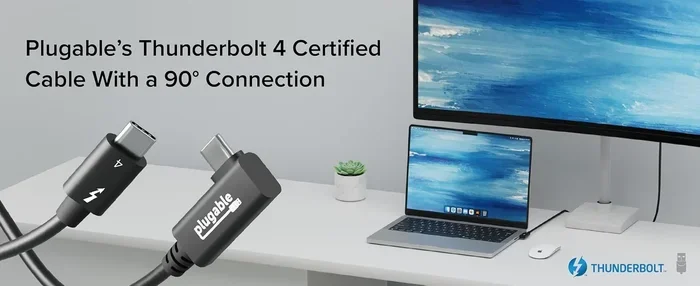
Thunderbolt adapters use the USB C form factor. They offer the fastest speeds available. Thunderbolt 3 supports up to 40 Gbps data transfer. Thunderbolt 4 guarantees 40 Gbps and better security features. These adapters are ideal for professionals who work with large video files or run external drives. They are also the most expensive option.
When shopping, always check the specifications. Look for the USB standard the adapter supports. USB 3.0 is fine for everyday use. USB 3.1 or USB 3.2 is better for faster transfers. And Thunderbolt is best for power users. You can also find great options at our alternatives to traditional cable services guide if you are looking to simplify your entire tech setup.
Data Transfer Speeds And Power Delivery Explained
One of the biggest reasons people convert USB A to USB C is speed. USB A has speed limits. USB C can go much faster. But your actual speed depends on several factors.
USB A Speed Standards
USB A has evolved over the years. Here are the main speed tiers:
- USB 2.0: Up to 480 Mbps. This is the oldest standard. Most USB A flash drives use it.
- USB 3.0: Up to 5 Gbps. Also called USB 3.1 Gen 1. This is much faster than USB 2.0.
- USB 3.1: Up to 10 Gbps. Also called USB 3.1 Gen 2. Great for external hard drives.
- USB 3.2: Up to 20 Gbps. The newest USB A standard. Not many devices support it yet.
USB C Speed Standards
USB C can support all of the above speeds and more:
- USB 3.1 Gen 1: Up to 5 Gbps. Same as USB A USB 3.0.
- USB 3.1 Gen 2: Up to 10 Gbps. Great for most users.
- USB 3.2 Gen 2×2: Up to 20 Gbps. Requires both ends to support it.
- Thunderbolt 3: Up to 40 Gbps. Best for professionals.
- Thunderbolt 4: Up to 40 Gbps with guaranteed performance.
How Power Delivery Works
USB C supports USB Power Delivery, also known as USB PD. This is a smart charging protocol. It can deliver up to 100 watts of power. Your device negotiates the right amount of power automatically. A phone might draw 15 watts. A laptop might draw 60 or 80 watts. The adapter and cable must support USB PD for fast charging to work. If your adapter does not support it, your device will charge at a slower rate.
Here is a quick comparison table to help you understand the differences:
| Feature | USB A | USB C |
|---|---|---|
| Shape | Rectangular, one orientation | Oval, reversible |
| Max Data Speed | 20 Gbps (USB 3.2) | 40 Gbps (Thunderbolt 4) |
| Max Power Delivery | Up to 15W (standard) | Up to 100W (USB PD) |
| Video Output | No (without adapters) | Yes (with DisplayPort Alt Mode) |
| Common On | Older devices, printers, flash drives | Modern laptops, phones, tablets |
| Reversible Plug | No | Yes |
Common Problems When Converting USB A To USB C
Conversion is usually smooth. But sometimes things go wrong. Here are the most common issues and how to fix them.
Slow Data Transfer Speeds
If your transfer is slower than expected, check the adapter. A cheap passive adapter may only support USB 2.0 speeds. That is 480 Mbps. It is very slow for large files. Look for an adapter that supports USB 3.0 or higher. Also check your cable. A USB A cable that only supports USB 2.0 will bottleneck your speeds no matter what adapter you use.
Device Not Recognized
Sometimes your computer does not detect the USB A device when connected through an adapter. This is usually a driver issue. Try unplugging the adapter and plugging it back in. If that does not work, restart your computer. On Windows, you can check Device Manager for any errors. On Mac, try resetting the USB controller by restarting.
Charging Does Not Work Properly
If your device charges slowly or not at all through the adapter, the adapter may not support USB Power Delivery. Check the adapter specifications. Make sure it supports the wattage your device needs. Also, try a different USB C port on your computer. Some ports only provide 5 watts of power.
Adapter Overheating
Some adapters get warm during use. A little warmth is normal. But if the adapter is too hot to touch, stop using it immediately. Cheap adapters with poor circuitry can overheat and even damage your devices. Always buy adapters from reputable brands. Look for ones with safety certifications like UL or CE marking.
Loose Connection
A wobbly adapter can cause intermittent disconnects. This is annoying when you are transferring important files. Try a different adapter. Some adapters fit tightly while others are loose. A snug fit is better for a stable connection. You can also try a hybrid cable instead of an adapter. Cables tend to have a more secure connection.
Expert Tips For Choosing The Right USB A To USB C Adapter
Not all adapters are worth your money. Here are expert tips to help you choose the best one for your needs.
Check Your Device Compatibility First
Before buying anything, check what your devices support. Look at your laptop manual or the manufacturer website. Find out what USB standard the USB C port supports. If your laptop has a USB 3.1 Gen 2 port, buy an adapter that supports at least USB 3.1. If you buy a USB 2.0 adapter for a USB 3.1 port, you will be stuck at slow speeds.
Buy From Reputable Brands
Cheap no-name adapters might seem like a good deal. But they often use poor-quality materials and circuitry. They can cause data loss, slow speeds, or even damage your devices. Stick with brands like Anker, Belkin, Cable Matters, or Satechi. These brands test their products thoroughly. They also offer warranties and customer support.
Read Reviews Before Buying
Online reviews are your best friend when shopping for adapters. Look for reviews on Amazon, Best Buy, or tech review sites. Pay attention to comments about speed, durability, and compatibility. If many reviewers mention the same problem, that is a red flag. A few bad reviews are normal. A pattern of complaints is a warning sign.
Consider Your Use Case
Think about how you will use the adapter. If you just need to charge your phone occasionally, a basic adapter is fine. If you transfer large video files every day, invest in a high-speed adapter or Thunderbolt option. If you need multiple ports, get a USB C hub instead of a simple adapter. Matching the adapter to your actual needs saves you money and frustration.
Test Your Setup After Purchase
Once you get your adapter, test it right away. Transfer a few files and check the speed. Plug in a device and see if it charges properly. If anything feels off, return it and try a different adapter. Most reputable sellers offer easy returns. Do not wait too long to test. The sooner you find a problem, the easier it is to fix.
Quick Tips And Common Mistakes To Avoid
Quick Tips
- Always check the USB standard: Make sure your adapter supports USB 3.0 or higher for decent speeds.
- Label your adapters: If you have multiple adapters, label them so you know which one does what.
- Keep adapters in a dedicated spot: Small adapters are easy to lose. Keep them in a drawer or pouch.
- Use short cables for better speeds: Longer cables can reduce data transfer rates slightly.
- Update your device drivers: Sometimes slow speeds are caused by outdated drivers, not bad hardware.
Common Mistakes To Avoid
- Buying the cheapest adapter: Ultra-cheap adapters often fail quickly or cause connection issues.
- Assuming all USB C is the same: USB C is just a shape. The speed and power depend on the standard inside.
- Ignoring power delivery requirements: If you need fast charging, make sure the adapter supports USB PD.
- Using damaged cables: Frayed or bent cables can cause data corruption and slow speeds.
- Forcing a connector: USB C is reversible, but it should not require force. If it does not fit easily, flip it or check the orientation.
Frequently Asked Questions
Do I Need A Special Adapter To Convert USB A To USB C?
Yes, you need either a USB A to USB C adapter or a hybrid cable that has both connector types. These are widely available online and in electronics stores. They are inexpensive and easy to use. Just plug the USB A end into your older device and the USB C end into your new device.
Will Converting USB A To USB C Slow Down My Data Transfer?
It depends on the adapter and cable quality. A high-quality adapter that supports USB 3.0 or higher will not slow you down much. But a cheap USB 2.0 adapter can significantly reduce your speeds. Always check the adapter specifications before purchasing. Look for the USB standard it supports.
Can I Use A USB A To USB C Adapter For Fast Charging?
Only if the adapter supports USB Power Delivery (USB PD). Basic adapters may only support standard charging speeds of 5 to 15 watts. For fast charging your laptop or tablet, make sure the adapter is rated for higher wattage. Check the packaging or product description for power delivery specs.
Are All USB C Ports The Same?
No, USB C is just a connector shape. The technology inside can vary greatly. Some USB C ports support USB 3.1 with 10 Gbps speeds. Others only support USB 2.0 at 480 Mbps. Thunderbolt 3 and Thunderbolt 4 ports offer the fastest speeds at 40 Gbps. Always check your device specifications to know what your USB C port can do.
Can I Convert USB C Back To USB A?
Yes, you can. USB A to USB C adapters work both ways. You can use a USB C to USB A adapter to connect a USB C device to a USB A port. The same principles apply. Check the adapter’s supported speeds and power delivery to ensure it meets your needs.
How Much Does A Good USB A To USB C Adapter Cost?
A basic passive adapter costs between $5 and $10. Active adapters that support faster speeds and USB PD typically cost $15 to $30. Thunderbolt adapters are more expensive, ranging from $40 to $100 or more. The price depends on the features and quality. Investing in a reliable adapter saves you from frustration and potential device damage.
Final Thoughts
So, can you convert USB A to USB C? Yes, you absolutely can. It is one of the easiest and most affordable ways to keep your older devices working with modern computers. All you need is the right adapter or cable. A simple USB A to USB C adapter costs just a few dollars and works right out of the box.
But do not just grab the cheapest option you find. Take a moment to understand what your devices need. Check the USB standard. Make sure the adapter supports the speeds and power delivery you require. A good adapter lasts for years. A bad one causes headaches and wasted time.
The shift from USB A to USB C is happening fast. More devices are adopting USB C every year. Having the right adapter in your tech kit is a smart move. It keeps your old gear useful and saves you money. You do not need to replace every USB A device just because your new laptop uses USB C.
Follow the tips in this guide. Choose a quality adapter. Avoid common mistakes. And you will have a smooth, reliable connection between your USB A devices and USB C ports. Technology should make your life easier. Not harder. With the right tools, it really does.