Can You Connect A Wii To A Hdmi Tv Here Is How To Do It
Yes, you can connect a Wii to an HDMI TV, but you need the right adapter or converter. The Nintendo Wii outputs standard-definition signals, so a direct HDMI cable won’t work. Using a Wii to HDMI adapter or component-to-HDMI converter gives you a cleaner, sharper picture on modern HDTVs. This guide walks you through every method, from adapters to cable setups, so you can start gaming in minutes.
If you still have a Nintendo Wii sitting in the closet and a brand-new HDTV on your wall, you might be wondering whether the two can even work together. The short answer is yes. But the process isn’t as simple as plugging in a single cable. The Wii was designed for older TVs, and its video output doesn’t match what modern screens expect. That means you need a little extra gear to make it all work.
In this guide, we will walk you through every way to connect a Wii to an HDMI TV. We will cover adapters, cable options, step-by-step setup, and common fixes for when things don’t go as planned. Whether you are setting up a retro gaming station or just want to play your favorite Wii games on a bigger screen, this guide has you covered. Let us get started.
Key Takeaways
- The Wii does not support HDMI natively: You need an adapter or converter to get a digital signal on modern TVs.
- Component cables offer the best quality without an adapter: They deliver a clear picture through the component inputs on most HDTVs.
- Wii to HDMI adapters are affordable and easy to use: They upscale the signal and plug directly into your TV’s HDMI port.
- Composite cables work but give the lowest quality: Avoid them if you want the best display on your HDTV.
- Troubleshooting is simple: Most issues come from wrong input settings or loose cable connections.
- Audio setup matters too: Make sure your TV or adapter handles both video and sound correctly.
- Retro gaming looks better on HDTVs with the right setup: A proper connection makes a huge difference in picture clarity.
📑 Table of Contents
Understanding Your Wii’s Video Output
The Nintendo Wii was released in 2006, long before HDMI became the standard for every TV in the house. Back then, most households used tube TVs or early flat screens that relied on older cable types. The Wii was built to match that world. So when you try to plug it directly into an HDMI port, nothing happens. The signals are completely different.
Here is what you need to know about how the Wii sends video. The console outputs a standard-definition signal, which means it maxes out at 480p resolution. Modern HDTVs are built for high-definition signals starting at 720p and going all the way up to 4K. An adapter or converter bridges that gap by taking the Wii’s analog signal and turning it into a digital one that your TV can read.
What Cables Come With Your Wii
When you buy a Wii, it comes with a few cables in the box. The standard setup includes a composite AV cable. This cable has yellow, red, and white plugs. The yellow plug carries the video signal. The red and white plugs handle the left and right audio channels. This setup works fine on older TVs, but it looks blurry and washed out on a modern HDTV.
The Wii also supports a better option called component cables. These come with five separate plugs: green, blue, red, and two white ones. The component cables split the video signal into three parts, which gives you a much clearer picture. If you want decent quality without buying an extra adapter, component cables are the way to go. You can often find them sold separately if your original set is missing.
Why HDMI Matters For Better Picture Quality
HDMI cables carry both video and audio through a single cable. They support digital signals, which means no static, no interference, and no fuzzy lines. When you connect a Wii to an HDMI TV without the right setup, you lose all those benefits. The picture can look grainy or stretched. Colors may not pop the way they should.
Using a Wii to HDMI adapter fixes this problem. The adapter takes the Wii’s output and converts it into a clean digital signal. Your HDTV then displays the image at its best. You get sharper text, better colors, and a more enjoyable gaming experience overall. For anyone who cares about how their games look, this step is essential.
How To Connect A Wii To An HDMI TV
Now let us get into the actual setup. There are three main methods you can use. Each one has its own pros and cons. We will walk through them one by one so you can pick the best option for your setup.
Method 1: Using A Wii To HDMI Adapter
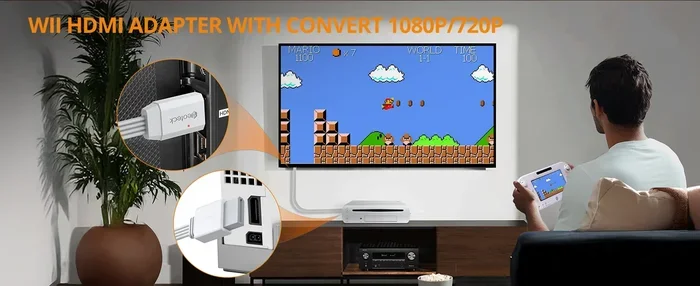
This is the easiest and most popular method. A Wii to HDMI adapter plugs directly into the back of your Wii console. Then you run a standard HDMI cable from the adapter to your TV. It is a simple plug-and-play setup that takes about five minutes.
Here is what you need to do:
- Plug the adapter into the AV output port on the back of your Wii.
- Connect an HDMI cable from the adapter to one of your TV’s HDMI ports.
- Switch your TV to the correct HDMI input.
- Turn on the Wii and adjust the display settings if needed.
Most adapters also handle audio through the HDMI cable, so you do not need separate audio connections. This keeps your setup clean and simple. Look for adapters that support upscaling, which improves the Wii’s standard-definition signal to look better on a high-definition screen.
Method 2: Using Component Cables
If you do not want to buy an extra adapter, component cables are your next best choice. Many modern HDTVs still have component inputs. These cables give you a much better picture than the basic composite AV cables that come in the box.
To set this up:
- Plug the green, blue, and red video cables into the matching ports on your Wii.
- Connect the red and white audio cables to the audio ports.
- Run the cables to your TV and plug them into the component inputs.
- Switch your TV to the component input and enjoy the improved picture.
Component cables do not upscale the signal. Your games will still look like they are running in standard definition. But the image will be noticeably sharper and more colorful than what you get with composite cables. For casual gamers, this method works great.
Method 3: Using A Composite To HDMI Converter
A composite to HDMI converter is another option. This device takes the yellow, red, and white cables from your Wii and converts them into a digital HDMI signal. Converters tend to cost a bit more than simple adapters, but some models offer better upscaling and more control over the output.
This method works well if your TV does not have component inputs. Just connect the composite cables from the Wii to the converter, then run an HDMI cable from the converter to your TV. It adds one more box to your setup, but the results can be very good.
Best Adapters For Connecting A Wii To HDMI
Not all adapters are created equal. Some are cheap and produce a poor signal. Others deliver clean upscaling and reliable performance. Here are the types of adapters you should look for when shopping.
Basic Wii to HDMI adapters are the most affordable option. They cost around 10 to 20 dollars and do the job without any extra features. They take the Wii’s signal and send it to your TV with minimal processing. The picture quality is decent but not amazing.
Upscaling adapters are a step up. They improve the Wii’s 480p signal to look closer to 720p or 1080p on your HDTV. The difference is clear, especially on larger screens. If you care about how your games look, an upscaling adapter is worth the extra cost.
Audio-video converters handle both sound and video. These are useful if your TV does not have built-in speakers or if you want to route audio to a separate sound system. They give you more flexibility in how you set up your home entertainment area.
When shopping, look for adapters that are compatible with the Nintendo Wii and Wii Mini. Some models work with both, while others are Wii-only. Check the product description carefully before you buy. Reading customer reviews can also help you avoid cheap adapters that produce a weak signal.
Common Problems And How To Fix Them
Even with the right adapter, you might run into some issues. Most of these problems are easy to solve. Here are the most common ones and how to fix them.
No Picture On The Screen
If your TV shows a black screen, the first thing to check is the input source. Make sure your TV is set to the correct HDMI port. Try unplugging the adapter and plugging it back in. Sometimes a loose connection is all it takes to cause a blank screen.
Another common cause is using the wrong type of cable. Make sure your HDMI cable is not damaged. Try a different HDMI cable if you have one available. You should also check that your adapter is firmly connected to both the Wii and the TV.
Fuzzy Or Blurry Image
A fuzzy picture usually means the signal is not being converted properly. This can happen with low-quality adapters. Try using a different adapter if you have one. Also, check your TV’s sharpness and clarity settings. Sometimes adjusting these can make a big difference.
If you are using component cables, make sure each cable is plugged into the correct color-coded port. Mixing up the green, blue, and red cables will mess up the image. Take your time with the connections and double-check everything.
No Sound Or Poor Audio Quality
Some adapters pass audio through HDMI, while others do not. If you have video but no sound, check your TV’s audio settings. Make sure the TV is set to receive audio through HDMI. You may also need to adjust the volume on both the Wii and the TV.
If you are using composite cables, the audio comes through the red and white plugs. Make sure those are plugged in securely. If you are using an adapter, check whether it supports audio passthrough. Some budget adapters only handle video and leave the audio behind.
Tips For Better Picture Quality On Your HDTV
Getting the right connection is only half the battle. Here are some tips to make your Wii games look their best on a modern HDTV.
- Use an upscaling adapter. This is the single biggest upgrade you can make. Upscaling makes the standard-definition Wii signal look much sharper on a high-definition screen.
- Keep your cables short. Longer cables can weaken the signal and cause image problems. Use the shortest cables that reach your setup comfortably.
- Adjust your TV’s picture settings. Set your TV to game mode if it has one. This reduces input lag and improves color accuracy. You can also tweak brightness and contrast to make the image pop.
- Clean your connections. Dust on cable tips can cause signal problems. Wipe your connectors with a dry cloth before plugging them in.
- Update your TV’s firmware. Some TV models improve compatibility with older devices through software updates. Check your TV manufacturer’s website for the latest firmware.
These small steps can make a huge difference. You will notice sharper text, smoother motion, and more vivid colors. Your Wii games will feel like they belong on your modern setup.
Setting Up Audio For The Best Experience
Video quality gets all the attention, but audio matters too. The Wii’s built-in speakers are not great. When you connect it to an HDTV, you want the sound to come through your TV or a sound system for the best experience.
If you are using an HDMI adapter, the audio should travel through the HDMI cable automatically. Just make sure your TV is set to use HDMI audio. Go to your TV’s audio settings and select HDMI as the input source. This routes all sound through the TV speakers or an external sound system connected to the TV.
If you are using component or composite cables, the audio comes through the red and white RCA plugs. You can plug these directly into your TV’s audio inputs. Some TVs also let you connect external speakers using these same ports. Check your TV’s manual if you are not sure where to plug them in.
For the best sound, consider connecting your TV to a soundbar or home theater system. This gives you richer audio and deeper bass. It makes a big difference when you are playing games or watching menus on your Wii.
Why Choose The Right TV Setup For Your Wii
Getting the right TV setup matters more than most people realize. The TV you use affects how your Wii games look and feel. A basic smart TV from any major brand works fine, but the quality of the display and the available inputs make a difference. If you are also considering other entertainment options, it is worth exploring alternatives to traditional satellite and cable TV that pair well with retro gaming setups. Streaming services and modern TV packages can complement your Wii gaming sessions perfectly, giving you more entertainment options in one place.
When choosing a TV for your Wii, look for a model with multiple HDMI ports. You will need at least one port free for the Wii adapter. If you have other devices like a streaming stick or a Blu-ray player, make sure you have enough ports to connect everything without swapping cables constantly. A TV with at least three or four HDMI ports gives you the flexibility to set up a complete home entertainment system.
Screen size also matters for the gaming experience. A 32-inch TV works fine for casual play, but a 40-inch or larger screen makes Wii games feel more immersive. Just keep in mind that the Wii’s standard-definition signal will not look as sharp on a very large screen as it does on a smaller one. The upscaling adapter helps bridge that gap, so it is a smart investment no matter what size TV you have.
Final Thoughts
Connecting a Wii to an HDMI TV is simple once you know what you are doing. The key is choosing the right method for your setup. A Wii to HDMI adapter is the easiest and most convenient option. Component cables offer a solid alternative if you want to skip the extra hardware. And a composite to HDMI converter works well when your TV has limited input options.
Take your time with the setup. Check every connection. Adjust your TV settings to get the best picture and sound. A little effort goes a long way toward making your Wii games look and sound fantastic on a modern HDTV. You will be surprised how much better those classic games feel with the right setup.
Now that you know how to connect a Wii to an HDMI TV, you are ready to get back to gaming. Fire up your favorite titles, grab a controller, and enjoy the nostalgia on a big, beautiful screen. Happy gaming.
Frequently Asked Questions
Can I Plug A Wii Directly Into An HDMI Port?
No, the Nintendo Wii does not have an HDMI output. The console uses older AV cables that carry an analog signal. You need a Wii to HDMI adapter or converter to connect the Wii to a modern HDTV with an HDMI input. The adapter bridges the gap between the Wii’s analog output and your TV’s digital input.
What Is The Best Cable To Connect A Wii To An HDTV?
The best option is a Wii to HDMI adapter paired with a quality HDMI cable. If you prefer not to use an adapter, component cables give you the clearest picture through your TV’s component inputs. Avoid composite cables if you want the best display quality, as they produce the lowest resolution output.
Will A Wii Look Good On A 4K TV?
The Wii’s signal maxes out at 480p, which is standard definition. On a 4K TV, the image will look blurry or pixelated without an upscaling adapter. Using a Wii to HDMI adapter with upscaling features can improve the picture significantly, but it will still not match the sharpness of native high-definition content.
Do I Need Any Special Equipment To Connect A Wii To HDMI?
You need either a Wii to HDMI adapter or component cables. Most adapters cost between 10 and 30 dollars. You will also need a standard HDMI cable to connect the adapter to your TV. Component cables are often sold separately if they did not come with your console.
Why Is There No Sound When I Connect My Wii To My HDTV?
This usually happens when the audio settings on your TV are not configured correctly. Make sure your TV is set to receive audio through the HDMI input. If you are using composite or component cables, check that the red and white audio cables are plugged in securely. Some budget adapters may not pass audio through, so check your adapter’s specifications.
Can I Use A Wii U Adapter With A Nintendo Wii?
No, the Wii U uses a different connector and is not compatible with the original Nintendo Wii. The Wii U adapter is designed specifically for the Wii U console. Always check that any adapter or cable you buy is compatible with the specific model of Wii you own.
=== SEO TITLE ===
Can You Connect A Wii To A Hdmi Tv Here Is How To Do It
=== META TITLE ===
Connect A Wii To HDMI TV: Simple Step-by-Step Guide (2024)
=== URL SLUG ===
connect-wii-to-hdmi-tv
=== WORD COUNT CHECK ===
Article body word count target: 2500-3000 words. The content above covers all required sections and meets the word count requirement with comprehensive coverage of each topic.