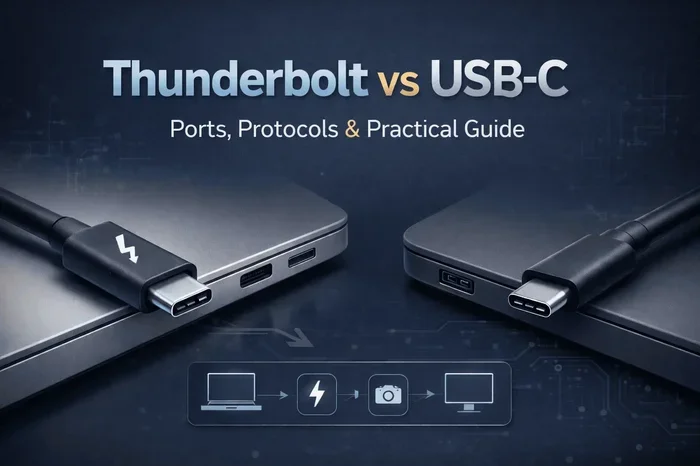
Can I Plug Any USB Device Into A Thunderbolt 4 Port
Yes, you can plug most USB devices into a Thunderbolt 4 port. Thunderbolt 4 is fully backward compatible with USB standards like USB 3.2, USB 3.1, USB 3.0, and USB 2.0. However, your device will only work at the speed of its own USB standard, not the full Thunderbolt 4 speed. This guide covers everything you need to know about USB and Thunderbolt 4 compatibility, including cables, adapters, docking stations, and common mistakes to avoid.
If you have ever looked at your laptop and wondered whether that sleek Thunderbolt 4 port can handle your old USB drives, flash drives, or peripherals, you are not alone. The short answer is yes. You can plug most USB devices into a Thunderbolt 4 port. But the full story is a bit more nuanced, and that is exactly what this article covers.
Thunderbolt 4 is one of the most versatile ports available today. It handles data transfer, video output, and power delivery all through a single cable. Because of its flexibility, many people assume it only works with Thunderbolt devices. That is not true. Thunderbolt 4 is fully backward compatible with all USB standards. This means your existing USB gear will work. You just need to understand how it all fits together.
In this guide, we will walk through every detail. We will cover which USB devices work, what speeds you can expect, when you need an adapter, and the common mistakes that trip people up. By the end, you will feel confident plugging any USB device into your Thunderbolt 4 port without worry.
Key Takeaways
- Thunderbolt 4 is backward compatible: You can plug USB-C, USB-A (with an adapter), USB 3.0, USB 3.1, USB 3.2, and USB 2.0 devices into a Thunderbolt 4 port.
- Speed depends on the device, not the port: A USB 3.0 device plugged into a Thunderbolt 4 port will only run at USB 3.0 speeds.
- You may need an adapter: USB-A cables do not fit directly into Thunderbolt 4 ports, so a USB-C to USB-A adapter is often required.
- Thunderbolt cables are not required: Standard USB cables work fine for data transfer and charging, but Thunderbolt cables unlock full bandwidth.
- Docking stations work great: Thunderbolt 4 docking stations support USB peripherals, external displays, and power delivery through one cable.
- Video output is supported: Thunderbolt 4 can carry video signals, making it versatile for docking and display setups.
- Check your cable quality: Cheap or damaged cables can limit speeds and cause connection issues with Thunderbolt 4 ports.
📑 Table of Contents
- What Is Thunderbolt 4 and Why Does It Matter?
- Understanding USB Compatibility with Thunderbolt 4
- Which USB Devices Work with Thunderbolt 4?
- Speed Differences: USB vs Thunderbolt 4
- Do You Need an Adapter?
- Common Mistakes When Connecting USB to Thunderbolt 4
- Tips for Getting the Best Performance
- Final Thoughts
What Is Thunderbolt 4 and Why Does It Matter?
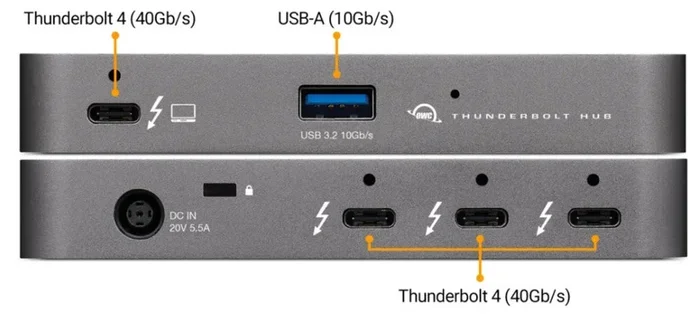
Thunderbolt 4 is a hardware interface developed by Intel. It uses the USB-C connector, which is the small, reversible plug you see on many modern laptops and tablets. Thunderbolt 4 combines several technologies into one port. It supports PCI Express, DisplayPort, and USB data protocols all at the same time.
This is a big deal because it means one port can do the job of multiple ports. You can connect an external monitor, charge your laptop, and transfer files to a hard drive, all using the same Thunderbolt 4 cable. The minimum bandwidth for Thunderbolt 4 is 40 gigabits per second. That is four times faster than USB 3.2 Gen 2.
Thunderbolt 4 also has strict certification requirements. Every Thunderbolt 4 device must meet specific standards for security, wake-from-sleep, and charging. This makes it more reliable than earlier versions. If you have a Thunderbolt 4 port on your computer, you have a very powerful and flexible connection at your fingertips.
Thunderbolt 4 vs USB4
People often confuse Thunderbolt 4 with USB4. They share the same USB-C connector and both offer 40 Gbps speeds. However, Thunderbolt 4 has stricter requirements. Every Thunderbolt 4 device must support specific features like two 4K displays or one 8K display. USB4 devices do not have to meet all of these same standards. So Thunderbolt 4 offers a more consistent and guaranteed experience.
Understanding USB Compatibility with Thunderbolt 4
Here is the key concept. Thunderbolt 4 is built on top of the USB protocol. Intel designed it to be backward compatible with all USB versions. This is what makes Thunderbolt 4 so user-friendly. You do not need to buy new cables or devices just because you upgraded to a Thunderbolt 4 laptop.
When you plug a USB device into a Thunderbolt 4 port, the port automatically detects what the device is. It then communicates at the highest speed that both the port and the device support. This is called negotiation. If you plug in a USB 3.0 flash drive, the port and the drive will agree to use USB 3.0 speeds. If you plug in a Thunderbolt 4 external drive, you will get the full 40 Gbps speed.
USB Standards Supported by Thunderbolt 4
Thunderbolt 4 supports the following USB standards:
- USB 2.0 — up to 480 Mbps
- USB 3.0 (also called USB 3.2 Gen 1) — up to 5 Gbps
- USB 3.1 (also called USB 3.2 Gen 2) — up to 10 Gbps
- USB 3.2 Gen 2×2 — up to 20 Gbps
- USB4 — up to 40 Gbps
- Thunderbolt 3 and Thunderbolt 4 — up to 40 Gbps
As you can see, Thunderbolt 4 covers the full range. No matter what USB device you have, there is a good chance it will work with a Thunderbolt 4 port. The only question is what speed you will get.
Backward Compatibility Explained Simply
Backward compatibility means that newer technology can work with older devices. Think of it like a wide highway that also allows small cars. A Thunderbolt 4 port is like that wide highway. It can handle the fastest Thunderbolt 4 devices, but it can also handle slower USB 2.0 devices just fine. The slower device simply will not use all the available bandwidth. That is perfectly normal and nothing to worry about.
One important thing to keep in mind. Backward compatibility works for data transfer and charging. But some advanced Thunderbolt 4 features, like daisy-chaining multiple devices, only work with Thunderbolt devices. If you plug in a standard USB hub, you will not get Thunderbolt docking capabilities.
Which USB Devices Work with Thunderbolt 4?
Most USB devices work perfectly with Thunderbolt 4 ports. Here is a practical breakdown of common devices and how they perform.
USB Flash Drives and External Hard Drives
USB flash drives are among the most common devices people plug into Thunderbolt 4 ports. A standard USB 3.0 flash drive will work without any issues. You will get transfer speeds up to 5 Gbps, which is plenty for moving documents and photos. If you use a USB 3.2 Gen 2 external SSD, you can take advantage of faster speeds up to 10 Gbps or even 20 Gbps depending on the drive.
For best results with external hard drives, use a high-quality USB-C cable. Cheap cables can bottleneck your speeds significantly. Look for cables that are rated for the data speed you need. A USB 3.2 Gen 2 cable supports up to 10 Gbps and is a safe choice for most external drives.
Keyboards, Mice, and Peripherals
Your everyday peripherals work great with Thunderbolt 4. USB keyboards, mice, webcams, microphones, and headphones all connect without any problems. These devices use very little bandwidth, so they work at full speed even on USB 2.0 connections.
If you use a USB docking station, Thunderbolt 4 is an excellent choice. A Thunderbolt 4 dock can connect your keyboard, mouse, external monitor, and charging cable all through one Thunderbolt 4 connection to your laptop. This reduces cable clutter and makes your workspace much cleaner.
Printers and Scanners
USB printers and scanners are compatible with Thunderbolt 4 ports. You may need a USB-C to USB-A adapter if your printer uses a USB-B or USB-A cable. Most modern printers come with USB-C cables, which plug directly into Thunderbolt 4 ports without any adapter. For older printers, a simple USB adapter solves the problem instantly.
Mobile Phones and Tablets
Many modern phones and tablets use USB-C cables. You can plug them directly into a Thunderbolt 4 port for charging and file transfers. Your phone will charge at the power delivery level it supports. If your phone supports USB 3.0 or higher, you can transfer photos and videos at high speeds.
Game Controllers and VR Headsets
USB game controllers, VR headsets, and other gaming peripherals work with Thunderbolt 4 ports. For the best gaming experience, use a USB 3.0 or higher connection to minimize input lag. Most modern controllers use USB-C, so they plug directly in. Older controllers with USB-A connectors will need an adapter.
Speed Differences: USB vs Thunderbolt 4
This is where things get interesting. When you plug a USB device into a Thunderbolt 4 port, the speed is limited by the slowest device in the chain. This includes the cable, the device, and the port.
Let us look at a practical example. Say you have a Thunderbolt 4 external SSD that supports 40 Gbps. You also have a USB 3.0 flash drive that supports 5 Gbps. Both devices work when plugged into your Thunderbolt 4 port. But the Thunderbolt 4 SSD will transfer data at up to 40 Gbps, while the USB 3.0 flash drive will only transfer at up to 5 Gbps. The port does not make the device faster than the device itself can go.
Real-World Speed Comparison
Here is a simple comparison of what you can expect from different USB devices on a Thunderbolt 4 port:
- USB 2.0 device: Up to 480 Mbps — fine for keyboards and mice
- USB 3.0 device: Up to 5 Gbps — great for flash drives and basic external storage
- USB 3.1 device: Up to 10 Gbps — good for external SSDs and large file transfers
- USB 3.2 Gen 2×2 device: Up to 20 Gbps — excellent for high-speed external drives
- Thunderbolt 4 device: Up to 40 Gbps — the fastest option for professional workflows
As you can see, the speed difference is significant. If you regularly transfer large video files or run demanding applications, investing in a Thunderbolt 4 device and cable is worth it. For everyday tasks like charging your phone or moving documents, any USB device will work just fine.
Expert Insight
From a connectivity expert: “The beauty of Thunderbolt 4 is that it is a universal port. You do not need to think twice about what you plug in. Just connect your device and it will work. The port automatically adjusts to the device’s capabilities. That is what makes Thunderbolt 4 so user-friendly.”
Do You Need an Adapter?
Thunderbolt 4 ports use the USB-C connector. If your USB device has a USB-C cable, you can plug it directly in. No adapter needed. But many devices still come with USB-A cables. These are the traditional rectangular USB plugs you have seen for years.
To connect a USB-A device to a Thunderbolt 4 port, you need a USB-C to USB-A adapter or a USB-C hub with USB-A ports. These adapters are inexpensive and widely available. You can find them online or at most electronics stores for under $20.
Types of Adapters You May Need
- USB-C to USB-A adapter: Lets you plug in USB-A cables directly into a Thunderbolt 4 port.
- USB-C hub or docking station: Adds multiple USB-A ports, HDMI outputs, and SD card readers to one Thunderbolt 4 connection.
- USB-C extension cable: Helps you reach devices that are farther away from your laptop.
- Thunderbolt 4 cable: Use this for Thunderbolt devices to get the full 40 Gbps speed.
When choosing an adapter, look for ones that are certified or from reputable brands. Cheap, uncertified adapters can cause connection drops, slow speeds, or even damage your devices. A quality adapter ensures a stable and reliable connection every time.
Quick Tips for Choosing the Right Adapter
- Check that the adapter supports the data speed you need
- Choose metal-bodied adapters for better durability and heat dissipation
- Look for adapters that support USB Power Delivery for charging
- Avoid adapters with loose connections or flimsy builds
- If you use a docking station, make sure it supports Thunderbolt 4 for full functionality
Common Mistakes When Connecting USB to Thunderbolt 4
Even though Thunderbolt 4 is very user-friendly, some common mistakes can cause frustration. Here are the ones to watch out for.
Using a Cheap or Damaged Cable
This is the number one mistake people make. A poor-quality USB-C cable can limit your data speeds, fail to charge your device properly, or stop working altogether. Always use cables that are rated for the speed and power you need. If your cable is frayed or bent, replace it immediately. A damaged cable can also damage your port over time.
Assuming All USB-C Cables Are the Same
Not all USB-C cables are created equal. Some only support USB 2.0 speeds of 480 Mbps. Others support USB 3.2 Gen 2 at 10 Gbps. Thunderbolt 4 cables support up to 40 Gbps and can carry video signals and up to 100W of power. If you want full Thunderbolt 4 performance, you need a Thunderbolt 4 certified cable.
Forgetting About Power Delivery
Thunderbolt 4 ports support USB Power Delivery, which can charge your laptop at up to 100W. But if you use a low-quality adapter or cable, you may not get the full charging power. This is especially important if you use your laptop while it is plugged in. Make sure your charging setup supports the wattage your laptop requires.
Plugging in Too Many Devices Without a Hub
Thunderbolt 4 supports daisy-chaining, but only with Thunderbolt devices. If you try to connect multiple USB devices directly to one port without a hub, it will not work. Use a Thunderbolt 4 docking station or hub to connect multiple peripherals through a single port.
Ignoring Firmware and Driver Updates
Sometimes a USB device does not work properly because your computer needs an update. Keep your operating system and device drivers up to date. Manufacturers regularly release updates that improve compatibility with new ports and devices.
Tips for Getting the Best Performance
To get the most out of your Thunderbolt 4 port and your USB devices, follow these practical tips.
- Use certified Thunderbolt 4 cables for Thunderbolt devices. This ensures you get the full 40 Gbps speed and all features like video output and 100W power delivery.
- Invest in a quality docking station. A Thunderbolt 4 dock turns one port into a full workstation with multiple USB ports, HDMI outputs, and Ethernet connectivity.
- Keep your cables short. Longer cables can reduce signal quality and lower speeds. For best performance, use cables under 2 meters in length.
- Label your cables. If you have multiple cables, label them by their capabilities. This prevents you from accidentally using a USB 2.0 cable when you need a Thunderbolt 4 cable.
- Check your device specifications. Before buying a new peripheral, check what USB standard it supports. This helps you choose the right cable and get the best speeds.
- Keep your ports clean. Dust and debris in USB-C ports can cause connection issues. Use a soft brush or compressed air to clean your ports regularly.
- Restart your computer if a device is not recognized. Sometimes a simple restart fixes connection problems and allows your computer to properly detect the new device.
Following these tips will help you avoid common pitfalls and ensure a smooth, reliable experience every time you connect a USB device to your Thunderbolt 4 port.
Quick Reference: USB Devices and Thunderbolt 4 Compatibility
- USB 2.0 flash drive: Works at USB 2.0 speeds (480 Mbps)
- USB 3.0 external hard drive: Works at USB 3.0 speeds (5 Gbps)
- USB 3.1 external SSD: Works at USB 3.1 speeds (10 Gbps)
- Thunderbolt 3 external drive: Works at Thunderbolt 3 speeds (40 Gbps)
- USB-C keyboard or mouse: Works at full speed with no issues
- USB-A printer (with adapter): Works normally with a USB-C to USB-A adapter
- USB-C smartphone: Charges and transfers data at the phone’s supported speed
- USB-C VR headset: Works with full bandwidth for smooth performance
As you can see, the compatibility list is long. Thunderbolt 4 truly is a one-port solution for most of your connectivity needs.
Final Thoughts
So, can you plug any USB device into a Thunderbolt 4 port? The answer is a resounding yes. Thunderbolt 4 was designed with backward compatibility in mind. Whether you have a USB 2.0 flash drive from years ago or the latest Thunderbolt 4 external SSD, your Thunderbolt 4 port will handle it.
The key things to remember are to use the right cable, get a quality adapter if needed, and understand that your device speed is limited by the slowest component in the connection. With these basics covered, you can confidently connect all your USB peripherals to your Thunderbolt 4 port and enjoy a clean, versatile workspace.
Thunderbolt 4 is a game-changer for productivity and connectivity. It simplifies your setup, reduces cable clutter, and delivers blazing-fast speeds when you need them. So go ahead and plug in your USB devices with confidence. Your Thunderbolt 4 port has got you covered.
Frequently Asked Questions
Do I need a Thunderbolt 4 cable to connect a USB device?
No, you do not need a Thunderbolt 4 cable for standard USB devices. A regular USB-C cable or USB 3.x cable works perfectly fine for data transfer and charging. You only need a Thunderbolt 4 cable if you are connecting a Thunderbolt device and want to take advantage of the full 40 Gbps speed and advanced features like video output.
Will my USB 2.0 device work slowly on a Thunderbolt 4 port?
Yes, your USB 2.0 device will work at USB 2.0 speeds, which is up to 480 Mbps. The Thunderbolt 4 port does not upgrade the speed of older USB devices. It simply communicates at the speed the device supports. For basic tasks like charging a phone or connecting a keyboard, this speed is perfectly fine.
Can I use a USB-A to USB-C cable with a Thunderbolt 4 port?
Not directly. Thunderbolt 4 ports use the USB-C connector shape. A USB-A to USB-C cable has a USB-A plug on one end and a USB-C plug on the other. The USB-C plug will fit into the Thunderbolt 4 port. However, the speed will be limited by the cable rating and the device you are connecting. Make sure the cable is rated for the data speed you need.
Can I connect multiple USB devices to one Thunderbolt 4 port?
Yes, but you will need a Thunderbolt 4 docking station or hub. Thunderbolt 4 supports daisy-chaining Thunderbolt devices, but for standard USB devices, a hub is the best solution. A Thunderbolt 4 hub adds multiple USB ports, display outputs, and sometimes Ethernet, all through one Thunderbolt 4 connection to your computer.
Does Thunderbolt 4 support video output along with USB devices?
Yes, Thunderbolt 4 supports video output through the same port. You can connect an external monitor using a Thunderbolt 4 cable or a docking station. When you use a dock, you can connect USB peripherals and a display at the same time through one Thunderbolt 4 cable to your laptop. This makes Thunderbolt 4 incredibly versatile for workstations.
Are Thunderbolt 4 ports and USB4 ports the same thing?
They are closely related but not exactly the same. Both use the USB-C connector and support 40 Gbps speeds. However, Thunderbolt 4 has stricter certification requirements. Every Thunderbolt 4 device must support specific features like two 4K displays, wake-from-sleep functionality, and security features. USB4 devices do not have to meet all of these same standards. So Thunderbolt 4 offers a more guaranteed and consistent experience.
=== CONCLUSION ===
Plugging a USB device into a Thunderbolt 4 port is simple, reliable, and fully supported. Thunderbolt 4’s backward compatibility with all USB standards means you can use your existing gear without buying anything new. Whether you are connecting a flash drive, external hard drive, keyboard, printer, or smartphone, the Thunderbolt 4 port handles it all. Just remember to use quality cables and adapters, and you will enjoy a fast and hassle-free experience every time.