Can I Connect My Iphone To An Hdmi Cable For Streaming
Yes, you can connect your iPhone to an HDMI cable for streaming to a TV or monitor. You need the right adapter, like a Lightning to HDMI or USB-C to HDMI cable, and a few simple steps. This guide walks you through every option, from wired streaming to wireless casting, so you can enjoy your favorite content on a bigger screen with ease.
Have you ever wanted to watch something from your iPhone on a bigger screen? Maybe you are sharing photos with family or streaming a movie on a long flight. The good news is that can I connect my iPhone to an HDMI cable is a question with a very simple answer: yes, you can. Connecting your device to a TV or monitor opens up a whole new world of entertainment and sharing.
Many people do not realize how easy it is to set up an iPhone to TV connection with an HDMI cable. You do not need to be a tech expert. With the right adapter and a few minutes of your time, you can enjoy mobile streaming on a much larger display. This guide will show you exactly how to do it, step by step.
Whether you have an older iPhone with a Lightning port or a newer model with USB-C, there is an adapter for you. We will cover everything you need to know about wired streaming, the best accessories to buy, common problems and fixes, and even how wireless options compare. By the end, you will feel confident setting up your own iPhone HDMI adapter system at home or on the go.
Key Takeaways
- Wired Connection Works: You can connect your iPhone to an HDMI cable using an Apple or third-party adapter for reliable streaming.
- Two Adapter Types Matter: Older iPhones need a Lightning to HDMI adapter, while newer models use a USB-C to HDMI adapter.
- Setup Is Simple: The cable connection setup takes only a few minutes with the right gear and a compatible TV.
- Troubleshooting Is Easy: Most issues like no signal or audio problems have quick fixes you can do at home.
- Wireless Is Also an Option: AirPlay and screen mirroring offer a cable-free alternative if you have a smart TV or Apple TV.
- Quality Depends on Your Gear: Using a certified adapter and a good HDMI cable ensures the best video output and audio and video sync.
📑 Table of Contents
Why Connecting Your iPhone to HDMI Matters
Streaming content on a small phone screen can feel limiting. A bigger display makes movies, games, and photos come alive. When you connect your iPhone to an HDMI cable, you unlock a better viewing experience for everyone in the room.
The Big Screen Experience
Watching a video on a 5-inch screen is different from watching it on a 50-inch TV. The colors pop more, the details stand out, and the sound fills the room when you use your TV speakers. Streaming to TV from your iPhone means you get cinema-like quality without buying a new device.
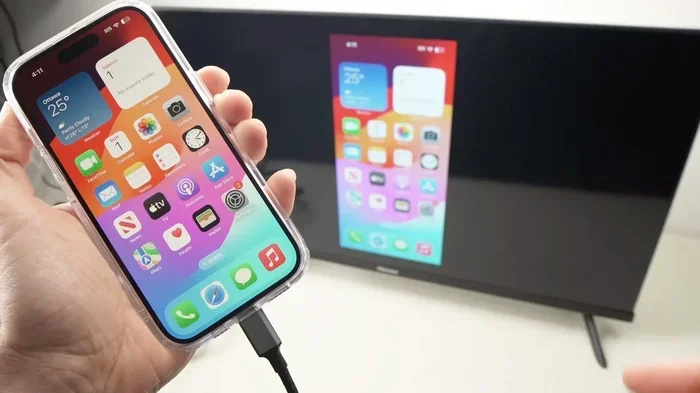
Many people use display mirroring to show their phone screen on a TV. This is great for sharing vacation photos, presenting slideshows, or even playing mobile games on a larger display. The video output from your iPhone through an HDMI cable delivers crisp, clear images every time.
Who Benefits Most from This Setup
Almost anyone can benefit from connecting an iPhone to a TV. Here are some common use cases:
- Families sharing photos: Show your latest vacation shots on the living room TV during gatherings.
- Movie lovers: Watch Netflix, YouTube, or Apple TV+ on a big screen without buying a smart TV.
- Business professionals: Present reports or slides during meetings using a simple cable connection.
- Travelers: Some hotel rooms and flights offer HDMI ports for in-room entertainment.
- Gamers: Play mobile games on a TV for a more immersive experience.
- Fitness enthusiasts: Follow workout videos on a larger screen in your home gym.
No matter your reason, the iPhone to TV connection gives you flexibility and convenience. It is one of the simplest ways to get more out of your device.
What You Need to Get Started
Before you start, you need a few items. The good news is that the gear is affordable and easy to find. Let us look at exactly what you need for a successful cable connection setup.
Lightning to HDMI Adapter
If you have an iPhone 14 or older model, your phone uses a Lightning charging port. To connect it to an HDMI cable, you need a Lightning to HDMI adapter. Apple sells its own version called the Digital AV Adapter. It works reliably and supports video output up to 1080p resolution.
Third-party adapters are also available and often cost less. However, we recommend buying a certified adapter to avoid compatibility issues. A cheap, uncertified adapter might cause flickering, no signal, or poor audio and video sync.
USB-C to HDMI Adapter
Newer iPhones like the iPhone 15 and 16 series use a USB-C port instead of Lightning. For these models, you need a USB-C to HDMI adapter or a direct USB-C to HDMI cable. These adapters support higher resolutions, including 4K on some models, making them great for mobile streaming of high-quality content.
Apple also sells a USB-C to HDMI adapter that works seamlessly with iPhones. Many other brands like Anker, Belkin, and Amazon Basics offer reliable alternatives at lower prices.
The Right HDMI Cable
You also need a standard HDMI cable to connect your adapter to the TV. Most modern TVs have at least one HDMI port. Look for a cable that supports High Speed HDMI or Premium High Speed for the best results. A basic HDMI cable will work fine for most iPhone cable connection needs, but investing in a good quality one ensures fewer problems.
Optional Accessories
Here are a few extras that can make your setup better:
- HDMI switcher: Useful if you have multiple devices connected to one TV.
- Cable organizer: Keeps your setup tidy and prevents cable strain.
- Portable HDMI adapter: Great for travel and on-the-go streaming.
- Audio extractor: Lets you send sound to external speakers while still displaying video on your TV.
Step-by-Step: How to Connect iPhone to HDMI
Now that you have your gear, let us walk through the process. Can I connect my iPhone to an HDMI cable in just a few simple steps? Absolutely. Follow along and you will be streaming to your TV in no time.
For Older iPhones with Lightning
Follow these steps if your iPhone has a Lightning port:
- Plug your Lightning to HDMI adapter into the charging port at the bottom of your iPhone.
- Connect one end of your HDMI cable to the adapter.
- Plug the other end of the HDMI cable into an available HDMI port on your TV.
- Switch your TV to the correct HDMI input using your remote control.
- Your iPhone screen should now appear on the TV. If it does not, try locking and unlocking your phone.
That is it! You are now streaming from your iPhone to your TV through a wired connection. You can open any app, play a video, or show photos, and it will display on the big screen.
For Newer iPhones with USB-C
If you have an iPhone 15 or newer, the process is even simpler:
- Take your USB-C to HDMI adapter or cable.
- Plug the USB-C end into your iPhone.
- Connect the HDMI end to your TV using an HDMI cable.
- Switch your TV to the matching HDMI input.
- Your screen should mirror immediately on the TV.
USB-C adapters often support higher resolutions and faster data transfer. This means smoother video playback and better audio and video sync compared to older Lightning adapters.
Quick Tips for a Smooth Setup
- Make sure your adapter is fully plugged in on both ends.
- Restart your iPhone if the TV shows no signal.
- Check that your TV is set to the right HDMI input.
- Use a certified adapter to avoid compatibility problems.
- Keep your iPhone charged or plugged in during long streaming sessions.
- Update your iPhone to the latest iOS version for the best performance.
Best HDMI Adapters and Accessories
Not all adapters are created equal. Some work better than others, and choosing the right one can make a big difference in your streaming experience. Here are some of the best options available for iPhone to HDMI connections.
Top Picks for Lightning to HDMI
If you have an older iPhone, these adapters are worth considering:
- Apple Lightning to Digital AV Adapter: The official Apple adapter. It costs more but offers reliable performance and wide compatibility. Supports up to 1080p resolution.
- UGREEN Lightning to HDMI Adapter: A popular third-party option that works well and costs less than Apple’s version. Supports 1080p output.
- Cable Matters Lightning to HDMI Adapter: Another solid choice with good build quality and consistent performance for mobile streaming.
Top Picks for USB-C to HDMI
For iPhone 15 and 16 users, these USB-C adapters are excellent:
- Apple USB-C to Digital AV Adapter: Apple’s official USB-C adapter. It supports 4K resolution and works flawlessly with newer iPhones.
- Anker USB-C to HDMI Adapter: Known for durability and fast charging support while streaming. A great value pick.
- Belkin USB-C to HDMI Cable: A direct cable option that eliminates the need for a separate adapter. Clean and simple setup.
What to Look for When Buying
When shopping for an iPhone HDMI adapter, keep these factors in mind:
- Compatibility: Make sure the adapter matches your iPhone port type (Lightning or USB-C).
- Resolution support: Look for 1080p or 4K support depending on your needs.
- Certification: Choose certified or MFi-approved adapters for the best reliability.
- Build quality: A sturdy adapter lasts longer and provides a more stable connection.
- Price: You do not need to spend a fortune. Many affordable options work just as well as premium brands.
Troubleshooting Common Connection Problems
Even with the right gear, you might run into issues when trying to connect your iPhone to an HDMI cable. Most problems are easy to fix. Here are the most common issues and how to solve them.
No Signal on Your TV
If your TV shows no signal, try these steps:
- Check that the HDMI cable is firmly connected to both the adapter and the TV.
- Switch your TV to the correct HDMI input using the input or source button on your remote.
- Unplug the adapter from your iPhone, wait a few seconds, and plug it back in.
- Restart your iPhone and try again.
- Try a different HDMI port on your TV if available.
Audio Issues
Sometimes the video plays on the TV but there is no sound. This is a common issue with video output from iPhones. Try these fixes:
- Make sure your TV volume is turned up and not muted.
- Check that your iPhone is not set to silent mode.
- Go to Settings, then Sounds, and make sure the ringer and alerts are not muted.
- Try a different HDMI cable to rule out a faulty connection.
- If you are using a third-party adapter, it might not support audio. Switch to an Apple-certified adapter.
Black Screen Problems
A black screen on your TV while your iPhone is on can be frustrating. Here is what to do:
- Lock your iPhone and then unlock it again. This often wakes up the display mirroring output.
- Adjust the brightness on your iPhone. Some adapters have trouble with very low brightness settings.
- Make sure your adapter is not overheating. Unplug it for a few minutes and try again.
- Update your iPhone to the latest iOS version. Software updates often fix connection bugs.
When to Replace Your Adapter or Cable
If you have tried all the troubleshooting steps and still have problems, your adapter or cable might be faulty. Over time, cables wear out and adapters can fail. Replacing them with a new, certified one usually solves the issue. Look for adapters that come with a warranty for added peace of mind.
Wireless vs Wired Streaming: Which Is Better?
Now that you know how to connect your iPhone to an HDMI cable, you might wonder if a wireless option would work better. Both wired and wireless streaming have their pros and cons. Let us compare them so you can choose what works best for you.
When Wired Wins
Wired streaming with an HDMI cable offers several advantages:
- Reliability: A cable connection does not drop or lag, even during fast-moving video or gaming.
- Low latency: There is virtually no delay between your iPhone and the TV screen.
- No Wi-Fi needed: You do not depend on your home network, which is great for areas with weak Wi-Fi.
- Better quality: Wired connections deliver consistent video output without compression or quality loss.
- Security: A wired connection cannot be intercepted, making it safer for private content.
If you want the best quality and most reliable connection for streaming to TV, a wired HDMI setup is hard to beat.
When Wireless Makes Sense
Wireless options like AirPlay and screen mirroring are also worth considering:
- Convenience: No cables to plug in or manage. Just cast from your iPhone to a compatible TV.
- Flexibility: You can move around the room while streaming.
- Multi-device support: AirPlay works with Apple TV, smart TVs, and many third-party apps.
- No extra adapters: You do not need to buy any additional hardware if your TV supports AirPlay.
However, wireless streaming can suffer from lag, quality compression, and Wi-Fi dependency. For the best experience, many people use both wired and wireless options depending on the situation.
The Bottom Line
If you want the highest quality, lowest latency, and most reliable connection, go with a wired iPhone HDMI adapter setup. If you value convenience and flexibility, wireless casting through AirPlay is a great choice. Many users keep both options available for different situations.
Frequently Asked Questions
Do I need an Apple adapter to connect my iPhone to HDMI?
No, you do not need an Apple-branded adapter. Apple makes reliable adapters, but many third-party brands like Anker, UGREEN, and Belkin offer excellent alternatives. Just make sure the adapter is certified and compatible with your iPhone model to avoid issues with video output and audio sync.
Can I connect my iPhone to an HDMI cable without an adapter?
No, iPhones do not have a built-in HDMI port. You always need an adapter, either a Lightning to HDMI or USB-C to HDMI adapter, to bridge the connection between your phone and the TV. This is the essential piece of gear for any iPhone to TV connection setup.
Why does my screen look blurry when connected to HDMI?
A blurry image is usually caused by a low-quality cable or adapter, or by using an HDMI input that does not support the resolution your iPhone is sending. Try using a certified adapter and a High Speed HDMI cable. Also check that your TV is set to the correct resolution for the best display mirroring quality.
Can I charge my iPhone while streaming to HDMI?
Yes, you can. Many adapters have a pass-through charging port that lets you plug in a Lightning or USB-C cable while streaming. This is especially helpful during long movie sessions or when using mobile streaming for extended periods. Just make sure you use a quality charging cable and power adapter.
Does connecting to HDMI drain my iPhone battery faster?
Yes, streaming video to an external display uses more power than normal phone use. Your iPhone battery will drain faster when it is sending HDMI output to a TV. To avoid running out of battery, keep your phone plugged in while streaming, or use a battery pack as a backup power source.
Can I use any HDMI cable with my iPhone adapter?
Most standard HDMI cables work fine with iPhone adapters. However, for the best results, use a High Speed or Premium High Speed HDMI cable. These cables support higher resolutions and better audio and video sync. Avoid very cheap or damaged cables, as they can cause connection problems and poor picture quality.
Conclusion
So, can I connect my iPhone to an HDMI cable for streaming? The answer is a clear yes. Whether you have a Lightning or USB-C iPhone, the right adapter and a standard HDMI cable give you a simple, reliable way to enjoy your favorite content on a bigger screen. From watching movies and sharing photos to presenting at work, the iPhone to HDMI cable connection opens up endless possibilities.
The setup process is straightforward, and with the tips and troubleshooting steps in this guide, you should be able to handle any issues that come up. Choose a certified adapter, use a good quality HDMI cable, and follow the steps carefully for the best results. Wired streaming gives you the most reliable and highest quality experience, while wireless options like AirPlay offer convenience when you need it.
Now that you know how to set up your own iPhone HDMI adapter system, it is time to try it. Grab your gear, follow the steps, and enjoy your content on the big screen. The experience of mobile streaming through a direct cable connection is something every iPhone user should try at least once. You will wonder how you ever watched without it.