Can I Plug USB C Into A Thunderbolt 4 Port And What Happens
Yes, you can plug USB C into a Thunderbolt 4 port and it will work, but the experience depends on your cable and device. USB-C is the connector shape while Thunderbolt 4 is a protocol that uses that same shape. You will get basic data transfer and charging, but you miss out on Thunderbolt 4’s full 40 Gbps bandwidth unless both the cable and device support it.
Yes, you can plug a USB-C cable into a Thunderbolt 4 port, and it will work. But what happens next depends on a few things. The short answer is that your device will function, but you might not get the full Thunderbolt 4 experience. In this guide, we break down everything you need to know about Can I Plug USB C Into A Thunderbolt 4 Port. You will learn about compatibility, speeds, and what to expect in real-world use.
Thunderbolt 4 and USB-C look almost identical. They share the same connector shape, which causes a lot of confusion. Many people assume that because the plug fits, they are getting the same performance. That is not always true. Understanding the difference helps you make better choices when buying cables, docking stations, and other accessories.
Whether you are connecting an external monitor, transferring large files, or just charging your laptop, knowing what your port can do matters. This article covers every angle of Can I Plug USB C Into A Thunderbolt 4 Port. By the end, you will feel confident about your setup and know exactly what to expect.
Let us dive into the details and clear up the confusion once and for all.
Key Takeaways
- USB-C plugs into Thunderbolt 4 ports: the connector is physically compatible, so it will fit and work for basic functions like charging and data transfer.
- You get limited speeds with standard USB-C cables: a regular USB-C cable will not deliver Thunderbolt 4’s full 40 Gbps data transfer rate.
- Charging still works normally: USB-C power delivery functions through a Thunderbolt 4 port without any issues.
- Not all features are available: advanced features like daisy-chaining multiple devices and external GPU support require Thunderbolt 4 certified cables and devices.
- Check your cable labels carefully: cables marked with the Thunderbolt logo support full Thunderbolt 4 speeds and capabilities.
- Backward compatibility is built in: Thunderbolt 4 ports are designed to work seamlessly with older USB-C and Thunderbolt 3 devices.
📑 Table of Contents
- What Is a Thunderbolt 4 Port?
- What Is USB-C and Why Is It Everywhere?
- Can I Plug USB C Into A Thunderbolt 4 Port?
- What Happens When You Plug USB-C Into Thunderbolt 4?
- Thunderbolt 4 vs USB-C: Key Differences
- Common Mistakes and How to Avoid Them
- Best Cables and Accessories for Thunderbolt 4
- Conclusion
What Is a Thunderbolt 4 Port?
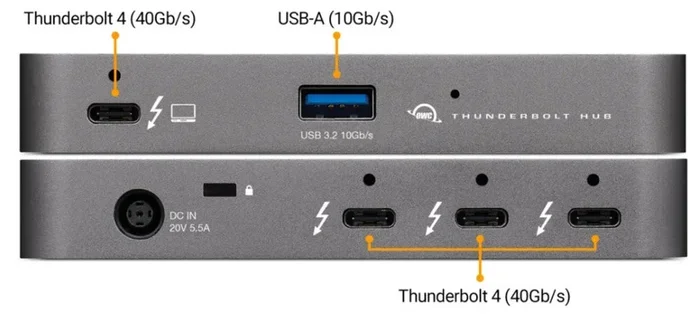
A Thunderbolt 4 port is a high-speed connection developed by Intel. It combines data transfer, video output, and power delivery into a single cable. The port uses the same USB-C connector shape that you see on many modern devices. But under the hood, it is much more powerful than a standard USB-C port.
Thunderbolt 4 was introduced as the latest evolution of the Thunderbolt standard. It builds on Thunderbolt 3 and adds several improvements. The result is a versatile port that can handle almost any connection task you throw at it.
How Thunderbolt 4 Differs from Regular USB-C
The main difference lies in the protocol. USB-C is just a connector type. It defines the shape and pin layout of the plug. Thunderbolt 4, on the other hand, is a protocol that dictates how data moves through that connector. Think of USB-C as the physical road and Thunderbolt 4 as a highway with a much higher speed limit.
Here are the key differences at a glance:
- USB-C: A connector shape that supports various protocols including USB 3.2, USB4, and Thunderbolt.
- Thunderbolt 4: A protocol that requires USB-C connector but delivers guaranteed minimum performance standards.
- Bandwidth: Thunderbolt 4 guarantees 40 Gbps, while standard USB-C ports may only offer 5 Gbps or 10 Gbps.
- Video Support: Thunderbolt 4 supports two 4K displays or one 8K display. Basic USB-C may only support one display.
Key Features of Thunderbolt 4
Thunderbolt 4 comes packed with features that make it stand out. These are not just marketing claims. They are guaranteed minimum specifications that every Thunderbolt 4 device must meet.
Here are the standout features:
- 40 Gbps data transfer speed: This is the maximum bandwidth Thunderbolt 4 offers. It is four times faster than USB 3.2 Gen 2.
- Power delivery up to 100W: You can charge laptops and other power-hungry devices through the same cable.
- Dual 4K display support: Connect two 4K monitors at 60Hz from a single port.
- Daisy chaining: Connect up to six devices in a chain from one port.
- Wake from sleep: Your laptop can wake up when you connect a Thunderbolt dock or keyboard.
- Secure peripheral access: Thunderbolt 4 includes hardware-based security features to protect against DMA attacks.
These features are what make Thunderbolt 4 so valuable. But they only work when everything in your setup supports Thunderbolt 4.
What Is USB-C and Why Is It Everywhere?
USB-C is a connector standard that has taken the tech world by storm. You will find it on laptops, phones, tablets, monitors, and even gaming consoles. Its small, reversible design makes it incredibly convenient. You never have to worry about plugging it in the wrong way.
The USB-C connector is not the same as USB 3.2 or USB4. Those are data protocols. USB-C is simply the physical shape of the plug and port. This distinction is crucial when asking Can I Plug USB C Into A Thunderbolt 4 Port.
The USB-C Connector Explained
The USB-C connector has 24 pins inside. These pins handle data, power, and video signals. Because of this versatile pin layout, USB-C can support multiple protocols. It can carry USB 3.2 data, USB4 data, Thunderbolt data, and even DisplayPort video.
However, not every USB-C port or cable is created equal. Some only support basic USB 2.0 speeds of 480 Mbps. Others support faster USB 3.2 speeds. And some are Thunderbolt 4 certified. The key is knowing what your specific cable and port can do.
Here is a simple breakdown of USB-C categories:
- Basic USB-C: Supports USB 2.0 or USB 3.x speeds. No video or advanced features.
- USB-C with USB4: Supports up to 40 Gbps and can carry video and power.
- USB-C with Thunderbolt 4: The highest level of USB-C functionality with guaranteed performance standards.
USB-C vs Thunderbolt 4: The Big Picture
The easiest way to understand the relationship is this: all Thunderbolt 4 uses USB-C connectors, but not all USB-C supports Thunderbolt 4. It is like how all squares are rectangles, but not all rectangles are squares.
This is why Can I Plug USB C Into A Thunderbolt 4 Port is such a common question. The plug fits, so people assume full compatibility. In most cases, basic functionality works. But you will not unlock the full Thunderbolt 4 experience without the right equipment.
Can I Plug USB C Into A Thunderbolt 4 Port?
The direct answer to Can I Plug USB C Into A Thunderbolt 4 Port is yes. The USB-C connector is physically designed to fit into a Thunderbolt 4 port. The port will accept the plug and establish a connection. Your device will recognize the cable and attempt to communicate.
But what happens after that depends on several factors. The cable you use, the device you are connecting, and the capabilities of both ends all play a role. Let us look at what you can expect in different scenarios.
The Short Answer: Yes, It Works
When you plug a standard USB-C cable into a Thunderbolt 4 port, the connection will work for basic functions. You will be able to:
- Charge your device: Power delivery works through any USB-C cable that supports the required wattage.
- Transfer data: Files will move between devices, but the speed depends on the cable and protocol.
- Connect peripherals: Keyboards, mice, and basic USB devices will work without issues.
The connection is backward compatible by design. Intel built Thunderbolt 4 to work with older USB-C devices. This means you do not need to replace all your cables every time you buy a new Thunderbolt 4 laptop.
What You Get When You Plug In
The experience you get depends on the cable you are using. Here are three common scenarios:
Scenario 1: Standard USB-C cable in a Thunderbolt 4 port. You will get basic USB speeds, typically up to 10 Gbps if the cable supports USB 3.2. Charging works normally. You can connect basic peripherals. But you will not get Thunderbolt-specific features like dual display support or daisy chaining.
Scenario 2: Thunderbolt 3 cable in a Thunderbolt 4 port. You will get Thunderbolt 3 speeds of up to 40 Gbps. Most Thunderbolt features work, including daisy chaining and video output. However, the cable might not meet all Thunderbolt 4 requirements.
Scenario 3: Thunderbolt 4 cable in a Thunderbolt 4 port. This is the full experience. You get all Thunderbolt 4 features at their guaranteed speeds. Dual 4K displays, 100W power delivery, and maximum data transfer are all available.
What Happens When You Plug USB-C Into Thunderbolt 4?
Now let us get into the details of what actually happens when you make this connection. Understanding the technical side helps you troubleshoot issues and optimize your setup.
Data Transfer Speeds
Data transfer speed is one of the biggest concerns people have. When you plug a USB-C cable into a Thunderbolt 4 port, the speed you get depends on the cable’s capabilities.
Here is what to expect:
- USB 2.0 cable: Speeds up to 480 Mbps. This is very slow and will bottleneck any modern device.
- USB 3.2 Gen 1 cable: Speeds up to 5 Gbps. Suitable for most everyday tasks.
- USB 3.2 Gen 2 cable: Speeds up to 10 Gbps. Good for large file transfers.
- Thunderbolt 3 cable: Speeds up to 40 Gbps. Full Thunderbolt bandwidth.
- Thunderbolt 4 cable: Speeds up to 40 Gbps with guaranteed minimum performance.
If you are using a standard USB-C cable, you will not reach the 40 Gbps Thunderbolt 4 speed. The cable becomes the bottleneck. This is the most common reason people think their Thunderbolt 4 port is not working properly.
Power Delivery and Charging
One of the best things about Thunderbolt 4 is power delivery. When you plug USB-C into a Thunderbolt 4 port, charging works just fine. The port supports USB Power Delivery (USB PD) protocol, which negotiates the right voltage and current with your device.
You can charge laptops, tablets, and phones through a Thunderbolt 4 port. The maximum power delivery is 100W, which is enough for most laptops. Even with a basic USB-C cable, you will get reliable charging.
Quick Tip: If you want the fastest charging speeds, use a USB-C cable that supports USB PD 3.0 or higher. Look for cables rated for 100W to get the full benefit.
Display and Video Output
Video output is where things get interesting. A Thunderbolt 4 port can support two 4K displays or one 8K display. But whether you actually get this depends on the cable and device you connect.
With a standard USB-C cable, you may only get a single display. The resolution and refresh rate will depend on the display’s requirements and the cable’s capabilities. To unlock dual 4K support, you need a Thunderbolt 4 cable and a Thunderbolt 4 compatible display or dock.
Expert Insight: Many users report that their external monitor works fine with a USB-C cable in a Thunderbolt 4 port. This is because basic display output works over any USB-C connection that supports DisplayPort Alt Mode. The limitation comes when you want multiple displays or higher resolutions.
Thunderbolt 4 vs USB-C: Key Differences
It is easy to mix up Thunderbolt 4 and USB-C because they share the same connector. But they are fundamentally different in what they can do. Let us break down the key differences so you can make informed decisions.
Comparison Table
| Feature | USB-C | Thunderbolt 4 |
|---|---|---|
| Connector Shape | USB-C | USB-C |
| Maximum Data Speed | Up to 40 Gbps (USB4) | Guaranteed 40 Gbps |
| Minimum Data Speed | Varies (480 Mbps to 40 Gbps) | 32 Gbps for PCIe, 10 Gbps for USB data |
| Display Support | Varies by device | Two 4K displays or one 8K |
| Power Delivery | Up to 100W with USB PD | Up to 100W with USB PD |
| Daisy Chaining | Not supported | Up to 6 devices |
| Security Features | None built-in | Hardware-based DMA protection |
| Cable Certification | Not required | Mandatory Thunderbolt certification |
Speed and Bandwidth Differences
The bandwidth difference is the most significant factor. Thunderbolt 4 guarantees 40 Gbps, which means every Thunderbolt 4 cable and device delivers this speed. USB-C ports, on the other hand, can vary wildly. Some support only 5 Gbps, while others hit 40 Gbps if they also support USB4.
This inconsistency is why Can I Plug USB C Into A Thunderbolt 4 Port matters so much. You might have a USB-C cable that only supports 10 Gbps, which limits your Thunderbolt 4 port to those slower speeds.
Feature Comparison
Beyond speed, Thunderbolt 4 offers features that standard USB-C does not. These include:
- Guaranteed minimum performance: Every Thunderbolt 4 device must meet strict minimum specs.
- Wake from sleep: Your computer wakes when you connect a Thunderbolt dock.
- Secure connections: Hardware-level protection against direct memory access attacks.
- PCIe tunneling: Supports external GPUs and other high-performance peripherals.
Standard USB-C cables simply do not have the capability to support these features. This is why investing in Thunderbolt 4 certified cables matters if you want the full experience.
Common Mistakes and How to Avoid Them
Even though Can I Plug USB C Into A Thunderbolt 4 Port is straightforward, many users run into issues. Most of these problems come from common mistakes that are easy to avoid.
Using the Wrong Cable
The most common mistake is using a cable that does not support the speeds or features you need. A basic USB-C cable will work for charging and simple data transfer, but it will not unlock Thunderbolt 4 speeds.
Always check your cable for the Thunderbolt logo. If the cable has a lightning bolt icon next to the USB-C connector, it is a Thunderbolt cable. If it does not, it is a standard USB-C cable.
Quick Tip: When in doubt, buy cables from reputable brands. Cheap, unbranded cables often do not meet the specifications they claim. Look for cables that are Thunderbolt 4 certified for the best results.
Assuming All USB-C Cables Are Equal
Not all USB-C cables are the same. Some only support 5 Gbps, while others handle 40 Gbps. Some only carry power, while others carry data and video. This is a huge source of confusion.
Before buying a cable, think about what you need it to do. If you just need to charge your phone, any USB-C cable will work. If you need to connect an external GPU or two 4K monitors, you need a Thunderbolt 4 cable.
Ignoring Device Compatibility
Even with the right cable, your devices need to support Thunderbolt 4 for full functionality. A Thunderbolt 4 cable plugged into a Thunderbolt 4 port will give you full speeds. But if your laptop only supports Thunderbolt 3, you will get Thunderbolt 3 speeds instead.
Check your device specifications before buying accessories. Look for the Thunderbolt 4 logo on your laptop, dock, or cable. If you do not see it, the device might support an earlier Thunderbolt version or only basic USB-C.
Best Cables and Accessories for Thunderbolt 4
Getting the right accessories makes a huge difference in your Thunderbolt 4 experience. Here are some recommendations to help you build the best setup.
Top Thunderbolt 4 Cables
When shopping for a Thunderbolt 4 cable, look for these features:
- Thunderbolt 4 certification: The cable must carry the Thunderbolt 4 logo.
- 40 Gbps support: Guaranteed maximum data transfer speed.
- 100W power delivery: Supports the highest USB PD wattage.
- Cable length: Active Thunderbolt 4 cables can reach up to 2 meters while maintaining full speed. Passive cables are limited to shorter lengths for full 40 Gbps performance.
Popular Thunderbolt 4 cables include options from Apple, CalDigit, and Belkin. These brands are known for quality and reliability.
Docking Stations and Hubs
A Thunderbolt 4 docking station is one of the best investments you can make. It turns your single port into a hub of connectivity. You can connect multiple monitors, external drives, Ethernet, and charging through one cable.
When choosing a dock, make sure it is Thunderbolt 4 certified. A USB-C dock will not give you the same performance or features. Thunderbolt 4 docks support dual displays, fast data transfer, and 100W charging.
Quick Tips for Choosing the Right Accessory
- Always check for the Thunderbolt logo: This is the easiest way to confirm Thunderbolt 4 support.
- Match your cable to your needs: If you need video output, make sure the cable supports DisplayPort Alt Mode.
- Buy from trusted retailers: Counterfeit Thunderbolt cables are common. Buy directly from manufacturers or authorized sellers.
- Consider cable length: Longer cables may reduce speeds. For best performance, keep cables under 1 meter for passive Thunderbolt 4 cables.
- Test your setup: After connecting, check your system settings to confirm the connection speed and features are active.
Conclusion
So, can you plug USB C into a Thunderbolt 4 port? Absolutely. The connector is physically compatible, and basic functionality works in almost all cases. You can charge your devices, transfer files, and connect peripherals without any problems.
However, to unlock the full power of Thunderbolt 4, you need Thunderbolt 4 certified cables and compatible devices. Standard USB-C cables will limit your speeds and prevent you from accessing advanced features like dual 4K displays and daisy chaining.
The key takeaway is simple: Can I Plug USB C Into A Thunderbolt 4 Port has a yes for an answer, but the quality of that connection depends entirely on your cable and device. Invest in the right accessories, check your labels, and you will get the best possible experience from your Thunderbolt 4 setup.
Take a moment to audit your current cables and devices. Check for Thunderbolt logos and verify that your setup supports the speeds and features you need. A small upgrade to a Thunderbolt 4 cable can make a world of difference in your daily workflow.
Frequently Asked Questions
Will a USB-C cable damage my Thunderbolt 4 port?
No, a USB-C cable will not damage a Thunderbolt 4 port. The port is designed to be backward compatible with standard USB-C devices and cables. The connection is safe and will not harm your hardware. You can plug and unplug USB-C cables without any risk to your Thunderbolt 4 port.
Can I use a Thunderbolt 4 cable with a regular USB-C port?
Yes, you can. Thunderbolt 4 cables are backward compatible with USB-C ports. The cable will work, but the speed and features will be limited by the USB-C port’s capabilities. You will not get Thunderbolt 4 speeds unless both the cable and the port support it.
How do I know if my cable supports Thunderbolt 4?
Look for the Thunderbolt logo on the cable. It looks like a lightning bolt next to the USB-C connector. Thunderbolt 4 certified cables also list their certification on the packaging. If you do not see the Thunderbolt logo, it is likely a standard USB-C cable that does not support Thunderbolt speeds.
What is the maximum data transfer speed with a USB-C cable in a Thunderbolt 4 port?
The maximum speed depends on the cable. A standard USB-C cable typically supports up to 10 Gbps (USB 3.2 Gen 2). A Thunderbolt 3 or Thunderbolt 4 cable will support up to 40 Gbps. The Thunderbolt 4 port itself supports 40 Gbps, but the cable determines the actual speed you get.
Can I connect multiple monitors using USB-C in a Thunderbolt 4 port?
It depends on the cable and your device’s capabilities. With a standard USB-C cable, you may only get a single display. To connect multiple monitors, you need a Thunderbolt 4 cable and a Thunderbolt 4 compatible display or docking station. Thunderbolt 4 guarantees support for two 4K displays or one 8K display.
Do I need a Thunderbolt 4 cable for external GPU use?
Yes, you need a Thunderbolt 4 or Thunderbolt 3 cable for external GPU use. Standard USB-C cables do not provide the necessary bandwidth or PCIe tunneling support for external GPUs. A Thunderbolt 4 cable ensures you get the full 40 Gbps bandwidth required for external graphics processing.