Can Hdmi Splitters Cause Problems With Audio And Video
HDMI splitters can indeed cause problems with both audio and video if you pick the wrong model or set it up incorrectly. Common issues include signal loss, audio sync delays, HDCP errors, and resolution drops that frustrate even casual users. This guide walks you through every problem you might face and gives you clear, practical solutions to fix them fast.
This is a comprehensive guide about Can Hdmi Splitters Cause Problems.
Key Takeaways
- Signal Loss Is Common: Cheap passive splitters often degrade your HDMI signal, causing flickering or no picture at all.
- Audio Sync Problems Happen: Delays between audio and video are a top complaint with many splitter models.
- HDCP Errors Block Content: Copy protection can prevent your splitter from passing through 4K or premium channels.
- Powered Splitters Work Better: Active splitters with external power handle longer cable runs and more displays reliably.
- Cable Quality Matters: Using low-quality or too-long HDMI cables worsens splitter problems significantly.
- EDID Handshake Issues Cause Headaches: Display resolution conflicts often stem from how your splitter communicates with connected devices.
- Fixes Exist for Most Problems: Firmware updates, cable swaps, and proper placement solve the majority of splitter issues.
[FEATURED_IMAGE_PLACEHOLDER]
Can HDMI Splitters Cause Problems With Audio and Video?
You just bought an HDMI splitter. You want to send one source to two TVs or monitors. Everything looks simple on paper. But then you plug it in, and something goes wrong. The picture flickers. The sound lags. Or nothing works at all. This is a frustrating experience that thousands of people face every year.
The short answer is yes, HDMI splitters can cause problems with both audio and video. But here is the good news. Most of these issues are fixable. You just need to know what to look for. This article breaks down every common problem you might run into. It also gives you step-by-step solutions that actually work. Whether you are a casual viewer or a home theater enthusiast, this guide has something for you.
We will cover signal loss, audio sync issues, HDCP errors, resolution problems, and much more. By the end, you will know exactly how to set up your splitter without headaches. You will also learn how to choose the right model for your needs. Let us dive in and solve this together.
What Is an HDMI Splitter and How Does It Work?
Before we talk about problems, let us quickly cover the basics. An HDMI splitter takes one HDMI input and sends it to multiple outputs. Think of it like a water pipe splitter. One stream flows in, and it divides into two or more streams going out.
There are two main types you should know about:
- Passive splitters — These use no external power. They simply split the signal. They are cheap but limited in what they can do.
- Active splitters — These need a power source. They boost the signal so it travels farther and stays stronger. They cost more but perform much better.
Both types share the same basic job. They duplicate your audio and video signal. But the way they handle that job makes a huge difference in the quality you get. A passive HDMI splitter works fine for short distances. An active HDMI splitter handles longer runs and more displays with ease.
Why People Use HDMI Splitters
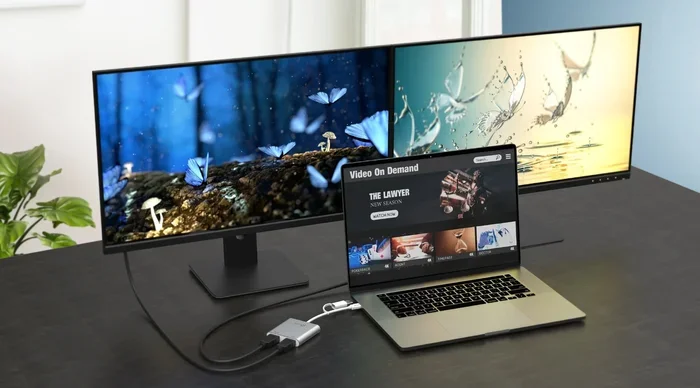
People buy splitters for many reasons. Some want to mirror their laptop screen on a TV and a projector at the same time. Others run one cable box to multiple rooms. Gamers sometimes use them to send gameplay to both a capture card and a monitor. The use cases are varied and practical.
No matter your reason, understanding how the device works helps you troubleshoot when things go wrong. That brings us to the next big section.
Common HDMI Splitter Problems With Video
Video issues are the number one complaint people have with splitters. Let us go through each one in detail so you can identify what is happening with your setup.
Signal Loss and Flickering Screens
Signal loss is the most common problem. You turn on your setup, and the screen flickers. Or it goes black for a second and comes back. This happens because the splitter cannot hold a strong signal across all outputs.
Cheap passive HDMI splitters are the biggest culprits here. They do not amplify the signal. So when you add more cables or longer runs, the signal weakens. The result is a poor picture or intermittent connection.
Here is what you can do about it:
- Use shorter HDMI cables. Keep runs under 10 feet when possible.
- Upgrade to an active HDMI splitter with a power adapter.
- Check your cable quality. Cheap cables often cause flickering.
- Make sure all connections are snug and secure.
These simple steps fix the majority of flickering problems. Do not underestimate the power of a good cable.
Resolution Downgrades and No 4K Support
Have you ever plugged in a splitter and noticed your picture looks worse than before? Maybe your 4K TV now shows 1080p. Or your display only outputs at 720p. This is a resolution downgrade, and it is very annoying.
This problem usually comes from EDID handshake issues. EDID is how your devices talk to each other about the best resolution they support. Sometimes a splitter confuses this conversation. It tells your source device to send a lower resolution instead.
To fix this, try these steps:
- Check if your splitter supports the resolution you need. Not all models handle 4K or even 1080p.
- Update the firmware if your splitter has that option.
- Try a different HDMI port on your source device.
- Force the resolution on your source device before connecting the splitter.
Always check the HDMI splitter specifications before buying. Make sure it supports the resolution and refresh rate you want. This one step prevents a lot of headaches.
Video Artifacts and Glitches
Artifacts are weird visual glitches. You might see colorful blocks, horizontal lines, or random flashing on your screen. These are signs of a weak or corrupted signal.
Signal degradation causes most video artifacts. When the signal travels through a splitter and then through long cables, it loses strength. The result is visual noise that ruins your viewing experience.
Here is a quick tip. If you see artifacts, try disconnecting one output at a time. If the problem goes away when you remove a display, your splitter may not have enough power for multiple outputs. An active HDMI splitter with a built-in amplifier solves this problem.
Common HDMI Splitter Problems With Audio
Audio problems are just as frustrating as video issues. And they can be harder to diagnose because you cannot always see what is wrong. Let us look at the most common audio-related splitter problems.
Audio Sync Delays and Lip Sync Issues
Nothing breaks immersion faster than audio that is out of sync. You see lips move, but the sound comes a fraction of a second late. This is called a lip sync issue, and it is very common with HDMI splitters.
Why does this happen? Splitters process the signal before sending it out. That processing takes a tiny bit of time. On a single output, you might not notice it. But when you split the signal to multiple displays, the delay can become obvious.
Here is how to fix audio sync problems:
- Use a splitter with built-in audio delay compensation.
- Check if your TV or monitor has an audio sync setting you can adjust manually.
- Reduce the number of outputs if possible. Fewer outputs means less processing delay.
- Update your splitter firmware to the latest version.
Some high-end splitters handle audio processing much better than budget models. If audio sync is critical for you, invest in a quality unit.
No Audio or Intermittent Sound
Sometimes you get video but no sound at all. Or the sound cuts in and out randomly. This is another common complaint that people search for when they type “HDMI splitter problems.”
The cause is often an EDID handshake mismatch. Your source device sends audio in a format that the splitter cannot pass through properly. Or the splitter drops the audio channel entirely.
Try these fixes:
- Check your audio output settings on the source device. Make sure it is set to PCM or the format your splitter supports.
- Try a different audio format on your source device.
- Ensure your HDMI cables support audio. Some very old cables only carry video.
- Test with a different splitter to rule out a hardware defect.
Most no-audio problems go away once you adjust the audio format settings. It is a simple fix that many people overlook.
Audio Quality Degradation
Even when audio works, the quality might suffer. You might notice static, popping sounds, or a loss of surround sound channels. This is audio quality degradation, and it happens when the splitter cannot pass through high-quality audio formats.
Budget splitters often only support stereo audio. They strip away surround sound formats like Dolby Digital or DTS. If you care about audio quality, this is a dealbreaker.
Look for splitters that explicitly support high-definition audio formats. Check the product specs before you buy. A splitter that supports Dolby Atmos and DTS:X gives you the best sound experience.
HDCP Errors and Copy Protection Issues
HDCP stands for High-bandwidth Digital Content Protection. It is a copy protection system built into HDMI cables and devices. While it exists to protect content creators, it causes a lot of headaches for splitter users.
When your splitter fails an HDCP handshake, you get an error message on your screen. Sometimes the screen goes black. Other times you see a warning about unauthorized devices. This is very common with premium content like Netflix 4K or Blu-ray movies.
Here is why this happens. HDCP requires every device in the chain to support the same protection level. If your splitter does not support HDCP 2.2, it cannot pass through 4K protected content. The same goes for older HDCP versions.
To avoid HDCP problems, follow these tips:
- Buy a splitter that explicitly supports HDCP 2.2 or higher.
- Keep your splitter firmware updated.
- Make sure all cables in your chain are HDCP compliant.
- If you are using the splitter for gaming or non-protected content, HDCP errors may not matter as much.
HDCP errors are one of the biggest reasons people think their splitter is broken. In reality, it is a compatibility issue. Choose the right model, and you will avoid this problem entirely.
How to Choose the Right HDMI Splitter
Buying the right splitter prevents most problems before they start. Let us look at the key factors you should consider.
Passive vs Active Splitters
This is the most important decision you will make. Passive HDMI splitters are cheap and simple. They work well for basic mirroring over short distances. But they struggle with signal strength and multiple outputs.
Active HDMI splitters cost more but deliver much better performance. They amplify the signal, support longer cable runs, and handle more displays. If you need reliability, an active splitter is almost always the better choice.
Here is a quick comparison:
- Passive splitters — Best for short runs, budget setups, and simple mirroring. Cost under $15.
- Active splitters — Best for long cable runs, 4K content, and multi-display setups. Cost $30 to $100 or more.
Resolution and Bandwidth Support
Always check what resolutions your splitter supports. Not all splitters handle 4K at 60Hz. Some only support 4K at 30Hz, which causes lag and stuttering. Others max out at 1080p.
Look for splitters that support the HDMI version you need. HDMI 2.0 handles 4K at 60Hz. HDMI 2.1 supports even higher resolutions and refresh rates. Matching your splitter to your content needs is essential.
Number of Outputs
Splitters come with 2, 4, or even 8 outputs. More outputs mean more potential for signal loss. If you need many displays, consider using multiple two-way splitters in a chain instead of one large splitter. This keeps the signal stronger on each output.
Brand Reputation and Reviews
Not all splitters are created equal. Stick with reputable brands that have strong customer reviews. Look for models with warranty support. A splitter from a trusted brand will save you from many headaches down the road.
Expert Tips to Avoid HDMI Splitter Problems
Even with the right splitter, you can run into trouble if you do not set things up properly. Here are some expert tips that make a real difference.
Keep Your Cables Short and High-Quality
Long cables weaken your signal. Every extra foot adds resistance. For the best results, keep your HDMI cables under 6 feet. If you need longer runs, use high-quality certified cables designed for 4K bandwidth.
Power Your Splitter Properly
If you have an active splitter, always use the included power adapter. Some people try to skip the power supply and run the splitter passively. This defeats the purpose of buying an active model and causes signal problems.
Update Firmware When Available
Many modern splitters have updatable firmware. Manufacturers release updates that fix bugs and improve compatibility. Check the manufacturer website periodically for updates. This simple step can solve problems you did not even know you had.
Test One Output at a Time
If something goes wrong, disconnect all but one output. Test that single connection. Then add outputs back one at a time. This isolates the problem and tells you whether your splitter can handle the number of displays you want.
Avoid Daisy-Chaining Too Many Splitters
You can chain splitters together, but each connection adds signal loss. If you need more than two outputs, consider a switch instead of a splitter. An HDMI switch lets you select one input at a time across multiple displays without splitting the signal.
When to Use an HDMI Switch Instead of a Splitter
People often confuse splitters and switches. They serve opposite purposes. A splitter takes one input and sends it to many outputs. A switch takes many inputs and sends them to one output.
If you have multiple devices and one TV, you need a switch. If you have one device and multiple TVs, you need a splitter. Using the wrong device causes all kinds of problems that look like splitter issues but are really just user error.
Here is a quick guide:
- One source, multiple displays: Use a splitter.
- Multiple sources, one display: Use a switch.
- Multiple sources, multiple displays: Use a combination of both or a matrix switcher.
Getting the right device for your setup is the first step to a problem-free experience. Take a few minutes to plan your setup before you buy anything.
Conclusion
So, can HDMI splitters cause problems with audio and video? The answer is yes, they absolutely can. But now you know why. You know what the most common issues are. And you know how to fix them.
Signal loss, audio sync delays, HDCP errors, resolution downgrades, and video artifacts are all real problems. But they are all solvable. The key is choosing the right splitter for your needs, using quality cables, and setting things up correctly.
Take your time when shopping. Read the specs carefully. Invest in an active splitter if you need reliability. And do not skip firmware updates once you have your setup running. These small steps make a huge difference.
With the right knowledge and the right equipment, your HDMI splitter will work flawlessly. You will enjoy crisp video and clear audio on every display. The frustration will be a thing of the past. Now go set up your system with confidence.
Frequently Asked Questions
Do HDMI splitters reduce video quality?
Cheap passive splitters can reduce video quality by degrading the signal over multiple outputs. Active splitters with proper amplification maintain full quality. The key is choosing a splitter that matches your resolution and cable length needs.
Why does my HDMI splitter cause audio delay?
Audio delay happens because the splitter processes the signal before sending it to each output. This processing time creates a small delay. High-quality splitters with audio delay compensation minimize this problem significantly.
Can I use an HDMI splitter for 4K content?
Yes, but only if your splitter supports 4K resolution and HDCP 2.2. Not all splitters handle 4K content. Always check the specifications before purchasing to ensure compatibility with your source and display devices.
Why does my splitter work on one TV but not another?
This is usually an EDID handshake problem. Different TVs report different capabilities to the source device. Try forcing a specific resolution on your source device or updating your splitter firmware to resolve the mismatch.
Do I need a powered HDMI splitter?
You need a powered splitter if you are running long cable distances or connecting multiple displays. Passive splitters work fine for short runs and simple setups. Active splitters provide better signal strength and reliability for demanding applications.
Can HDMI splitters cause input lag?
Most splitters add negligible input lag for normal viewing. However, some budget models may introduce slight delays that matter for fast-paced gaming. Look for splitters rated for low latency if you are a competitive gamer.
Frequently Asked Questions
What is Can Hdmi Splitters Cause Problems?
Can Hdmi Splitters Cause Problems is an important topic with many practical applications.