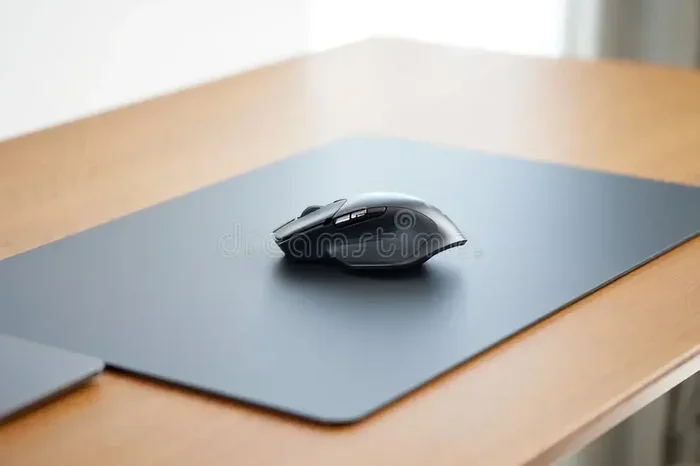
Can I Use My Mouse Without The Usb Cable Plugged In
Yes, you can use your mouse without the USB cable plugged in. Wireless mice and Bluetooth options let you ditch the cable entirely. You just need the right setup, a charged battery, and a compatible device. This guide covers every method, from USB receivers to full Bluetooth connectivity, so you can go completely cable-free with confidence.
Have you ever unplugged your mouse and wondered if it would still work? Maybe your USB port broke, or you just want a cleaner desk setup. The good news is that using a mouse without the USB cable plugged in is absolutely possible. In fact, millions of people do it every single day without even thinking twice.
Whether you have a wireless mouse, a Bluetooth model, or a laptop with built-in pointing options, going cable-free is easier than you think. This guide walks you through every method, every option, and every tip you need to know. Let us get into it.
Key Takeaways
- Wireless mice work without a USB cable: You can use Bluetooth or a USB receiver to connect your mouse without a cord.
- Bluetooth mice offer the most freedom: No dongle needed, just pair and go.
- Rechargeable batteries keep mice running: Most wireless mice use built-in rechargeable batteries or AA/AAA cells.
- Setup is simple and fast: Pairing a Bluetooth mouse takes just a few minutes.
- Latency and range vary: Wireless mice have come a long way, but wired mice still lead in ultra-low latency scenarios.
- Common issues are easy to fix: Battery drain, pairing problems, and interference have straightforward solutions.
📑 Table of Contents
- How Wireless Mice Work Without a USB Cable
- Types of Mice You Can Use Without a USB Cable
- How to Set Up a Mouse Without a USB Cable
- Benefits of Using a Mouse Without a USB Cable
- Common Problems When Using a Mouse Without a USB Cable
- Can You Use a Mouse Without USB on Different Devices?
- Expert Insights on Going Wireless with Your Mouse
- Key Takeaways
- Conclusion
How Wireless Mice Work Without a USB Cable
Understanding how wireless mice function helps you make better choices. Most people think a mouse needs a USB cable to work, but that is not true at all. Modern mice use radio frequency or Bluetooth technology to communicate with your computer.
Radio Frequency Wireless Mice
These mice use a small USB receiver that plugs into your computer. The receiver talks to the mouse through radio waves. You do not need the USB cable attached to the mouse itself. The receiver handles the connection. Once paired, the mouse works freely within a certain range, usually around 10 meters.
Bluetooth Wireless Mice
Bluetooth mice skip the receiver entirely. They connect directly to your computer’s Bluetooth chip. This means zero cables, zero dongles, and zero clutter. Many modern laptops come with built-in Bluetooth, so you just pair the mouse and start using it. It is clean, simple, and very convenient.
Infrared and Proprietary Wireless Tech
Some older or specialized mice use infrared signals or proprietary wireless protocols. These are less common today, but they still exist. They work similarly to radio frequency mice but may require specific software or drivers. Most users will never encounter these, but it helps to know they exist.
Types of Mice You Can Use Without a USB Cable
Not all mice are created equal when it comes to going wireless. Different types offer different levels of freedom from cables. Let us break them down so you know exactly what you are working with.
Bluetooth Mice
Bluetooth mice are the gold standard for cable-free use. They connect directly to your computer without any extra hardware. Popular brands like Logitech, Microsoft, and Apple all make excellent Bluetooth models. These mice work great with laptops, tablets, and even smart TVs. You just turn them on, enter pairing mode, and connect.
USB Receiver Wireless Mice
These mice come with a tiny USB receiver that stays plugged into your computer. The mouse itself has no cable. The receiver handles the wireless connection. This is the most common type of wireless mouse on the market. They are reliable, affordable, and easy to set up. The only downside is that you need a free USB port for the receiver.
Rechargeable Wireless Mice
Many modern wireless mice come with built-in rechargeable batteries. You charge them using a USB cable, but once charged, the cable is not needed during use. Some mice last for weeks on a single charge. Others can go for months. This is a huge upgrade over constantly swapping out disposable batteries.
Built-In Trackpads and Touch Mice
Laptops and all-in-one PCs often have built-in trackpads. These need no USB connection at all. They work right out of the box. Some people use them as their primary mouse, while others prefer a separate wireless mouse. Both options are completely valid.
| Mouse Type | Needs USB Cable? | Needs Receiver? | Best For |
|---|---|---|---|
| Bluetooth Mouse | No | No | Clean setups, tablets, laptops |
| USB Receiver Wireless | No | Yes | Desktops, gaming, reliability |
| Rechargeable Wireless | No (after charging) | Varies | Eco-friendly use, long-term savings |
| Built-In Trackpad | No | No | Laptops, minimalists |
How to Set Up a Mouse Without a USB Cable
Setting up a wireless mouse is straightforward. You do not need to be tech-savvy. Follow these steps, and you will be up and running in minutes.
Step-by-Step Setup for Bluetooth Mice
- Turn on your Bluetooth mouse. Most mice have a power switch on the bottom. Flip it to the “on” position.
- Put the mouse in pairing mode. Look for a small button on the bottom or underside. Press and hold it until a light starts blinking.
- Open your computer’s Bluetooth settings. On Windows, go to Settings > Bluetooth & Devices. On Mac, open System Settings > Bluetooth.
- Find your mouse in the list. It should appear as a discoverable device. Click on it to pair.
- Test the connection. Move the mouse around. If the cursor responds, you are all set.
Step-by-Step Setup for USB Receiver Mice
- Plug the USB receiver into an available port. Any USB port works, but a port on the back of your desktop tower tends to give a stronger signal.
- Turn on the mouse. Flip the switch on the bottom.
- Wait for the connection. Most mice pair automatically with the receiver. Some may require you to press a sync button on the bottom of the mouse.
- Move the mouse to test. The cursor should respond right away.
Quick Tips for a Smooth Setup
- Keep your mouse close to the computer during pairing. Distance can interfere with the initial connection.
- Make sure your mouse is charged or has fresh batteries before you start.
- If pairing fails, try turning Bluetooth off and back on again.
- Remove other wireless devices temporarily. They can sometimes cause interference.
Benefits of Using a Mouse Without a USB Cable
Going cable-free is not just about aesthetics. There are real, practical benefits that make a difference in your daily workflow.
A Cleaner Workspace
Fewer cables mean a tidier desk. A wireless mouse setup removes one of the most common sources of desktop clutter. You can move your mouse freely without worrying about cable length or getting tangled up. This small change can make your entire workspace feel more organized and calming.
Greater Mobility
With a wireless mouse, you are not tied to your desk. You can present from across the room. You can use your laptop from the couch. You can even control your computer from the other side of the room. This flexibility is especially helpful for people who work in multiple positions throughout the day.
Portability
Traveling with a wireless mouse is much easier. No cables to pack, no worrying about cable damage in your bag. A Bluetooth mouse fits easily in a laptop sleeve or backpack pocket. For people who work remotely or attend meetings on the go, this is a game changer.
Reduced Wear and Tear
USB cables can wear out over time. The connector can become loose, or the cable itself can fray. With a wireless mouse, you eliminate this problem entirely. Your connection stays strong without any physical contact points to degrade.
Common Problems When Using a Mouse Without a USB Cable
Going wireless is not without its challenges. Here are the most common issues and how to fix them quickly.
Mouse Not Connecting
If your wireless mouse will not connect, start with the basics. Make sure the mouse is turned on and charged. Check that Bluetooth is enabled on your computer. Try turning Bluetooth off and back on. If you are using a USB receiver, try a different USB port. Sometimes the port itself is the problem, not the mouse.
Interference From Other Devices
Wireless signals can interfere with each other. Routers, microwaves, and other Bluetooth devices can all cause problems. If your mouse is laggy or unresponsive, move it closer to the computer. Remove other wireless devices temporarily and see if the connection improves.
Battery Drain
Wireless mice use power. If your mouse stops working suddenly, the battery is likely dead. To avoid this, charge your mouse regularly or keep spare batteries on hand. Many mice have battery indicator lights that warn you before the power runs out completely. Pay attention to these warnings.
Latency or Lag
Some people notice a slight delay with wireless mice compared to wired ones. This is called latency. For most everyday tasks, the difference is barely noticeable. For competitive gaming, however, latency matters. Look for mice with high polling rates and low-latency wireless technology if gaming performance is important to you.
Driver Issues
Occasionally, a wireless mouse needs specific drivers to work properly. Check the manufacturer’s website for the latest drivers. Updating your operating system can also resolve driver conflicts. Most modern mice work plug-and-play, but it is always good to check.
Can You Use a Mouse Without USB on Different Devices?
The short answer is yes, but the method varies depending on your device. Let us look at how this works across different platforms.
On Laptops
Most modern laptops have built-in Bluetooth. This makes them perfect for wireless mice. You do not need any extra hardware. Simply pair your Bluetooth mouse through the settings menu. Some laptops also support USB receiver mice, so you have options either way.
On Desktop Computers
Desktop computers usually have multiple USB ports, so USB receiver mice work great. If your desktop does not have Bluetooth built in, you can add a Bluetooth adapter. These small USB dongles cost just a few dollars and give your desktop full Bluetooth capability.
On Tablets
iPads and Android tablets support Bluetooth mice natively. You can pair a Bluetooth mouse directly without any cables. This is a great way to turn a tablet into a more productive work device. The cursor support in iPadOS and Android has improved dramatically in recent updates.
On Smart TVs and Streaming Devices
Some smart TVs and streaming boxes like Apple TV or Roku support Bluetooth mice. This can make navigating menus much easier than using a remote control. Check your device’s settings to see if Bluetooth mouse support is available.
Expert Insights on Going Wireless with Your Mouse
Technology experts agree that wireless mice have caught up to wired models in almost every way. The days of laggy, unreliable wireless connections are mostly over. Modern wireless mice offer excellent response times, long battery life, and reliable connections. For most users, the benefits of going wireless far outweigh any minor drawbacks.
If you are still hesitant, try it out. Buy a budget Bluetooth mouse and test it for a week. You will likely find that you prefer the freedom and convenience. Once you go wireless, it is hard to go back to cables.
The key is choosing the right mouse for your needs. Casual users will do fine with any Bluetooth mouse. Gamers should look for models with low latency and high polling rates. Professionals who need precision should consider mice with adjustable DPI settings. There is a perfect wireless mouse for everyone.
Key Takeaways
- You can absolutely use a mouse without the USB cable plugged in. Wireless technology has made cable-free mouse use simple and reliable.
- Bluetooth mice offer the most freedom. No receiver, no cable, just pair and go.
- USB receiver wireless mice are reliable and affordable. They still need the receiver plugged in, but the mouse itself has no cable.
- Setup takes just a few minutes. Both Bluetooth and receiver-based mice are easy to pair with any modern computer.
- Common issues like interference and battery drain have simple fixes. Most problems are easy to troubleshoot at home.
- Wireless mice work across many devices. Laptops, tablets, desktops, and even smart TVs support wireless mouse connections.
- Going wireless improves your workspace. Less clutter, more mobility, and a cleaner desk setup are all within reach.
Conclusion
The answer to can I use my mouse without the USB cable plugged in is a resounding yes. Wireless technology has advanced to the point where cable-free mouse use is the norm, not the exception. Whether you choose a Bluetooth mouse, a USB receiver model, or a rechargeable wireless option, you have plenty of great choices.
Going wireless gives you a cleaner desk, more mobility, and greater convenience. The setup process is simple, and most common issues have easy fixes. You do not need to be a tech expert to make the switch. Just pick the right mouse for your needs, follow the pairing steps, and enjoy the freedom of a cable-free setup.
So go ahead. Unplug that cable. Try a wireless mouse. You might be surprised at how much better your workflow feels. Once you experience the simplicity of a wireless mouse, you will wonder why you ever used a cable at all.
Frequently Asked Questions
Can I use any wireless mouse without a USB cable?
Most wireless mice do not need a USB cable during regular use. Bluetooth mice connect directly to your computer without any cable. USB receiver mice need the receiver plugged in but not a cable attached to the mouse itself. Just make sure the mouse is charged or has batteries before you start.
Do I need Bluetooth on my computer to use a wireless mouse?
Only if you are using a Bluetooth mouse. If your computer does not have built-in Bluetooth, you can buy a small Bluetooth adapter. These plug into a USB port and add Bluetooth capability. Alternatively, you can use a USB receiver wireless mouse, which does not need Bluetooth at all.
Why does my wireless mouse lag or feel slow?
Lag is usually caused by interference, low battery, or distance from the receiver. Move the mouse closer to your computer and replace the batteries if needed. If you are using a Bluetooth mouse, make sure no other devices are causing signal interference. For gaming, choose a mouse with a high polling rate for smoother performance.
How long do wireless mouse batteries last?
Battery life varies by model and usage. Most wireless mice last between one and six months on a single set of batteries. Rechargeable mice typically last one to four weeks on a full charge. Turning off the mouse when not in use can significantly extend battery life.
Can I use a wireless mouse with a smart TV or tablet?
Yes, many smart TVs and tablets support Bluetooth mice. On iPads, you can pair a Bluetooth mouse directly through the Bluetooth settings. Android tablets work the same way. For smart TVs, check the device settings to see if a Bluetooth mouse is supported. Not all smart TVs have this feature, so check your specific model first.
Is a wireless mouse as good as a wired mouse for gaming?
Modern wireless gaming mice are just as good as wired ones for most players. They offer fast response times, high polling rates, and reliable connections. Professional esports players now use wireless mice in tournaments. If you are a casual or competitive gamer, a high-quality wireless mouse will serve you very well.