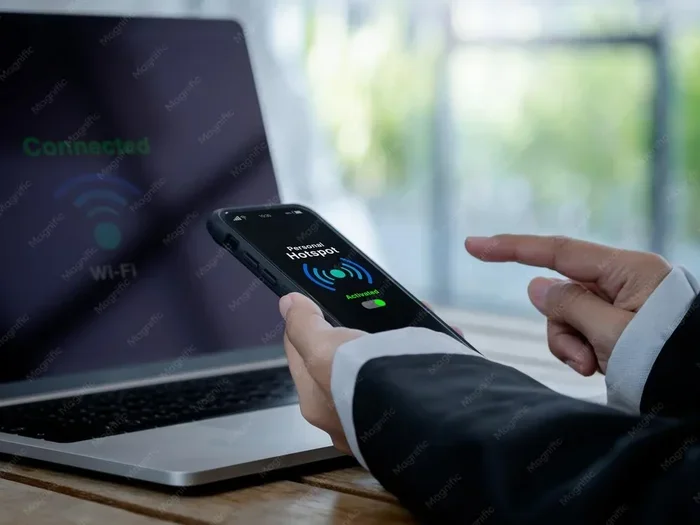
How Can I Share My Wi Fi Password From Mobile To Laptop
Sharing your Wi-Fi password from mobile to laptop is faster and easier than you think. Whether you use an Android phone or an iPhone, there are simple built-in tools and free apps that let you transfer your wireless network password in just a few taps. This guide covers every method you need, so you can connect your laptop to the internet without typing long passwords by hand.
Have you ever been in a situation where your laptop needs to connect to Wi-Fi, but you do not remember the password? Maybe you typed it wrong three times already. Or perhaps a friend just gave you their network name, and you need to get on the internet fast. Whatever the reason, sharing your Wi-Fi password from mobile to laptop is a skill that saves time and frustration.
Good news is that both Android and iPhone users have built-in tools for this. You do not need to be a tech expert. A few taps on your phone, and your laptop is connected. In this article, we walk you through every method step by step. You will learn how to use QR codes, Bluetooth, cloud services, and even third-party apps. By the end, you will know exactly how to share Wi-Fi password from mobile to laptop in any situation.
Let us get started. No more password headaches. No more asking the host for the Wi-Fi code again.
Key Takeaways
- QR Code Method: You can share your Wi-Fi password from mobile to laptop using a QR code in seconds.
- Built-In Android Features: Android phones have native sharing options that make password transfer simple.
- iPhone to Laptop: iPhones use iCloud Keychain and AirDrop to share Wi-Fi credentials with nearby devices.
- Windows Laptop Options: Windows 10 and 11 support QR scanning and Bluetooth transfer for easy connectivity.
- Third-Party Apps: Free apps like WiFi Key Share and QR Code Generator offer extra flexibility.
- Security Matters: Always use secure methods and avoid sharing passwords in public places.
📑 Table of Contents
- Why Sharing Your Wi-Fi Password From Mobile to Laptop Matters
- How to Share Wi-Fi Password From Mobile to Laptop on Android
- How to Share Wi-Fi Password From Mobile to Laptop on iPhone
- How to Share Wi-Fi Password From Mobile to Laptop on Windows
- Comparison Table: Best Methods to Share Wi-Fi Password From Mobile to Laptop
- Quick Tips and Common Mistakes When Sharing Wi-Fi Passwords
- Best Apps and Tools for Wi-Fi Password Sharing
- Key Takeaways
- Conclusion
Why Sharing Your Wi-Fi Password From Mobile to Laptop Matters
We live in a world where wireless connectivity is essential. Your phone, laptop, tablet, and smart TV all need internet access. But remembering long, complex passwords is hard. That is where Wi-Fi password sharing comes in handy.
When you know how to send your network credentials from your phone to your laptop, you skip the tedious typing process. You also reduce the chance of typos that keep you from connecting. This is especially useful when you are at home, at a friend’s place, or in a shared office space.
Here are some real situations where this skill helps:
- Working from home: Your laptop loses connection, and you need to reconnect fast.
- Visiting friends: You want to stream something on your laptop, but you do not know the router password.
- Office or classroom: Multiple devices need the same network, and typing long passwords on a small keyboard is annoying.
- Guest visits: You can quickly send your home network password to visitors.
Knowing how to share Wi-Fi password from mobile to laptop also keeps your network secure. You avoid writing passwords on sticky notes or sending them through unsecured messages. Instead, you use encrypted or direct transfer methods that protect your wireless network password.
Understanding How Wi-Fi Password Sharing Works
When you share a Wi-Fi password, you are essentially sending two pieces of information: the network name (SSID) and the security key. Modern smartphones and laptops support several ways to do this securely. The method you choose depends on your devices and what tools you have available.
Most methods use one of these technologies:
- QR codes: A visual code that encodes your network details. Any device with a camera can scan it.
- Bluetooth: A short-range wireless connection that transfers data between devices.
- Cloud sync: Services like iCloud or Google Account store your passwords and sync them across devices.
- Nearby share features: Built-in tools like Samsung Quick Share or Apple AirDrop send data directly between devices.
Each method has its strengths. QR codes are the fastest. Bluetooth is great for close-range transfers. Cloud sync works automatically if you set it up. Let us dive into each method now.
How to Share Wi-Fi Password From Mobile to Laptop on Android
Android phones make it easy to share your Wi-Fi password from mobile to laptop. Most modern Android devices come with built-in sharing options. You do not need to download anything extra. Let us look at the two best methods.
Method 1: Using the QR Code Feature
This is the fastest way to share a Wi-Fi password on Android. Here is how it works:
- Open the Settings app on your Android phone.
- Tap on Network & Internet or Connections, depending on your phone model.
- Select Wi-Fi and tap on the network you are already connected to.
- Look for the Share button. It usually looks like a QR code icon.
- Your phone will display a QR code containing the network name and password.
- On your laptop, open the camera app or a QR code scanner.
- Scan the QR code, and your laptop will connect automatically.
This method works on most Android phones running Android 10 or later. The QR code includes encrypted data, so your password stays secure during the transfer. It is one of the best ways to share Wi-Fi password from mobile to laptop without typing anything.
Quick Tip: If your laptop camera does not scan QR codes easily, download a free QR scanner app from the Microsoft Store. It takes seconds to set up.
Method 2: Using Bluetooth or Nearby Share
If the QR code method does not work for your setup, you can use Bluetooth or Nearby Share. Here is the process:
- Turn on Bluetooth on both your Android phone and your laptop.
- Pair the devices by going to Bluetooth Settings on your laptop.
- On your phone, go to the Wi-Fi network you want to share.
- Tap Share and choose Bluetooth as the sharing method.
- Accept the transfer on your laptop.
- The network details will appear, and you can connect with one click.
Nearby Share is another great option if both devices are Android or if your laptop supports it. This feature uses Wi-Fi Direct and Bluetooth to send files and network details quickly. It is especially useful when you are sharing multiple network credentials with different devices.
Common Mistake: Many people forget to turn on Bluetooth discovery mode. Make sure your laptop is visible to nearby devices before you try to transfer the password.
How to Share Wi-Fi Password From Mobile to Laptop on iPhone
iPhone users also have simple options for sharing Wi-Fi passwords with laptops. Apple’s ecosystem is designed to make device connections seamless. Here are the two main methods.
Method 1: Using iCloud Keychain and AirDrop
If you use a Mac laptop, this method is incredibly smooth. Both your iPhone and Mac need to be signed into the same Apple ID. Here is what to do:
- Make sure iCloud Keychain is turned on in your iPhone settings.
- Go to Settings > Wi-Fi on your iPhone.
- Tap the info icon next to the network you want to share.
- Tap Share Password.
- Choose AirDrop and select your Mac from the list.
- Your Mac will receive the password and connect automatically.
This method is the most convenient for Apple users. It works because iCloud Keychain stores all your Wi-Fi passwords securely and syncs them across devices. Sharing Wi-Fi password from mobile to laptop has never been easier when both devices are in the Apple ecosystem.
Method 2: Using a QR Code Generator App
If you need to share your iPhone Wi-Fi password with a Windows laptop, AirDrop will not work. Instead, you can use a QR code generator app. Here is how:
- Download a free QR code generator app from the App Store. Look for apps like WiFi QR Code Generator.
- Open the app and enter your network name and password.
- The app will create a QR code for your Wi-Fi network.
- Take a screenshot of the QR code.
- Send the screenshot to your laptop via email, cloud storage, or USB cable.
- On your laptop, open the image and scan the QR code with a QR reader.
- Your laptop will connect to the network automatically.
This method works for any laptop, regardless of the operating system. It is a reliable backup when Apple-specific tools are not available.
Expert Insight: According to tech experts at Wirecutter, using QR codes for Wi-Fi sharing is the most secure and convenient method across all device types. It avoids the risk of passwords appearing in plain text during transfer.
How to Share Wi-Fi Password From Mobile to Laptop on Windows
Windows laptops are widely used, and they support several methods for receiving Wi-Fi passwords from mobile devices. Whether you have a Windows 10 or Windows 11 laptop, these steps will help you connect quickly.
Method 1: Using the Windows QR Code Scanner
Windows 10 and 11 have a built-in QR code scanner in the camera app. Here is how to use it:
- On your phone, generate a Wi-Fi QR code using your Android or iPhone.
- Display the QR code on your phone screen.
- On your Windows laptop, open the Camera app.
- Point the camera at the QR code.
- Windows will recognize the code and offer to connect to the network.
- Click Connect, and your laptop joins the Wi-Fi network.
This is hands down the easiest way to share Wi-Fi password from mobile to laptop on a Windows machine. No cables, no typing, no third-party software required.
Method 2: Using Email or Cloud Storage
If the QR code method does not work on your Windows laptop, you can use a simple workaround:
- Take a screenshot of the QR code on your phone.
- Email it to yourself or save it to OneDrive, Google Drive, or Dropbox.
- Open the email or cloud file on your laptop.
- Use a free online QR scanner or the Windows Camera app to read the code.
- Connect to the network instantly.
This method takes a few extra steps, but it works on any Windows laptop, even older models that lack a built-in QR scanner.
Comparison Table: Best Methods to Share Wi-Fi Password From Mobile to Laptop
| Method | Device Compatibility | Speed | Security Level | Setup Difficulty |
|---|---|---|---|---|
| QR Code (Native Android) | Android to Windows/Mac | Very Fast | High (encrypted) | Easy |
| QR Code (iPhone App) | iPhone to Any Laptop | Fast | High | Easy |
| AirDrop (iPhone to Mac) | iPhone to Mac Only | Very Fast | High | Very Easy |
| Bluetooth Transfer | Android to Windows | Medium | Medium | Moderate |
| Cloud Sync (iCloud/Google) | Any to Same Ecosystem | Automatic | High | Easy (one-time setup) |
| Email/Cloud + QR Scanner | Any to Any | Medium | Medium | Easy |
As you can see, the QR code method is the most versatile and secure option for most users. It works across different operating systems and requires no special software. If you want the fastest way to share Wi-Fi password from mobile to laptop, QR codes are the way to go.
Quick Tips and Common Mistakes When Sharing Wi-Fi Passwords
Sharing Wi-Fi passwords seems simple, but small mistakes can cause problems. Here are some tips to keep things smooth and secure.
Quick Tips for a Smooth Transfer
- Keep both devices close: Bluetooth and QR scanning work best within a few feet of each other.
- Check your Wi-Fi connection: Make sure your phone is connected to the network before you try to share the password.
- Use the latest software: Update your phone and laptop operating systems to avoid compatibility issues.
- Test the connection: After transferring, open a browser on your laptop to confirm you are online.
- Use a dedicated QR generator: Apps like WiFi QR Code Generator or QR Code Generator Pro make the process seamless.
Common Mistakes to Avoid
- Sharing passwords in public: Do not display your QR code in crowded places. Someone could scan it and access your network.
- Using unsecured messaging apps: Avoid sending passwords through SMS or unencrypted email. Use AirDrop, Bluetooth, or encrypted cloud services instead.
- Ignoring network security: Always use WPA3 or WPA2 encryption on your router. This keeps your shared password safe.
- Forgetting to forget old networks: If you no longer use a network, remove it from your laptop. This prevents accidental connections and security risks.
- Not checking the SSID: Make sure the network name on your laptop matches the one on your phone. Similar names can cause confusion.
Expert Insight: Cybersecurity experts recommend changing your Wi-Fi password regularly, especially after sharing it with guests. This simple step keeps your network security key safe and prevents unauthorized access.
Best Apps and Tools for Wi-Fi Password Sharing
While built-in features work great, sometimes you need extra tools. Here are some of the best apps for Wi-Fi password sharing between mobile devices and laptops.
Top Recommended Apps
- WiFi Key Share (Android): A free app that generates QR codes for your saved networks. It works with any device that has a camera.
- QR Code Generator (iOS): Lets iPhone users create Wi-Fi QR codes quickly. Supports custom network names and passwords.
- Windows Camera App: Built into Windows 10 and 11. No download needed for QR scanning.
- Google Lens (Android): A powerful QR scanner built into Google’s ecosystem. Works on most Android phones.
- Samsung Quick Share: Samsung users can share Wi-Fi credentials directly with nearby devices using this native feature.
All of these tools are free and easy to use. They make the process of sharing your Wi-Fi password from mobile to laptop even smoother. Choose the one that fits your device setup best.
How to Choose the Right Tool
When picking a tool, consider these factors:
- Device compatibility: Make sure the app works with both your phone and laptop.
- Security features: Look for apps that encrypt the shared data.
- Ease of use: The tool should not require technical knowledge to operate.
- Reviews and ratings: Check user feedback before downloading any app.
Sticking with well-known, highly rated apps keeps your wireless network password safe while making the sharing process quick and easy.
Key Takeaways
- QR Code Sharing Is the Fastest Method: Both Android and iPhone users can generate QR codes to share Wi-Fi passwords in seconds.
- AirDrop Works for Apple Users: iPhone to Mac transfers are seamless when both devices share the same Apple ID.
- Windows Laptops Support QR Scanning: The built-in Camera app on Windows 10 and 11 can scan Wi-Fi QR codes directly.
- Bluetooth Is a Reliable Backup: When QR codes are not an option, Bluetooth transfer still gets the job done.
- Cloud Services Offer Automation: iCloud Keychain and Google Account sync passwords across devices automatically.
- Security Should Always Come First: Use encrypted transfer methods and avoid sharing passwords in public spaces.
- Third-Party Apps Add Flexibility: Free tools like WiFi Key Share and QR Code Generator work across all platforms.
Conclusion
Knowing how to share Wi-Fi password from mobile to laptop is one of the most useful digital skills you can have. It saves time, reduces frustration, and keeps your connections secure. Whether you use an Android phone, an iPhone, or a Windows laptop, the methods in this guide give you multiple options to choose from.
The QR code method stands out as the best overall approach. It is fast, secure, and works across different device types. AirDrop and iCloud Keychain make things effortless for Apple users. And Bluetooth or cloud sync options cover the remaining scenarios.
Start using these methods today. The next time someone asks for your Wi-Fi password, you can send it instantly from your phone. No more typing, no more errors, and no more waiting. Sharing your Wi-Fi password from mobile to laptop has never been this simple.
Try each method and see which one works best for your setup. Once you get comfortable, you will wonder how you ever managed without these quick sharing tools. Stay connected, stay efficient, and enjoy seamless wireless access across all your devices.
Frequently Asked Questions
Can I share my Wi-Fi password from my phone to a laptop without an internet connection?
Yes, you can. QR code sharing and Bluetooth transfer do not require an active internet connection on your phone. They only need Wi-Fi and Bluetooth or camera features turned on. Your phone must be connected to the Wi-Fi network you want to share, but it does not need mobile data or internet access to generate the QR code or transfer the password.
Is sharing Wi-Fi passwords through QR codes safe and secure?
Yes, it is very safe. QR codes generated by your phone encrypt the network name and password into a scannable code. The data is not visible in plain text. As long as you do not display the QR code publicly or share it with strangers, your wireless network password remains protected. This is one of the most secure ways to share Wi-Fi password from mobile to laptop.
Can I share my Wi-Fi password from an iPhone to a Windows laptop?
Yes, you can. Since AirDrop only works with Apple devices, you will need to use a QR code generator app on your iPhone. Create the QR code for your network, send the image to your Windows laptop through email or cloud storage, and scan it with the Windows Camera app or a QR scanner. It takes a few extra steps but works reliably.
Do I need to download any apps to share my Wi-Fi password from mobile to laptop?
Not always. Android phones have a built-in QR code sharing feature in their Wi-Fi settings. Windows laptops have a built-in QR scanner in the Camera app. iPhones can use AirDrop for Mac laptops without any extra apps. However, for cross-platform sharing, a free QR code generator app can make the process smoother and faster.
What should I do if my laptop does not recognize the QR code for Wi-Fi?
First, make sure your laptop camera is clean and properly focused on the QR code. If the built-in camera app does not work, try a free QR scanner app from the Microsoft Store or Mac App Store. You can also try increasing the screen brightness on your phone and holding the QR code steady about 6 to 8 inches from the camera. If the issue persists, use Bluetooth or email the QR code image instead.
Can I change my Wi-Fi password after sharing it with someone?
Absolutely. Changing your router password regularly is a good security practice, especially after sharing it with guests. Simply log into your router settings, update the password, and inform any trusted devices of the new credentials. Any shared QR codes or saved passwords will no longer work, keeping your network safe and secure.