Change Cursor in Microsoft Excel with These Simple Tips
Changing the cursor in Microsoft Excel is easier than most people think. Whether your Excel cursor is stuck, missing, or just not working the way you want, this guide walks you through every fix and customization option. You will learn quick shortcuts, settings adjustments, and expert tips to take control of your Excel cursor once and for all.
Have you ever sat down at your computer, ready to work in Excel, only to find that your cursor in Excel is acting strange? Maybe it is a thick crosshair that won’t go away. Maybe it disappears entirely when you hover over a cell. Or perhaps it turns into a busy spinning circle every time you try to click.
If you have ever searched for change cursor Microsoft Excel solutions, you are not alone. Thousands of users deal with cursor issues every single day. The good news is that most of these problems have simple fixes. In this article, we will walk you through everything you need to know about changing and customizing your cursor in Excel. You will learn why cursors behave the way they do, how to fix common problems, and how to set up your Excel workspace for a smoother experience.
Whether you are a beginner just learning the ropes or a seasoned spreadsheet pro, understanding your Excel cursor can save you time and frustration. Let us dive right in.
Key Takeaways
- Multiple cursor types exist in Excel: understanding each one helps you work faster and smarter.
- Simple settings changes can fix most cursor problems in Microsoft Excel.
- Keyboard shortcuts let you switch cursor modes quickly without navigating menus.
- Custom cursor options are available through Windows and Excel settings.
- Common cursor bugs like freezing or disappearing have straightforward solutions.
- Regular Excel updates often resolve cursor-related issues automatically.
- Third-party tools can enhance cursor control if built-in options are not enough.
📑 Table of Contents
Why Your Cursor in Excel Matters
You might not think much about your cursor until something goes wrong. But the truth is, your cursor is one of the most important tools you use in Excel every day. It tells you exactly what is about to happen before you click or type.
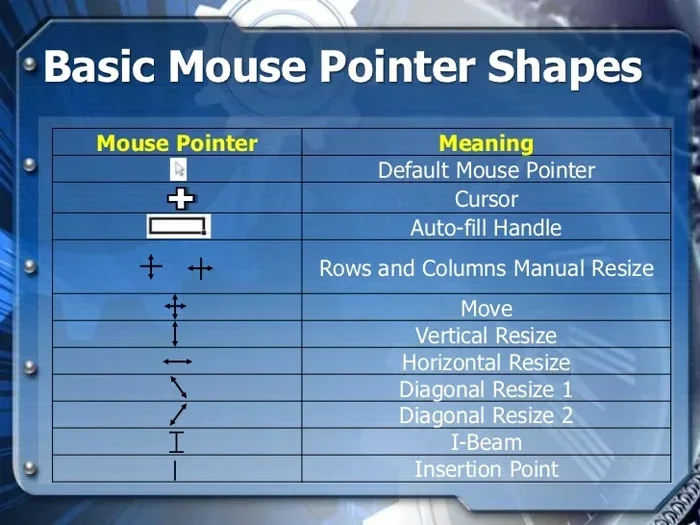
When your Microsoft Excel pointer is working correctly, it gives you instant feedback. A thin crosshair means you are ready to select cells. A thick white cross means you are in move mode. An I-beam shape means you can edit text inside a cell. Each cursor shape has a specific purpose, and knowing what they mean helps you work more efficiently.
Here is why paying attention to your Excel cursor matters:
- It prevents accidental edits. When you know what cursor mode you are in, you are less likely to overwrite important data by mistake.
- It speeds up your workflow. Recognizing cursor types lets you switch between tasks without pausing to think.
- It reduces frustration. A cursor that behaves predictably makes Excel feel much more user-friendly.
- It helps with troubleshooting. If your cursor looks wrong, it often signals a setting or software issue that needs attention.
Think of your cursor as a communication tool between you and Excel. When that line of communication breaks down, your productivity drops. That is exactly why learning how to change cursor Microsoft Excel settings is so valuable.
Common Cursor Types in Excel
Excel uses several different cursor shapes depending on what you are doing. Here are the most common ones you will see:
- Thin Crosshair: The default cursor. It appears when you hover over the spreadsheet grid. You use it to select cells and ranges.
- Thick White Cross: This appears when you hover over a cell border. It means you can click and drag to move or copy cell contents.
- I-Beam: Shows up when you hover over the formula bar or inside a cell with text. It signals that you can edit text.
- Busy Hourglass: A spinning circle or hourglass that appears when Excel is processing a large task.
- Arrow Pointer: The standard Windows arrow that appears outside the spreadsheet grid area.
- Fill Handle Cursor: A small black cross that appears when you hover over the bottom-right corner of a selected cell. It lets you drag to fill data.
Each of these cursors serves a purpose. When one of them starts behaving incorrectly, it can throw off your entire workflow. That is when you need to know how to fix cursor issues in Excel.
Common Cursor Problems in Microsoft Excel
Before we get into the fixes, let us talk about the problems. Understanding what goes wrong is the first step toward solving it. Here are the most common cursor issues Excel users face.
Cursor Disappears When Hovering Over Cells
This is one of the most annoying issues. You move your mouse over the spreadsheet, and the cursor vanishes. You cannot click, select, or do anything until the cursor comes back. This problem often happens after Excel updates or when certain add-ins interfere with the normal cursor behavior.
Sometimes the issue is tied to your Windows mouse settings. If your pointer speed is set too high or your pointer visibility is turned down, the cursor can become nearly invisible in Excel. Other times, it is a simple glitch that a quick restart fixes.
Cursor Stuck on Crosshair Mode
Have you ever clicked on a cell and your cursor stayed locked as a crosshair? You cannot type in the cell. You cannot edit the formula bar. Everything feels frozen. This usually happens when Excel gets stuck in a selection or navigation mode.
The Excel cursor stuck problem is more common than you might think. It often occurs when users accidentally press a function key or when a macro runs in the background. The good news is that this is usually an easy fix.
Busy Cursor That Won’t Go Away
A spinning busy cursor that hangs around for minutes at a time is a sign that Excel is struggling. This can happen when you have a very large workbook open, when formulas are recalculating, or when a background process is consuming too many resources.
While a busy cursor is not always an error, a perpetually loading cursor in Excel that never goes away is definitely a problem you should address.
Cursor Jumps or Moves Unexpectedly
Sometimes the cursor in Excel jumps to random cells or scrolls the screen without you touching the mouse. This can be caused by a faulty mouse driver, touchpad sensitivity issues, or even a sticky key on your keyboard that Excel interprets as a navigation command.
If your Excel mouse pointer is jumping around, it can make working in spreadsheets incredibly frustrating. The fix depends on what is causing the behavior.
How to Change Cursor in Microsoft Excel
Now that we understand the common problems, let us get into the solutions. Here is a step-by-step guide on how to change cursor Microsoft Excel settings and get your pointer working the way you want it.
Method 1: Adjust Windows Mouse Pointer Settings
Your Excel cursor is ultimately controlled by Windows. So the first place to look when fixing cursor issues is your Windows mouse settings. Here is how to do it:
- Open the Control Panel. Click the Start menu and type “Control Panel.” Select it from the results.
- Navigate to Mouse settings. Click on “Hardware and Sound,” then click “Mouse.”
- Open the Pointer tab. Here you can customize the appearance of your mouse pointer for different events.
- Select a cursor scheme. Windows offers several built-in schemes. Choose one that gives you better visibility in Excel.
- Click Apply and OK. Your new cursor settings will take effect immediately.
This method works for all versions of Excel and is one of the quickest ways to customize your Excel cursor. You can also adjust pointer speed here, which helps if your cursor is moving too fast or too slow in Excel.
Method 2: Use Excel’s Built-In View Options
Excel itself has settings that affect how your cursor behaves. These options control things like whether you see cell outlines, how selection highlighting works, and what your cursor looks like during different tasks.
Here is how to access these settings:
- Open Excel and go to File. Click on “Options” at the bottom of the left-hand menu.
- Select Advanced. Scroll down to the “Display options for this workbook” section.
- Check your cursor-related settings. Look for options like “Show all formatting marks,” “Show cell drag-and-drop,” and “Show formula bar and sheet tabs.”
- Adjust as needed. Toggling these settings can change how your cursor behaves in Excel.
- Click OK to save. Restart Excel to see the changes take effect.
Many users do not realize that Excel’s own settings can affect cursor behavior. Taking a few minutes to explore the Advanced options in Excel can solve a lot of cursor headaches.
Method 3: Reset Excel to Default Settings
If you have tried everything and your Excel cursor still is not behaving correctly, resetting Excel to its default settings can help. This wipes out any customizations that might be causing the problem.
To reset Excel settings:
- Go to File > Options > Advanced.
- Scroll all the way down and click “Reset all settings.”
- Restart Excel and check if your cursor is working normally.
Note: Resetting settings will undo any custom configurations you have made. Make sure you remember your preferred settings before doing this.
Method 4: Update or Reinstall Mouse Drivers
Sometimes the problem is not with Excel at all. It is with your mouse driver. Outdated or corrupted drivers can cause all kinds of cursor issues, from flickering to complete disappearance.
Here is how to update your mouse drivers:
- Open Device Manager. Right-click the Start button and select “Device Manager.”
- Expand the “Mice and other pointing devices” section.
- Right-click your mouse device. Select “Update driver.”
- Choose “Search automatically for drivers.” Windows will look for the latest driver online.
- Restart your computer. Check if your Excel cursor is working properly now.
If updating does not work, you can also try uninstalling the driver and then restarting your computer. Windows will automatically reinstall the driver when you boot up again.
Method 5: Disable Add-Ins That Interfere with Cursor
Excel add-ins are great for extending functionality, but sometimes they cause conflicts. A poorly coded add-in can change your cursor behavior, make it disappear, or cause it to freeze.
To check if an add-in is causing cursor issues:
- Open Excel and go to File > Options > Add-Ins.
- At the bottom, select “COM Add-ins” and click “Go.”
- Uncheck all add-ins. Click OK and restart Excel.
- Check your cursor. If it is working normally now, one of the add-ins was the culprit.
- Re-enable add-ins one by one to find the problematic one.
This is a simple but effective troubleshooting step that many people skip. If you recently installed a new add-in before your cursor problems started, this is almost certainly the cause.
Customizing Cursor Settings for a Better Workflow
Once you have fixed any cursor issues, you can take things a step further and customize your cursor for a better workflow. Small adjustments can make a big difference in how comfortable and efficient your Excel experience is.
Adjust Pointer Speed for Precision
If you find yourself constantly overshooting when clicking on cells, your pointer speed might be too fast. Slowing it down gives you more control, especially when working with small cells or complex spreadsheets.
To adjust pointer speed:
- Go to Control Panel > Mouse > Pointer Options.
- Move the speed slider to a comfortable level.
- Uncheck “Enhance pointer precision” if you want consistent cursor movement in Excel.
Many power users prefer to turn off “Enhance pointer precision” because it can make the cursor feel unpredictable in Excel. With it off, your Excel mouse pointer moves exactly the distance you move your hand.
Change Cursor Size for Better Visibility
If you have been using Excel for a long time, you might notice that the default cursor size is a bit small, especially on high-resolution monitors. Making the cursor larger can reduce eye strain and make it easier to see where you are clicking.
To change cursor size:
- Go to Settings > Ease of Access > Cursor & Pointer.
- Adjust the pointer size slider to your preference.
- You can also change the pointer color to make it stand out more against the Excel grid.
This is a small change that makes a surprisingly big difference. If you spend hours in Excel every day, a larger, more visible cursor is well worth the setup time.
Use High Contrast Cursor Schemes
For users who work in dim lighting or on multiple monitors with different backgrounds, the standard Windows cursor can be hard to see. High contrast cursor schemes make the pointer stand out clearly against any background.
To enable a high contrast cursor scheme:
- Go to Control Panel > Mouse > Pointers.
- In the Scheme dropdown, select a high contrast option like “Windows Black (Extra Large).”
- Click Apply and OK.
Your Excel cursor will now be much easier to spot, even on busy spreadsheet backgrounds with lots of formatting and colors.
Quick Tips for Managing Your Excel Cursor
Here are some practical tips that will help you manage your cursor in Excel more effectively. These are small habits that make a big impact over time.
- Press Escape to exit selection mode. If your cursor is stuck as a crosshair, pressing Escape often returns it to normal.
- Use F2 to enter edit mode. This lets you edit cell contents without relying on the cursor to be in the right shape.
- Keep your Windows updated. Microsoft regularly releases patches that fix cursor-related bugs in Excel.
- Restart Excel regularly. A simple restart clears out temporary glitches that can affect cursor behavior.
- Check your touchpad settings. If you use a laptop, touchpad gestures can sometimes interfere with your Excel cursor.
- Use an external mouse for precision work. External mice generally provide better cursor control than laptop touchpads.
These tips might seem simple, but they add up. Over time, they help you maintain a smooth and frustration-free experience in Excel.
When to Seek Expert Help for Cursor Issues
Most cursor problems in Excel can be fixed with the steps outlined above. But sometimes, the issue runs deeper than a simple setting adjustment. Here are signs that you should seek professional help:
- The cursor problem persists after trying all fixes. If you have gone through every method and your cursor still misbehaves, there may be a deeper software conflict.
- Excel crashes whenever the cursor appears. This could indicate a corrupted installation or a serious driver conflict.
- The cursor issue affects other applications too. If your cursor acts up in Excel and in other programs, the problem is likely with your operating system or hardware, not Excel itself.
- You recently installed new hardware. A new mouse, trackball, or graphics tablet can sometimes introduce cursor conflicts that need professional troubleshooting.
In these cases, contacting Microsoft Support or a qualified IT professional is the best course of action. Do not keep struggling with a broken cursor when expert help is available.
Conclusion
Your cursor in Microsoft Excel is more important than it might seem. It is your primary tool for navigating, selecting, editing, and interacting with your spreadsheets. When it works well, you barely notice it. When it does not work well, it can slow you down and cause unnecessary frustration.
Changing cursor Microsoft Excel settings is something every user should know how to do. Whether you need to adjust pointer speed, reset cursor behavior, fix a stuck cursor, or customize the appearance, the steps in this guide give you everything you need. Start with the simple fixes and work your way through the more advanced options. In most cases, your cursor problems will be resolved quickly and easily.
Take a few minutes today to review your Excel cursor settings and make adjustments that work for you. Your future self will thank you every time you sit down to work in a spreadsheet. A well-configured cursor makes Excel faster, more comfortable, and more enjoyable to use. So go ahead, make those changes, and get back to what really matters getting your work done in Excel with confidence and ease.
Frequently Asked Questions
Why does my cursor disappear in Excel?
Your cursor might disappear in Excel because of a pointer visibility setting, an outdated mouse driver, or interference from an add-in. Try adjusting your Windows pointer settings first. If that does not work, update your mouse drivers or disable recent add-ins to see if the problem resolves.
How do I switch between cursor modes in Excel?
You can switch between cursor modes using keyboard shortcuts. Press Escape to exit selection mode. Press F2 to enter edit mode. You can also click on the formula bar or a cell border to change what your cursor looks like. These simple shortcuts help you move between cursor modes quickly.
Can I change the size of my cursor in Excel?
Yes, you can change your cursor size through Windows settings. Go to Settings > Ease of Access > Cursor & Pointer and adjust the pointer size slider. This change affects your cursor in Excel and across all Windows applications.
What causes my Excel cursor to freeze or become unresponsive?
A freezing cursor in Excel is usually caused by a heavy workload, a large workbook with complex formulas, or a background process consuming too many resources. Closing other applications and restarting Excel often fixes this. If the problem persists, check for Excel updates or repair your Office installation.
Are there third-party tools to customize the Excel cursor?
Yes, there are third-party cursor customization tools available for Windows that let you change cursor size, color, shape, and behavior system-wide. Popular options include CursorFX and Stardock CursorManager. These tools work with Excel and all other applications on your computer.
Will updating Excel fix cursor issues?
Often yes. Microsoft regularly releases updates that fix bugs including cursor-related issues. Make sure your Excel and Office suite are up to date. You can check for updates by going to File > Account > Update Options > Update Now in Excel.
=== CONCLUSION ===
Changing cursor Microsoft Excel does not have to be complicated. With the right knowledge and a few simple steps, you can fix most cursor problems and customize your pointer for a better experience. Remember to check your Windows settings, explore Excel’s built-in options, and keep your software updated. These small actions pay off in a smoother, more efficient workflow every single day. Start applying these tips now and enjoy a more comfortable, productive time in Excel.