Can You Get A Hdmi Adaptor For An Ipad Easily Today
Yes, you can get an HDMI adaptor for an iPad, and it is easier than ever. Whether you own an older iPad with a Lightning port or a newer model with USB-C, the right HDMI adapter lets you mirror your screen to any TV or monitor. This guide covers every iPad HDMI adapter option, compatibility details, and practical tips to help you choose the best display output solution for your device.
Let us be real for a second. You bought an iPad for work, entertainment, or both. And now you want to show what is on that screen to a bigger display. Maybe it is a presentation at the office, a movie night with friends, or a gaming session on the living room TV. Whatever the reason, the question is the same: can you get an HDMI adaptor for an iPad?
The short answer is yes. The slightly longer answer is that it depends on your iPad model, the port type it uses, and the kind of adapter you pick. But here is the good news. Getting an HDMI adapter for iPad today is straightforward, affordable, and available from plenty of brands. You do not need to be a tech wizard to make it work either.
In this guide, we will walk you through everything you need to know. We will cover the different types of adapters, which iPads they work with, how to set them up, and what to watch out for. By the end, you will know exactly which iPad HDMI adapter is right for you.
Key Takeaways
- Multiple adapter types exist: Lightning to HDMI and USB-C to HDMI adapters both work with iPads, depending on your model.
- Compatibility matters: Always check your iPad model and port type before buying an adapter.
- Apple and third-party options are available: You can choose from official Apple adapters or more affordable alternatives.
- Wireless alternatives exist: If you prefer not to use cables, screen mirroring via AirPlay or apps is another option.
- Setup is simple: Most adapters plug in, switch the TV input, and start working within seconds.
- Prices vary widely: You can find reliable adapters from under $10 to over $50 depending on features and brand.
📑 Table of Contents
- Why Would You Need an HDMI Adaptor for an iPad?
- Types of HDMI Adaptors for iPad
- Compatibility: Which iPad Models Work with HDMI Adapters?
- How to Set Up Your HDMI Adaptor for iPad
- Apple vs. Third-Party HDMI Adapters: What Should You Buy?
- Common Problems and How to Fix Them
- Wireless Alternatives to HDMI Adapters
- Tips for Choosing the Best HDMI Adaptor for Your iPad
- Final Thoughts
Why Would You Need an HDMI Adaptor for an iPad?
You might wonder why anyone would need to connect an iPad to an external display. The reasons are more common than you think. Many people use their iPads every day and suddenly need a bigger screen for specific tasks.
Here are some of the most popular reasons people look for an iPad to TV connection:
- Presentations and work meetings: Showing slides, documents, or spreadsheets on a large monitor makes a big difference in boardrooms and classrooms.
- Movie and TV streaming: Watching Netflix, YouTube, or Disney Plus on a 55-inch TV beats staring at a 10-inch screen every single time.
- Gaming: Some games look and play better on a larger display, especially when you are sharing the experience with others.
- Photo and video sharing: Slideshows of vacation photos or client videos look stunning on a big screen.
- Education and teaching: Teachers and tutors often mirror iPad content to classroom displays for better engagement.
No matter your reason, a reliable HDMI adapter for tablet devices solves the problem quickly. You do not need special cables or complicated setups. Just a simple adapter and an HDMI cable, and you are good to go.
Types of HDMI Adaptors for iPad
Not all iPads are the same, and neither are their adapters. The type of HDMI adaptor for iPad you need depends entirely on which port your iPad uses. Let us break this down clearly.
Lightning to HDMI Adapters
If you own an older iPad model, it likely has a Lightning charging port. This includes the iPad Air 2, iPad mini 4, and several other models released before 2018. For these devices, a Lightning to HDMI adapter is what you need.
Apple makes its own official version called the Lightning to Digital AV Adapter. It works reliably and supports most iPad models with a Lightning port. Third-party brands also make these adapters, and many of them work just as well at a lower price point.
Here is what to know about Lightning adapters:
- They support video output up to 1080p on most models.
- Some models also support 4K output, but check the specs before buying.
- They usually have a USB-A or USB-C port on the adapter itself for charging while mirroring.
- They are widely available online and in electronics stores.
One thing to keep in mind. Not all third-party Lightning adapters are created equal. Some cheaper options may not work with every app or may cause flickering. Stick with reputable brands, and you will have a smooth experience.
USB-C to HDMI Adapters
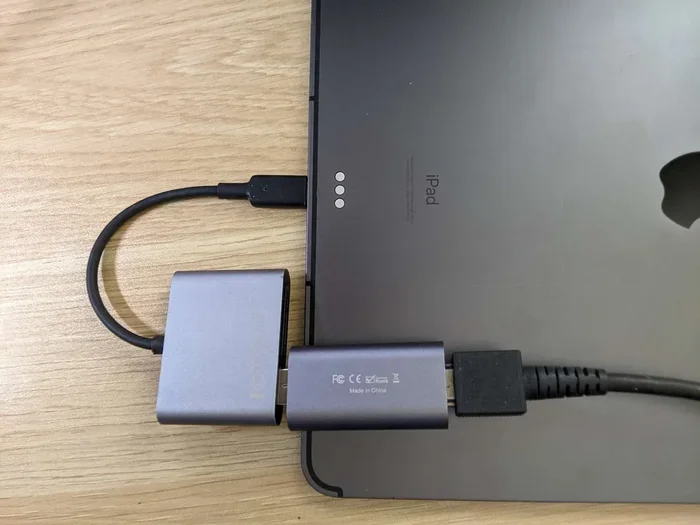
If you have a newer iPad, chances are it uses a USB-C port. This includes the iPad Pro models, iPad Air (fifth generation and later), and iPad mini (sixth generation). For these devices, a USB-C to HDMI adapter is the right choice.
USB-C adapters offer several advantages over Lightning adapters:
- Higher resolution support: Many USB-C adapters support 4K output at 60Hz, giving you a crisp and clear picture.
- Faster data transfer: USB-C handles more bandwidth, which means smoother video playback and less lag.
- Versatility: USB-C adapters often work with other devices too, like laptops, phones, and gaming consoles.
- Charging passthrough: Most USB-C adapters let you charge your iPad while it is connected to a display.
Apple sells a USB-C to Digital AV Adapter as well. And just like with Lightning adapters, there are many third-party options from brands like Anker, Belkin, and Satechi that work great.
Compatibility: Which iPad Models Work with HDMI Adapters?
This is where things can get a little tricky. Not every iPad works with every adapter. The key is matching the right adapter type to your specific iPad model. Here is a quick breakdown.
| iPad Model | Port Type | Adapter Needed |
|---|---|---|
| iPad Pro 12.9-inch (1st-3rd gen) | Lightning | Lightning to HDMI |
| iPad Pro 11-inch (1st-2nd gen) | USB-C | USB-C to HDMI |
| iPad Pro 12.9-inch (4th gen and later) | USB-C | USB-C to HDMI |
| iPad Air 2, iPad Air (3rd gen) | Lightning | Lightning to HDMI |
| iPad Air (4th gen and later) | USB-C | USB-C to HDMI |
| iPad mini 4 | Lightning | Lightning to HDMI |
| iPad mini (6th gen) | USB-C | USB-C to HDMI |
| iPad (6th-9th gen) | Lightning | Lightning to HDMI |
| iPad (10th gen) | USB-C | USB-C to HDMI |
Before you buy anything, check your iPad model. You can find this by going to Settings, tapping General, and then tapping About. Look for the Model Name or Model Number. This tells you exactly which adapter you need.
How to Set Up Your HDMI Adaptor for iPad
Setting up an iPad HDMI adapter is surprisingly easy. You do not need any technical skills or special tools. Here is a step-by-step guide that works for most setups.
Step 1: Gather Your Equipment
You need three things:
- The right HDMI adapter for your iPad (Lightning or USB-C).
- An HDMI cable (most adapters do not come with one).
- A TV or monitor with an available HDMI port.
Step 2: Connect the Adapter to Your iPad
Plug the adapter firmly into the charging port on your iPad. Make sure it clicks into place. If your adapter has a USB port for charging, you can plug in a power cable at this point too.
Step 3: Connect the HDMI Cable
Take your HDMI cable and plug one end into the adapter. Plug the other end into an available HDMI port on your TV or monitor.
Step 4: Switch Your TV Input
Use your TV remote to switch to the correct HDMI input. Most TVs label these as HDMI 1, HDMI 2, and so on. Select the port where you plugged in the cable.
Step 5: Start Screen Mirroring
Your iPad screen should now appear on the TV. If it does not, try disconnecting and reconnecting the adapter. Sometimes you may need to adjust the display settings on your iPad under Display and Brightness.
And that is it. You are now streaming your iPad screen to a bigger display. It really is that simple.
Apple vs. Third-Party HDMI Adapters: What Should You Buy?
One of the biggest questions people ask is whether they should buy an official Apple adapter or a cheaper third-party option. Both have pros and cons, and the right choice depends on your budget and needs.
Apple Official Adapters
Apple makes two main adapters for iPad HDMI output:
- Lightning to Digital AV Adapter: Works with Lightning-equipped iPads. Priced around $49.
- USB-C to Digital AV Adapter: Works with USB-C iPads. Also priced around $49.
The main advantage of Apple adapters is reliability. They work with virtually every app and do not cause compatibility issues. They also tend to be more durable. However, they are on the expensive side compared to alternatives.
Third-Party Adapters
Brands like Anker, Belkin, Satechi, and Amazon Basics offer HDMI adapters for iPads at lower price points. Many of these cost between $10 and $30, which is a significant savings.
The key is to read reviews before buying. Look for adapters that specifically mention support for your iPad model. Some budget adapters may have issues with certain apps or may not support the highest resolution your iPad can output.
Here is a quick comparison:
- Apple adapters: Best compatibility, higher price, reliable build quality.
- Third-party adapters: Lower price, good variety, but quality varies by brand.
If you use your iPad for important presentations or professional work, spending a little extra on an Apple adapter might be worth it. For casual use at home, a well-reviewed third-party adapter works just fine.
Common Problems and How to Fix Them
Even though setting up an HDMI adapter is simple, you might run into a few hiccups along the way. Here are the most common issues and how to solve them.
No Signal on the TV
If your TV shows no signal, try these steps:
- Check that the HDMI cable is firmly connected on both ends.
- Make sure the adapter is fully plugged into your iPad.
- Switch the TV to the correct HDMI input.
- Restart your iPad and try again.
Flickering or Distorted Image
A flickering screen often means the adapter is not fully compatible or the cable is low quality. Try a different HDMI cable or a different adapter. Also, make sure your adapter supports the resolution your iPad is set to.
Audio Not Working
Sometimes the video shows up on the TV but the sound does not. Check your iPad volume settings and make sure the TV is not muted. You can also go to Settings, then Sounds and Haptics, and adjust the output. Some adapters require you to change the audio output manually.
Adapter Not Recognized by iPad
If your iPad does not recognize the adapter, it could be a compatibility issue. Make sure the adapter is designed for your specific iPad model and port type. Cleaning the charging port on your iPad can also help, as dust or debris can interfere with the connection.
Wireless Alternatives to HDMI Adapters
Not everyone wants to deal with cables and adapters. If you prefer a wireless setup, there are alternatives worth considering. One popular option is using AirPlay to mirror your iPad screen to an Apple TV or a smart TV that supports AirPlay.
AirPlay lets you stream your iPad screen over Wi-Fi without any cables. It works with most Apple TVs and many modern smart TVs from Samsung, LG, Sony, and others. The setup is simple. You just open the Control Center, tap Screen Mirroring, and select your TV.
However, wireless mirroring has some limitations. It can introduce a slight delay, which matters for gaming or presentations. The image quality also depends on your Wi-Fi connection strength. For the best experience, a wired HDMI adapter is usually more reliable.
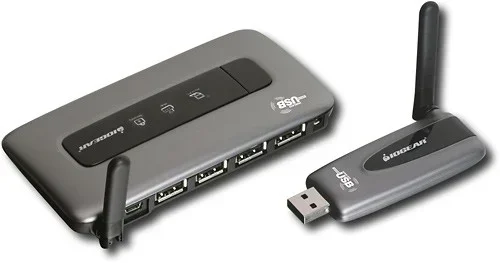
Some people also explore wireless display adapters that plug directly into the HDMI port on your TV. These small dongles receive a wireless signal from your iPad and display it on the big screen. They are a nice middle ground between cables and pure wireless streaming.
You may also want to explore how different connectivity technologies work together. For example, understanding how various wireless signals and towers function can help you troubleshoot connection issues. You can read more about this at Are 5G Towers For Wi Fi to learn how different wireless technologies impact your connectivity experience.
Ultimately, whether you choose a wired or wireless solution depends on your needs. If you want zero lag and the best picture quality, go with an HDMI adapter. If convenience and flexibility matter more, wireless mirroring is a solid choice.
Tips for Choosing the Best HDMI Adaptor for Your iPad
With so many options on the market, picking the right adapter can feel overwhelming. Here are some practical tips to help you make the best choice.
Check Your iPad Model First
This cannot be stressed enough. Buy the right adapter type for your specific iPad. A Lightning adapter will not work with a USB-C iPad, and vice versa.
Read Reviews Before Buying
Even if an adapter looks great on paper, real user reviews tell you how it actually performs. Look for reviews from people who own the same iPad model as you.
Consider Your Use Case
If you just need to mirror your screen occasionally, a basic adapter works fine. If you use it daily for work or presentations, invest in a higher-quality option that supports 4K and has a durable build.
Look for Charging Passthrough
Mirroring your iPad screen uses battery power. An adapter with a USB port for charging lets you keep your iPad powered while it is connected to a display. This is especially important for long presentations or movie sessions.
Buy from Reputable Sellers
Stick with well-known brands or buy directly from Apple. Avoid no-name adapters from unknown sellers, as they often have compatibility and quality issues.
Final Thoughts
So, can you get an HDMI adaptor for an iPad? Absolutely. The options are plentiful, the prices are reasonable, and the setup is quick and easy. Whether you need a Lightning to HDMI adapter for an older iPad or a USB-C to HDMI adapter for a newer model, there is a solution that fits your needs.
The key is to know your iPad model, choose the right adapter type, and buy from a reputable source. With the right HDMI adapter for iPad, you can turn any TV or monitor into an extension of your tablet screen. It opens up a whole new world of possibilities for work, entertainment, and creativity.
Do not let confusion about compatibility or setup stop you. The process is simpler than most people think, and the results are well worth it. Grab the right adapter, connect it up, and enjoy your iPad content on the big screen today.
Whether you are at home, in the office, or on the go, having the ability to output your iPad display to any screen gives you incredible flexibility. It is one of those small accessories that makes a surprisingly big difference in how you use your device every day.
Frequently Asked Questions
Do all iPads support HDMI output?
Yes, all iPads support some form of HDMI output, but the type of adapter you need depends on your iPad model. Older iPads with a Lightning port require a Lightning to HDMI adapter, while newer iPads with USB-C need a USB-C to HDMI adapter. Check your specific model to be sure.
Can I use any HDMI cable with an iPad adapter?
Most standard HDMI cables work fine with iPad adapters. However, for the best results, especially if you want 4K output, use a high-speed HDMI cable. Cheap or damaged cables can cause picture quality issues or connection problems.
Does an HDMI adapter charge my iPad while mirroring?
Many HDMI adapters include a USB port that allows you to plug in a charger while mirroring your screen. This is especially useful for long presentations or movie sessions. Not all adapters have this feature, so check the product details before buying.
Can I connect my iPad to a computer monitor with an HDMI adapter?
Yes, you can connect your iPad to any display with an HDMI input, including computer monitors. Just use the appropriate adapter for your iPad model, connect the HDMI cable, and switch the monitor to the correct input source.
Why is my iPad screen not showing on the TV after connecting the adapter?
This is usually caused by a loose connection, the wrong TV input, or an incompatible adapter. Try unplugging and replugging the adapter, switching the TV to the correct HDMI input, and restarting your iPad. If the problem continues, the adapter may not be compatible with your iPad model.
Are wireless alternatives better than HDMI adapters for iPads?
It depends on your needs. Wireless options like AirPlay offer convenience and no cables, but they can have lag and depend on Wi-Fi quality. HDMI adapters provide a direct, stable connection with no delay, making them better for presentations, gaming, and high-quality video output.