Can You Connect Displayport To Hdmi Heres The Answer
Yes, you can connect DisplayPort to HDMI using an adapter or cable. This guide covers everything you need to know about DisplayPort to HDMI connections, including active vs passive adapters, resolution support, and common setup tips for monitors, TVs, and projectors.
Have you ever stared at your DisplayPort cable and your HDMI port and thought, “How do I make these work together?” You are not alone. This is one of the most common tech questions people ask when setting up a new monitor, TV, or projector. The good news is that connecting DisplayPort to HDMI is totally doable. You just need the right adapter or cable. In this guide, we walk you through everything step by step. By the end, you will feel confident making this connection yourself.
Whether you are a gamer, a remote worker, or a home theater fan, knowing how to bridge these two video connection types saves time and frustration. We will cover adapters, cables, signal conversion, resolution limits, and common mistakes. Let us get into it.
Key Takeaways
- Easy Connection: You can connect DisplayPort to HDMI with the right adapter or cable, making it simple to link your devices.
- Active vs Passive Matters: Active adapters handle signal conversion, while passive ones work best for compatible devices.
- Resolution Support: Most adapters support 4K and even 8K, depending on the DisplayPort version and your hardware.
- No Audio Loss: DisplayPort to HDMI connections carry both audio and video signals without quality loss.
- Common Setup: This connection is widely used for home theater setups, gaming monitors, and office displays.
📑 Table of Contents
- What Is DisplayPort and Why Does It Matter?
- What Is HDMI and How Does It Work?
- Can You Connect DisplayPort to HDMI? The Short Answer
- Active vs Passive Adapters: What You Need to Know
- Resolution and Performance: What to Expect
- Step-by-Step: How to Connect DisplayPort to HDMI
- Common Mistakes and How to Avoid Them
- Best Adapters and Cables for DisplayPort to HDMI
- DisplayPort to HDMI in Real-World Scenarios
- Frequently Asked Questions
- Final Thoughts
What Is DisplayPort and Why Does It Matter?
DisplayPort is a digital display interface developed by VESA. It is commonly found on computers, graphics cards, and monitors. It carries both video and audio signals through a single cable. This makes it a popular choice for high-resolution displays.
Here is why DisplayPort matters:
- High bandwidth: It supports large data transfers for smooth visuals.
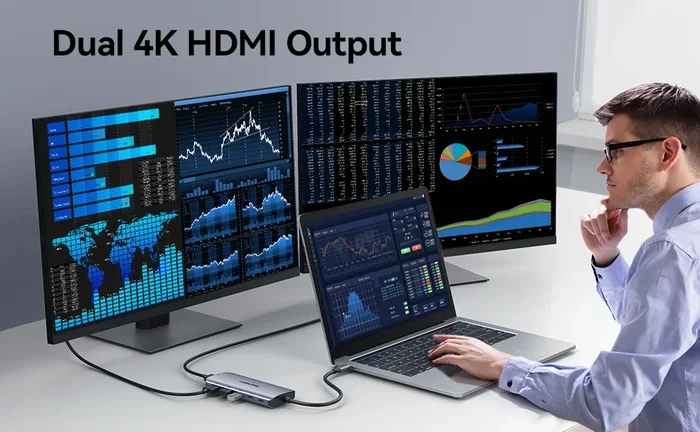
- Multi-monitor setups: You can daisy-chain several monitors from one port.
- 4K and beyond: Newer versions handle 4K at high refresh rates easily.
- Free of licensing fees: This keeps costs lower for manufacturers.
Most modern computers come with at least one DisplayPort output. But many TVs and older monitors only have HDMI inputs. That is where the connection challenge begins.
What Is HDMI and How Does It Work?
HDMI stands for High-Definition Multimedia Interface. It is the most widely used audio and video connector in the world. You will find HDMI ports on TVs, projectors, soundbars, gaming consoles, and streaming devices. It carries uncompressed video and audio through a single cable.
Here is what makes HDMI so popular:
- Plug and play: No drivers or software needed.
- Wide device support: Almost every display has at least one HDMI port.
- ARC and eARC support: These features let you send audio back to your sound system.
- Consumer Electronics Control (CEC): You can control multiple devices with one remote.
The challenge is that DisplayPort uses a different signal protocol than HDMI. So you cannot just plug one into the other. You need a converter.
Can You Connect DisplayPort to HDMI? The Short Answer
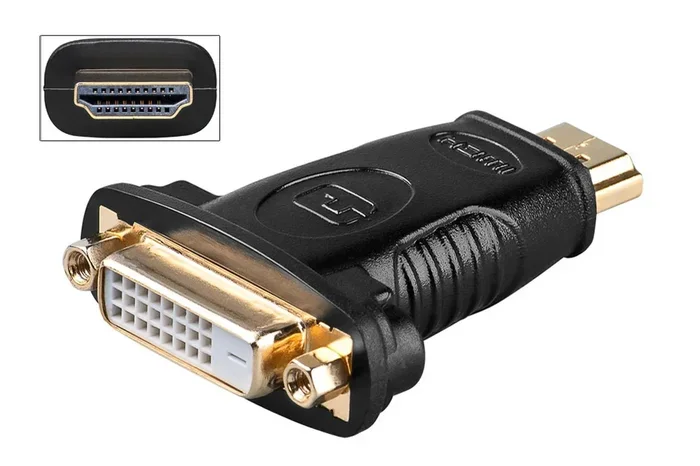
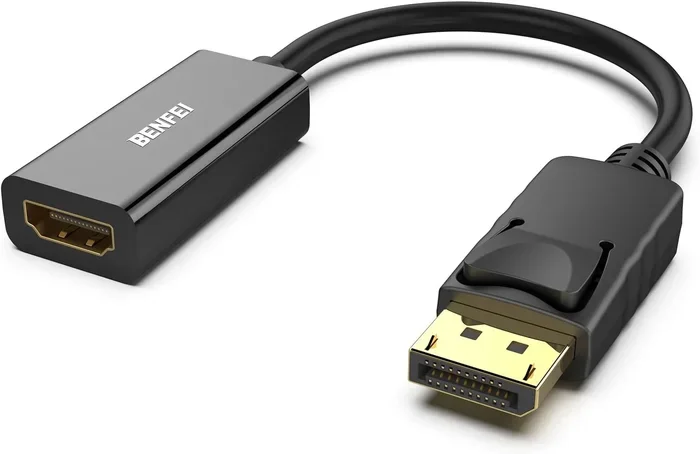
Yes, you absolutely can connect DisplayPort to HDMI. The process involves using an adapter or a cable that has a DisplayPort connector on one end and an HDMI connector on the other. This adapter converts the DisplayPort signal into an HDMI signal so your display can read it properly.
This is a very common setup. People use it to connect laptops to TVs, PCs to monitors, or graphics cards to projectors. The connection works well for both work and entertainment. You will find this setup especially useful when your source device has DisplayPort but your screen only has HDMI inputs.
For example, if you are setting up a home theater system and your media PC has only DisplayPort outputs, a simple adapter solves the problem instantly. Similarly, if you are using a streaming device or a setup similar to what you might explore in alternatives to Dish Network and DirecTV, connecting your device via DisplayPort to HDMI can work seamlessly for your display needs.
How the Signal Conversion Works
When you use an adapter, the chip inside it does the heavy lifting. It takes the DisplayPort digital signal and converts it to the HDMI digital signal. This happens in real time. You will not notice any delay in most cases.
The adapter also handles audio extraction. DisplayPort carries audio, and the adapter passes that audio through the HDMI cable to your TV or sound system. So you get both picture and sound from one connection.
Active vs Passive Adapters: What You Need to Know
Not all adapters are the same. There are two main types: active adapters and passive adapters. Understanding the difference is important for a smooth setup.
Passive Adapters
A passive adapter does not need external power. It simply reroutes the signal from one format to another. Passive adapters work best when:
- Your source device supports dual-mode DisplayPort (DP++).
- You are connecting to a standard HDMI display.
- You do not need to boost or convert the signal.
Most modern computers and laptops support DP++. This means a passive adapter will work without any issues. Just plug it in and go.
Active Adapters
An active adapter has its own chip and sometimes needs external power. It actively converts the signal. You need an active adapter when:
- Your source device does not support DP++.
- You are converting from a DisplayPort output on a dedicated graphics card.
- You need to support higher resolutions like 4K or 8K.
- The passive adapter fails to work with your setup.
Active adapters are slightly more expensive but offer better compatibility. They are the safer choice if you are unsure about your device’s capabilities.
Quick Tip: If your adapter does not work, try a powered active adapter first. Many compatibility issues come down to this simple fix.
Resolution and Performance: What to Expect
One of the most common questions is about resolution support. Will your DisplayPort to HDMI connection handle 4K? What about 144Hz gaming?
The answer depends on several factors:
DisplayPort Version
- DisplayPort 1.2: Supports 4K at 60Hz over HDMI.
- DisplayPort 1.4: Supports 4K at 120Hz or 8K at 60Hz.
- DisplayPort 2.0/2.1: Supports 8K at 120Hz or even 16K with compression.
HDMI Version on the Display Side
- HDMI 2.0: Supports 4K at 60Hz.
- HDMI 2.1: Supports 4K at 120Hz and 8K at 60Hz.
The weakest link in the chain determines your max resolution. If your adapter supports 4K but your TV only has HDMI 2.0, you are capped at 4K 60Hz.
Refresh Rate Considerations
For gaming, refresh rate matters a lot. A 144Hz monitor connected via DisplayPort to HDMI will depend on the adapter quality. Cheap adapters may limit you to 60Hz. Premium adapters with good chips support higher refresh rates without breaking a sweat.
If you are building a gaming setup, always check the adapter specifications before buying. Look for adapters that explicitly state their bandwidth and refresh rate support.
Step-by-Step: How to Connect DisplayPort to HDMI
Setting up a DisplayPort to HDMI connection is simple. Follow these steps for a hassle-free experience.
Step 1: Check Your Ports
Look at your source device. Do you see a DisplayPort output? Now look at your display. Do you see an HDMI input? Confirm both before buying any adapter.
Step 2: Choose the Right Adapter or Cable
Decide between a passive or active adapter based on your needs. For most users, a basic passive adapter works fine. For 4K or high refresh rate setups, go with an active adapter.
Step 3: Plug It In
Connect the DisplayPort end to your source device. Then connect the HDMI end to your display. If using an active adapter, plug in the USB power cable if required.
Step 4: Switch Input on Your Display
Use your TV or monitor remote to switch to the correct HDMI input. You should see your screen appear immediately.
Step 5: Adjust Settings
Go to your display settings on your computer. Make sure the resolution and refresh rate match your display capabilities. You may need to update your graphics drivers for the best experience.
For more complex setups, you might explore options like alternatives to Dish Network and DirecTV where display connectivity plays a key role in getting the best viewing experience from your media setup.
Common Mistakes and How to Avoid Them
Even with a simple setup, things can go wrong. Here are the most common mistakes people make when connecting DisplayPort to HDMI:
- Using the wrong adapter type: A passive adapter will not work on all devices. Check if your GPU supports DP++ before buying one.
- Ignoring audio issues: Some adapters do not carry audio. If you need sound, make sure your adapter supports audio passthrough.
- Buying a cheap adapter: Low-quality adapters can cause flickering, low resolution, or no signal at all. Spend a little more for reliability.
- Not updating drivers: Outdated graphics drivers can cause display problems after connecting a new adapter.
- Forgetting to switch the input source: Always select the right HDMI port on your display after plugging everything in.
Expert Insight: The most common reason for a failed DisplayPort to HDMI connection is using a passive adapter on a system that does not support DP++. When in doubt, buy an active adapter. It costs a few dollars more but saves hours of troubleshooting.
Best Adapters and Cables for DisplayPort to HDMI
Not all adapters are created equal. Here are some tips for choosing the right one for your needs:
What to Look For
- Resolution support: Make sure it supports your desired resolution (1080p, 4K, or 8K).
- Refresh rate: Look for adapters that support at least 60Hz, or 120Hz+ for gaming.
- Audio support: Check that the adapter passes audio through to HDMI.
- Build quality: Metal housings and gold-plated connectors last longer.
- Brand reputation: Stick with known brands like Cable Matters, StarTech, or UGREEN.
Top Picks
- Cable Matters DisplayPort to HDMI Adapter: Great for basic setups. Affordable and reliable.
- StarTech Active DisplayPort to HDMI Adapter: Best for 4K and high refresh rate setups. Powered and compatible with most GPUs.
- UGREEN DisplayPort to HDMI Cable: All-in-one cable solution. No extra adapter needed. Great for clean desk setups.
These adapters work well for connecting computers to TVs, gaming setups to monitors, and media centers to projectors. They are also useful in setups similar to alternatives to Dish Network and DirecTV where you want to use a PC as your main entertainment source.
DisplayPort to HDMI in Real-World Scenarios
Let us look at how real people use DisplayPort to HDMI connections in everyday life.
Home Theater Setup
Many people use a PC as their media center. The PC has a powerful graphics card with DisplayPort outputs. The TV in the living room only has HDMI inputs. A simple adapter bridges the gap perfectly. You get high-quality video and audio from one cable run.
Gaming Monitor Setup
Some gaming monitors only have HDMI inputs. But your PC graphics card has DisplayPort outputs. An active adapter lets you enjoy high refresh rates and smooth gameplay without any compromise.
Office and Work From Home
Remote workers often connect laptops to external monitors. Many modern laptops have DisplayPort outputs. Office monitors typically have HDMI inputs. A passive adapter makes this connection quick and easy.
Digital Signage and Projectors
Businesses and educators often use projectors that only accept HDMI. A computer with DisplayPort output can connect to these projectors using an adapter. This works well for presentations and classroom setups.
Frequently Asked Questions
Can I connect DisplayPort to HDMI without an adapter?
No, you cannot directly connect DisplayPort to HDMI without an adapter or cable. The two connectors use different signal types and physical shapes. You need an adapter or a cable with DisplayPort on one end and HDMI on the other to make the connection work.
Does a DisplayPort to HDMI adapter lose quality?
A good quality adapter does not lose quality. It converts the signal without compressing it. However, cheap or faulty adapters may cause resolution drops or flickering. Always buy from reputable brands to maintain the best picture quality.
Can I get audio through a DisplayPort to HDMI adapter?
Yes, most adapters pass audio through the HDMI connection. Your TV or monitor speakers will play the sound along with the video. If you do not get audio, check your sound settings and make sure the HDMI output is set as the default audio device.
Does a DisplayPort to HDMI adapter support 4K?
Most modern adapters support 4K resolution. However, the refresh rate depends on the adapter quality and the versions of DisplayPort and HDMI on your devices. A high-quality active adapter will give you the best 4K experience.
Can I use a DisplayPort to HDMI adapter for gaming?
Yes, you can use these adapters for gaming. For the best experience, choose an active adapter that supports high refresh rates. Make sure your graphics card and display both support the resolution and refresh rate you want.
Why is my DisplayPort to HDMI connection not working?
This usually happens for a few reasons. The adapter may be passive and your device does not support DP++. The adapter might need external power. Or your display input may not be set to the correct HDMI port. Try a different adapter, update your drivers, and check your input source first.
Final Thoughts
Can you connect DisplayPort to HDMI? Absolutely yes. It is one of the most straightforward and useful connections in the world of display technology. Whether you are hooking up a PC to a TV, a laptop to a monitor, or a media center to a projector, the right adapter makes it all work.
Remember to choose between passive and active adapters based on your device compatibility. Check the resolution and refresh rate support before buying. And always go for quality over price when it comes to adapters. A few extra dollars spent on a reliable adapter saves you from headaches down the road.
With the right setup, your DisplayPort to HDMI connection will deliver crisp video and clear audio every time. You will wonder why you ever worried about it in the first place.