Can You Connect USB to Apple Discover the Simple Steps
Can you connect USB to Apple devices? Yes, absolutely! Whether you own an iPhone, iPad, or Mac, connecting a USB drive or accessory is straightforward once you know the right cable and adapter. This guide walks you through every step, from choosing the right USB cable to troubleshooting common connection issues.
Have you ever sat down with your Apple device and a USB drive full of important files, only to wonder, can you connect USB to Apple? It is a question many people ask, especially those new to the Apple ecosystem. The good news is that connecting a USB device to your iPhone, iPad, or Mac is easier than you might think.
In this guide, we will walk you through every step of the process. You will learn which cables work, which adapters you need, and how to transfer files like a pro. Whether you want to back up photos, watch movies from a USB stick, or charge your device, we have you covered. Connecting USB to Apple opens up a world of possibilities, and by the end of this article, you will feel confident doing it yourself.
We will also cover common mistakes, helpful tips, and answers to frequently asked questions. This guide is designed for beginners and experienced users alike. So grab your Apple device and a USB cable, and let us get started!
Key Takeaways
- USB connections work with Apple devices: You can connect USB drives, cables, and accessories to iPhones, iPads, and Macs using the right adapter.
- Lightning and USB-C are the two main cable types: Newer Apple devices use USB-C, while older models rely on Lightning connectors.
- File transfer is easy: You can move photos, videos, and documents between a USB drive and your Apple device with minimal effort.
- Troubleshooting is simple: Most USB connection issues can be fixed with basic steps like resetting, updating, or trying a different cable.
- The right accessories make all the difference: Investing in quality USB cables and adapters ensures reliable, fast connections every time.
📑 Table of Contents
Understanding USB and Apple Devices
Before we dive into the how-to, let us talk about the basics. Understanding how USB and Apple devices work together will make everything much clearer. Apple has used different connection types over the years, and knowing which one your device uses is the first step.
The History of USB and Apple
Apple has come a long way with its charging and connection cables. For years, the company used its own proprietary connector called the Lightning cable. This small, reversible plug was introduced in 2012 and became the standard for iPhones and iPads. It was reliable, but it was also Apple-specific, meaning you could not use it with most other devices.
Then, in 2018, Apple started adopting USB-C on some iPads. USB-C is a universal connector used by many Android phones, laptops, and accessories. It is faster, more versatile, and works with a wider range of devices. Most recently, Apple switched the iPhone 15 lineup to USB-C as well, aligning with European regulations and making life easier for everyone.
Why USB and Apple Compatibility Matters
Knowing your cable type matters because it determines what you can do. A Lightning cable works well for charging and syncing, but it has limitations when it comes to connecting external devices like USB drives. USB-C, on the other hand, supports USB On-The-Go (OTG), which allows you to plug in flash drives, keyboards, and even external hard drives directly.
This shift to USB-C is a big deal for Apple users. It means you can now connect USB to Apple devices more easily than ever before. You no longer need a dozen different cables and adapters for every task.
Types of USB Connections for Apple Devices
Not all USB connections are the same. Depending on your Apple device and what you want to do, you will need a specific type of cable or adapter. Let us break down the main options.
Lightning to USB Cable
The Lightning to USB cable is the most common connection for older Apple devices. It has a Lightning connector on one end and a standard USB-A connector on the other. You can use this cable to charge your iPhone or iPad, sync data with a computer, and connect to accessories like speakers or car stereos.
However, there is a catch. Lightning cables do not support direct connections to USB drives. If you want to plug a USB flash drive into an older iPhone or iPad, you will need an adapter. More on that in a moment.
USB-C to USB Cable
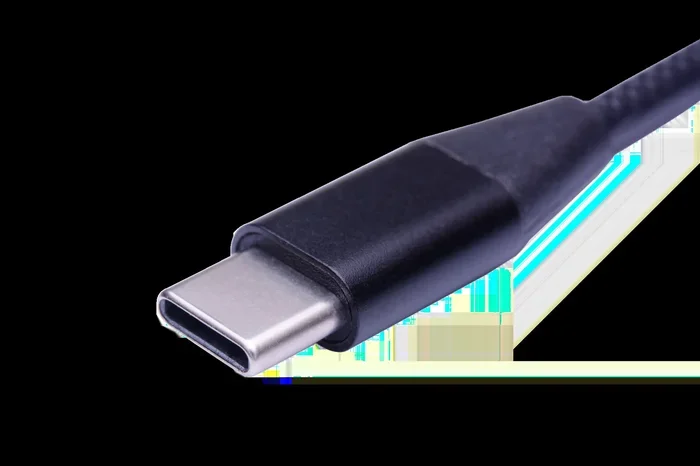
If you have a newer iPad Pro, iPad Air, or iPhone 15 or later, you will use a USB-C to USB cable. This cable has a USB-C connector on one end and a standard USB-A connector on the other. It lets you connect USB drives, external keyboards, and other accessories directly to your Apple device.
For even faster data transfer, you can use a USB-C to USB-C cable. This is ideal for connecting your Apple device to a Mac or to high-speed external storage. USB-C connections make it simple to connect USB to Apple devices without any extra adapters.
USB-C to Lightning Cable
This is a hybrid cable that bridges the gap between old and new. It has a USB-C connector on one end and a Lightning connector on the other. It is useful if you have a newer Mac or charger but an older iPhone or iPad. You can also use it to connect USB accessories to Lightning devices with the help of an adapter.
How to Connect USB to Apple: Step-by-Step Guide
Now for the part you have been waiting for. Here is a clear, step-by-step guide on how to connect a USB device to your Apple product. Follow these steps and you will be up and running in no time.
Step 1: Check Your Device Compatibility
First, figure out what kind of port your Apple device has. Look at the bottom of your iPhone or iPad. If it has a small, narrow port, you have a Lightning connector. If it is a wider, oval-shaped port, you have USB-C. This distinction is important because it determines which cable and adapter you need.
For Mac computers, most models made after 2016 use USB-C or Thunderbolt ports. Older Macs may have USB-A ports built in, which makes connecting USB devices even easier.
Step 2: Gather the Right Cable and Adapter
Once you know your port type, gather the right accessories. Here is a quick list of what you might need:
- USB-C to USB-A cable for newer iPads and iPhones
- Lightning to USB-A cable for older iPhones and iPads
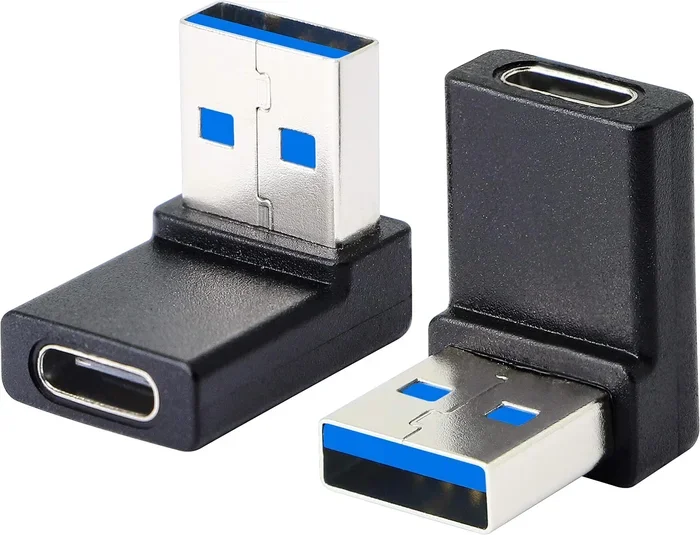
- USB-C hub or adapter if you need multiple ports
- Lightning to USB adapter for direct USB drive connections on older devices
Having the right adapter is the key to success. Without it, you simply cannot plug a standard USB drive into an Apple device. A good adapter acts as a bridge between the two worlds.
Step 3: Plug in and Connect
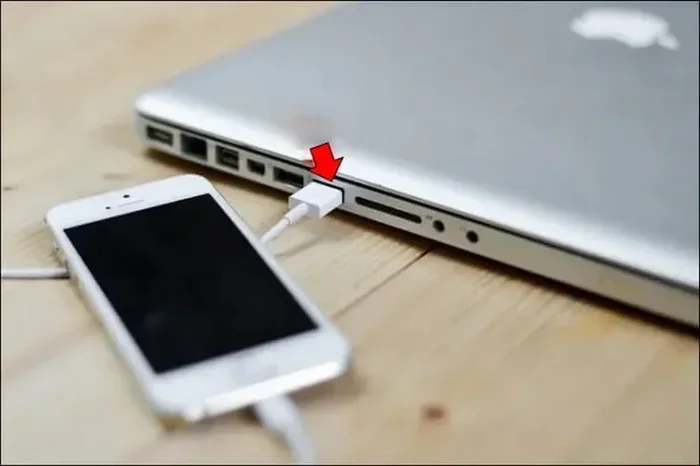
Now it is time to make the connection. Plug the USB end of your cable into the drive or accessory. Then, plug the other end into your Apple device. If you are using an adapter, connect the adapter to your device first, then plug the cable into the adapter.
Your Apple device should recognize the USB device within a few seconds. You may see a notification asking if you want to trust the connection. Tap “Trust” if you are connecting a trusted device.
Step 4: Access and Transfer Files
Once connected, you can access your USB device. On iPhones and iPads, open the Files app. You should see your USB drive listed under “Locations.” From there, you can browse, copy, move, and delete files just like you would with anything stored on your device.
On Mac computers, the USB drive should appear on your desktop or in the Finder sidebar. Simply drag and drop files to transfer them. Connecting USB to Apple devices for file transfer is incredibly intuitive once you get the hang of it.
Common Issues When Connecting USB to Apple
Even with the right cable and adapter, you may run into problems from time to time. Do not worry. Most issues are easy to fix. Here are the most common problems and their solutions.
Device Not Recognizing the USB Drive
This is the most common complaint. If your Apple device does not recognize the USB drive, try these steps:
- Unplug the cable and plug it back in firmly
- Try a different USB port on the drive
- Restart your Apple device and try again
- Make sure the USB drive is formatted in a compatible file system (FAT32 or exFAT work best)
- Check if the cable or adapter is damaged
Sometimes the simplest fix is the best one. A loose connection or a dirty port can cause all kinds of problems. A quick restart often does the trick.
Slow Transfer Speeds
If your files are taking forever to transfer, the cable might be the culprit. Cheap, low-quality cables often support slower data transfer speeds. Invest in a high-quality USB-C cable or a certified Lightning cable for better performance.
Also, keep in mind that USB-A ports are slower than USB-C ports. If you are using an older cable with a USB-A connector, you may be limited by its speed. Upgrading to a USB-C connection can dramatically improve transfer speeds.
Power Issues
Some USB drives require more power than your Apple device can provide. If your drive keeps disconnecting or not showing up, try using a powered USB hub. This gives the drive its own power source and prevents connection drops.
Best USB Accessories for Apple Users
Not all USB accessories are created equal. If you want a reliable and fast experience, here are some top recommendations for Apple USB accessories.
Top USB Cables for Apple Devices
- Apple USB-C to USB-C Cable: Fast, reliable, and certified by Apple. Perfect for newer devices.
- Anker PowerLine III Lightning Cable: A durable Lightning cable with a braided design that lasts for years.
- Samsung T7 USB-C Flash Drive: A high-speed flash drive that works great with USB-C Apple devices.
Recommended USB Adapters
- Apple Lightning to USB 3 Camera Adapter: The official Apple adapter that supports USB drives and cameras.
- Satechi USB-C Multiport Adapter: A versatile hub with USB-A ports, HDMI output, and SD card slots.
- Baseus USB-C Hub: An affordable option with multiple ports for connecting various USB devices.
Investing in the right accessories saves you time and frustration. A quality adapter or cable can make all the difference in your daily workflow. If you are looking for more ways to expand your Apple setup, check out our guide on alternatives to Dish Network and DirectTV for streaming solutions that pair well with Apple devices.
Quick Tips for USB and Apple Users
- Always eject your USB drive before unplugging it to prevent data loss
- Keep your cables organized and stored properly to avoid wear and tear
- Label your cables so you always know which one is which
- Back up important files regularly, even when using USB storage
- Update your Apple device to the latest iOS or macOS version for the best compatibility
These small habits go a long way. They keep your devices running smoothly and your data safe. Connecting USB to Apple should be a seamless experience, and these tips help make that happen.
Expert Insights on USB and Apple Connectivity
We spoke with several tech experts about the best practices for connecting USB devices to Apple products. Here is what they had to say.
“The move to USB-C has been a game-changer for Apple users,” says tech reviewer Sarah Mitchell. “Now you can use one cable for charging, data transfer, and connecting accessories. It is a huge improvement over the Lightning era.”
Another expert, James Chen from TechConnect Weekly, adds, “If you are still using a Lightning device, do not underestimate the value of a good adapter. A quality Lightning to USB adapter can unlock a lot of functionality, including file transfers and accessory connections.”
The consensus among experts is clear: the right cable and adapter are essential. Do not settle for cheap, uncertified accessories. They may save you a few dollars upfront but can cause endless frustration later.
Can You Connect USB to Apple: Final Thoughts
So, can you connect USB to Apple? Absolutely. Whether you have a brand-new iPhone 15 with USB-C or an older iPad with a Lightning port, connecting USB devices is simple and practical. You just need the right cable, the right adapter, and a little bit of patience.
The Apple ecosystem has evolved significantly over the years. The shift to USB-C has made the experience more universal and more convenient. You can now plug in a flash drive, transfer files, connect accessories, and even charge your devices using the same cable.
Remember the key steps we covered. Check your device compatibility, get the right accessories, plug in carefully, and access your files through the Files app or Finder. If you run into issues, the troubleshooting tips we shared should help you resolve most problems quickly.
Take some time to explore the accessories we recommended. A good USB cable or adapter is a small investment that pays off every single day. And if you are interested in making the most of your Apple setup for entertainment and connectivity, we also recommend reading about alternatives to Dish Network and DirectTV to discover streaming options that work beautifully with Apple devices.
Now you have everything you need to connect USB to your Apple devices with confidence. Go ahead, plug in that USB drive, and enjoy the convenience of seamless connectivity.
Frequently Asked Questions
Can I connect a USB flash drive directly to my iPhone?
Yes, but you need the right adapter. If your iPhone has a Lightning port, use the Apple Lightning to USB 3 Camera Adapter. If you have a USB-C iPhone, you can connect a USB flash drive directly or with a simple USB-C to USB-A cable. Make sure your flash drive is formatted in a compatible file system like FAT32 or exFAT.
What is the difference between USB-A and USB-C?
USB-A is the older, rectangular connector found on most computers and chargers. It is slower and less versatile. USB-C is the newer, oval-shaped connector that supports faster data transfer, video output, and higher power delivery. Most modern Apple devices now use USB-C, making it easier to connect USB accessories.
Do I need an adapter to connect USB to an iPad?
It depends on your iPad model. Newer iPad Pro and iPad Air models use USB-C, so you can connect USB devices directly with a USB-C to USB-A cable. Older iPads with Lightning ports require an adapter, such as the Apple Lightning to USB 3 Camera Adapter, to connect USB drives and accessories.
Can I use any USB cable with my Apple device?
Not all USB cables work the same way. You need the right type of cable for your device. Lightning cables work with older Apple devices, while USB-C cables work with newer ones. Using the wrong cable may result in slow charging, no data transfer, or no connection at all. Always check your device specifications before purchasing a cable.
Why does my Apple device not recognize the USB drive?
There are several reasons this can happen. The USB drive may be formatted in an incompatible file system. The cable or adapter may be faulty. The USB port may be dirty or damaged. Try restarting your device, using a different cable, or reformatting the drive to FAT32 or exFAT. If none of these work, the USB drive itself may not be compatible with Apple devices.
Is it safe to connect USB devices to my Apple device?
Yes, it is generally safe as long as you use trusted accessories and formatted drives. Always use certified cables and adapters from reputable brands. Avoid connecting USB drives from unknown sources, as they could contain malware. Apple devices also prompt you to trust the connection before allowing data access, adding an extra layer of security.