Can You Connect A Macbook To An Iphone Using Bluetooth
Yes, you can connect a macbook to an iphone using bluetooth and enjoy seamless wireless sharing across Apple devices. This guide walks you through pairing, troubleshooting, and making the most of bluetooth connectivity between your macbook and iphone. Whether you want to transfer files, share internet, or sync audio, bluetooth makes it all possible.
Have you ever sat down at your macbook and thought, “I wish I could just connect it to my iphone without cables”? You are not alone. Millions of Apple users want a simple way to link their devices wirelessly. The good news is that connecting a macbook to an iphone using bluetooth is absolutely possible. It is straightforward, and once you set it up, you will wonder how you ever lived without it.
Bluetooth technology has been around for decades, but Apple has made it incredibly easy to use between its own devices. Whether you want to share files, sync your clipboard, or even use your iphone as a personal hotspot, bluetooth handles the job. This guide covers everything you need to know about macbook and iphone bluetooth pairing. We will walk through setup, share tips, and troubleshoot common problems.
Before diving in, let us clarify what bluetooth can and cannot do between these two devices. Bluetooth is a short-range wireless technology. It lets your macbook and iphone talk to each other without cords. However, it is not the fastest way to move large files. For that, Apple offers AirDrop, which uses a mix of bluetooth and wifi. Still, bluetooth remains essential for many core features in the Apple ecosystem.
Key Takeaways
- Bluetooth pairing is simple: Both devices need bluetooth enabled and within range to connect easily.
- AirDrop works better for files: While bluetooth can transfer files, AirDrop is faster and more convenient for macbook and iphone users.
- Handoff and Universal Clipboard: These features rely on bluetooth and wifi to keep your workflow smooth across devices.
- Common issues have easy fixes: Most bluetooth connection problems can be solved by restarting devices or resetting bluetooth settings.
- Bluetooth range matters: Keep devices within 30 feet for a stable connection.
- Apple ecosystem shines: The macbook and iphone integration makes wireless connectivity effortless compared to cross-platform setups.
📑 Table of Contents
- How Bluetooth Works Between Macbook And Iphone
- Step-by-Step Guide To Connect Your Macbook To Iphone Using Bluetooth
- What Can You Do After Connecting Macbook And Iphone Via Bluetooth
- Bluetooth Vs AirDrop: Which Is Better For File Sharing
- Common Bluetooth Connection Problems And How To Fix Them
- Expert Tips To Get The Most From Bluetooth On Your Apple Devices
- Why The Apple Ecosystem Makes Bluetooth Connections Easy
- Key Takeaways
- Conclusion
How Bluetooth Works Between Macbook And Iphone
Understanding the basics of bluetooth connection helps you use it better. Bluetooth uses short-range radio waves to send data between devices. When you pair your macbook with your iphone, they create a trusted link. This link stays active until you remove it or turn off bluetooth on either device.
The Role of Bluetooth in Apple Devices
Apple designs its devices to work together. Bluetooth pairing between a macbook and an iphone is built right into macOS and iOS. You do not need extra software or apps. Both devices support bluetooth 5.0 or newer, which means faster speeds and better range. The typical range is about 30 feet, though walls and obstacles can reduce that.
Here are some key things bluetooth enables between your macbook and iphone:
- Wireless file sharing through basic bluetooth transfer
- Handoff — start a task on one device and continue on the other
- Universal Clipboard — copy text or images on one device and paste on the other
- Personal hotspot — share your iphone cellular connection with your macbook
- Audio streaming — play music or calls through connected bluetooth headphones
- Device discovery — your macbook can find nearby bluetooth accessories and ios devices
These features make the apple ecosystem powerful. You get a seamless experience that feels almost magical. But it all starts with a proper bluetooth connection.
Step-by-Step Guide To Connect Your Macbook To Iphone Using Bluetooth
Now let us get into the actual process. Setting up bluetooth connectivity between your macbook and iphone takes less than a minute. Follow these steps carefully and you will be paired in no time.
Step 1: Turn On Bluetooth On Both Devices
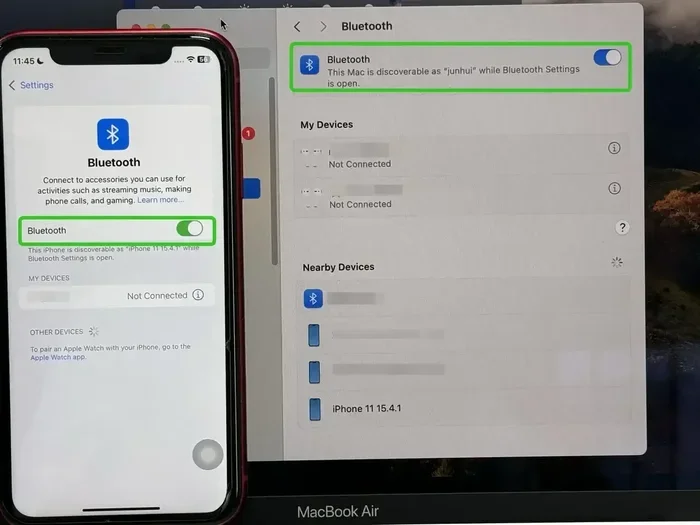
First, make sure bluetooth is active on both your macbook and your iphone. On your macbook, click the Bluetooth icon in the menu bar at the top of the screen. If you do not see it, go to System Settings and toggle Bluetooth on. On your iphone, open the Settings app and tap Bluetooth. Switch it on if it is off.
Quick tip: If your macbook does not have a Bluetooth icon in the menu bar, you can add it. Go to System Settings, then Control Center, and make sure Bluetooth is set to show in the menu bar. This makes future connections faster.
Step 2: Put Your Iphone In Discoverable Mode
Your iphone should already be in discoverable mode when you turn on Bluetooth. It will appear in the list of available devices on your macbook. On your macbook, open the Bluetooth settings panel and look for your iphone under “Other Devices.”
If your iphone does not show up, try turning Bluetooth off and back on again. Sometimes a simple refresh solves the problem. Also make sure your iphone is not connected to another macbook or device, as this can cause conflicts.
Step 3: Pair The Devices
Click on your iphone when it appears in the macbook Bluetooth list. A pairing request will pop up on both screens. Your iphone will show a code. Verify that the code on your macbook matches, then click “Pair” on both devices.
Once paired, your macbook and iphone will remember each other. You will not need to repeat this process every time. As long as both devices have Bluetooth turned on and are within range, they will connect automatically.
Step 4: Test The Connection
After pairing, test the connection. Try copying some text on your macbook and pasting it on your iphone. Or share a small file using the Bluetooth share option. If everything works, you are all set. If not, do not worry — we will cover troubleshooting next.
What Can You Do After Connecting Macbook And Iphone Via Bluetooth
Once your devices are paired, a whole new world of convenience opens up. Here are the most useful things you can do with macbook and iphone wireless connectivity.
Use Handoff To Switch Tasks Seamlessly
Handoff is one of the best features Apple offers. Let us say you are reading a webpage on your iphone and suddenly you sit down at your macbook. With Handoff, you can pick up right where you left off on your macbook. The bluetooth connection between the devices makes this possible by constantly checking in with each other.
To use Handoff, make sure it is enabled on both devices. On your macbook, go to System Settings, then General, and look for Handoff. On your iphone, go to Settings, then General, then Handoff. Toggle it on. Now when you open an app on your macbook, you will see a small icon at the bottom of your screen showing what is available from your iphone.
Share Your Internet Connection With Hotspot
Need internet on your macbook but no wifi available? Your iphone can share its cellular data through bluetooth tethering. This is called a personal hotspot. Go to Settings on your iphone, then Personal Hotspot, and turn it on. Make sure Bluetooth is enabled. On your macbook, go to Network settings and select your iphone as a bluetooth connection.
Keep in mind that bluetooth hotspot speeds are slower than wifi or USB tethering. It works well for light browsing and checking email, but do not expect lightning-fast downloads. For faster speeds, consider using a wifi hotspot or connecting with a USB cable instead.
Sync Contacts And Calendars Wirelessly
When your macbook and iphone are connected via bluetooth and wifi, your contacts and calendars stay in sync through iCloud. While this does not use bluetooth directly for syncing, the bluetooth connection keeps the devices aware of each other, which supports features like calendar alerts and contact lookups across devices.
Use Universal Clipboard For Quick Copy And Paste
The Universal Clipboard is a game changer. Copy an image, a link, or a block of text on your macbook, and paste it directly on your iphone. The wireless pairing between devices handles the transfer behind the scenes. It feels instant and works flawlessly when both devices are nearby.
For Universal Clipboard to work, both devices need to be signed into the same Apple ID, have Bluetooth and Wifi turned on, and be connected to the same network. The bluetooth connection helps devices discover each other, while wifi handles the actual data transfer.
Bluetooth Vs AirDrop: Which Is Better For File Sharing
Many people wonder whether they should use bluetooth or AirDrop to share files between a macbook and an iphone. Let us compare them directly so you know which tool to use in different situations.
| Feature | Bluetooth | AirDrop |
|---|---|---|
| Speed | Slower | Faster |
| Range | Up to 30 feet | Up to 30 feet |
| Setup | Manual pairing required | Automatic, no pairing needed |
| File Size Limit | No strict limit but slow for large files | Handles large files easily |
| Use Case | Basic connectivity, hotspot, handoff | Quick file sharing |
| Works Without Wifi | Yes | No, requires wifi |
As you can see, AirDrop is the better choice for most file transfers. It uses a combination of bluetooth discovery and wifi direct to move files quickly. Bluetooth alone is better suited for maintaining a continuous connection between devices for features like Handoff and Universal Clipboard.
Here is a simple rule of thumb. Use AirDrop when you want to send a photo, document, or video quickly. Use bluetooth connectivity when you want your devices to stay connected in the background for features like Handoff or hotspot sharing.
Common Bluetooth Connection Problems And How To Fix Them
Even though Apple makes bluetooth pairing easy, sometimes things go wrong. Here are the most common issues people face when connecting a macbook to an iphone via bluetooth, along with simple fixes.
Devices Not Finding Each Other
If your macbook does not see your iphone in the Bluetooth list, try these steps. First, turn Bluetooth off on both devices and then back on again. This simple reset often solves the problem. Also make sure your iphone is not locked with a passcode that might block discovery. Both devices should be awake and unlocked.
Another common cause is distance. Keep both devices within 10 to 15 feet of each other during the initial pairing process. Walls, metal surfaces, and other electronic devices can interfere with the bluetooth signal.
Paired But Not Connecting
Sometimes your devices show as paired but refuse to connect. In this case, go to your macbook Bluetooth settings, hover over the iphone entry, and click the “X” to remove the device. Then pair them again from scratch. This clears any stale connection data that might be causing the issue.
On your iphone, you can also go to Settings, then Bluetooth, tap the “i” icon next to your macbook, and select “Forget This Device.” Then start fresh on your macbook side.
Slow Transfer Speeds
Bluetooth is not known for blazing fast speeds. If your file transfers feel painfully slow, consider using AirDrop instead. If you must use bluetooth transfer, make sure no other heavy bluetooth devices are nearby. Wireless headphones, speakers, and keyboards can all create interference.
Battery Drain
Keeping Bluetooth active on both devices can drain battery faster than you might expect. If you are not actively using a bluetooth connection between your macbook and iphone, consider turning it off. On your macbook, simply click the Bluetooth icon and toggle it off. On your iphone, go to Settings and disable Bluetooth.
Interference From Other Devices
Bluetooth operates on the 2.4 GHz frequency band. This is the same band used by wifi and many household devices. Microwaves, baby monitors, and even USB 3.0 ports can cause interference. If you experience connection drops, move away from other wireless devices and try again.
Expert Tips To Get The Most From Bluetooth On Your Apple Devices
Here are some practical tips from experienced users and tech professionals to help you get the best results from your macbook and iphone bluetooth setup.
- Keep both devices updated. Apple regularly releases updates that improve bluetooth performance and fix bugs. Make sure your macbook and iphone are running the latest versions of macOS and iOS.
- Restart before troubleshooting. A simple restart of both devices clears temporary glitches and refreshes the bluetooth module. It is the first step you should take when something goes wrong.
- Limit the number of paired devices. The more devices your macbook is paired with, the more it has to manage. Remove old or unused pairings to keep things running smoothly.
- Use bluetooth for background tasks. Handoff, Universal Clipboard, and hotspot all work best when bluetooth stays on in the background. You do not need to actively use it for these features to work.
- Reset network settings if needed. If nothing else works, resetting network settings on your iphone can fix persistent bluetooth issues. Go to Settings, General, Transfer or Reset Iphone, then Reset Network Settings. Note that this will erase saved wifi passwords.
- Check for physical obstructions. Metal cases, thick covers, and even your own body can block bluetooth signals. Remove thick cases during pairing for the best results.
Why The Apple Ecosystem Makes Bluetooth Connections Easy
One of the biggest advantages of using a macbook and an iphone together is how well they work out of the box. Apple designed device connectivity with its own ecosystem in mind. When both devices are from Apple, you get a level of integration that is hard to match with other brands.
The wireless pairing process is simple because both devices speak the same language. They use the same bluetooth protocols, the same discovery methods, and the same security standards. This means fewer setup headaches and a more reliable connection once paired.
Beyond bluetooth, Apple also uses a technology called Wi-Fi Direct and Apple Wireless Direct Link (AWDL) for features like AirDrop and Handoff. These technologies work alongside bluetooth to create a seamless experience. Your macbook and iphone constantly communicate with each other using a combination of these wireless technologies, and you barely notice it happening.
This is why many people who own multiple Apple devices find it hard to switch to other platforms. The integration is deep, intuitive, and mostly invisible. You just get things done without thinking about the technology behind it.
Key Takeaways
- Bluetooth pairing is simple: Both devices need bluetooth enabled and within range to connect easily.
- AirDrop works better for files: While bluetooth can transfer files, AirDrop is faster and more convenient for macbook and iphone users.
- Handoff and Universal Clipboard: These features rely on bluetooth and wifi to keep your workflow smooth across devices.
- Common issues have easy fixes: Most bluetooth connection problems can be solved by restarting devices or resetting bluetooth settings.
- Bluetooth range matters: Keep devices within 30 feet for a stable connection.
- Apple ecosystem shines: The macbook and iphone integration makes wireless connectivity effortless compared to cross-platform setups.
Conclusion
So, can you connect a macbook to an iphone using bluetooth? Absolutely. The process is simple, fast, and built right into both devices. Whether you want to share files, use Handoff, set up a personal hotspot, or just keep your devices in sync, bluetooth connection between a macbook and an iphone delivers a smooth experience.
While AirDrop is better for quick file transfers, bluetooth handles the background connectivity that makes Apple’s ecosystem so powerful. Features like Universal Clipboard, Handoff, and hotspot tethering all depend on a stable bluetooth pairing between your devices.
Remember to keep both devices updated, maintain a reasonable distance between them, and restart when things go wrong. With these simple practices, your macbook and iphone will stay connected and work together effortlessly. Embrace the wireless lifestyle and enjoy the convenience that comes from having your Apple devices talking to each other seamlessly.
Now that you know how to set up and maintain a bluetooth connection between your macbook and iphone, go ahead and try it. The more you use it, the more you will appreciate how much easier your digital life becomes. Happy connecting.
Frequently Asked Questions
Can I connect my macbook to my iphone using bluetooth without internet?
Yes, bluetooth does not require an internet connection. You can pair your macbook and iphone using bluetooth alone. Features like Handoff, Universal Clipboard, and file sharing work over bluetooth even when neither device is connected to the internet. However, some features like iCloud syncing will need wifi or cellular data.
Why does my macbook not find my iphone in the bluetooth list?
This usually happens when one or both devices have bluetooth turned off, or the devices are too far apart. Make sure both devices are awake, unlocked, and within 15 feet of each other. Try turning bluetooth off and back on again. If the problem persists, restart both devices and try pairing again.
Is bluetooth safe for transferring personal data between macbook and iphone?
Yes, Apple uses strong encryption for bluetooth pairing between its devices. When you pair your macbook with your iphone, the connection is encrypted and secure. Only trusted devices can connect once they are paired. Always make sure you are pairing devices you own and trust.
How far apart can my macbook and iphone be when connected via bluetooth?
The standard bluetooth range is about 30 feet in open space. However, walls, furniture, and other obstacles can reduce this distance. For best results, keep your macbook and iphone in the same room or within 15 feet of each other when actively using a bluetooth connection.
Can I use my iphone bluetooth hotspot with my macbook?
Yes, you can share your iphone cellular data with your macbook using a bluetooth hotspot. Go to Settings on your iphone, enable Personal Hotspot, and turn on Bluetooth. On your macbook, go to Network settings and select your iphone as a bluetooth connection. Note that this works best for light browsing and email, as speeds are slower than wifi hotspots.
What should I do if my macbook and iphone keep disconnecting via bluetooth?
Intermittent disconnections are often caused by interference from other wireless devices or distance. Move both devices closer together and away from other electronics. Make sure both devices are running the latest software updates. If the problem continues, remove the pairing on both devices and pair them again from scratch.