Can You Play 2 Bluetooth Speakers At The Same Time
Yes, you can play 2 Bluetooth speakers at the same time, and it is easier than most people think. Whether you want stereo sound, louder volume, or to fill a big room, pairing two wireless speakers opens up a world of audio possibilities. This guide walks you through every method, compatible devices, and common problems you might face.
Have you ever been at a backyard barbecue or a big family gathering and thought, “I wish my music could fill this whole space”? A single Bluetooth speaker is great, but sometimes one just is not enough. The good news is that you can play 2 Bluetooth speakers at the same time, and the process is more accessible than you might assume.
This article breaks down everything you need to know about connecting two wireless speakers together. From iPhone and Android methods to brand-specific features and troubleshooting tips, you will find practical guidance here. Let us dive in and get your sound game to the next level.
Key Takeaways
- Dual Bluetooth is possible: Most modern phones, tablets, and laptops support playing audio on two Bluetooth speakers simultaneously.
- Multiple methods exist: You can use native OS features, speaker brand apps, or third-party software to connect two speakers.
- Not all speakers support it: Compatibility depends on your device, Bluetooth version, and speaker model.
- Latency can be an issue: Expect slight audio delays between speakers, especially with older Bluetooth versions.
- Audio sharing features help: Many brands like JBL, Sony, and Bose offer dedicated apps for dual-speaker pairing.
- You do not need expensive gear: Budget speakers can work in pairs with the right setup.
📑 Table of Contents
- What Does It Mean to Play 2 Bluetooth Speakers at Once?
- How to Play 2 Bluetooth Speakers at the Same Time
- Which Devices Support Dual Bluetooth Speaker Pairing?
- Benefits of Playing 2 Bluetooth Speakers Together
- Common Problems and How to Fix Them
- Can You Use Different Brands of Speakers Together?
- Expert Insights: What Audio Professionals Say About Dual Bluetooth Setups
- Final Thoughts
What Does It Mean to Play 2 Bluetooth Speakers at Once?
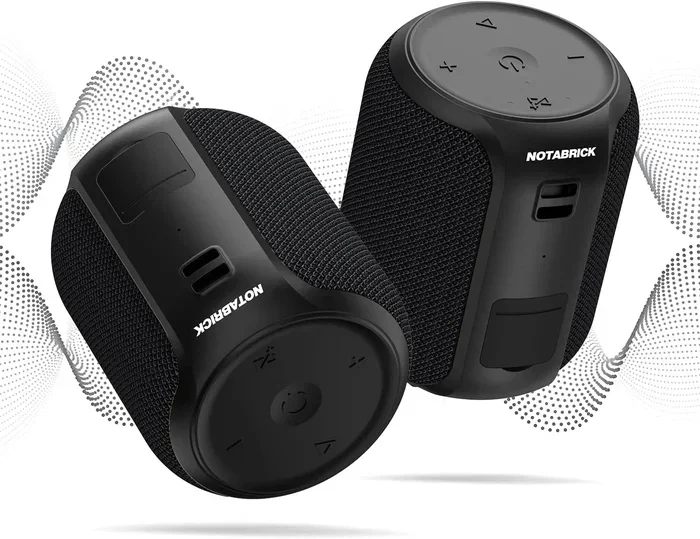
Playing two Bluetooth speakers simultaneously means sending the same audio signal to two separate wireless speakers at the same time. This is different from stereo pairing, where one speaker handles the left channel and the other handles the right. When you play on two speakers at once, both reproduce the same audio for extra volume and coverage.
There are two main goals people have when they set up dual speakers:
- Louder sound: One speaker alone may not be enough for a large room or outdoor event. Two speakers mean more volume without distortion.
- Wider coverage: Placing speakers in different corners of a room ensures everyone hears the music clearly, no matter where they are sitting.
Some people also use this setup as a soundbar alternative for their TV. By placing two speakers on either side of the screen, you get a wider soundstage that makes movies and shows more immersive. If you are interested in using Bluetooth for your TV, you can check out Can I Make My TV Have Bluetooth for helpful tips on getting wireless audio working with your television.
How to Play 2 Bluetooth Speakers at the Same Time
Method 1: Use Your Phone’s Built-In Dual Audio Feature
Many modern smartphones come with a native feature that lets you connect to two Bluetooth devices at once. This is the easiest way to pair speakers without downloading extra apps.
For Android phones:
- Go to Settings and tap on “Connected Devices” or “Bluetooth.”
- Turn on Bluetooth and pair your first speaker.
- Pair your second speaker the same way.
- Look for a setting called “Dual Audio,” “Multi-Speaker,” or “Audio Sharing.”
- Toggle it on, and both speakers will play simultaneously.
For iPhones:
- Apple introduced “Audio Sharing” in iOS 13 and later.
- Play music or a video on your iPhone.
- Swipe up to open Control Center and tap the AirPlay icon.
- Select both Bluetooth speakers from the list.
- The audio will stream to both devices at the same time.
This method works great for casual listening. However, you may notice a slight audio lag between the two speakers. This happens because Bluetooth has a natural delay when sending data to multiple devices. For most everyday uses, this lag is barely noticeable.
Method 2: Use Your Speaker Brand’s App
Many top speaker brands offer their own apps that include a dual-speaker or party mode feature. These apps give you more control over how your speakers work together.
JBL Connect and PartyBoost:
- JBL speakers with PartyBoost or Connect+ can link together wirelessly.
- Open the JBL Portable app on your phone.
- Select the “PartyBoost” option and follow the prompts.
- Two or more JBL speakers will sync up and play the same audio.
Sony Wireless Party Connect:
- Sony speakers support “Wireless Party Chain.”
- Download the Sony Music Center app.
- Select your speakers and enable party chain mode.
- Up to 100 Sony speakers can connect in a chain.
Bose SimpleSync:
- Bose speakers use SimpleSync to pair with other Bose or even Bose Soundbar devices.
- Open the Bose Music app and select SimpleSync.
- Choose the second speaker to complete the pair.
Using brand apps gives you a more stable connection than relying on phone-level Bluetooth features. The speakers communicate directly with each other, which reduces latency and improves sync. If you are into wireless audio and want to explore more Bluetooth options, you might enjoy reading about Can I Play Radio Using Bluetooth for creative ways to use your wireless setup.
Method 3: Use a Third-Party App for Windows or Mac
Not all speakers support native dual-pairing, and not every phone has a built-in multi-speaker feature. In these cases, third-party software can save the day.
For Windows PCs:
- Download apps like “Bluetooth Audio Receiver” or “Voicemeeter.”
- These tools let you route audio to multiple Bluetooth devices simultaneously.
- You may need to set each speaker as a separate audio output device.
For Mac computers:
- macOS has a built-in feature called “Aggregate Bluetooth Devices.”
- Go to Audio MIDI Setup in your Applications folder.
- Click the “+” button and select “Create Aggregate Device.”
- Check the boxes next to both Bluetooth speakers.
- Set this aggregate device as your default output.
This method takes a bit more setup, but it works reliably once configured. It is especially useful if you want to create a stereo pair from two identical speakers, where one handles the left channel and the other handles the right.
Method 4: Use an Audio Sharing Feature on Smart TVs
If your goal is to improve your TV audio using two Bluetooth speakers, many smart TVs now support audio sharing. Samsung, LG, and Sony smart TVs often have a feature that lets you connect two Bluetooth headphones or speakers at once. This is a convenient way to get wireless streaming sound without buying a dedicated sound system.
For a deeper dive into using Bluetooth with your TV setup, check out Can I Use Alexa As A Bluetooth Speaker For My Tv, which covers how to repurpose smart speakers as Bluetooth audio output for your television.
Which Devices Support Dual Bluetooth Speaker Pairing?
Not every device can handle two Bluetooth connections at the same time. Here is a quick breakdown of what to expect from popular devices.
| Device | Dual Bluetooth Support | How It Works |
|---|---|---|
| Samsung Galaxy Phones (Android 10+) | Yes | Dual Audio toggle in Bluetooth settings |
| iPhone (iOS 13+) | Yes | Audio Sharing via AirPlay |
| Windows PC | Partial | Third-party apps or audio routing software |
| Mac Computer | Yes | Aggregate Bluetooth Device in Audio MIDI Setup |
| iPad | Yes | Audio Sharing via AirPlay |
| Older Android Phones | No | Only one Bluetooth audio output at a time |
| Chromebook | Limited | Depends on Chrome OS version |
As you can see, newer devices generally support dual Bluetooth much better. If your phone or computer is a few years old, it may not have this feature built in. In that case, a third-party app or a Bluetooth transmitter with multipoint support can help bridge the gap.
Benefits of Playing 2 Bluetooth Speakers Together
Why go through the trouble of setting up two speakers? Here are the real benefits that make it worth your time.
1. Louder Volume Without Distortion
A single speaker pushed to maximum volume often sounds muddy or distorted. Splitting the audio across two speakers reduces the load on each device, giving you cleaner, louder sound. This is perfect for outdoor parties or large living rooms.
2. Better Room Coverage
One speaker in the corner of a room leaves “dead zones” where the sound is weak. Placing two speakers on opposite sides creates a more even sound distribution. Everyone in the room gets a consistent listening experience.
3. Portability Without Compromise
Instead of buying one expensive, bulky speaker, you can use two smaller, portable ones. These are easier to carry, set up, and store. They also give you flexibility in how you arrange your sound.
4. Cost-Effective Upgrade
If you already own one quality Bluetooth speaker, buying a second matching one is often cheaper than purchasing a high-end soundbar or home theater system. You get surprisingly good results for a fraction of the cost.
5. Versatile Use Cases
- Outdoor picnics: Place one speaker on each end of the blanket.
- Bathroom listening: One speaker on each side of the mirror.
- Office setup: Two small speakers on your desk for conference calls or background music.
- Camping trips: Hang one speaker from a tree on each side of your campsite.
Common Problems and How to Fix Them
Setting up two Bluetooth speakers is not always smooth sailing. Here are the most common issues and their solutions.
Problem 1: Speakers Are Out of Sync
This is the number one complaint with dual Bluetooth setups. One speaker plays a fraction of a second ahead of the other, creating an echo effect. Fix: Move both speakers closer together to reduce the Bluetooth range difference. Also, make sure both speakers are the same model, as different brands may process audio at different speeds.
Problem 2: Only One Speaker Connects
Sometimes your phone or computer only recognizes one speaker. Fix: Turn off Bluetooth, wait five seconds, and turn it back on. Then connect the second speaker while the first is still paired. On Android, make sure “Dual Audio” is toggled on in settings.
Problem 3: Audio Cuts Out Frequently
Bluetooth signals can weaken when there are walls or obstacles between the source and the speakers. Fix: Keep the source device within 10 feet of both speakers. Remove any large metal objects or Wi-Fi routers nearby, as they can cause Bluetooth interference.
Problem 4: Poor Sound Quality
When you split audio between two speakers, each one receives less data, which can reduce quality. Fix: Use speakers that support Bluetooth 5.0 or later, as these versions handle data transfer more efficiently. Also, keep both speakers within a clear line of sight of the source device.
Quick Tips to Avoid Problems
- Always update your speaker firmware before pairing.
- Keep both speakers at the same volume level for balanced output.
- Place speakers at the same distance from the source device.
- Avoid connecting more than two speakers unless your device explicitly supports it.
- Turn off other Bluetooth devices that are not in use to reduce interference.
Can You Use Different Brands of Speakers Together?
Yes, you can play 2 Bluetooth speakers from different brands at the same time, but it requires using your phone’s native dual audio or audio sharing feature. Brand-specific party modes (like JBL PartyBoost or Sony Wireless Party Chain) only work with speakers from the same brand.
Using different brands gives you more flexibility. For example, you could pair a JBL Flip with a Sony XB series speaker using your iPhone’s Audio Sharing feature. The sound quality might not be perfectly matched, but for casual listening, it works well. If you want to get the most out of mixing brands, make sure both speakers support the same Bluetooth version for the best sync and audio quality.
If you are exploring wireless audio options, you might also be interested in Can I Play My Record Player Through Bluetooth, which covers how to stream analog audio wirelessly using Bluetooth adapters and transmitters.
Expert Insights: What Audio Professionals Say About Dual Bluetooth Setups
Audio engineers generally agree that while dual Bluetooth speakers are convenient, they are not a replacement for a proper stereo system. Bluetooth compression and latency limitations mean the audio quality will not match a wired setup or a dedicated multi-speaker system like Sonos or Bose Lifestyle.
However, for everyday use, the convenience far outweighs the minor quality trade-offs. Most people cannot tell the difference in casual listening environments. If you are hosting a casual gathering or want background music while cooking, two Bluetooth speakers will serve you perfectly well.
Professionals also recommend keeping both speakers within the same room and at similar distances from the audio source. This simple step dramatically improves sync and sound quality. Using speakers of the same model and brand is the best way to ensure a seamless experience.
Final Thoughts
Playing 2 Bluetooth speakers at the same time is absolutely possible, and it is a fantastic way to upgrade your audio experience without spending a fortune. Whether you use your phone’s built-in features, a speaker brand app, or a third-party tool, the setup process is straightforward and well worth the effort.
Start with the method that fits your device best. If you have a newer iPhone or Samsung phone, try the native audio sharing feature first. If you own JBL, Sony, or Bose speakers, explore their dedicated apps for the most reliable connection. And if those options do not work, third-party software on your computer will get the job done.
Remember to keep your speakers close together, update their firmware, and use Bluetooth 5.0 devices whenever possible. These small steps make a big difference in sound quality and sync. Once you experience music filling your entire room from two wireless speakers, you will wonder how you ever managed with just one. Happy listening!