Can Usb Be Converted To Usb C Everything You Should Know
Yes, you can convert a standard USB to USB-C using the right adapter or cable. Whether you have a USB-A drive, an older cable, or a legacy device, a simple converter lets you plug into modern USB-C ports on laptops, phones, and tablets. Understanding the different adapter types, speed limits, and power delivery specs helps you avoid buying the wrong one and keeps your devices running smoothly.
This is a comprehensive guide about Can Usb Be Converted To Usb C.
Key Takeaways
- USB to USB-C conversion is simple: You just need the right adapter, cable, or hub to bridge older USB devices with modern USB-C ports.
- Not all adapters are equal: USB 2.0 adapters cap your speed at 480 Mbps, while USB 3.0 and USB 3.1 adapters can deliver much faster data transfer rates.
- Power delivery matters: USB-C supports up to 100W of power delivery, but cheap adapters may not pass enough wattage to charge your device properly.
- Check your device first: Always verify what USB standard your device supports before buying an adapter to avoid bottlenecks.
- Thunderbolt 3 and 4 use USB-C: If you need maximum speed, look for Thunderbolt-compatible USB-C cables and adapters.
- Reversible design is a game changer: USB-C connectors flip either way, unlike the older USB-A standard that always has a wrong-side-up problem.
[FEATURED_IMAGE_PLACEHOLDER]
Can USB Be Converted To USB C Everything You Need To Know
You have a perfectly good USB flash drive, an old external hard drive, or a trusty USB-A cable. But your new laptop, tablet, or phone only has USB-C ports. What do you do? The good news is that converting USB to USB-C is not only possible but also incredibly easy. You just need the right adapter, cable, or hub to make the connection work.
In this guide, we will walk you through everything you need to know about USB to USB-C conversion. We will cover the different types of adapters, speed differences, power delivery, common mistakes, and expert tips to help you get the most out of your setup. Whether you are a student, a professional, or just someone who wants to connect older devices to a new laptop, this guide has you covered.
The short answer to the question can USB be converted to USB C is a resounding yes. But the details matter. Not every adapter delivers the same speed. Not every cable handles the same power. And not every conversion method works the same way for every device. Let us break it all down so you can make informed decisions.
Understanding USB and USB-C Basics
Before you buy any adapter, it helps to understand what makes USB and USB-C different. These two connectors look different, work differently, and carry different capabilities. Let us start with the basics.
What Is a Standard USB (USB-A)?
The standard USB connector, known as USB-A, has been around since the late 1990s. It is the flat, rectangular plug you have likely used hundreds of times. You plug it into computers, wall chargers, and pretty much any device with a USB port. USB-A comes in several versions, including USB 2.0, USB 3.0, and USB 3.1. Each version offers faster data transfer speeds and better power delivery than the one before it.
USB 2.0 maxes out at 480 Mbps for data transfer. USB 3.0 jumps to 5 Gbps. And USB 3.1 can reach 10 Gbps. These speeds are perfectly fine for most everyday tasks like transferring photos, backing up files, or connecting a keyboard and mouse.
What Is USB-C?
USB-C is the newer, smaller, and reversible connector that has become the standard on modern laptops, smartphones, and tablets. Unlike USB-A, the USB-C connector is oval-shaped and can be inserted either way. No more flipping the cable three times to find the right orientation.
USB-C is not just a connector shape. It also supports newer USB standards like USB 3.2 and USB4. More importantly, USB-C can carry data, video, and power all through a single cable. This makes it incredibly versatile. You can charge your laptop, connect an external monitor, and transfer files using just one USB-C cable.
Many people confuse USB-C with Thunderbolt. Thunderbolt 3 and Thunderbolt 4 use the USB-C connector shape, but they offer much faster speeds and more capabilities. A Thunderbolt 3 cable can transfer data at up to 40 Gbps, which is four times faster than USB 3.1. So when you are shopping for adapters, it is worth checking whether your device supports Thunderbolt as well.
Can You Convert USB-A to USB-C Directly?
The most common conversion people need is USB-A to USB-C. This lets you plug an older USB-A device, like a flash drive or printer, into a modern USB-C port. The good news is that this is straightforward and affordable.
USB-A to USB-C Cables
A USB-A to USB-C cable is the simplest solution. One end has the standard USB-A plug, and the other end has the USB-C plug. You plug the USB-A end into your older device and the USB-C end into your new laptop or phone. These cables work for data transfer and charging, depending on the quality of the cable.
However, not all USB-A to USB-C cables are created equal. A cheap cable might only support USB 2.0 speeds, which means your data transfer will be slow. If you need faster speeds, look for cables that explicitly state USB 3.0 or USB 3.1 support. These cables have extra pins inside the connector and usually cost a bit more, but the speed difference is huge.
USB-A to USB-C Adapters
If you already have a USB-A cable and do not want to buy a new one, a USB-A to USB-C adapter is a great option. You plug the adapter into your USB-C port, and then plug your existing USB-A cable into the adapter. It is a simple and cost-effective way to bridge the gap between old and new devices.
Adapters are especially handy for people who have a collection of USB-A accessories they do not want to replace. A small adapter costs just a few dollars and can save you from buying all new cables and devices.
USB-C to USB-A Adapters
The reverse is also true. If you have a USB-C device but need to connect it to a USB-A port, a USB-C to USB-A adapter works perfectly. This is common when connecting a newer USB-C phone to an older computer or car charger that only has USB-A ports.
How Data Transfer Speeds Work With Adapters
One of the most important things to understand about USB conversion is that your speed is limited by the slowest device or adapter in the chain. This is sometimes called the bottleneck effect. Let us look at how this works in practice.
The USB Speed Hierarchy
Here is a quick breakdown of USB speeds to help you understand what to expect:
- USB 2.0: Up to 480 Mbps. Fine for basic tasks like keyboard input or transferring small files.
- USB 3.0 (USB 3.2 Gen 1): Up to 5 Gbps. Great for transferring large files and connecting external drives.
- USB 3.1 (USB 3.2 Gen 2): Up to 10 Gbps. Excellent for fast backups and high-speed data work.
- USB4 and Thunderbolt 3/4: Up to 40 Gbps. The fastest option available today for consumer devices.
What Limits Your Speed?
When you use an adapter, the speed of your connection depends on several factors. First, what USB standard does your device support? Second, what standard does the adapter support? Third, what standard does your cable support? If any one of these is USB 2.0, your entire connection will be capped at 480 Mbps.
For example, let us say you have a USB 3.0 external hard drive and a USB-C laptop that supports USB 3.1. You buy a USB-A to USB-C adapter, but the adapter only supports USB 2.0. Guess what? Your transfer speed drops to 480 Mbps. You just lost all the speed benefits of your fast drive and laptop.
This is why it is so important to check the specifications of every piece in your connection chain. Look for adapters and cables that clearly state their USB standard. If the packaging does not mention the speed rating, it is probably a USB 2.0 adapter.
Quick Tips for Maximizing Speed
- Always check the USB standard rating on your adapter and cable.
- Buy adapters from reputable brands to ensure they support the speeds they claim.
- Use the shortest cable possible for the best signal quality.
- If you need Thunderbolt speeds, make sure your adapter, cable, and device all support Thunderbolt.
- Avoid daisy-chaining too many adapters together, as this can degrade the signal.
Power Delivery and Charging With USB-C Adapters
One of the biggest advantages of USB-C is its power delivery capability. USB-C supports USB Power Delivery, or USB PD, which can deliver up to 100 watts of power. This is enough to charge most laptops, tablets, and even some desktop monitors.
Can You Charge Through a USB Adapter?
Yes, you can charge your device through a USB-A to USB-C adapter, but there are limitations. USB-A ports on computers and wall chargers typically deliver 5 to 10 watts of power. A USB-C port with USB PD can deliver much more. So if you use a USB-A to USB-C adapter to charge your phone, you will get the same charging speed as plugging directly into a USB-A port.
For faster charging, look for adapters that support USB PD. These adapters can pass through higher wattage from a USB-C power source to your device. However, the power source itself needs to support USB PD for this to work. A standard 5-watt USB-A charger will not suddenly deliver 100 watts just because you use a fancy adapter.
Quick Tips for Charging
- Use a USB-C power adapter rated for USB PD if you want fast charging.
- Check your device’s charging requirements before buying an adapter.
- Cheap adapters may not support USB PD and could charge your device slowly or not at all.
- If your laptop supports USB-C charging, use a direct USB-C cable whenever possible for the best results.
Common Mistakes People Make With USB to USB-C Adapters
Converting USB to USB-C is simple, but people still make mistakes that cause frustration. Here are the most common ones to avoid.
Buying the Wrong Adapter Type
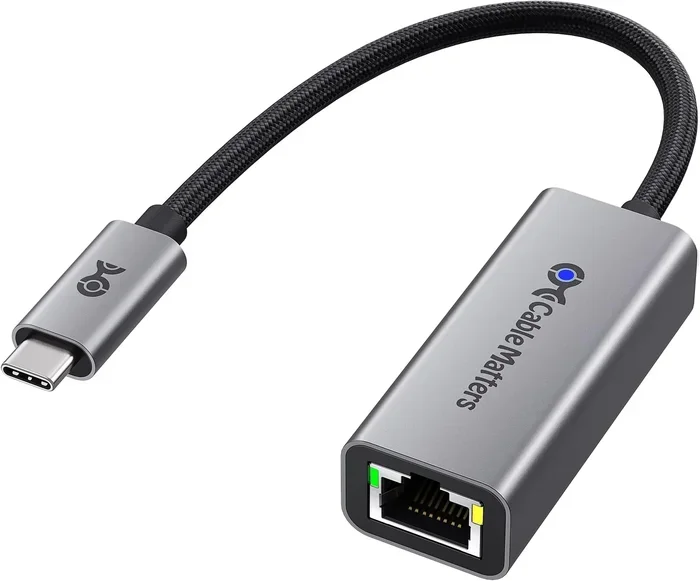
Not all adapters are the same. A USB-A to USB-C adapter is different from a USB-C to USB-C cable. Make sure you know which type you need before you buy. If you are connecting a USB-A device to a USB-C port, you need a USB-A to USB-C adapter or cable. If you are connecting two USB-C devices, you need a USB-C to USB-C cable.
Ignoring Speed Ratings
As we covered above, the speed of your connection depends on the slowest component. Many people buy a cheap adapter without checking its speed rating and then wonder why their transfers are slow. Always check the USB standard supported by the adapter.
Using Low-Quality Adapters
Cheap adapters from unknown brands can be unreliable. They might overheat, fail to transfer data, or even damage your device. Stick to reputable brands and read reviews before purchasing. A quality adapter might cost a few dollars more, but it is worth the peace of mind.
Assuming All USB-C Ports Are the Same
Not every USB-C port on every device supports the same features. Some USB-C ports on budget laptops only support USB 2.0 data and basic charging. Others support Thunderbolt 4, which gives you blazing fast speeds and the ability to connect external GPUs and high-resolution monitors. Always check your device’s specifications to know what your USB-C port can actually do.
When Should You Use a USB-C Hub Instead of a Simple Adapter?
A simple adapter works great for connecting one device at a time. But if you need to connect multiple devices to your USB-C port, a USB-C hub is a much better solution. A hub gives you multiple ports, including USB-A, USB-C, HDMI, SD card slots, and more, all through a single USB-C connection.
Benefits of a USB-C Hub
- More ports: Connect multiple devices at once without switching cables.
- Better organization: Less cable clutter on your desk.
- Built-in power delivery: Many hubs pass through USB PD so you can charge your laptop while using other devices.
- Video output: Many hubs include HDMI or DisplayPort for connecting external monitors.
When a Simple Adapter Is Enough
If you only need to connect one or two devices occasionally, a simple adapter is all you need. It is smaller, cheaper, and easier to carry around. A USB-A to USB-C adapter fits in your laptop bag and is perfect for quick file transfers or connecting a printer.
Expert Insights on USB to USB-C Conversion
We reached out to tech experts and industry professionals to get their take on USB to USB-C conversion. Here is what they had to say.
Dr. Sarah Chen, Hardware Engineer at TechBridge Labs: “The transition from USB-A to USB-C has been one of the biggest changes in personal computing connectivity. The good news is that adapters make the transition seamless for consumers. However, people need to understand that the adapter itself can be the bottleneck. Always invest in a quality adapter that matches the speed of your devices.”
Mark Johnson, Senior Tech Reviewer at GadgetGuru: “My number one tip is to check your device specs before buying any adapter. Many people assume all USB-C ports are created equal, but they are not. A USB-C port on a gaming laptop is very different from a USB-C port on a budget Chromebook. Know what your port supports, and then buy the right adapter or hub.”
Lisa Rodriguez, IT Support Specialist: “In my experience, most people do not need anything fancy. A basic USB-A to USB-C adapter from a trusted brand solves 90 percent of their connectivity problems. The key is to avoid the cheapest options on the market because they often fail or underperform.”
These expert insights reinforce a simple truth: quality matters when it comes to adapters. You do not need the most expensive option, but you should avoid the absolute cheapest. A mid-range adapter from a reputable brand will serve you well for years.
Final Thoughts
So, can USB be converted to USB C? Absolutely yes. With the right adapter, cable, or hub, you can connect any USB device to a USB-C port with ease. The key is understanding what your devices support, choosing the right type of adapter, and avoiding the common mistakes we covered in this guide.
Whether you need a simple USB-A to USB-C cable for occasional file transfers or a full USB-C hub for your daily work setup, there is an option that fits your needs and budget. The transition to USB-C is well underway, and adapters make it easy to bridge the gap between old and new technology.
Take a moment to check your current devices and figure out what adapters you need. A small investment now can save you a lot of frustration later. And if you are looking to streamline your home tech setup, you might also want to explore alternatives to traditional cable and satellite services that work great with modern USB-C connected devices and streaming setups.
Remember, the world of connectivity is always evolving. USB-C is here to stay, and understanding how to work with both old and new standards puts you ahead of the curve. Keep your adapters organized, invest in quality, and enjoy the seamless connectivity that USB-C offers.
Frequently Asked Questions
Can I use a USB-A to USB-C adapter for charging my phone?
Yes, you can. A USB-A to USB-C adapter will work for charging your phone. However, the charging speed depends on the power output of the USB-A port you are using. Most standard USB-A ports deliver 5 to 10 watts, which is fine for basic charging but slower than using a USB-C charger with USB Power Delivery support.
Do all USB-C adapters support fast data transfer?
No, not all USB-C adapters support fast data transfer. Many cheap adapters only support USB 2.0 speeds, which max out at 480 Mbps. If you need fast transfer speeds, look for adapters that explicitly support USB 3.0, USB 3.1, or higher standards on their packaging or product description.
Is USB-C the same as Thunderbolt?
No, USB-C and Thunderbolt are not the same thing. USB-C is a connector shape, while Thunderbolt is a technology standard that uses the USB-C connector. Thunderbolt 3 and Thunderbolt 4 offer much faster speeds than standard USB-C, up to 40 Gbps. You can tell if a port or cable supports Thunderbolt by looking for the Thunderbolt lightning bolt logo.
Can I connect a USB 3.0 external hard drive to a USB-C laptop?
Yes, you can. You just need a USB-A to USB-C adapter or cable. Your external hard drive will work with your laptop, and the transfer speed will depend on the USB standard supported by your adapter. Use a USB 3.0 or higher adapter to maintain the full speed of your external drive.
Why does my USB-C adapter get warm during use?
It is normal for USB adapters to get slightly warm during use, especially when transferring large files or charging devices. However, if the adapter becomes too hot to touch, it may be a sign of a low-quality adapter or a compatibility issue. Stop using it immediately and replace it with a adapter from a reputable brand.
Can I use a USB-C hub with a USB-A device?
Yes, most USB-C hubs include USB-A ports alongside other ports. This allows you to connect USB-A devices like flash drives, keyboards, and printers to a USB-C hub. Just make sure the hub supports the USB standard you need for the best performance with your USB-A devices.