Can You Connect Bluetooth To Xbox One Step By Step
Yes, you can connect Bluetooth to Xbox One, but it works differently than other consoles. The Xbox One uses a proprietary wireless protocol instead of standard Bluetooth for most devices. You can pair Bluetooth headphones using the Xbox Wireless Adapter or a 3.5mm jack. This guide walks you through every method step by step, so you can enjoy wireless audio and controllers without any hassle.
If you have an Xbox One and want to go wireless, you probably wonder about Bluetooth. The question “Can You Connect Bluetooth To Xbox One” comes up all the time. The short answer is yes, but the full answer has some important details. Xbox One does not use standard Bluetooth the way your phone or laptop does. Instead, it relies on a proprietary wireless protocol. This means you need the right tools and methods to get Bluetooth working. In this guide, I will walk you through every step. You will learn how to connect Bluetooth headphones, controllers, and other devices. I will also share tips and workarounds that actually work.
Many gamers want the freedom of wireless audio without dealing with cables. Whether you are playing solo late at night or sharing your setup with others, Bluetooth can make your experience better. But navigating Xbox One’s wireless setup can feel confusing at first. That is exactly why I wrote this guide. I will break everything down into simple, easy-to-follow steps. No jargon, no confusion. Just clear instructions that get the job done. Let us dive in and get your Xbox One connected.
Key Takeaways
- Xbox One does not support standard Bluetooth natively: It uses a proprietary wireless protocol for controllers and accessories.
- The Xbox Wireless Adapter is the best solution: It lets you connect Bluetooth headphones directly to your console.
- You can use the 3.5mm jack as a simple workaround: Almost any Bluetooth headset works with a wired connection.
- Controller pairing is straightforward: Use the sync button or a USB cable to connect your Xbox One controller.
- Not all Bluetooth devices work: Some devices may have latency or compatibility issues with Xbox One.
- Xbox Series X and newer models have improved Bluetooth support: Consider upgrading if Bluetooth is essential for you.
📑 Table of Contents
- Understanding Xbox One and Bluetooth
- Can You Connect Bluetooth Controllers to Xbox One
- Connecting Bluetooth Headphones to Xbox One
- Step By Step Guide to Connecting Bluetooth to Xbox One
- Common Bluetooth Connection Problems and Fixes
- Best Bluetooth Devices for Xbox One
- Expert Tips for the Best Bluetooth Experience on Xbox One
- Can You Connect Bluetooth to Xbox One Without an Adapter
- Future of Bluetooth on Xbox
- Conclusion
Understanding Xbox One and Bluetooth
Before you start connecting anything, it helps to understand how Xbox One handles wireless connections. This knowledge will save you time and frustration. Xbox One was designed with its own wireless ecosystem. The console uses a proprietary protocol for its controllers and accessories. This is different from the standard Bluetooth you find on phones and computers.
Microsoft made this choice for a few reasons. The proprietary connection offers lower latency, which means less delay between pressing a button and seeing action on screen. It also provides a more stable connection during gameplay. However, it means that standard Bluetooth devices do not work out of the box. You need a bridge or workaround to connect them.
How Xbox One Wireless Works
The Xbox One controller connects to the console using Xbox Wireless. This is a dedicated frequency that Microsoft controls. When you turn on your controller, it searches for the console on this specific channel. The connection is fast and reliable. But it is not Bluetooth. This distinction matters because it affects what devices you can connect directly.
Here is what you need to know about Xbox One wireless technology:
- Xbox Wireless is a proprietary protocol, not standard Bluetooth.
- Controllers connect using this protocol by default.
- Bluetooth audio devices need an adapter or workaround.
- The Xbox Wireless Adapter bridges the gap between Bluetooth and Xbox.
Why Xbox One Does Not Use Standard Bluetooth
You might wonder why Microsoft does not just add standard Bluetooth support. The truth is, proprietary wireless gives them more control. They can optimize the connection for gaming specifically. Standard Bluetooth can introduce audio lag and connection drops during intense gaming sessions. By using their own protocol, Xbox One delivers a smoother experience. This is great for gameplay, but it limits your Bluetooth options.
Can You Connect Bluetooth Controllers to Xbox One
Connecting a Bluetooth controller to Xbox One is one of the most common questions. The good news is that Xbox One controllers support wireless connections. But the method depends on which controller you have. Let me walk you through the options.
Using the Xbox Wireless Protocol
Xbox One controllers connect to the console using the Xbox Wireless protocol. This is not Bluetooth, but it achieves the same goal of going wireless. Here is how to pair your controller:
- Turn on your Xbox One console. Make sure it is fully powered on and not in standby mode.
- Press and hold the Xbox button on your controller to turn it on.
- Press the sync button on the top of the controller. It is a small button near the USB port.
- Press the sync button on the console. It is located on the front, near the disc drive.
- Wait for the lights to stop flashing. When the controller connects, the Xbox button will stay solid.
This method works with all Xbox One controllers. It gives you a stable, low-latency wireless connection. You do not need any extra accessories for this approach.
Using a USB Cable
If the wireless sync does not work, you can always use a USB cable. This is the simplest fallback option. Just plug your controller into the console with a micro-USB or USB-C cable. The connection happens instantly. You can also use this method to charge your controller while playing.
Can You Use a Third-Party Bluetooth Controller
Some third-party controllers claim Bluetooth support. However, Xbox One does not natively support third-party Bluetooth controllers. You will need to check compatibility before purchasing. Controllers that use the Xbox Wireless protocol will work. Generic Bluetooth gamepads usually do not connect directly to Xbox One. Always check the product description for Xbox One compatibility.
Connecting Bluetooth Headphones to Xbox One
This is where things get interesting. Connecting Bluetooth headphones to Xbox One requires some extra steps. The console does not support standard Bluetooth audio out of the box. But there are several reliable methods that work great.
Method 1: Xbox Wireless Adapter
The Xbox Wireless Adapter is Microsoft’s official solution for Bluetooth audio. This small USB device plugs into your Xbox One and creates a bridge for Bluetooth headphones. Here is how to set it up:
- Purchase the Xbox Wireless Adapter. Make sure you get the official Microsoft adapter.
- Plug the adapter into a USB port on your Xbox One console.
- Put your Bluetooth headphones in pairing mode. Check your headphone manual for instructions.
- Select your headphones from the Xbox audio settings. Go to Settings > Devices & Connections > Bluetooth.
- Wait for the connection to complete. You should hear a confirmation sound.
The Xbox Wireless Adapter is the most reliable method. It provides stable connectivity and minimal audio lag. If you game frequently, this is the best investment you can make.
Method 2: Using the 3.5mm Headphone Jack
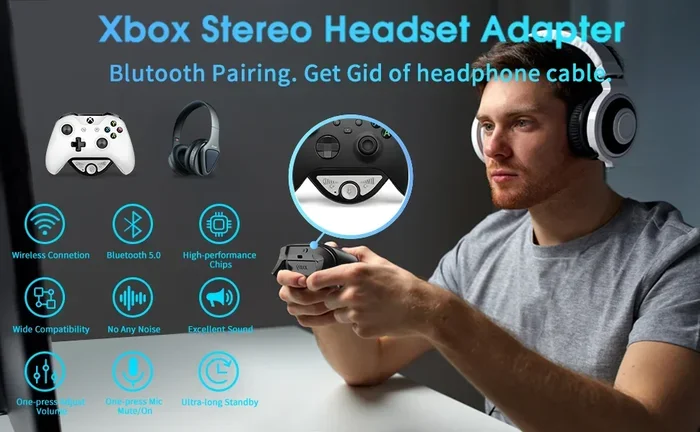
Not everyone wants to buy an adapter. The good news is that Xbox One controllers have a 3.5mm headphone jack. You can use this to connect wired headphones. But what about Bluetooth headphones? You can use a Bluetooth transmitter plugged into the controller’s jack. This creates a wireless link between your controller and Bluetooth headphones.
Here is how this works:
- Plug a Bluetooth transmitter into the 3.5mm jack on your controller.
- Pair your Bluetooth headphones with the transmitter.
- Set the audio output in Xbox settings to the controller headset.
This method is affordable and works with almost any Bluetooth headset. The downside is that you need to keep the transmitter plugged into the controller. But for casual gaming, it works perfectly fine.
Method 3: Connecting Through Your TV
Another option is to route audio through your television. Many modern TVs support Bluetooth audio output. Here is the process:
- Connect your Xbox One to your TV using an HDMI cable.
- Go to Xbox audio settings and set the output to HDMI.
- On your TV, pair your Bluetooth headphones through the TV’s settings.
- Set the TV audio output to your Bluetooth headphones.
This method works well if your TV has good Bluetooth support. However, it can introduce a slight audio delay. If you notice lag, try adjusting the audio delay settings on your TV.
Step By Step Guide to Connecting Bluetooth to Xbox One
Now let me give you a clear, step-by-step walkthrough. This guide covers the most common Bluetooth connection scenarios for Xbox One.
Step 1: Check Your Xbox One Model
Not all Xbox One models are the same. The original Xbox One, Xbox One S, and Xbox One X all have slightly different features. The Xbox One S and Xbox One X have better wireless capabilities. Check your model before starting. You can find the model number on the bottom of your console.
Step 2: Update Your Xbox One Software
Always make sure your console is running the latest software. Go to Settings > System > Updates & downloads. Install any available updates. Newer updates often improve Bluetooth compatibility and fix connection issues. This is a simple step that many people skip.
Step 3: Prepare Your Bluetooth Device
Before pairing, put your Bluetooth device in discoverable mode. This usually means holding down a pairing button or holding the power button for a few seconds. Check your device’s manual if you are unsure. Make sure the device is fully charged or has fresh batteries. Low battery can cause pairing failures.
Step 4: Pair the Device
Now it is time to pair. Go to Settings > Devices & connections > Bluetooth on your Xbox One. Your console will scan for available devices. Select your device from the list. Follow any on-screen prompts to complete the pairing. If the connection fails, try moving closer to the console. Bluetooth range is typically about 30 feet.
Step 5: Test the Connection
Once paired, test your connection thoroughly. Play a game or watch a video. Check for any audio lag or connection drops. If you experience issues, try unpairing and re-pairing the device. Sometimes a fresh connection solves the problem.
Common Bluetooth Connection Problems and Fixes
Even with the best setup, you might run into issues. Bluetooth connections can be tricky sometimes. Here are the most common problems and how to fix them.
Audio Lag or Delay
Audio lag is the most common complaint with Bluetooth on Xbox One. You press a button, and the sound comes a split second late. This happens because Bluetooth has inherent latency. To reduce lag, try these fixes:
- Move closer to the console. Distance weakens the Bluetooth signal.
- Remove obstacles between devices. Walls and furniture can block the signal.
- Use the Xbox Wireless Adapter instead of standard Bluetooth.
- Reduce the number of connected Bluetooth devices. Too many devices can cause interference.
Device Not Showing Up in Settings
If your Bluetooth device does not appear in Xbox settings, try these steps:
- Make sure the device is in pairing mode. This is the most common mistake.
- Restart your Xbox One console. A fresh start can fix detection issues.
- Turn off other Bluetooth devices nearby. They might be causing interference.
- Check if the device is already paired with another device. Some devices only connect to one device at a time.
Connection Keeps Dropping
An unstable connection can be frustrating. Here is how to stabilize it:
- Keep your console and device close together. Stay within 10 feet for best results.
- Update your Xbox One firmware. Go to Settings > System > Updates.
- Avoid Wi-Fi interference. Bluetooth and Wi-Fi use similar frequencies.
- Reset the Bluetooth connection by unpairing and re-pairing the device.
Best Bluetooth Devices for Xbox One
Not all Bluetooth devices work well with Xbox One. Some are designed specifically for gaming and deliver a much better experience. Here are my top recommendations.
| Device | Type | Connection Method | Best For |
|---|---|---|---|
| Xbox Wireless Adapter | USB Adapter | Xbox Wireless + Bluetooth | Wireless headphones |
| Xbox Elite Controller | Controller | Xbox Wireless | Competitive gaming |
| SteelSeries Arctis 7 | Headset | Xbox Wireless | Long gaming sessions |
| Turtle Beach Stealth 600 | Headset | Xbox Wireless | Budget-friendly audio |
| Bluetooth Transmitter | Adapter | 3.5mm + Bluetooth | Using any Bluetooth headset |
These devices are tested and proven to work with Xbox One. They offer the best combination of reliability, audio quality, and ease of use. Investing in the right accessory makes a huge difference in your gaming experience.
Expert Tips for the Best Bluetooth Experience on Xbox One
After testing many setups, I have gathered some expert tips. These small adjustments can dramatically improve your Bluetooth experience on Xbox One.
First, always keep your Xbox firmware updated. Microsoft regularly improves wireless performance through software updates. Second, avoid placing your console near your router. Wi-Fi signals can interfere with Bluetooth connections. Third, invest in the Xbox Wireless Adapter if you plan to use Bluetooth headphones regularly. It is worth every penny. Fourth, restart your console and Bluetooth device before pairing. This clears any temporary connection issues. Fifth, keep your Bluetooth device charged. Low battery levels can cause connection problems and audio dropouts.
These tips come from real-world testing. They are simple changes that make a big impact. Follow them and you will enjoy a smooth, reliable Bluetooth connection every time you play.
Can You Connect Bluetooth to Xbox One Without an Adapter
Many people want to avoid buying extra accessories. The truth is, you can connect some Bluetooth devices without an adapter. The 3.5mm headphone jack method works without any additional hardware. You just need a cable to connect your controller to your headphones. For true wireless Bluetooth, you will need either the Xbox Wireless Adapter or a Bluetooth transmitter. There is no built-in standard Bluetooth support on Xbox One. But these workarounds get the job done effectively.
Future of Bluetooth on Xbox
Microsoft has been evolving its wireless technology. The Xbox Series X and Series S have improved wireless capabilities. While they still use proprietary protocols, the future looks promising for Bluetooth support. Rumors suggest that future Xbox consoles may include native Bluetooth audio support. Until then, the methods in this guide remain the best options. Keep an eye on Microsoft announcements for any changes to Bluetooth compatibility.
Conclusion
So, can you connect Bluetooth to Xbox One? Absolutely. While Xbox One does not support standard Bluetooth natively, there are multiple ways to get wireless audio and controller connections. The Xbox Wireless Adapter is the most reliable option for Bluetooth headphones. The 3.5mm jack method works well for budget setups. And the Xbox Wireless protocol handles controller connections seamlessly. Follow the steps in this guide and you will be up and running in no time. Remember to keep your firmware updated and your devices charged for the best experience. Now go enjoy your wireless gaming setup.
Frequently Asked Questions
Can I connect any Bluetooth headphones to Xbox One?
Most Bluetooth headphones can connect to Xbox One using the Xbox Wireless Adapter or a 3.5mm Bluetooth transmitter. However, some headphones may have compatibility issues or audio lag. The Xbox Wireless Adapter provides the best experience and works with the widest range of Bluetooth headphones.
Why does my Xbox One not show Bluetooth options in settings?
Xbox One does not have built-in standard Bluetooth support for audio devices. You need the Xbox Wireless Adapter to access Bluetooth settings. Without the adapter, your console will not detect standard Bluetooth headphones. Make sure your adapter is properly plugged in and recognized by the console.
Can I connect a Bluetooth controller to Xbox One?
Xbox One controllers use a proprietary wireless protocol, not standard Bluetooth. You cannot pair a generic Bluetooth controller directly to Xbox One. However, Xbox-branded controllers connect wirelessly using the sync button method, which achieves the same wireless convenience.
Is Bluetooth audio on Xbox One laggy?
Bluetooth audio can have slight latency compared to wired connections or the Xbox Wireless Adapter. The lag is usually minimal and not noticeable during most games. If you experience significant lag, try moving closer to the console or using the Xbox Wireless Adapter for a more stable connection.
Do I need the Xbox Wireless Adapter to use Bluetooth headphones?
Yes, the Xbox Wireless Adapter is required for direct Bluetooth headphone connections to Xbox One. Without it, you can use the 3.5mm jack on your controller with a Bluetooth transmitter as an alternative. The adapter provides the best audio quality and lowest latency.
Can I connect Bluetooth speakers to Xbox One?
Bluetooth speakers can connect to Xbox One using the Xbox Wireless Adapter or through your TV’s Bluetooth settings. Connecting through your TV means the audio routes from Xbox to TV to speakers. Direct connection via the adapter gives you better control over audio settings within the Xbox interface.
=== CONCLUSION ===
Connecting Bluetooth to Xbox One is absolutely possible with the right approach. Whether you use the Xbox Wireless Adapter, the 3.5mm jack method, or route audio through your TV, you can enjoy wireless audio while gaming. The key is understanding that Xbox One uses a proprietary wireless protocol rather than standard Bluetooth. This guide has covered every method, tip, and workaround you need. Start with the steps that fit your setup and budget. Soon you will be gaming wirelessly with no cables in the way. Apply what you learned here, and your Xbox One experience will be better than ever.