Can Thunderbolt Convert To USB C Everything You Need To Know
Yes, Thunderbolt can work with USB-C ports because Thunderbolt uses the same connector shape as USB-C. This means you can plug Thunderbolt cables and devices into USB-C ports, but full Thunderbolt speed requires Thunderbolt-compatible hardware on both ends. Understanding this connection helps you get the most from your devices, cables, and docking stations without confusion or wasted money.
This is a comprehensive guide about Can Thunderbolt Convert To Usb C.
Key Takeaways
- Thunderbolt and USB-C share the same physical connector: They look identical, but not all USB-C ports support Thunderbolt speeds.
- Thunderbolt is backward compatible with USB-C: You can use Thunderbolt cables with USB-C devices, though you will not get Thunderbolt speeds on non-Thunderbolt ports.
- Thunderbolt 3 and Thunderbolt 4 both use USB-C: These versions deliver up to 40Gbps data transfer and can carry video and power through a single cable.
- You need Thunderbolt-certified hardware for full performance: A Thunderbolt cable plugged into a plain USB-C port will only operate at USB-C speeds.
- Adapters and docking stations expand functionality: Thunderbolt docks let you connect multiple peripherals through one USB-C port on your laptop.
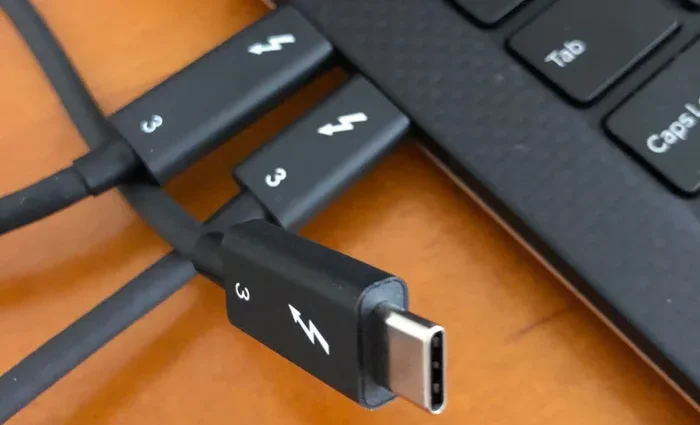
- Check your device specs before buying: Look for the Thunderbolt icon (lightning bolt) next to the port to confirm compatibility.
[FEATURED_IMAGE_PLACEHOLDER]
Can Thunderbolt Convert To USB C Everything You Need To Know
If you have ever held a Thunderbolt cable and a USB-C cable side by side, you probably noticed they look exactly the same. Same shape. Same size. Same reversible connector. So it is natural to wonder, can Thunderbolt convert to USB C? The short answer is yes, but the full story is a little more nuanced than that.
Thunderbolt technology, developed by Intel in partnership with Apple, uses the USB-C connector as its physical interface. This means a Thunderbolt cable can physically plug into a USB-C port. However, whether you get Thunderbolt speeds and features depends on the hardware inside the port and device. This guide breaks down everything you need to know about Thunderbolt and USB-C compatibility, so you never buy the wrong cable or dock again.
Whether you are a creative professional moving massive video files, a student connecting a laptop to an external monitor, or someone who just wants faster data transfers, understanding how Thunderbolt and USB-C work together saves you time, money, and frustration. Let us dive into the details.
What Exactly Is Thunderbolt?
Thunderbolt is a high-speed connection technology that combines data, video, and power into one single cable. It was first introduced by Intel and Apple back in 2011. Over the years, it has evolved through several versions, each offering faster speeds and more capabilities. Today, Thunderbolt 3 and Thunderbolt 4 are the most common versions you will encounter.
The key thing to understand is that Thunderbolt uses the USB-C connector. This was a game-changer because before Thunderbolt 3, Thunderbolt used its own proprietary connector called Mini DisplayPort. The switch to USB-C made Thunderbolt much more universal and easier to use. Now one cable type can handle charging, data transfer, and video output simultaneously.
Thunderbolt 3 vs Thunderbolt 4
Thunderbolt 3 launched in 2015 and introduced the USB-C form factor. It supports up to 40 gigabits per second (Gbps) data transfer, can drive a 4K display, and delivers up to 100 watts of power through USB-C Power Delivery. Thunderbolt 4, released in 2020, builds on that foundation with stricter certification requirements and guaranteed support for a 4K display or two 1080p displays.
Here is a quick comparison of the two versions:
- Thunderbolt 3: 40 Gbps, one 4K display or two 1080p displays, 100W power delivery, minimum PCIe bandwidth of 16 Gbps.
- Thunderbolt 4: 40 Gbps, one 4K display or two 1080p displays (guaranteed), 100W power delivery, minimum PCIe bandwidth of 32 Gbps, wake-from-sleep support.
Both versions use the same USB-C connector and are fully compatible with USB-C devices. The difference lies in the minimum performance guarantees and additional features like wake-from-sleep support in Thunderbolt 4.
Can Thunderbolt Connect to USB-C Ports?
Yes, a Thunderbolt cable can physically connect to a USB-C port. The connector is the same shape and size. This is because Thunderbolt was designed to use the USB-C standard as its physical layer. When you plug a Thunderbolt cable into a USB-C port, the connection works at the physical level.
However, here is where it gets important. If you plug a Thunderbolt cable into a standard USB-C port that does not support Thunderbolt, the connection will still work, but it will only operate at USB-C speeds and capabilities. You will not get the full 40 Gbps Thunderbolt speed, and you will not get Thunderbolt-specific features like daisy-chaining multiple Thunderbolt devices.
Can Thunderbolt convert to USB C? In a sense, yes. Thunderbolt signals can work through USB-C cables and ports, but only when both ends support Thunderbolt. Think of it this way: Thunderbolt rides on top of the USB-C connector, but it needs Thunderbolt-compatible hardware to unlock its full potential.
If you want to explore other connectivity options and devices that work with USB-C and similar ports, check out our guide on alternatives to Dish Network and DirectTV for devices that use USB-C and modern connectivity standards.
What Happens When You Mix Thunderbolt and USB-C?
When you connect a Thunderbolt device to a USB-C port, several things happen automatically. The devices negotiate the connection and agree on the highest common standard they both support. If the port is a plain USB-C port, the connection falls back to USB-C speeds, which top out at 10 Gbps for USB 3.2 Gen 2.
This backward compatibility is by design. Intel built Thunderbolt to work seamlessly with existing USB-C ecosystems. You do not need to worry about damaging your devices or cables. The worst that happens is you do not get the maximum Thunderbolt performance. The devices still communicate and work together just fine.
Thunderbolt vs USB-C: What Is the Difference?
This is one of the most common sources of confusion. People see the same connector shape and assume they are the same thing. They are not. Thunderbolt is a protocol, while USB-C is a connector shape. Think of USB-C as the physical plug and Thunderbolt as a language that can speak through that plug.
Here is a simple way to think about it:
- USB-C: A connector shape. It can carry USB data, power, and video. Speeds depend on the USB version (USB 3.2, USB4, etc.).
- Thunderbolt: A protocol that uses the USB-C connector. It combines USB data, DisplayPort video, and PCIe into one connection, with speeds up to 40 Gbps.
All Thunderbolt 3 and Thunderbolt 4 cables and ports use USB-C. But not all USB-C ports and cables support Thunderbolt. This distinction matters when you are buying cables, adapters, or docking stations.
How to Tell If a Port Supports Thunderbolt
The easiest way to check is to look for the Thunderbolt icon next to the port. It looks like a lightning bolt. If you see that symbol, your port supports Thunderbolt. If you only see the USB-C icon (which looks like a circle with a line at the bottom), then it is a standard USB-C port without Thunderbolt support.
Some devices also list Thunderbolt support in their specifications. If you are shopping for a laptop, monitor, or docking station, always check the product specs for Thunderbolt compatibility. Do not assume that just because a port is USB-C, it supports Thunderbolt.
How Thunderbolt and USB-C Work Together in Real Life
Understanding the theory is helpful, but seeing how Thunderbolt and USB-C work together in everyday situations makes it much clearer. Let us look at some practical scenarios where this compatibility matters.
Connecting an External Monitor
Many modern laptops come with USB-C or Thunderbolt ports. If your laptop has a Thunderbolt port, you can connect it directly to a Thunderbolt monitor using a USB-C cable. The same cable carries video, data, and power all at once. This means one cable replaces two or three cables you would otherwise need.
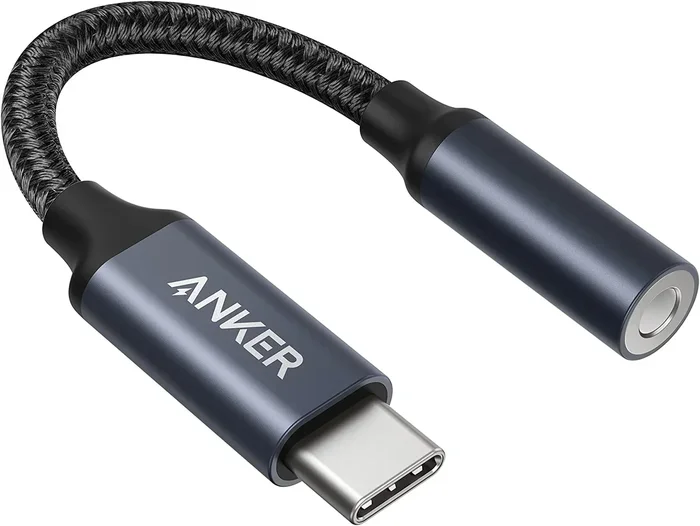
If your laptop has a standard USB-C port without Thunderbolt, you can still connect to a monitor, but you may need a separate video cable or a USB-C to HDMI adapter. The experience is not as seamless, but it still works.
Docking Stations and Hubs
Thunderbolt docking stations are incredibly powerful. They let you connect multiple monitors, external hard drives, Ethernet cables, and charging cables through a single Thunderbolt port on your laptop. Because Thunderbolt supports daisy-chaining, you can even connect a Thunderbolt dock to another Thunderbolt device in a chain.
USB-C docking stations work too, but they typically do not offer the same speeds or daisy-chaining capability. If speed and versatility matter to you, a Thunderbolt dock is the better choice. Just make sure your laptop has a Thunderbolt port to get the full benefit.
Data Transfer and Storage
For professionals who work with large files like video editors, photographers, and data analysts, Thunderbolt speeds are a game-changer. Transferring a 100GB file over a Thunderbolt 3 connection takes just a few minutes. The same transfer over a standard USB-C 3.2 Gen 2 connection takes longer but is still much faster than older USB standards.
External SSDs and hard drives that support Thunderbolt deliver incredible read and write speeds. These devices use the USB-C connector but include Thunderbolt chips inside to unlock the full 40 Gbps bandwidth.
Common Mistakes People Make with Thunderbolt and USB-C
Even with all the information available, people still make mistakes when working with Thunderbolt and USB-C. Here are some common pitfalls to avoid.
Assuming All USB-C Cables Are Thunderbolt Cables
This is the number one mistake. Not all USB-C cables support Thunderbolt. A standard USB-C cable might only support 10 Gbps data speeds and 60W power delivery. A Thunderbolt-certified cable supports 40 Gbps and 100W power delivery. If you need Thunderbolt speeds, you must use a Thunderbolt-certified cable.
Buying Thunderbolt Devices for USB-C Ports
It works the other way around too. Some people buy Thunderbolt docks or adapters for laptops that only have standard USB-C ports. The device will work, but you will not get Thunderbolt speeds or features. Always check your device specifications before purchasing Thunderbolt accessories.
Ignoring Cable Length Limitations
Thunderbolt cables have distance limitations. Active Thunderbolt cables can reach up to 2 meters (about 6.5 feet) at full 40 Gbps speed. Passive cables are limited to shorter distances. Using a cable that is too long without an active signal booster can result in slower speeds or connection drops.
Not Checking for Firmware Updates
Thunderbolt devices sometimes need firmware updates to work properly with newer systems. If your Thunderbolt dock or cable is not working as expected, check the manufacturer’s website for firmware or driver updates. This simple step solves many connectivity issues.
Expert Tips for Getting the Most from Thunderbolt and USB-C
Want to maximize your experience with Thunderbolt and USB-C connections? Here are some expert tips that make a real difference.
- Buy Thunderbolt-certified cables: Look for the Thunderbolt certification mark on the cable packaging. This guarantees the cable meets Intel’s performance standards.
- Label your cables: If you have both Thunderbolt and standard USB-C cables, label them so you always grab the right one for the right job.
- Use Thunderbolt docks for workstation setups: A Thunderbolt dock transforms your laptop into a full desktop workstation with one connection.
- Check your laptop’s port specs before traveling: Different laptop models have different port configurations. Know what your machine supports before you pack your bags.
- Keep firmware updated: Regularly check for Thunderbolt firmware and driver updates from your laptop manufacturer and device makers.
- Use short cables for maximum speed: Shorter Thunderbolt cables maintain full 40 Gbps speeds better than longer ones.
These small habits add up to a much smoother and faster experience every time you connect your devices. The more you know about your hardware, the better decisions you make.
Key Takeaways
- Thunderbolt uses the USB-C connector: They share the same physical shape, which is why Thunderbolt cables fit into USB-C ports.
- Full Thunderbolt performance requires Thunderbolt hardware: A Thunderbolt cable in a standard USB-C port works but runs at USB-C speeds only.
- Thunderbolt 3 and 4 offer up to 40 Gbps speeds: These versions deliver blazing fast data transfer, video output, and 100W power delivery.
- Always look for the lightning bolt icon: This is the easiest way to confirm Thunderbolt support on any port or device.
- Thunderbolt is fully backward compatible with USB-C: Your Thunderbolt devices will work with USB-C ports, just at reduced speeds.
- Thunderbolt docks and adapters expand your setup: They let you connect multiple peripherals through a single Thunderbolt or USB-C port.
- Buy certified cables and accessories: Thunderbolt-certified products guarantee the speeds and reliability you are paying for.
Conclusion
So, can Thunderbolt convert to USB C? Absolutely. Thunderbolt was built from the ground up to use the USB-C connector, making it one of the most versatile and compatible connection technologies available today. You can plug Thunderbolt cables into USB-C ports, connect Thunderbolt devices to standard USB-C setups, and enjoy seamless backward compatibility across generations of hardware.
The key takeaway is that while the connector is the same, the performance depends on what both ends of the connection support. Thunderbolt unlocks speeds up to 40 Gbps, video output, and 100W power delivery through a single cable. Standard USB-C handles these tasks too, just at lower speeds and with fewer features.
Now that you understand how Thunderbolt and USB-C work together, you can make smarter buying decisions. Check your device specs, buy the right cables, and invest in Thunderbolt accessories when you need the extra speed and versatility. The more you know, the more you get out of your tech setup every single day.
FAQs
Is Thunderbolt the same as USB-C?
No, Thunderbolt and USB-C are not the same thing. USB-C is a connector shape, while Thunderbolt is a connection protocol that uses the USB-C connector. All Thunderbolt 3 and 4 ports use USB-C, but not all USB-C ports support Thunderbolt. Always look for the lightning bolt icon to confirm Thunderbolt support.
Can I use a Thunderbolt cable with a non-Thunderbolt USB-C port?
Yes, you can. A Thunderbolt cable will physically fit into any USB-C port and the connection will work. However, the connection will operate at standard USB-C speeds rather than Thunderbolt speeds. You will still get data transfer and charging, just not the full 40 Gbps Thunderbolt performance.
Do I need a special cable for Thunderbolt speeds?
Yes, you need a Thunderbolt-certified cable to achieve Thunderbolt speeds. Standard USB-C cables may look the same but they are not designed to handle the 40 Gbps bandwidth of Thunderbolt 3 or Thunderbolt 4. Always check for the Thunderbolt certification mark when shopping for cables.
Can I connect a Thunderbolt monitor to a USB-C laptop?
Yes, you can connect a Thunderbolt monitor to a USB-C laptop. The monitor will work, but you may not get the full Thunderbolt feature set like daisy-chaining. If your laptop only has USB-C without Thunderbolt, the monitor will still display and function normally, just without Thunderbolt-specific features.
What is the difference between USB4 and Thunderbolt 4?
USB4 and Thunderbolt 4 share the same USB-C connector and both support up to 40 Gbps speeds. The main difference is that Thunderbolt 4 has stricter certification requirements, including guaranteed support for a 4K display, wake-from-sleep functionality, and minimum PCIe bandwidth of 32 Gbps. All Thunderbolt 4 devices are USB4 compatible, but not all USB4 devices support Thunderbolt.
How do I know if my laptop has a Thunderbolt port?
Look for the lightning bolt icon next to the port on your laptop. You can also check your laptop’s specifications in the product manual or on the manufacturer’s website. If the specs mention Thunderbolt 3 or Thunderbolt 4, your laptop has a Thunderbolt-enabled USB-C port.
Frequently Asked Questions
What is Can Thunderbolt Convert To Usb C?
Can Thunderbolt Convert To Usb C is an important topic with many practical applications.