Can You Connect Soundbar To A TV With Just An Optical Cable
Yes, you can connect a soundbar to a TV with just an optical cable. This simple optical audio connection delivers crisp digital sound without needing extra wires or complicated setups. Whether you own a basic soundbar or a full home theater system, a Toslink cable works as a reliable audio connection method. In this guide, we walk you through every step, from plugging in the cable to adjusting your audio settings. By the end, you will know exactly how to set up your soundbar setup using only an optical cable.
So you just bought a soundbar, and now you are staring at your TV wondering how to get it connected. You look at the back of your TV and see a small square port labeled “Optical Out.” Perfect, right? But wait — can you really connect a soundbar to a TV with just an optical cable? The short answer is yes. The longer answer is that it depends on your TV, your soundbar, and what kind of audio experience you want.
Many people skip the HDMI ARC route and go straight for the optical connection. It is simple, affordable, and works with almost any setup. But there are a few things you should know before you plug in that fiber optic cable. In this article, we will walk you through everything you need to know. We will cover how the connection works, how to set it up, what to watch out for, and how to fix common problems.
Whether you are a total beginner or someone who just wants to confirm you are doing it right, this guide has you covered. Let us dive in and make your home theater sound amazing with nothing more than a single cable.
Key Takeaways
- Simple Setup: An optical cable is one of the easiest ways to link your soundbar to your TV.
- Wide Compatibility: Most modern TVs and soundbars include an optical audio output or input.
- No Extra Hardware Needed: You do not need an HDMI cable or special adapters for a basic connection.
- Digital Sound Quality: Optical cables carry uncompressed digital audio for clear, rich sound.
- Limitations Exist: You may lose some advanced audio formats like Dolby Atmos over optical.
- Quick Troubleshooting: Most issues can be fixed by checking cable seating and TV audio settings.
📑 Table of Contents
- What Is an Optical Cable and How Does It Work?
- Step-by-Step Guide to Connecting Your Soundbar
- Soundbar Compatibility: Which TVs Work With Optical?
- Pros and Cons of Using an Optical Cable
- Troubleshooting Common Optical Connection Issues
- Optical vs Other Connection Methods
- Tips for Getting the Best Audio Quality
- Common Mistakes to Avoid
- Frequently Asked Questions
- Final Thoughts
What Is an Optical Cable and How Does It Work?
An optical cable is a thin, flat cord that uses light to send audio signals from your TV to your soundbar. It is also called a Toslink cable or a S/PDIF cable. The cable has a square plug on each end. One end goes into your TV, and the other goes into your soundbar.
Here is how it works in simple terms. Your TV processes audio from whatever you are watching. Then it sends that audio signal as pulses of light through the fiber optic cable. Your soundbar receives the light, converts it back into sound, and plays it through its speakers. That is it. No electricity runs through the cable itself. Just light.
Why Use an Optical Audio Connection?
The optical audio connection has been around for a long time. It is a proven standard for digital audio. Here are some reasons why people choose it:
- Reliable Signal: Light does not interfere with electrical signals, so you get a clean audio transfer.
- Easy to Find: Almost every TV made in the last 15 years has an optical output port.
- Affordable: Optical cables cost just a few dollars and work perfectly.
- No Driver Needed: You plug it in and it just works. No software or updates required.
The digital audio sent through an optical cable supports standard formats like PCM and Dolby Digital. This means your surround sound experience can be quite good. But there are limits, which we will talk about later.
Step-by-Step Guide to Connecting Your Soundbar
Setting up your soundbar with an optical cable is straightforward. You do not need any special tools or technical skills. Follow these simple steps and you will be listening to great audio in minutes.
Step 1: Gather What You Need
Before you start, make sure you have the following items ready:
- A Toslink cable (also called an optical audio cable). These are cheap and easy to find online or at any electronics store.
- Your TV remote.
- Your soundbar remote or the soundbar itself.
That is it. No adapters. No extra wires. Just the cable and your devices.
Step 2: Find the Optical Ports
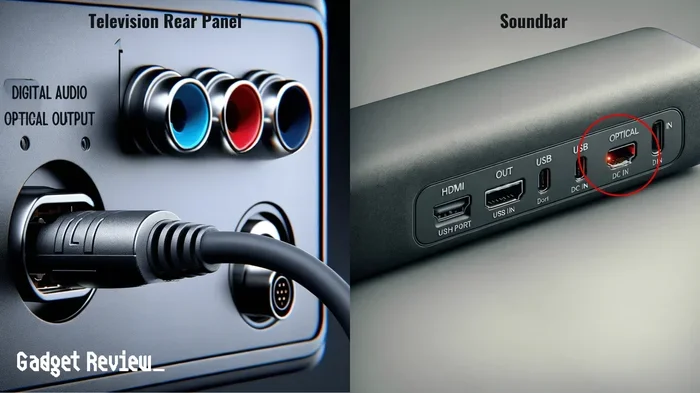
Look at the back of your TV. Find the port labeled “Optical Out” or “Digital Audio Out.” It looks like a small square hole with a tiny flap. Now look at your soundbar. Find the port labeled “Optical In” or “Digital Audio In.” Both ports should be clearly marked.
Quick Tip: If your TV has the port hidden behind a panel, gently remove the panel first. Do not force anything.
Step 3: Plug In the Cable
Take one end of the fiber optic cable and gently push it into the TV’s optical output. You should feel a slight click when it locks in place. Now take the other end and plug it into the soundbar‘s optical input. Again, listen for that click. A snug connection ensures the best audio signal transfer.
Quick Tip: Do not bend the cable sharply. The inside of a Toslink cable uses tiny glass fibers. Bending too much can damage the signal path.
Step 4: Power On and Select the Input
Turn on your TV and your soundbar. Use your soundbar remote to select the optical input source. It might be labeled “Optical,” “Digital,” or “OPT.” Once selected, your soundbar should display a message confirming the connection.
Step 5: Adjust Your TV Audio Settings
This is the step most people skip, and it causes problems. Go into your TV’s audio settings. Look for the audio output option. Change it from “TV Speakers” to “External Speakers” or “Optical Out.” This tells your TV to send audio through the cable instead of its own small built-in speakers.
Quick Tip: Set the audio format to “PCM” or “Bitstream” depending on what your soundbar supports. If you are unsure, PCM is the safest choice for most setups.
Soundbar Compatibility: Which TVs Work With Optical?
Not all TVs and soundbars are created equal. Before you buy a Toslink cable, you want to know that your devices will work together. The good news is that most TVs and soundbars support optical audio. But there are exceptions.
TV Compatibility
Almost every TV from the last 15 years has an optical output. This includes brands like Samsung, LG, Sony, TCL, and Vizio. Even many budget-friendly TVs include this port. However, a few very thin or ultra-modern TVs have started dropping the optical port in favor of HDMI ARC only.
If your TV does not have an optical output, you will need an alternative connection method. We will cover that in a later section. But for now, check the back of your TV. If you see that small square port, you are good to go.
Soundbar Compatibility
The same goes for soundbars. Most soundbars — whether they are budget models or premium ones — include an optical input. Brands like Sonos, Bose, Vizio, Samsung, and JBL all support optical audio connection in their lineup.
Here is a quick checklist to confirm compatibility:
- Check the back or manual of your soundbar for an “Optical In” label.
- Make sure your soundbar supports the audio formats your TV outputs (PCM, Dolby Digital, etc.).
- If you own a soundbase or a soundbar with a built-in subwoofer, the optical input is usually on the back panel.
Expert Insight: Some older soundbars only support stereo audio over optical. If you want full 5.1 surround sound or Dolby Digital, check the specs of your soundbar before buying the cable. Most modern soundbars handle these formats just fine.
Pros and Cons of Using an Optical Cable
Every connection method has its strengths and weaknesses. The optical cable is no different. Let us look at what makes it great and where it falls short.
Advantages of Optical Audio
- Simple and Plug-and-Play: You do not need to configure anything complicated. Just plug and listen.
- No Audio Latency: Optical connections have very low delay. Your audio stays in sync with the video.
- Immune to Electromagnetic Interference: Unlike copper cables, fiber optic cables do not pick up interference from other electronics.
- Good Sound Quality: You get clear digital audio with support for Dolby Digital and PCM formats.
- Affordable: A quality Toslink cable costs under ten dollars.
Limitations of Optical Audio
- No Dolby Atmos Support: Most optical cables cannot carry the lossless Dolby Atmos format. You will need HDMI for that.
- No Return Audio: The cable only goes one way. Your soundbar cannot send audio back to your TV.
- No CEC Control: You cannot use your TV remote to control the soundbar volume through an optical connection. You need the soundbar remote.
- Limited to Stereo or 5.1: You will not get the latest multi-channel audio formats over optical.
Quick Tip: If Dolby Atmos or eARC is important to you, consider using an HDMI ARC cable instead. But if you just want clean, reliable sound from your TV shows and movies, the optical cable works great.
Troubleshooting Common Optical Connection Issues
Sometimes things do not work right away. Do not worry. Most optical connection problems are easy to fix. Here are the most common issues and how to solve them.
No Sound at All
If your soundbar turns on but you hear nothing, start here. First, check that both ends of the fiber optic cable are firmly plugged in. A loose connection is the number one cause of no sound. Next, go to your TV audio settings and make sure the output is set to “External” or “Optical.”
Also, check the volume on both your TV and your soundbar. It sounds obvious, but it happens more than you think. If none of that works, try unplugging the cable, waiting ten seconds, and plugging it back in.
Sound Keeps Cutting Out
Intermittent audio usually means a loose or damaged cable. Inspect the Toslink cable for any bends or cracks. Try a different cable if you have one spare. Dust inside the optical port can also cause problems. Use a can of compressed air to gently clean both ports.
Audio and Video Are Out of Sync
This is called audio latency. It happens when the sound arrives a split second after the picture. Most of the time, this is a TV processing issue. Go into your TV settings and look for “Audio Delay” or “Lip Sync.” Adjust it until the sound matches the video.
Soundbar Shows No Optical Signal
If your soundbar displays “No Signal” or “Optical Error,” the cable might not be seated properly. Remove it and reinsert it firmly. Also, make sure you have selected the correct input source on the soundbar. If the problem persists, the cable itself may be faulty.
Quick Tip: Always use a high-quality optical cable from a reputable brand. Cheap knockoff cables sometimes have misaligned internal fibers that cause signal loss.
Optical vs Other Connection Methods
So you know how to connect a soundbar to a TV with an optical cable. But how does it compare to other methods? Let us look at the main alternatives.
Optical vs HDMI ARC
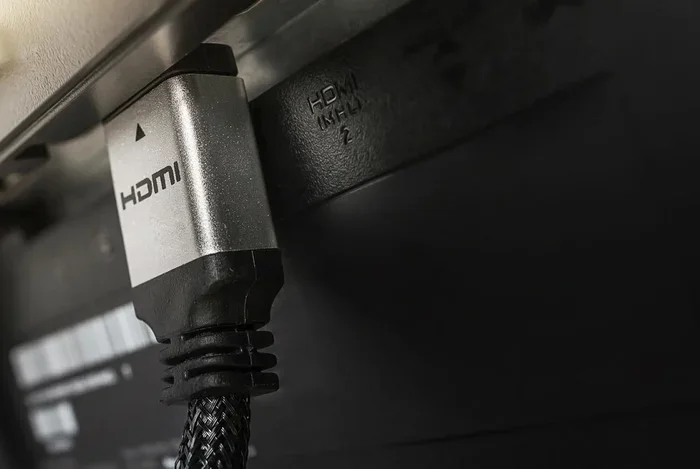
HDMI ARC is the newer, more advanced option. It carries both audio and video over a single cable. It also supports Dolby Atmos, eARC, and CEC (which lets you control volume with your TV remote). However, not all TVs and soundbars support HDMI ARC, and the setup can be slightly more complex.
The optical cable wins on simplicity and compatibility. HDMI ARC wins on features and audio quality. Choose based on what matters most to you.
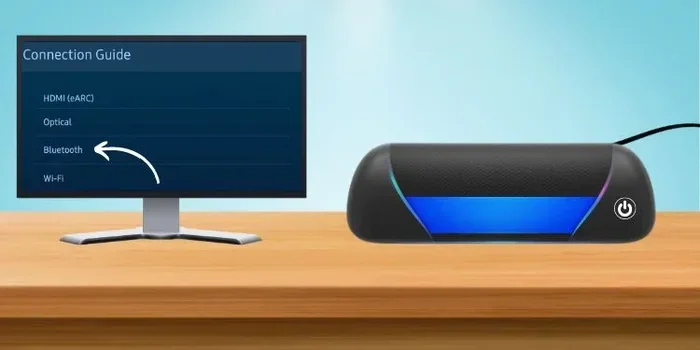
Optical vs Bluetooth
Bluetooth is wireless and convenient. But it compresses audio, which can reduce sound quality. Bluetooth also has more audio latency than a wired connection. An optical cable delivers uncompressed digital audio with almost zero delay.
If you want the best sound quality, a wired optical connection beats Bluetooth every time.
Optical vs AUX (3.5mm)
An AUX cable carries analog audio. It is the yellow-and-white RCA or the standard headphone jack. Analog audio is more prone to interference and static. A digital optical cable avoids all of that by sending a pure digital signal. For this reason, optical is almost always better than AUX.
Comparison Table
| Feature | Optical Cable | HDMI ARC | Bluetooth | AUX Cable |
|---|---|---|---|---|
| Audio Quality | High (Digital) | Highest (Lossless) | Good (Compressed) | Fair (Analog) |
| Dolby Atmos | No | Yes | No | No |
| Ease of Setup | Very Easy | Moderate | Very Easy | Easy |
| Cable Length | Up to 15 ft | Up to 50 ft | Wireless | Up to 25 ft |
| Cost | Low | Medium | None (Wireless) | Very Low |
| Volume Control via TV Remote | No | Yes | Sometimes | No |
As you can see, the optical cable holds its own against other methods. It is affordable, reliable, and delivers solid digital audio. For many home theater setups, it is all you need.
Tips for Getting the Best Audio Quality
Now that your soundbar is connected, let us make sure you are getting the most out of it. A few small tweaks can make a big difference.
Update Your Firmware
Check if your TV and soundbar have any firmware updates. Manufacturers often release updates that improve audio compatibility and fix bugs. You can usually find updates in the settings menu of each device.
Use the Right Audio Format
Go into your TV audio settings and set the output format to match your soundbar. If your soundbar supports Dolby Digital, select that. If not, PCM is the safest option. Choosing the wrong format can result in poor sound or no sound at all.
Position Your Soundbar Properly
Place your soundbar directly in front of your seating area. Keep it at ear level when you are sitting down. This gives you the best surround sound experience. Avoid placing it inside a closed cabinet, as that can muffle the audio.
Keep the Cable Away from Power Cords
Even though fiber optic cables are immune to electromagnetic interference, keeping them away from power cords helps prevent accidental damage. Run your optical cable along a separate path from power cords whenever possible.
Test with Different Content
Not all content sounds the same. Test your setup with a movie, a music video, and a news broadcast. This helps you hear how your soundbar handles different audio types. You might notice that action movies sound especially good through your new setup.
Common Mistakes to Avoid
Even with a simple setup like this, people make mistakes. Here are a few to watch out for.
- Forgetting to change the TV audio output: Your TV will keep sending sound to its own speakers if you do not switch the output setting.
- Using a damaged cable: A bent or cracked Toslink cable will cause signal loss. Always inspect your cable before setup.
- Not selecting the right input on the soundbar: Many soundbars have multiple inputs. Make sure you are on the optical input.
- Bending the cable too sharply: The internal glass fibers in a fiber optic cable can break if the cable is bent at a sharp angle.
- Ignoring firmware updates: Outdated software can cause compatibility issues between your TV and soundbar.
Avoiding these simple mistakes will save you time and frustration. A smooth soundbar setup starts with attention to the small details.
Frequently Asked Questions
Can I use any optical cable for my soundbar?
Yes, most standard Toslink cables work with any soundbar and TV combo. Look for a cable that is at least 3 to 6 feet long. Make sure the connectors are gold-plated for the best signal transfer. You do not need an expensive cable — even a budget optical cable delivers excellent digital audio quality.
Will I lose sound quality with an optical cable?
No, you will not lose meaningful sound quality. An optical cable carries uncompressed digital audio up to 5.1 channels. The quality is excellent for TV shows, movies, and music. However, you will not get the latest formats like Dolby Atmos over optical. For most listeners, the difference is barely noticeable.
Can I connect multiple devices to my soundbar using optical?
Most soundbars only have one optical input. If you want to connect multiple devices, you will need an audio switcher or use a different connection method. Some higher-end soundbars offer multiple inputs, so check your model’s specs before buying.
Does an optical cable support surround sound?
Yes, a standard optical cable supports Dolby Digital surround sound, which includes up to 5.1 channels. This means you can enjoy surround audio from movies and some streaming content. Just make sure your TV and soundbar both support the format.
Why does my TV remote not control the soundbar volume?
An optical cable does not support CEC (Consumer Electronics Control). This means your TV remote cannot send volume commands to your soundbar. You will need to use the soundbar remote or the soundbar’s physical buttons. If you want remote control, consider switching to an HDMI ARC connection instead.
Can I connect a soundbar to a TV without an optical port?
If your TV does not have an optical output, you have a few options. You can use an HDMI ARC cable, a Bluetooth connection, or an AUX cable. Some adapters can also convert HDMI to optical audio. Check what ports your TV has and choose the best alternative for your setup.
Final Thoughts
Connecting a soundbar to a TV with just an optical cable is simple, affordable, and effective. You get clean digital audio without the hassle of extra wires or complicated setups. Whether you are upgrading your home theater or just tired of tinny TV speakers, the optical connection gets the job done.
Remember to check compatibility, use a quality Toslink cable, and adjust your audio settings on both devices. If you run into issues, the troubleshooting tips in this guide should help you get back on track quickly.
The soundbar setup process is one of the easiest home audio upgrades you can do. With just one cable, you transform your TV watching experience into something richer and more immersive. So grab that optical cable, plug it in, and enjoy the sound. Your ears will thank you.