How Do I Connect My Bluetooth Earpiece to My Device
Connecting your Bluetooth earpiece is simple once you know the steps. This guide walks you through pairing your earpiece with phones, tablets, and computers. You will learn how to put your device in pairing mode, find the right Bluetooth settings, and fix common connection problems. We also share quick tips to keep your earpiece running smoothly every day.
So you just got a new Bluetooth earpiece and you want to start using it. Maybe it is a shiny new wireless earpiece for calls or music. Or perhaps you are trying to reconnect an old one after a reset. Either way, you are in the right place. This guide will show you exactly how to connect your Bluetooth earpiece to any device. We keep things simple and easy to follow. No tech jargon. No confusing steps. Just clear instructions that work.
Bluetooth earpieces are handy little gadgets. They let you talk hands-free, listen to music, and stay connected without wires. But the first time you try to pair one, it can feel a bit tricky. You press buttons, nothing happens, and you start to wonder if something is broken. Do not worry. Most connection issues come down to one of a few simple things. Once you know the process, you will be able to pair any earpiece in under a minute.
In this article, we cover everything you need to know. We start with the basics of putting your earpiece in pairing mode. Then we walk through connecting to phones, tablets, laptops, and even smart TVs. We also share troubleshooting tips for when things do not work. By the end, you will feel confident connecting your Bluetooth earpiece to any device. Let us get started.
Key Takeaways
- Put your earpiece in pairing mode first: This is the most important step before any device can find it.
- Check Bluetooth settings on your device: Make sure Bluetooth is turned on and your earpiece is not already connected to another device.
- Remove old pairings if needed: Clearing past connections often fixes stubborn pairing issues.
- Keep your earpiece charged: A low battery can cause pairing failures and dropouts.
- Stay within range: Keep your earpiece within 30 feet of your device for the best connection.
- Update your device software: Outdated software can cause Bluetooth compatibility problems.
📑 Table of Contents
- What Is a Bluetooth Earpiece and How Does It Work
- How to Put Your Bluetooth Earpiece in Pairing Mode
- Connecting Your Bluetooth Earpiece to a Phone
- Connecting Your Bluetooth Earpiece to a Laptop or Tablet
- Connecting Your Bluetooth Earpiece to a Smart TV
- Common Bluetooth Earpiece Connection Problems and How to Fix Them
- Tips to Keep Your Bluetooth Earpiece Working Great
- Expert Insights on Bluetooth Earpiece Connectivity
- Frequently Asked Questions
- Conclusion
What Is a Bluetooth Earpiece and How Does It Work
A Bluetooth earpiece is a small wireless device that connects to your phone, computer, or tablet using Bluetooth technology. It sends and receives audio through the air without any cables. You can use it for phone calls, listening to music, or even watching videos. The earpiece talks directly to your device over a short-range wireless signal.
Most Bluetooth earpieces use a standard called Bluetooth 5.0 or newer. This gives you a reliable connection up to about 30 feet. The earpiece pairs with your device using a process called device pairing. During pairing, the two devices exchange a secure code. After that, they remember each other and connect automatically next time.
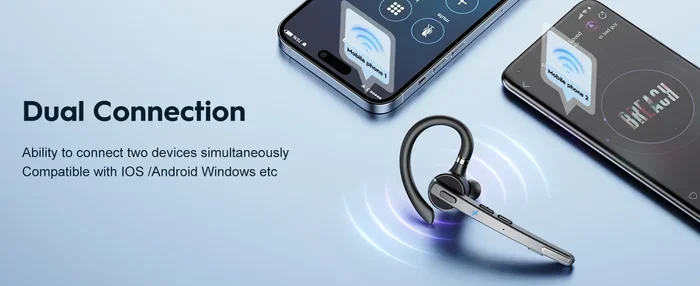
There are two main types of Bluetooth earpieces. Single earpieces fit in one ear and are great for calls. Stereo earpieces come in pairs and are perfect for music. Some earpieces also support multipoint connection, which means they can connect to two devices at the same time. This is really useful if you switch between your phone and laptop often.
How to Put Your Bluetooth Earpiece in Pairing Mode
Before your device can find your earpiece, the earpiece needs to be visible. This is called pairing mode. Every earpiece is a little different, but the steps are mostly the same. Here is how to do it for most brands.
Step 1: Charge Your Earpiece Fully
This sounds obvious, but a low battery causes many pairing problems. Plug your earpiece into its charger and let it charge for at least 30 minutes. A full battery makes sure the Bluetooth radio works at full power. If your earpiece has a light, it should turn on when you plug it in.
Step 2: Turn Off Bluetooth on Other Devices
If your earpiece is already connected to another phone or tablet, it will not pair with a new one easily. Go to your other devices and turn off their Bluetooth. Or simply disconnect the earpiece from them. This frees the earpiece up to connect to the new device you want to use.
Step 3: Enter Pairing Mode
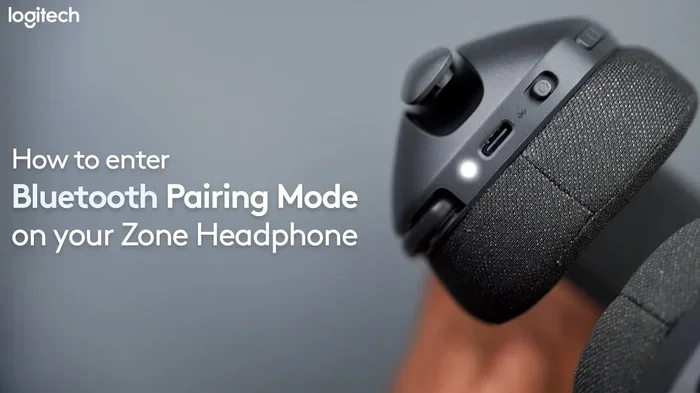
Most earpieces enter pairing mode when you hold down the power button for a few seconds. You usually see a flashing light, often blue or red. Some earpieces have a dedicated pairing button. Check your manual if you are not sure. The flashing light means the earpiece is ready to be found.
Quick Tip: If your earpiece does not flash, try turning it off and back on while holding the button. This resets the connection and forces it into pairing mode.
Connecting Your Bluetooth Earpiece to a Phone
Phones are the most common device people pair with Bluetooth earpieces. Whether you use an iPhone or an Android phone, the process is very similar. Here are the steps.
For iPhone Users
- Open the Settings app on your iPhone.
- Tap Bluetooth and make sure it is turned on.
- Your iPhone will start searching for nearby devices.
- Look for your earpiece name in the list of other devices.
- Tap on the earpiece name to connect.
- Wait a few seconds. You should see a status that says “Connected.”
That is it. Your iPhone will now remember the earpiece. Next time you turn on Bluetooth, it should connect automatically. If it does not, you can always go back to Bluetooth settings and tap the name again.
For Android Users
- Swipe down from the top of your screen to open Quick Settings.
- Tap the Bluetooth icon to turn it on.
- Tap and hold the Bluetooth icon to open Bluetooth settings.
- Tap Scan or Search for devices.
- Find your earpiece in the list and tap it.
- Wait for the connection to complete.
Some Android phones let you rename your Bluetooth devices. This is helpful if you have multiple earpieces. You can also check your Bluetooth signal strength in the settings to make sure the connection is strong.
Connecting Your Bluetooth Earpiece to a Laptop or Tablet
Laptops and tablets work just like phones for Bluetooth earpiece pairing. The steps differ slightly depending on your operating system. Here is how to do it on both Windows and Mac computers.
On Windows Laptops
- Click the Start menu and go to Settings.
- Select Devices and then Bluetooth & other devices.
- Turn on Bluetooth if it is off.
- Click Add Bluetooth or other device.
- Select Bluetooth from the list.
- Choose your earpiece from the found devices.
- Click Connect and wait for the confirmation.
On Mac Computers
- Click the Apple menu and open System Preferences.
- Select Bluetooth.
- Make sure Bluetooth is turned on.
- Your Mac will scan for devices automatically.
- Click on your earpiece name and select Connect.
If you use a tablet like an iPad or Android tablet, the process is the same as the phone steps above. The key is making sure your tablet is running updated software. Old software can sometimes cause Bluetooth connection issues that are easy to fix with an update.
Connecting Your Bluetooth Earpiece to a Smart TV
Did you know you can connect a Bluetooth earpiece to your TV too? This is great for late-night watching or if you want private audio. Not all TVs support Bluetooth directly. But many smart TVs do. If your TV does not have built-in Bluetooth, you can use a Bluetooth adapter to add it.
If you want to learn more about making your TV Bluetooth-ready, check out our guide on Can I Make My Tv Have Bluetooth. It covers the different ways to add Bluetooth to any television.
Once your TV has Bluetooth, the pairing process is simple. Go to your TV settings, find the Bluetooth menu, and search for devices. Select your earpiece when it appears. The TV audio will now play through your earpiece wirelessly.
Some people also like to use Bluetooth headphones for watching TV. If you are curious about using Bluetooth headphones with streaming devices, you can read about Can I Use Bluetooth Headphones With Roku for more details on streaming device compatibility.
Common Bluetooth Earpiece Connection Problems and How to Fix Them
Sometimes things do not go smoothly. Your earpiece might not show up in the device list. Or it connects but the audio cuts out. These problems are common and usually easy to fix. Let us look at the most frequent issues.
Earpiece Does Not Show Up in Device List
This is the most common problem. It usually happens because the earpiece is not in pairing mode. Go back and make sure your earpiece is flashing. Also, make sure your phone or computer Bluetooth is turned on and actively searching. Try moving closer to your device. Bluetooth has a limited range, and walls or furniture can block the signal.
Audio Cuts Out or Sounds Scratchy
If your connection keeps dropping, the battery might be low. Charge your earpiece fully and try again. Also, stay within 30 feet of your device. Other wireless devices nearby, like microwaves or Wi-Fi routers, can sometimes interfere with Bluetooth. Moving away from these devices can help.
Earpiece Connects But No Sound Comes Through
Sometimes the earpiece connects but your device sends audio somewhere else. Check your device audio output settings. On your phone or computer, make sure the Bluetooth earpiece is selected as the audio output device. On some phones, you need to tap the small gear icon next to the earpiece name in Bluetooth settings and make sure media audio is turned on.
Paired But Will Not Reconnect Automatically
If your earpiece paired before but will not connect now, try removing the old pairing. Go to your device Bluetooth settings, find the earpiece, and select “Forget This Device.” Then put the earpiece back in pairing mode and connect fresh. This clears any stuck connection data that might be causing the problem.
For more help with Bluetooth audio devices, you might find our article on Can I Talk Through My Bluetooth Headphones useful. It covers common Bluetooth audio issues and solutions.
Tips to Keep Your Bluetooth Earpiece Working Great
Once you have your earpiece connected, a little care goes a long way. Here are some simple habits that keep everything running smoothly.
- Charge regularly: Do not let the battery die completely. Charge it when it hits 20 percent.
- Clean the contacts: Wipe the charging contacts with a dry cloth. Dirt can block the charge.
- Store in the case: When not in use, keep your earpiece in its charging case. This protects it and keeps the battery healthy.
- Update firmware: Some earpieces have removable firmware. Check the manufacturer app for updates.
- Reset occasionally: A quick reset can clear small glitches. Check your manual for the reset steps.
These tips work for all Bluetooth earpieces, from budget models to premium brands. They help you get the most out of your wireless earpiece every single day.
Expert Insights on Bluetooth Earpiece Connectivity
Bluetooth technology has come a long way in the last few years. The newer versions offer better range, faster connections, and lower power use. If you are buying a new earpiece, look for one with Bluetooth 5.0 or higher. These versions handle interference much better than older ones.
Another thing to keep in mind is the Bluetooth profile your earpiece uses. Most earpieces use the Hands-Free Profile (HFP) for calls and the Advanced Audio Distribution Profile (A2DP) for music. Some earpieces support both at the same time. This is what allows you to take a call while listening to music and then switch back seamlessly.
If you are pairing your earpiece with a TV, keep in mind that TVs often use a different Bluetooth mode than phones. This is why some earpieces connect to phones easily but struggle with TVs. A Bluetooth transmitter can solve this problem by bridging the gap between your TV and the earpiece.
Also, remember that multipoint Bluetooth is a game changer. It lets your earpiece stay connected to two devices at once. You can listen to music on your laptop while still receiving calls on your phone. Not all earpieces have this feature, so check before you buy if this matters to you.
Frequently Asked Questions
How long does it take to pair a Bluetooth earpiece?
Most Bluetooth earpieces pair in under 60 seconds. The key is making sure the earpiece is in pairing mode and your device Bluetooth is turned on. If it takes longer, try moving closer to your device or resetting the earpiece.
Why won’t my Bluetooth earpiece connect to my phone?
This usually happens because the earpiece is already connected to another device. Turn off Bluetooth on other devices and try again. Also make sure your earpiece is fully charged and in pairing mode. Removing the old pairing and reconnecting fresh often solves the problem.
Can I connect my Bluetooth earpiece to multiple devices?
Some earpieces support multipoint connection, which lets them stay connected to two devices at once. Most standard earpieces can only connect to one device at a time. You can manually switch between devices by disconnecting from one and connecting to the other.
How far can my Bluetooth earpiece be from my device?
Most Bluetooth earpieces work within 30 feet of your device. Walls, furniture, and other electronics can reduce this range. Staying in the same room as your device gives you the best and most stable connection.
Do I need to install any software to connect a Bluetooth earpiece?
No. All modern phones, tablets, and computers have built-in Bluetooth support. You do not need to download anything extra. Just go to your Bluetooth settings and follow the pairing steps. Some premium earpieces come with a companion app for firmware updates and customization.
Can I use my Bluetooth earpiece with a smart TV?
Yes, if your TV has Bluetooth. Go to your TV settings, find the Bluetooth menu, and search for devices. If your TV does not have Bluetooth, you can buy a Bluetooth transmitter that plugs into the TV audio output. This adds wireless capability to any TV with a headphone jack or optical output.
Conclusion
Connecting your Bluetooth earpiece does not have to be stressful. Once you know the steps, it becomes second nature. Start by charging your earpiece and putting it in pairing mode. Then go to your device Bluetooth settings and find the earpiece. Tap to connect and you are done. If something goes wrong, the troubleshooting tips in this guide will help you fix it fast.
Remember to keep your earpiece charged, stay within range, and update your device software when needed. These simple habits keep your Bluetooth connection strong and reliable. Whether you use your earpiece for calls, music, or TV, a good connection makes everything better.
Now you have everything you need to connect your Bluetooth earpiece to any device. Try it out today and enjoy the freedom of wireless audio. Once you get the hang of it, you will wonder how you ever lived with tangled wires.