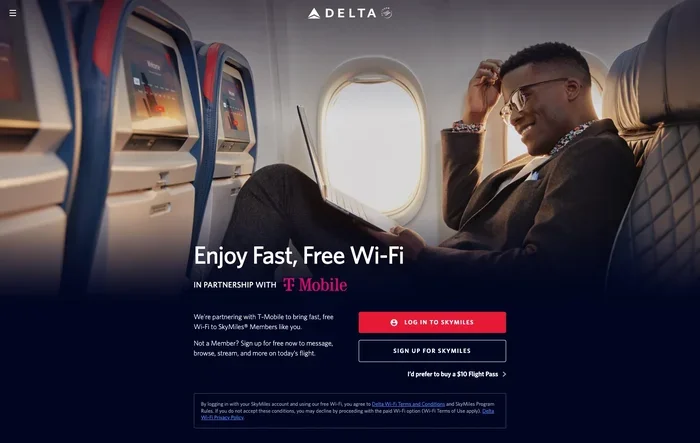
How Do I Activate My Delta Wi Fi And Start Browsing
Activating your Delta Wi-Fi is easy when you know the right steps. This guide walks you through the full process from connecting to the network, logging in, and choosing a plan. You will also learn troubleshooting tips, device setup advice, and how to get the most out of your inflight internet experience.
You just settled into your seat on a Delta flight. The cabin lights dim. The seatbelt sign goes off. And then it hits you. You want to check your email, stream a movie, or just scroll through social media. But first, you need to get online. If you have never used Delta Wi-Fi before, the whole process can feel confusing. Let us fix that right now.
This guide shows you exactly how to activate your Delta Wi-Fi and start browsing in just a few simple steps. We cover everything from the initial connection to choosing the right plan, troubleshooting common issues, and getting the best speed possible. Whether you are a frequent flyer or flying Delta for the first time, this article has you covered.
Delta Air Lines offers inflight Wi-Fi on most of its domestic and international routes. The service uses satellite and ground-based connections to keep you online while cruising at 35,000 feet. Activating the connection takes only a minute or two once you know what to do. Let us dive in.
Key Takeaways
- Delta Wi-Fi is simple to activate: just connect to the Delta network, open your browser, and follow the portal prompts.
- Multiple pricing plans are available: you can choose from day passes, monthly passes, or free messaging options.
- Device compatibility matters: make sure your phone, tablet, or laptop supports the Wi-Fi bands used on Delta flights.
- Troubleshooting is straightforward: most issues can be fixed by toggling airplane mode, clearing your browser cache, or restarting your device.
- Free messaging is often available: Delta offers complimentary Wi-Fi for certain messaging apps on select flights.
- Planning ahead saves time: downloading content before your flight ensures you stay entertained even if the connection is slow.
📑 Table of Contents
- How to Activate Your Delta Wi-Fi in 5 Simple Steps
- Delta Wi-Fi Pricing and Plans Explained
- Device Setup Tips for Delta Wi-Fi
- Troubleshooting Delta Wi-Fi Connection Issues
- Maximizing Your Delta Wi-Fi Experience
- Common Mistakes People Make with Delta Wi-Fi
- Expert Tips from Frequent Delta Flyers
- Final Thoughts
How to Activate Your Delta Wi-Fi in 5 Simple Steps
Getting online on a Delta flight is straightforward. Here are the five steps you need to follow. These work whether you are on a phone, tablet, or laptop.
Step 1: Turn On Airplane Mode and Then Wi-Fi
Once the captain turns off the seatbelt sign, grab your device. Swipe down to open your quick settings panel. Tap the airplane icon to turn on airplane mode. Wait about five seconds. Then tap the Wi-Fi icon to turn wireless back on. This tells your device to search for available networks without interfering with the plane’s systems.
Why do you need airplane mode first? Because it disables cellular radios that could cause interference. But it also lets you manually re-enable Wi-Fi, which is exactly what you need for inflight browsing. Some people skip this step and wonder why they cannot find the Delta network. Do not make that mistake.
Step 2: Connect to the Delta Network
Open your Wi-Fi settings. Look for a network named “Delta Wi-Fi” or something similar. Tap on it to connect. You should see a “Connected” status within a few seconds. If you do not see the network, try walking up and down the aisle slightly. Signal strength can vary by seat location.
Pro tip: if you are flying with a companion, make sure each device connects separately. Each device needs its own login session. This is a common mistake people make when traveling in pairs.
For more details on using Wi-Fi during flights, check out our guide on Can I Get Wi-Fi On My Flight for additional tips on inflight connectivity.
Step 3: Open Your Browser and Visit the Portal
Once connected, open any web browser on your device. Safari, Chrome, Firefox, or Edge will all work. You should be automatically redirected to the Delta Wi-Fi portal page. If you are not redirected, type “delta.com/wifi” into your address bar manually.
The portal page is your gateway to everything. It shows you the available plans, pricing, and connection status. It also has a help section if you run into any issues. The design is clean and easy to navigate, even on a small phone screen.
Step 4: Choose Your Wi-Fi Plan
Delta offers a few different options for inflight internet. Here is a quick breakdown of what you can expect.
- Free Messaging: Delta offers complimentary Wi-Fi for messaging apps like iMessage, WhatsApp, and Facebook Messenger on select flights. This lets you stay in touch without paying anything.
- Day Pass: A single-day pass typically costs around $7 to $10. It gives you full internet access for the duration of your flight.
- Monthly Pass: If you fly Delta frequently, a monthly subscription can save you money. It usually runs around $49 per month and works on most Delta flights.
- Basic Surf: Some flights offer a free basic browsing tier with limited speed. This is enough for email and light browsing but not for streaming.
Choose the plan that fits your needs. If you just need to check messages, the free messaging option is great. If you want to stream movies or work on documents, go with the day pass or monthly subscription.
Step 5: Log In and Start Browsing
After selecting your plan, follow the on-screen prompts to complete your purchase or activation. You will typically need to enter your payment details or log in with your Delta SkyMiles account. Once confirmed, your device should connect to the internet automatically.
Open a new browser tab and try loading a website. If the page loads, you are good to go. If not, do not panic. Head to the troubleshooting section below. We have you covered.
Delta Wi-Fi Pricing and Plans Explained
Understanding Delta Wi-Fi pricing helps you make smart choices before you fly. Prices can vary based on the route, aircraft type, and current promotions. Here is what you need to know.
Free Messaging vs. Full Access
Delta has been expanding its free messaging offerings over the past few years. On many flights, you can use messaging apps at no extra cost. This is a nice perk for staying in touch during long haul flights. However, free messaging does not give you full internet access. You cannot browse the web, check social media feeds, or stream content on the free tier.
If you need full access, you will need to purchase a day pass or subscribe to a monthly plan. The pricing is competitive compared to other major airlines. In fact, Delta often runs promotions where Wi-Fi passes are discounted or even free for SkyMiles members.
Comparison: Delta Wi-Fi Plans
| Plan Type | Price Range | Best For |
|---|---|---|
| Free Messaging | $0 | Texting and staying in touch |
| Basic Surf | Free or low cost | Email and light browsing |
| Day Pass | $7 to $10 | Full browsing for one flight |
| Monthly Pass | ~$49/month | Frequent Delta flyers |
Keep in mind that prices may change. Always check the Delta Wi-Fi portal for the most current rates before purchasing. Also, note that pricing may differ on international flights compared to domestic routes.
Device Setup Tips for Delta Wi-Fi
Getting the best experience with Delta Wi-Fi starts with proper device setup. Here are some tips that will save you frustration mid-flight.
Update Your Device Before You Fly
Make sure your operating system and browser are up to date before you board. Updates often include fixes for connectivity issues and security improvements. A device running the latest software will connect more smoothly to the Delta Wi-Fi portal.
Disable Unnecessary Background Apps
Background apps can eat up bandwidth and slow down your connection. Before you connect, close any apps you are not using. On phones, go to your settings and check which apps are using data in the background. On laptops, quit any programs that auto-update or sync files.
Use a VPN If Needed
Some travelers use a Virtual Private Network (VPN) for privacy. However, VPNs can sometimes slow down your inflight connection. If you notice slow speeds, try turning off your VPN and see if that helps. Delta Wi-Fi works fine without a VPN for most activities.
Keep Your Device Charged
Using Wi-Fi on a plane drains battery faster than normal. Make sure your device has at least 50% charge before you start browsing. Bring a portable charger if you have a long flight. You do not want your phone to die right when you need to check something important.
Troubleshooting Delta Wi-Fi Connection Issues
Even with the best preparation, things can go wrong. Here are the most common Delta Wi-Fi problems and how to fix them.
Cannot Find the Delta Network
If you do not see the Delta Wi-Fi network, try these steps. First, make sure airplane mode is on and Wi-Fi is turned back on. Second, restart your device. Third, walk a few rows down the aisle to see if the signal is stronger there. Sometimes the network just does not reach every seat equally well.
If none of these work, the Wi-Fi system on that particular aircraft may be down. This happens occasionally. In that case, there is not much you can do except wait or ask a flight attendant for an update.
Portal Page Will Not Load
The Delta Wi-Fi portal not loading is a common issue. The most frequent cause is a browser cache problem. Clear your browser cache and cookies, then try again. If that does not work, try opening an incognito or private browsing window. This bypasses cached data and often fixes the issue immediately.
Another trick is to type “captive.apple.com” or “connectivitycheck.gstatic.com” into your address bar. These URLs force the portal to pop up on most devices.
Slow Speeds or Constant Disconnects
Inflight Wi-Fi speeds can vary. When the plane is full and everyone is streaming, speeds drop. To improve your experience, try these tips. Close unused tabs on your browser. Avoid streaming HD video when the connection is crowded. Download content before your flight so you can watch offline. And if you are working on important files, save them frequently to avoid losing work during disconnects.
Payment Not Going Through
If your payment fails on the Delta Wi-Fi portal, check a few things. Make sure your card has not expired. Verify that your bank allows online purchases (some banks block transactions they consider unusual). Try using a different payment method if available. You can also ask a flight attendant if there is an alternative way to purchase Wi-Fi access.
Maximizing Your Delta Wi-Fi Experience
Once you are connected, you want to make the most of it. Here are some practical tips for a better inflight browsing experience.
Download Content Before Your Flight
This is the single best tip for any flyer. Download movies, TV shows, music, and documents before you board the plane. Even the best Delta Wi-Fi connection can be slow at times. Having offline content means you are never bored, regardless of the connection quality.
Use Delta’s In-Flight Entertainment When Wi-Fi Is Slow
Delta offers a robust in-flight entertainment system on most aircraft. You can access movies, TV shows, and music through the seatback screen or the Delta app. This works independently of Wi-Fi and does not count against your data usage. Use it as a backup when the internet is sluggish.
Check Your Email and Messages First
Email and messaging apps use very little data. They are the best things to use when the Wi-Fi signal is weak. Load your email first, then browse social media, and save streaming for when you have a stronger connection. This approach helps everyone on the same network get a fair share of the bandwidth.
Be Patient During Peak Hours
Wi-Fi speeds are typically slower during peak travel times. Early morning flights and holiday travel periods see the most congestion. Plan your online activities accordingly. If you need to join an important video call, try to book a flight during off-peak hours when possible.
Common Mistakes People Make with Delta Wi-Fi
Avoid these common mistakes to save time and frustration on your next Delta flight.
- Forgetting to turn off airplane mode after connecting: This is the number one mistake. People connect to Delta Wi-Fi but forget to turn airplane mode back off, which blocks cellular services when they land.
- Not bringing headphones: Even if you plan to use the inflight entertainment system, bring headphones. The ones on the plane are often not comfortable or clean.
- Assuming Wi-Fi is always free: While Delta offers free messaging on some routes, full internet access usually costs money. Do not assume everything is free until you check the portal.
- Not checking the Wi-Fi status before booking: Not all Delta aircraft have Wi-Fi. Check the aircraft type or Wi-Fi availability when booking your flight if internet access is important to you.
- Ignoring the help button on the portal: The Delta Wi-Fi portal has a help or support link. Use it if you get stuck. The support team can walk you through the connection process step by step.
Expert Tips from Frequent Delta Flyers
We talked to frequent Delta flyers and gathered their best tips for using inflight Wi-Fi like a pro.
Tip 1: Book a seat near the front. Wi-Fi signal strength is often better in the front of the aircraft. If you need a strong connection for work, consider booking a seat in the first few rows.
Tip 2: Use the Delta app. The Delta app has a built-in Wi-Fi connection feature. It often connects faster than using a web browser. Download the app before your flight and familiarize yourself with the interface.
Tip 3: Keep your boarding pass handy. Some Delta Wi-Fi portals ask for your confirmation code or SkyMiles number during login. Having your boarding pass open on your phone makes this process much smoother.
Tip 4: Be respectful of bandwidth. Remember that everyone on the plane shares the same connection. Avoid large downloads, multiple video streams, or heavy file uploads. Be considerate, and everyone gets a better experience.
Tip 5: Disconnect when the flight lands. Once the plane parks at the gate and the captain turns off the Wi-Fi notice, disconnect from the Delta network. This frees up the connection for ground staff and ensures a smooth transition when you turn off airplane mode.
For more information on using Wi-Fi and Bluetooth together during flights, check out our article on Can I Have Wi-Fi and Bluetooth On At The Same Time for helpful device management tips.
Final Thoughts
Activating your Delta Wi-Fi is easier than you think. Follow the five simple steps we outlined, choose the right plan for your needs, and you will be browsing in no time. Remember to prepare your device beforehand, troubleshoot any issues calmly, and manage your expectations about speed and availability.
Delta continues to invest in improving its inflight connectivity. The experience gets better with every new aircraft and route. Whether you are flying for business or pleasure, staying connected at 35,000 feet is no longer a luxury. It is a convenience that Delta makes accessible to nearly every passenger.
Now that you know exactly how to activate your Delta Wi-Fi, the next time you board a Delta flight, you can sit back, relax, and get online with confidence. Safe travels and happy browsing.
For travelers looking for alternative connectivity options, our article on Can I Get Portable Wi-Fi explores other ways to stay connected on the go.
Frequently Asked Questions
Is Delta Wi-Fi free?
Delta offers free messaging on select flights through apps like iMessage, WhatsApp, and Facebook Messenger. However, full internet access requires purchasing a day pass, monthly pass, or using a basic surf tier if available. Always check the Delta Wi-Fi portal for current pricing and free offerings.
How long does it take to activate Delta Wi-Fi?
Activation takes about one to two minutes once you are connected to the Delta network. The hardest part is finding the right network and loading the portal page. After that, selecting a plan and logging in is quick and straightforward.
Can I use Delta Wi-Fi on international flights?
Yes, Delta offers Wi-Fi on many international routes as well. However, pricing and availability may differ from domestic flights. International Wi-Fi passes sometimes cost more due to the satellite infrastructure required. Check the portal when you connect for the exact options on your flight.
What devices work with Delta Wi-Fi?
Delta Wi-Fi works with virtually any Wi-Fi-enabled device. This includes smartphones, tablets, laptops, and e-readers. You do not need any special equipment. Just make sure your device has Wi-Fi capability and is fully charged before you fly.
Why is Delta Wi-Fi so slow sometimes?
Wi-Fi speeds on planes depend on several factors. The number of users on the network, the aircraft type, and the route all play a role. When many passengers are streaming or downloading at the same time, speeds drop significantly. Choosing off-peak flights can help you get better speeds.
Can I stream movies on Delta Wi-Fi?
Yes, you can stream on Delta Wi-Fi, but the experience depends on the connection speed and how many people are online. For the best streaming experience, use a day pass or monthly subscription. If the connection is slow, download content before your flight instead for a smoother viewing experience.