How Do I Activate 5g On Centurylink in Simple Steps
Activating 5G on CenturyLink is easier than you think. This guide walks you through every step, from checking coverage to turning on your 5G service. You will learn what equipment you need, how to fix common problems, and tips to boost your speed.
So you want to turn on 5G on CenturyLink? Great choice. 5G brings faster speeds, lower latency, and a better overall internet experience. Whether you are streaming movies, working from home, or gaming, activating 5G can change the way you use the internet.
Many CenturyLink customers wonder how to get started with their 5G service. The process is simpler than most people expect. In this guide, we break it down into easy steps. You will learn everything you need to know, from checking coverage to fixing common problems. Let us dive in.
Key Takeaways
- Check 5G coverage first: Make sure your area supports CenturyLink 5G before starting the activation process.
- You need the right equipment: A 5G-compatible modem or router is essential for accessing the 5G network.
- Activation is simple: You can activate 5G through your CenturyLink account online or by calling customer support.
- Troubleshooting helps: Restarting your device and checking cables solve most activation issues.
- Optimize your setup: Placement of your router and updating firmware can significantly improve your 5G performance.
📑 Table of Contents
- What Is CenturyLink 5G and Why Should You Activate It?
- How Do I Activate 5G on CenturyLink in Simple Steps
- What Equipment Do You Need for CenturyLink 5G?
- Troubleshooting Common 5G Activation Issues
- How to Check if 5G Is Available in Your Area
- Tips to Get the Best 5G Performance on CenturyLink
- Conclusion
What Is CenturyLink 5G and Why Should You Activate It?
CenturyLink 5G is the fifth generation of wireless internet technology. It offers much faster speeds than older networks like 4G LTE. With 5G, you can download large files in seconds, enjoy smooth video calls, and connect more smart home devices without slowdowns.
Here is why activating 5G wireless service matters:
- Faster download and upload speeds — 5G can be up to 100 times faster than 4G in some areas.
- Lower latency — Pages load faster and video calls stay smooth with less lag.
- Better capacity — More devices can connect at once without slowing down your home network.
- Improved streaming — Watch 4K videos without buffering or interruptions.
- Future-proofing — 5G is the direction all internet providers are heading.
Before you start the activation process, it helps to understand what 5G network technology brings to the table. It is not just about speed. It is about reliability and the ability to handle many connected devices at once. If you have a smart home with cameras, lights, and speakers, 5G connectivity makes a big difference.
How Do I Activate 5G on CenturyLink in Simple Steps
The activation process for CenturyLink 5G is straightforward. Follow these steps carefully to get your service up and running. Each step is designed to be simple and user-friendly.
Step 1: Check if 5G Is Available in Your Area
Not every location has 5G coverage yet. Before anything else, confirm that your address is within a 5G coverage area. You can check this on the CenturyLink website or by calling their support team. Enter your zip code on their coverage map to see what wireless service options are available to you.
If 5G is not yet available where you live, you may still be able to access it through a portable Wi-Fi hotspot device. Some customers use a Wi-Fi card for their computer to pick up 5G signals in areas with partial coverage. This can be a good workaround while full coverage expands.
Step 2: Get the Right Equipment
You need 5G-compatible equipment to activate the service. Here is what you will need:
- A 5G modem or router — This is the device that connects to the 5G network. Older modems may not support 5G speeds.
- A compatible smartphone or device — Your phone or tablet must have 5G capability built in.
- Ethernet cables — For a wired connection to your computer or TV.
If you are not sure whether your current wireless router supports 5G, check the label on the back of the device. Look for “5G” or “Wi-Fi 6” on the packaging or in the manual. You can also change your Wi-Fi router through your CenturyLink account if needed. Many customers find that upgrading their router makes a huge difference in speed and stability.
Some people ask, can I connect straight to modem without a router? The answer is yes, but a router gives you better coverage throughout your home. It also lets you connect more devices wirelessly.
Step 3: Log Into Your CenturyLink Account
Go to the CenturyLink website and sign in to your account. You will need your account number and password. Once you are logged in, navigate to the services or internet section of your dashboard.
From there, look for an option to manage your internet plan or add new services. CenturyLink makes it easy to upgrade your existing plan to include 5G. The system will guide you through the process step by step.
Step 4: Follow the On-Screen Activation Prompts
Once you select the 5G option, the system will walk you through activation. You may need to:
- Confirm your address and coverage eligibility.
- Choose your preferred internet plan with 5G speeds.
- Agree to any new terms or pricing details.
- Schedule a technician visit if professional setup is required.
After completing these steps, your 5G service should be active within a few hours. Sometimes it takes up to 24 hours for the network to fully recognize your new plan. Be patient and give it some time.
Step 5: Restart Your Devices
Once activation is confirmed, restart your modem, router, and any connected devices. This helps them pick up the new 5G signal properly. Unplug each device, wait 30 seconds, and plug them back in. Wait for all the lights to stabilize before testing your connection.
What Equipment Do You Need for CenturyLink 5G?
Having the right gear is important for getting the most out of your 5G connection. Let us look at what you need and why it matters.
5G Modem or Gateway
The modem is the brain of your home network. It connects to the CenturyLink 5G network and brings the internet into your home. CenturyLink may provide a modem when you sign up for service. If not, you can buy your own router for internet use, but make sure it is 5G-compatible.
When choosing a modem, look for these features:
- Support for 5G bands (both low-band and millimeter wave if available).
- Dual-band or tri-band Wi-Fi support.
- Ethernet ports for wired connections.
- Compatibility with CenturyLink’s network specifications.
5G-Compatible Smartphones and Devices
Your phone or tablet must support 5G technology to access 5G speeds. Most newer smartphones released after 2020 have 5G capability. Check your device settings to confirm. On an iPhone, go to Settings and look for cellular or mobile data options. On Android, check under Network or Connections settings.
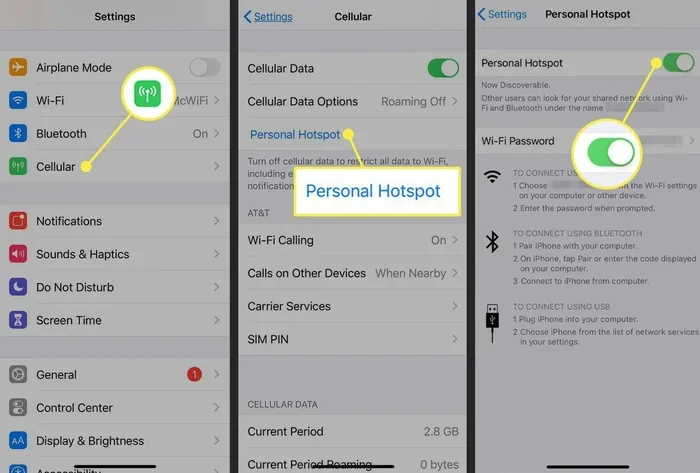
Some customers use their mobile hotspot to share 5G with other devices. This works well for laptops and tablets that do not have built-in 5G support. You can also use a portable Wi-Fi device to spread the 5G signal around your home or office.
Can I Get a Wi-Fi Card for My Computer?
Yes! If your desktop computer does not have built-in wireless capability, you can add a Wi-Fi card. A 5G-compatible Wi-Fi card lets your desktop connect to CenturyLink’s 5G network. This is a simple and affordable way to upgrade an older computer.
Some customers also ask can I get Wi-Fi without an internet provider. The short answer is no — you need an active internet service plan from CenturyLink or another provider to access 5G. A Wi-Fi card alone does not provide internet access.
Troubleshooting Common 5G Activation Issues
Sometimes things do not go smoothly. If your 5G service is not working after activation, do not worry. Here are the most common issues and how to fix them.
Slow Speeds After Activation
If your internet is slow after turning on 5G, try these steps:
- Restart your modem and router.
- Move your router to a central location in your home.
- Check for firmware updates on your router.
- Reduce the number of connected devices temporarily.
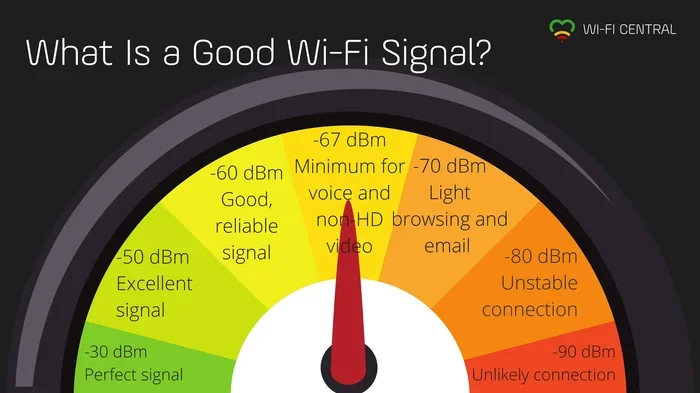
- Make sure you are within range of a 5G tower.
Device Not Detecting 5G Network
If your phone or computer cannot find the 5G network, check a few things first:
- Make sure 5G is turned on in your device settings.
- Toggle Airplane Mode on and off to refresh the connection.
- Forget the network and reconnect from scratch.
- Check if your device is too far from the router.
Some older devices cannot connect to 5G networks. If your phone only supports 4G, you will not be able to access 5G speeds. In that case, consider upgrading to a newer device that supports 5G technology.
Activation Failed or Pending
If your activation shows as failed or stuck on pending, try logging out of your CenturyLink account and logging back in. Clear your browser cache before trying again. You can also call CenturyLink customer support for help. They can push the activation from their end and walk you through any remaining steps.
How to Check if 5G Is Available in Your Area
Before you go through the whole activation process, confirm that 5G is available where you live. Here is how to check:
- Visit the CenturyLink website and enter your zip code on the coverage map.
- Call CenturyLink customer service and ask about 5G availability at your address.
- Check with neighbors who already use CenturyLink 5G.
- Look for 5G signage or promotional materials in your local area.
Keep in mind that 5G coverage is expanding rapidly. Even if it is not available today, it may be available in a few months. CenturyLink continues to invest in expanding their wireless service to more communities across the country.
Tips to Get the Best 5G Performance on CenturyLink
Once you have activated your 5G service, you want to get the most out of it. Here are some practical tips to boost your performance.
Place Your Router in a Central Location
The position of your router matters a lot. Place it in the center of your home, preferably on a high shelf. Avoid putting it in closets, basements, or behind thick walls. Good placement ensures that the 5G signal reaches every room in your house.
Keep Your Firmware Updated
Router manufacturers release firmware updates to improve performance and fix bugs. Log into your router settings regularly and check for updates. Updated firmware can improve your internet speed and make your home network more stable.
Use a Wired Connection When Possible
While wireless connectivity is convenient, a wired Ethernet connection is always faster and more reliable. Connect your desktop computer, gaming console, or smart TV directly to the router with an Ethernet cable for the best performance.
Limit Background Apps and Devices
Too many devices connected at once can slow down your broadband connection. Close apps running in the background on your phone and computer. Disconnect devices you are not actively using. This frees up bandwidth for the devices that matter most.
Contact CenturyLink Support for Help
If you have tried everything and still experience issues, reach out to CenturyLink support. They have tools to check your network connection from their end. They can also send a technician to your home if needed. Do not hesitate to ask for help — that is what they are there for.
Conclusion
Activating 5G on CenturyLink does not have to be complicated. By following the steps in this guide, you can get your 5G wireless service up and running quickly. Start by checking coverage, get the right equipment, log into your account, and follow the activation prompts. If you run into any issues, the troubleshooting tips above should help you resolve them.
5G technology brings real benefits to your home and work life. Faster downloads, smoother streaming, and better connectivity for all your smart devices. Take the time to set things up correctly, and you will enjoy a much better internet experience. Now go ahead and activate your CenturyLink 5G service today!
Frequently Asked Questions
How long does it take to activate 5G on CenturyLink?
The activation process usually takes just a few minutes online. However, it can take up to 24 hours for the network to fully recognize your new 5G plan and for your service to become active across all devices.
Do I need a new phone to use CenturyLink 5G?
Yes, your phone must be 5G-compatible to access 5G speeds. Check your device settings or the manufacturer’s specifications to confirm that your phone supports 5G technology. Older 4G-only phones will not connect to the 5G network.
Can I activate 5G on CenturyLink myself without calling support?
Absolutely. Most customers can activate 5G directly through their CenturyLink online account. The self-service portal guides you through each step. However, calling support is always an option if you prefer help or run into any issues.
What is the difference between 5G and 4G on CenturyLink?
5G is significantly faster than 4G, with lower latency and better capacity for multiple connected devices. 4G is still reliable for basic browsing and streaming, but 5G delivers a much better experience for heavy use like gaming and 4K streaming.
Will activating 5G cost me more on my CenturyLink bill?
It depends on your current plan. Some CenturyLink plans include 5G at no extra charge, while others require a plan upgrade. Check your account dashboard or contact CenturyLink to confirm the pricing details for 5G service in your area.
What should I do if my 5G signal is weak at home?
Try moving your router to a central location in your home. You can also check if CenturyLink offers signal boosters or mesh networking options. Reducing the number of connected devices and keeping your firmware updated can also help improve your signal strength.