Can I Use Phone As Wi Fi Card For Pc Easy Setup Guide
Yes, you can absolutely use your phone as a Wi-Fi card for PC — it is one of the simplest ways to get internet on your laptop without a dedicated wireless adapter. This guide walks you through USB tethering, mobile hotspot, and Bluetooth tethering with clear, step-by-step instructions. Whether you are at home, traveling, or stuck without a Wi-Fi network, your smartphone can become a reliable portable internet source for your computer in minutes.
Ever found yourself in a spot where your laptop has no internet and you really need to get online? Maybe the Wi-Fi is down, you are at a coffee shop with no free network, or you are traveling and forgot your adapter. The good news is that you probably already have the solution in your pocket. You can use your phone as a Wi-Fi card for PC and get back online in just a few minutes.
This is not some complicated tech trick. It is a built-in feature on almost every smartphone today. Whether you have an Android or an iPhone, your device can share its mobile data connection with your computer. The process is simple, fast, and does not require any extra equipment. In this guide, we will show you exactly how to do it.
We will cover three different methods, explain the pros and cons of each, and give you practical tips to make the experience smooth. By the end, you will know which method works best for your situation and how to set it up without any headaches. Let us dive right in.
Key Takeaways
- USB Tethering: The fastest and most stable method for sharing your phone’s internet with your PC via a cable.
- Mobile Hotspot: Turns your phone into a wireless router, allowing your PC to connect over Wi-Fi without any cables.
- Bluetooth Tethering: A cable-free option that works well for basic browsing, though it is slower than USB or hotspot.
- No extra hardware needed: You can skip buying a Wi-Fi adapter or dongle by using your phone’s built-in connection features.
- Data usage matters: Monitor your mobile data plan to avoid unexpected charges when using your phone as a Wi-Fi card.
- Works on Android and iPhone: Both platforms support tethering, though the setup steps differ slightly.
📑 Table of Contents
- What Is Phone Tethering and How Does It Work?
- Methods to Use Your Phone as a Wi-Fi Card for PC
- Step-by-Step Setup Guide
- Comparison Table: USB Tethering vs Hotspot vs Bluetooth
- Pros and Cons of Using Phone as Wi-Fi Card for PC
- Common Mistakes to Avoid
- Expert Tips for Better Performance
- Quick Tips for Each Method
- Frequently Asked Questions
- Conclusion
What Is Phone Tethering and How Does It Work?
Tethering is the process of connecting your phone to another device, like a PC, and sharing its internet connection. Think of your phone as a bridge between the mobile network and your computer. Instead of needing a separate wireless adapter, your phone becomes the Wi-Fi card for PC.
There are three main ways to tether. The first is USB tethering, which uses a cable to connect your phone directly to your computer. The second is mobile hotspot, which turns your phone into a wireless router. The third is Bluetooth tethering, which uses a short-range wireless connection. Each method has its own strengths, and we will explore all three in detail below.
The reason this works so well is that modern smartphones have powerful network chips built in. These chips handle Wi-Fi, mobile data, and Bluetooth all at once. When you share your connection, your phone essentially acts as a portable wireless adapter for your laptop or desktop. It is a clever use of technology that most people do not even know about.
Methods to Use Your Phone as a Wi-Fi Card for PC
Not all tethering methods are the same. Some are faster, some are more convenient, and some work better in specific situations. Let us look at each method so you can choose the right one for your needs.
USB Tethering
USB tethering is widely considered the best method for sharing internet from your phone to your PC. You simply plug your phone into your computer using a USB cable, and your PC gets a wired internet connection through your phone. This method is fast, stable, and uses very little battery compared to other options.
One major advantage of USB tethering is speed. Because it uses a physical cable, the connection is more reliable than wireless methods. You will not experience signal drops or interference from walls or other devices. It is also the most secure option since the data travels through a direct cable connection.
USB tethering works best when you need a steady connection for tasks like video calls, file downloads, or streaming. It is also great for laptops that do not have a built-in Wi-Fi card. The only downside is that you need to keep your phone physically connected to your PC, which limits your mobility.
Mobile Hotspot
A mobile hotspot turns your phone into a Wi-Fi router. Your PC connects to your phone wirelessly, just like it would connect to a home router. This method gives you the freedom to move around while staying connected.
Setting up a hotspot is very easy. You go into your phone settings, find the hotspot option, set a name and password, and turn it on. Your PC will then see the network in its Wi-Fi list. You simply click connect and enter the password.
The main benefit of a mobile hotspot is convenience. You are not tied to a cable, so you can sit on the couch, work from the kitchen, or even move around your yard. The trade-off is that it uses more battery and the speed can vary depending on your phone’s signal strength and the number of devices connected.
Bluetooth Tethering
Bluetooth tethering is the least common method, but it still works. You pair your phone with your PC over Bluetooth and share the internet connection that way. It does not require a cable, and it uses less battery than a mobile hotspot.
However, Bluetooth tethering is significantly slower than USB or hotspot methods. It is fine for basic web browsing and checking email, but it will struggle with video streaming or large downloads. It also has a shorter range than Wi-Fi, so your PC needs to stay close to your phone.
Bluetooth tethering is a good backup option when you do not have a USB cable and do not want to drain your battery with a hotspot. It is also useful in situations where you need a low-power, low-speed connection for light tasks.
Step-by-Step Setup Guide
Now that you know the three methods, let us walk through the actual setup. We will cover Android and iPhone setups so you can follow along no matter what device you have.
How to Set Up USB Tethering on Android
Setting up USB tethering on an Android phone is straightforward. Here is what you need to do.
- Plug your Android phone into your PC using a USB cable.
- Open the Settings app on your phone.
- Tap on Network and Internet or Connections, depending on your phone model.
- Find and tap on Hotspot and Tethering or Tethering.
- Toggle USB Tethering to On.
That is it. Your PC should automatically detect the connection and you should have internet access within seconds. If it does not work right away, try unplugging the cable and plugging it back in. You can also check your PC’s network settings to make sure it recognizes the new connection.
How to Set Up USB Tethering on iPhone
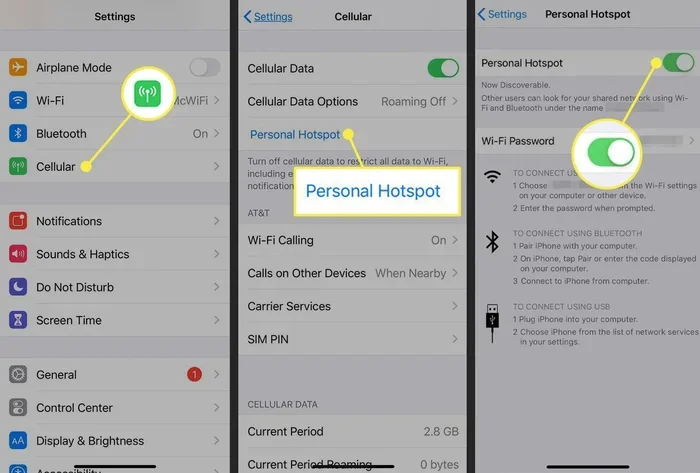
iPhone users can also use USB tethering, but the process is slightly different. Apple calls this feature Personal Hotspot.
- Connect your iPhone to your PC with a USB cable.
- Open Settings on your iPhone.
- Tap on Personal Hotspot.
- Toggle Allow Others to Join to On.
- On your PC, it should recognize the iPhone as a network device automatically.
Make sure your iPhone is unlocked and you have trusted the connected PC if prompted. Once set up, your PC will have internet through your iPhone’s mobile data connection.
How to Set Up a Mobile Hotspot on Android
- Open Settings on your Android phone.
- Go to Network and Internet or Connections.
- Tap on Hotspot and Tethering.
- Select Wi-Fi Hotspot and toggle it On.
- Tap Set up Wi-Fi hotspot to choose a name and password.
- On your PC, open Wi-Fi settings and find your phone’s network name.
- Connect and enter the password.
Your PC is now connected to the internet through your phone. You can check the connection speed by running a quick speed test on your browser.
How to Set Up a Mobile Hotspot on iPhone
- Open Settings on your iPhone.
- Tap on Personal Hotspot.
- Toggle Allow Others to Join to On.
- Set a Wi-Fi password if you have not already.
- On your PC, open Wi-Fi settings and look for your iPhone’s name.
- Connect and enter the password.
iPhone hotspot setup is very simple. Once connected, your PC will share your iPhone’s mobile data connection. You can monitor data usage in the iPhone settings under Personal Hotspot.
How to Set Up Bluetooth Tethering
- Turn on Bluetooth on both your phone and your PC.
- Pair the devices by searching for available Bluetooth devices on your PC.
- Accept the pairing request on your phone.
- On your PC, go to Bluetooth settings and find your phone.
- Right-click on the device and select Connect using Access Point.
Bluetooth tethering takes a few extra steps, but it works well for basic internet needs. Keep in mind that this method is slower than USB or hotspot, so it is best for light browsing.
Comparison Table: USB Tethering vs Hotspot vs Bluetooth
| Feature | USB Tethering | Mobile Hotspot | Bluetooth Tethering |
|---|---|---|---|
| Speed | Fastest | Fast | Slow |
| Stability | Very stable | Good | Moderate |
| Battery Usage | Low | High | Low |
| Mobility | Low (needs cable) | High | Moderate |
| Setup Difficulty | Easy | Easy | Moderate |
| Security | High | Medium | High |
| Best For | Stable work, downloads | General use, mobility | Light browsing, backup |
As you can see from the table, each method has its place. USB tethering wins for speed and stability, hotspot wins for convenience, and Bluetooth tethering is a solid backup option when you need something quick and low-power.
Pros and Cons of Using Phone as Wi-Fi Card for PC
Before you start using your phone as a Wi-Fi card for PC, it is important to understand the benefits and drawbacks. This will help you set realistic expectations and avoid common frustrations.
Pros
- No extra hardware needed: You do not need to buy a Wi-Fi adapter or dongle. Your phone handles the job.
- Works anywhere: As long as you have mobile data, you can get your PC online. This is perfect for travel, camping, or areas with poor Wi-Fi coverage.
- Quick setup: Most methods take less than two minutes to set up. No technical skills are required.
- Cost-effective: You are already paying for your phone plan, so using it as a hotspot does not add extra costs beyond your data usage.
- Multiple devices supported: A mobile hotspot can connect several devices at once, though this will slow down the speed.
Cons
- Battery drain: Sharing your internet connection uses a lot of battery, especially with hotspot mode. Your phone will drain much faster than normal.
- Data limits: If you have a limited data plan, using your phone as a Wi-Fi card for PC can eat through your data quickly. Streaming videos or downloading large files will use up your allowance fast.
- Speed limitations: Your PC’s internet speed is limited by your phone’s mobile data speed and signal strength. You will not get the same speeds as a home broadband connection.
- Heat issues: Extended tethering can cause your phone to heat up, which may affect performance or battery life over time.
- Not ideal for heavy use: For tasks that require a constant, high-speed connection like gaming or large uploads, a dedicated Wi-Fi card or broadband connection is better.
Common Mistakes to Avoid
Even though setting up phone tethering is easy, there are some common mistakes that can cause problems. Here are a few things to watch out for.
Forgetting to enable the connection. This sounds obvious, but many people plug in their phone and expect the internet to work without turning on USB tethering or hotspot. Always double-check that the feature is enabled on your phone.
Ignoring data usage. Using your phone as a Wi-Fi card for PC can consume a surprising amount of data. A single video call or a few hours of browsing can use hundreds of megabytes. Keep an eye on your data usage and set limits if needed.
Using a low-quality cable. If you are using USB tethering, a cheap or damaged cable can cause connection issues. Use a high-quality USB cable that supports data transfer, not just charging.
Not updating your phone’s software. Outdated phone software can cause compatibility issues with tethering. Make sure your phone is running the latest version of its operating system.
Leaving hotspot on when not in use. This drains your battery and uses data even when no one is connected. Always turn off your hotspot when you are done using it.
Expert Tips for Better Performance
Want to get the most out of your phone as a Wi-Fi card for PC? Here are some expert tips that make a real difference.
Use a 5GHz hotspot if your phone supports it. Many modern Android phones let you choose between 2.4GHz and 5GHz frequency bands for your hotspot. The 5GHz band is faster and less congested, which means better speeds for your PC.
Keep your phone plugged in during extended use. If you plan to use tethering for more than an hour, connect your phone to a charger. This prevents battery drain and keeps your phone performing at its best.
Place your phone near your PC for hotspot connections. The closer your phone is to your PC, the stronger the Wi-Fi signal. Avoid placing your phone in another room or behind thick walls.
Close unnecessary apps on your phone. Apps running in the background use data and processing power. Close any apps you do not need to free up resources for the tethering connection.
Use a VPN for security on public networks. If you are using your phone as a Wi-Fi card for PC in a public place, consider using a VPN. This adds an extra layer of security to your connection and protects your data from potential threats.
Check your signal strength first. Before you start tethering, check your phone’s mobile signal. A weak signal means slow speeds and an unreliable connection. Move to a location with better coverage if possible.
Quick Tips for Each Method
Here are some quick tips to make each tethering method work even better.
- USB Tethering Tip: Use the original USB cable that came with your phone for the most reliable connection.
- Hotspot Tip: Change your hotspot password regularly to keep your connection secure.
- Bluetooth Tip: Keep both devices within 10 feet of each other for the best Bluetooth tethering experience.
- General Tip: Restart your phone before tethering if you experience connection issues. This clears any temporary network glitches.
- Data Tip: Set a data usage warning in your phone settings so you do not accidentally exceed your plan limit.
Frequently Asked Questions
Can I use any phone as a Wi-Fi card for PC?
Almost any modern smartphone can be used as a Wi-Fi card for PC. Both Android and iPhone devices support tethering through USB, hotspot, or Bluetooth. The only requirement is that your phone has mobile data and the tethering feature is available in its settings. Very old or budget phones may not support all three methods, but USB tethering is widely available across most devices.
Is it free to use my phone as a Wi-Fi card for PC?
The tethering feature itself is free. However, you are using your mobile data to provide the internet connection. If you have an unlimited data plan, there is no extra cost. If you have a limited data plan, tethering will count toward your data allowance and could result in overage charges if you use too much data. Always monitor your usage when tethering.
Does using my phone as a Wi-Fi card drain the battery?
Yes, tethering uses your phone’s battery, especially mobile hotspot mode. USB tethering uses the least battery, while hotspot uses the most. Bluetooth tethering falls in between. To minimize battery drain, keep your phone plugged in while tethering and turn off the feature when you are not using it.
How fast is the internet when using a phone as a Wi-Fi card for PC?
The speed depends on your phone’s mobile data connection and the tethering method you use. USB tethering generally provides the fastest speeds, followed by mobile hotspot, and then Bluetooth tethering. In areas with strong 4G or 5G signals, you can get speeds that are more than enough for browsing, streaming, and video calls. In areas with weak signals, speeds will be slower.
Can I connect multiple devices to my phone’s hotspot?
Yes, most phones allow multiple devices to connect to the hotspot at the same time. However, connecting more devices will reduce the speed for each device. As a general rule, keep the number of connected devices to a minimum for the best performance. Most phones support between five and ten connected devices, but the actual number may vary by model.
Is it safe to use phone tethering on public Wi-Fi networks?
Phone tethering actually bypasses public Wi-Fi networks entirely, which makes it safer. Instead of connecting to a potentially insecure public Wi-Fi network, your PC connects directly to your phone’s mobile data. However, for an extra layer of security, consider using a VPN when tethering in public places. This encrypts your data and protects your privacy.
Conclusion
Using your phone as a Wi-Fi card for PC is one of the most practical and underrated features available on modern smartphones. Whether you choose USB tethering for speed and stability, mobile hotspot for convenience and mobility, or Bluetooth tethering as a low-power backup, you now have the knowledge to get online in almost any situation. The setup is simple, it does not cost extra, and it works with both Android and iPhone devices.
Remember to keep an eye on your data usage, manage your battery, and choose the right method for your needs. With the tips and setup steps in this guide, you are fully equipped to turn your phone into a reliable internet source for your PC whenever you need it. Try it out today and see how easy it is to stay connected without a traditional Wi-Fi card or adapter.
The next time you find yourself without internet on your laptop, do not panic. Just reach into your pocket, grab your phone, and get back online in minutes. It really is that simple.