Can You Share Wi Fi From Phone To Laptop With This Guide
Yes, you can share Wi-Fi from phone to laptop using a few simple methods. Whether you have an Android or iPhone, turning your phone into a mobile hotspot is quick and easy. This guide covers every method including Wi-Fi hotspot, USB tethering, and Bluetooth tethering. You will learn step-by-step setup, troubleshooting tips, and how to stay safe while sharing your internet connection. Let us get you connected in no time.
Have you ever found yourself in a situation where your laptop has no Wi-Fi but your phone is buzzing with signal? It happens more often than you think. Maybe you are at a coffee shop, a hotel room, or even at home with a router that just stopped working. The good news is that you can share Wi-Fi from phone to laptop in just a few minutes.
This guide walks you through every method available. Whether you use an Android phone or an iPhone, there is a way to get your laptop back online. We will cover mobile hotspot setup, USB tethering, Bluetooth tethering, and much more. By the end of this article, you will know exactly which method works best for your situation.
Sharing your phone’s internet connection is also called tethering or creating a portable hotspot. It turns your phone into a Wi-Fi router that other devices can connect to. The process is simple, and you do not need any extra apps or equipment. Let us dive right in.
Key Takeaways
- Multiple Methods Available: You can share your phone’s Wi-Fi connection with a laptop using hotspot, USB tethering, or Bluetooth tethering.
- Android and iPhone Support: Both platforms offer built-in features to share internet with other devices easily.
- USB Tethering Is Fastest: For stable and fast connections, USB tethering outperforms Wi-Fi hotspot and Bluetooth methods.
- Watch Your Data Usage: Sharing your connection can drain your data plan quickly if you are not careful.
- Security Matters: Always use a strong password and keep your device updated to stay safe while tethering.
- Battery Drain Is Real: Hotspot usage consumes significant battery, so keep your phone charged or plugged in.
- Troubleshooting Is Simple: Most connection issues can be fixed with basic steps like restarting devices or updating network settings.
📑 Table of Contents
- What Is Phone Wi-Fi Sharing?
- How to Share Wi-Fi From Phone to Laptop on Android
- How to Share Wi-Fi From Phone to Laptop on iPhone
- USB Tethering vs Bluetooth vs Hotspot: Which Is Best?
- Common Problems When Sharing Wi-Fi From Phone to Laptop
- Tips to Optimize Your Shared Connection and Stay Safe
- Is Sharing Wi-Fi From Phone to Laptop Safe?
- Final Thoughts
What Is Phone Wi-Fi Sharing?
Phone Wi-Fi sharing means using your smartphone to send its internet connection to another device. Your phone acts as a bridge between the cellular network and your laptop. This is incredibly useful when you need a quick internet fix or when Wi-Fi is unavailable.
The technical term for this is tethering. When you tether your phone, you share its cellular data with other devices through Wi-Fi, Bluetooth, or a USB cable. Each method has its own pros and cons, which we will explore below.
Most modern smartphones support all three tethering methods. Whether you have a Samsung, Google Pixel, iPhone, or any other brand, the feature is built right into your device settings. You do not need to download anything extra to get started.
Why Would You Need to Share Wi-Fi From Phone to Laptop?
There are many reasons you might need to share Wi-Fi from phone to laptop. Here are some common situations:
- Your home Wi-Fi is down and you need internet for work or school.
- You are traveling and there is no available Wi-Fi in your hotel or rental.
- You are at a public place and the Wi-Fi password does not work or is too slow.
- You want a backup connection for important video calls or deadlines.
- You are in a rural area where Wi-Fi coverage is weak or nonexistent.
No matter the reason, knowing how to set up a mobile hotspot is a valuable skill. It can save you from being stuck without internet when you need it most.
How to Share Wi-Fi From Phone to Laptop on Android
Android phones make it very easy to share your internet connection. The built-in hotspot feature lets you create a Wi-Fi network that your laptop can connect to. Here is how to do it step by step.
Method 1: Using the Mobile Hotspot Feature
This is the most common way to share your phone’s internet. Follow these simple steps:
- Open the Settings app on your Android phone.
- Look for Network and Internet or Connections (the name varies by brand).
- Tap on Hotspot and Tethering or Mobile Hotspot.
- Toggle the Mobile Hotspot switch to turn it on.
- Tap Set up Wi-Fi hotspot to name your network and create a password.
- On your laptop, open Wi-Fi settings and find your phone’s network name.
- Connect using the password you just created.
That is it. Your laptop is now connected to the internet through your phone. You should see a Wi-Fi icon in your laptop’s taskbar showing a strong signal.
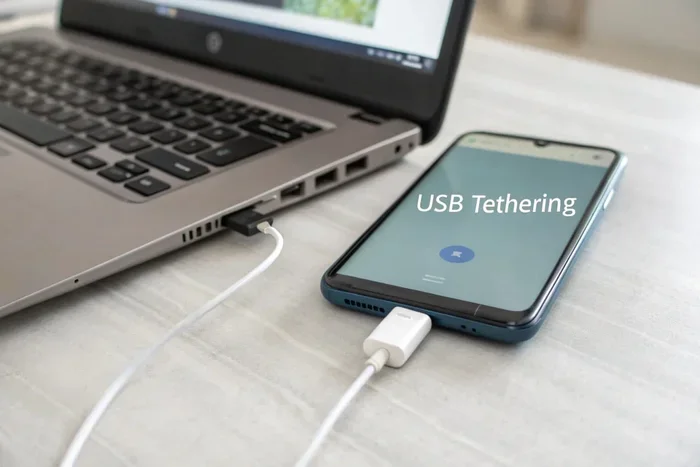
Method 2: Using USB Tethering
USB tethering connects your phone to your laptop using a cable. This method is faster and more stable than Wi-Fi hotspot. Here is how to set it up:
- Connect your Android phone to your laptop using a USB cable.
- Go to Settings on your phone.
- Navigate to Network and Internet or Connections.
- Tap on Hotspot and Tethering.
- Toggle on USB Tethering.
- Your laptop should automatically detect the connection and get online.
USB tethering is great because it does not drain your phone battery as fast as a Wi-Fi hotspot. It also provides a more stable connection, which is perfect for video calls or streaming.
Method 3: Using Bluetooth Tethering
Bluetooth tethering is slower than the other methods but useful when you do not have a USB cable. Here is how it works:
- Turn on Bluetooth on both your phone and laptop.
- Pair the two devices by searching for each other.
- On your phone, go to Settings > Network and Internet > Hotspot and Tethering.
- Tap on Bluetooth Tethering and toggle it on.
- Your laptop should now be connected through Bluetooth.
Keep in mind that Bluetooth tethering offers lower speeds. It works well for basic browsing but may struggle with video streaming or large downloads.
How to Share Wi-Fi From Phone to Laptop on iPhone
iPhone users can also share their internet connection with a laptop easily. Apple calls this feature Personal Hotspot. Here is how to set it up on both Wi-Fi and USB.
Setting Up Personal Hotspot on iPhone
Follow these steps to turn your iPhone into a portable hotspot:
- Open the Settings app on your iPhone.
- Tap on Personal Hotspot (you may need to go to Cellular first).
- Toggle on Allow Others to Join.
- Set a strong Wi-Fi password for your hotspot.
- On your laptop, open Wi-Fi settings and look for your iPhone’s name.
- Select the network and enter the password.
- You are now connected to the internet through your iPhone.
If you do not see the Personal Hotspot option, go to Settings > Cellular > Personal Hotspot and make sure it is enabled. You may also need to contact your carrier to confirm that your data plan supports tethering.
USB Tethering for iPhone
To use USB tethering with an iPhone, follow these steps:
- Connect your iPhone to your laptop using a USB cable.
- Unlock your iPhone and tap Trust This Computer if prompted.
- On your iPhone, go to Settings > Personal Hotspot.
- Toggle on Allow Others to Join.
- Your laptop should recognize the connection automatically.
USB tethering on iPhone works well with macOS. Windows users may need to install Apple iTunes or Apple Devices software for the connection to work properly.
USB Tethering vs Bluetooth vs Hotspot: Which Is Best?
Each method of sharing your internet has its own strengths. Let us compare them so you can choose the best option for your needs.
Speed Comparison
USB tethering offers the fastest speeds because it uses a direct cable connection. Wi-Fi hotspot is the next fastest and works well for most tasks. Bluetooth tethering is the slowest and should only be used for basic browsing.
Stability Comparison
USB tethering is the most stable connection because the cable eliminates interference. Wi-Fi hotspot is stable but can be affected by distance and obstacles. Bluetooth tethering can be unreliable and may drop connections frequently.
Battery Impact Comparison
Bluetooth tethering uses the least battery. Wi-Fi hotspot drains your phone battery the fastest. USB tethering actually charges your phone while providing internet, making it the most battery-friendly option.
Quick Comparison Table
| Feature | USB Tethering | Wi-Fi Hotspot | Bluetooth Tethering |
|---|---|---|---|
| Speed | Fastest | Fast | Slow |
| Stability | Most Stable | Stable | Least Stable |
| Battery Impact | Low (charges phone) | High | Low |
| Range | Cable Length | 30-50 feet | 30 feet |
| Setup Difficulty | Easy | Easy | Moderate |
| Best For | Work, streaming | General use | Basic browsing |
For most users, Wi-Fi hotspot is the go-to option because it is easy to set up and works with multiple devices at once. If you need the best performance, choose USB tethering.
Common Problems When Sharing Wi-Fi From Phone to Laptop
Even though setting up a hotspot is simple, you may run into some issues along the way. Here are the most common problems and how to fix them.
Laptop Cannot Find the Hotspot
If your laptop does not detect your phone’s hotspot, try these steps:
- Make sure your phone’s hotspot is turned on.
- Restart the Wi-Fi adapter on your laptop.
- Move closer to your phone to improve the Wi-Fi range.
- Check if your phone is set to hide the hotspot (some phones have this option).
- Restart both devices and try again.
Slow Internet Speed
Slow speeds are a common complaint when tethering. Here is what you can do:
- Switch from Bluetooth tethering to USB tethering or Wi-Fi hotspot.
- Move to an area with stronger cellular signal.
- Close unnecessary apps on your phone that are using bandwidth.
- Check if other devices are connected to your hotspot and using data.
- Restart your phone to refresh the network connection.
Phone Keeps Disconnecting from Laptop
If your connection drops frequently, try these fixes:
- Use a USB cable for a more stable connection.
- Check for software updates on both your phone and laptop.
- Turn off battery saver mode on your phone (it can interrupt tethering).
- Reset your phone’s network settings (this will erase saved Wi-Fi networks).
Hotspot Password Not Working
If you cannot connect because the password is not working:
- Double-check the password for typos.
- Make sure your keyboard is set to the correct language.
- Reset the hotspot password on your phone and try again.
- Forget the network on your laptop and reconnect from scratch.
Data Plan Exceeded
Sharing your connection can use up your data quickly. Keep an eye on your data usage by checking your phone’s settings. If you have a limited data plan, try to use Wi-Fi when available and reserve tethering for emergencies.
Tips to Optimize Your Shared Connection and Stay Safe
Once you have your hotspot working, there are a few things you can do to improve the experience and keep your connection secure.
Optimize Your Wi-Fi Hotspot Performance
- Use the 5GHz band if your phone supports it. It offers faster speeds and less interference than the 2.4GHz band.
- Keep your phone plugged in while using the hotspot to prevent battery drain.
- Limit the number of connected devices to keep speeds high.
- Place your phone in a central location for better Wi-Fi range.
- Update your phone’s software regularly for the best performance.
Stay Safe While Tethering
Sharing your internet connection comes with some security risks. Here is how to protect yourself:
- Always use a strong Wi-Fi password for your hotspot.
- Turn off your hotspot when you are not using it.
- Avoid accessing sensitive accounts (like banking) on public networks.
- Use a VPN for an extra layer of security when tethering in public places.
- Keep your phone’s firewall and antivirus software up to date.
Manage Your Data Usage
Tethering can eat through your data fast. Here are some tips to keep your usage in check:
- Monitor your data usage in your phone’s settings.
- Set up a data warning or data limit in your phone’s settings.
- Avoid streaming high-definition video when tethering.
- Use data-saving modes on your browser and apps.
- Download large files over Wi-Fi instead of using your hotspot.
Is Sharing Wi-Fi From Phone to Laptop Safe?
Many people worry about the safety of sharing their internet connection. The short answer is yes, it is safe as long as you take the right precautions.
When you set up a mobile hotspot, your phone creates a private network. Only devices with the correct password can connect to it. This is similar to how a home Wi-Fi router works. As long as you use a strong password, your connection is secure.
However, there are some risks to be aware of. If you share your hotspot in a public place, strangers might try to connect. This can slow down your connection and use up your data. Always monitor the list of connected devices in your hotspot settings and remove any unknown devices.
Another concern is data privacy. When you tether, your phone encrypts the data it sends over the hotspot. This means your information stays protected. Just make sure your phone’s operating system is up to date to benefit from the latest security patches.
Overall, sharing Wi-Fi from phone to laptop is a safe and convenient way to stay connected. Just follow basic security practices and you will be fine.
Final Thoughts
Can you share Wi-Fi from phone to laptop? Absolutely. You have multiple options at your fingertips. Whether you use Android or iPhone, setting up a mobile hotspot, USB tethering, or Bluetooth tethering is straightforward and quick.
The best method depends on your needs. For speed and stability, choose USB tethering. For convenience and multiple device support, use the Wi-Fi hotspot. For a quick connection without cables, Bluetooth tethering works in a pinch.
Remember to keep your hotspot password strong, monitor your data usage, and stay mindful of battery drain. With these tips in mind, you will always have a reliable backup internet connection whenever you need it.
Now that you know how to share Wi-Fi from phone to laptop, you are prepared for any situation. Try it out today and enjoy the freedom of staying connected no matter where you are.
Frequently Asked Questions
Can I share Wi-Fi from phone to laptop without using hotspot?
Yes, you can use USB tethering or Bluetooth tethering instead of a Wi-Fi hotspot. USB tethering requires a cable but offers faster and more stable speeds. Bluetooth tethering works without a cable but is slower.
Does sharing Wi-Fi from phone to laptop cost extra money?
It depends on your data plan. Tethering uses your phone’s cellular data, so it counts against your monthly data limit. Check with your carrier to confirm if tethering is included in your plan or if it requires an add-on.
How many devices can connect to a phone hotspot?
Most phones allow 5 to 10 devices to connect to a hotspot at the same time. However, connecting too many devices will slow down the connection for everyone. Keep the number of connected devices to a minimum for the best performance.
Why is my phone hotspot not working on my laptop?
This can happen for several reasons. Try restarting both devices, checking your Wi-Fi settings, updating your network drivers, or resetting your phone’s network settings. Also make sure your hotspot password is correct and that your cellular data is turned on.
Can I use a phone hotspot for work meetings and video calls?
Yes, a phone hotspot works well for video calls and meetings. For the best experience, use USB tethering or a strong Wi-Fi hotspot connection. Make sure you have a good cellular signal and enough data to support video streaming.
Will sharing Wi-Fi drain my phone battery quickly?
Yes, using a Wi-Fi hotspot drains battery faster than normal use. USB tethering is the best option if you want to conserve battery because it charges your phone while providing internet. You can also keep your phone plugged in while tethering to prevent battery drain.
=== CONCLUSION ===
Sharing Wi-Fi from phone to laptop is a simple, practical skill that everyone should know. Whether you are dealing with a dead Wi-Fi connection, traveling, or just need a quick backup, your phone has you covered. With mobile hotspot, USB tethering, and Bluetooth tethering options available on both Android and iPhone, getting your laptop online takes just a few minutes.
Pick the method that suits your needs, follow the steps in this guide, and you will be browsing in no time. Remember to stay safe with strong passwords, keep an eye on your data usage, and enjoy the convenience of having internet anywhere you go.