Can You Show Wi Fi Password On Mac With These Simple Steps
Yes, you can show Wi-Fi password on Mac in just a few simple steps. Whether you use Keychain Access, System Settings, or Terminal, your saved wireless network passwords are easy to retrieve. This guide walks you through every method so you can find your Mac Wi-Fi password quickly and safely.
Ever stood in front of a friend’s router, trying to type in a Wi-Fi password, and realized you have no idea what it is? Or maybe you just set up a new Mac and need to reconnect to your home network. Whatever the reason, finding your Wi-Fi password on a Mac is simpler than you think. You do not need to be a tech expert. You do not need to reset your router. All you need is the right guide.
In this article, I will walk you through every way to show Wi-Fi password on Mac. From the easiest method to the more advanced options, you will find exactly what you need. Each step is clear and straightforward. By the end, you will know how to retrieve any saved wireless network password on your Mac in under a minute.
Key Takeaways
- Multiple Methods Available: You can find your Wi-Fi password on Mac using Keychain Access, System Settings, Terminal, or Airport Utility.
- Keychain Access Is the Easiest: Most users find the saved password in seconds through the Keychain Access app.
- No Third-Party Tools Needed: Apple built-in tools let you view your wireless network password without downloading anything.
- Works on All Mac Models: These steps apply to MacBook Pro, MacBook Air, iMac, Mac Mini, and Mac Studio.
- Security Matters: Always keep your Mac locked and use a strong login password to protect your saved network credentials.
- Terminal Offers a Quick Alternative: Power users can pull up Wi-Fi passwords with a single command in the Terminal app.
- You Can Share Your Password Safely: macOS includes a feature to share your Wi-Fi password securely with nearby devices.
📑 Table of Contents
- Why Would You Need to Show Your Wi-Fi Password on Mac?
- Method 1: Use Keychain Access to Find Your Wi-Fi Password
- Method 2: Find Wi-Fi Password Through System Settings
- Method 3: Use Terminal to Display Your Wi-Fi Password
- Method 4: Use Airport Utility on Older Macs
- How to Share Your Wi-Fi Password from Mac to Other Devices
- How to Manage and Organize Your Saved Wi-Fi Networks on Mac
- Security Tips for Protecting Your Wi-Fi Password on Mac
- Common Problems and How to Fix Them
- Comparison of Methods to Show Wi-Fi Password on Mac
- Quick Tips for Finding Your Wi-Fi Password Faster
- Conclusion
Why Would You Need to Show Your Wi-Fi Password on Mac?
There are many reasons why you might need to find your Wi-Fi password on Mac. Let us look at the most common ones.
You Are Setting Up a New Device
Maybe you bought a new phone, tablet, or smart TV. You need the Wi-Fi password to connect. Instead of hunting for the sticker on your router, you can pull it up directly from your Mac.
You Forgot Your Own Password
This happens more often than you would think. You connected to a network months ago and never wrote down the password. Now you need it, and it is not in your memory. Your Mac has it saved.
You Need to Share It With Someone
A guest is visiting, and they need internet access. You can quickly look up the password on your Mac and share it with them. No more guessing or digging through old emails.
You Are Troubleshooting Network Issues
Sometimes IT professionals or tech-savvy users need to verify the security key for a network. Knowing how to display saved Wi-Fi password on Mac can save a lot of time during troubleshooting.
Method 1: Use Keychain Access to Find Your Wi-Fi Password
Keychain Access is the most popular and easiest way to show Wi-Fi password on Mac. It is a built-in macOS app that stores all your passwords, including wireless network keys. Here is how to use it.
Step-by-Step Guide
- Open Spotlight Search. Press Command and Spacebar together. A search bar appears at the top of your screen.
- Type “Keychain Access.” Hit Enter when the app shows up in the results.
- Search for your network. In the top-right corner, you will see a search bar. Type the name of your Wi-Fi network.
- Double-click the network name. A small window pops up with details about that saved connection.
- Check the “Show Password” box. You will see a checkbox labeled “Show password.” Click it.
- Enter your Mac login password. macOS asks for your user account password to confirm. Type it in and press OK.
- View your password. The Wi-Fi password now appears in plain text next to “Show password.”
That is it. You just found your Mac Wi-Fi password in about 30 seconds. This method works on every version of macOS from older versions all the way through the latest releases.
Tips for Using Keychain Access
- Make sure you remember your Mac login password. You need it to unlock any saved password.
- If you have multiple networks saved, use the search bar to narrow things down quickly.
- You can also use Keychain Access to find passwords for websites, apps, and other saved credentials.
- Keep your Keychain organized. Delete old networks you no longer use to keep things tidy.
Method 2: Find Wi-Fi Password Through System Settings
Apple made it even easier in recent macOS updates. You can now view saved Wi-Fi password on Mac directly from System Settings. This method is great if you do not want to open a separate app.
How to Do It
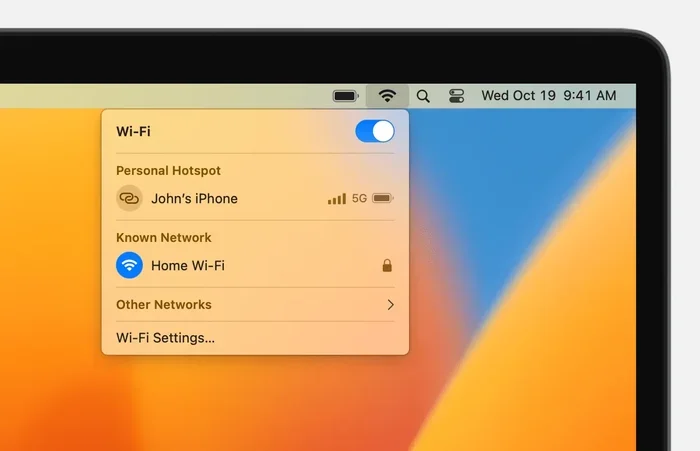
- Open System Settings. Click the Apple menu in the top-left corner and choose System Settings.
- Go to the Wi-Fi section. Click on the Wi-Fi icon in the left sidebar.
- Click on your connected or saved network. Look for the network name you want to check.
- Look for the password option. Next to the network details, you should see a “Password” field.
- Click “Edit” or the eye icon. Depending on your macOS version, you may need to click Edit or an eye icon to reveal the password.
- Authenticate if prompted. Enter your Mac login password to confirm.
- View the password. It now displays on screen for you to see or copy.
This method is clean and simple. It does not require opening any additional apps. If you are using macOS Ventura or later, this is probably the fastest option available.
When System Settings Might Not Work
On older versions of macOS, the System Settings approach may not be available. In that case, Keychain Access is your best bet. Also, if you are looking for a network you are not currently connected to, System Settings might not show it. Keychain Access will still find it though.
Method 3: Use Terminal to Display Your Wi-Fi Password
If you like working with the command line, Terminal offers a quick way to show Wi-Fi password on Mac. This method appeals to power users and those who prefer keyboard-based workflows.
Step-by-Step Terminal Instructions
- Open Terminal. Press Command and Spacebar. Type “Terminal” and hit Enter.
- Type the following command:
security find-generic-password -wa "Your Network Name" - Replace “Your Network Name” with the actual name of your Wi-Fi network. Keep the quotes.
- Press Enter. Terminal will display the password directly in the window.
That single command pulls up your wireless network password on Mac instantly. No clicking through menus. No extra apps. Just a clean text output.
Example
Let us say your network is called “HomeNetwork.” You would type:
security find-generic-password -wa "HomeNetwork"
Press Enter, and the password appears right there. You can then copy it and paste it wherever you need it.
Why Use Terminal?
- It is fast and efficient once you know the command.
- It works even if your Mac has a glitchy display or interface issue.
- It is great for scripting or automating password retrieval tasks.
- You do not need to navigate through multiple menus.
Common Terminal Mistakes to Avoid
- Make sure the network name matches exactly, including spaces and capitalization.
- Do not delete the quotes around the network name.
- If the command does not work, double-check that the network is saved in your Keychain.
- Avoid copying commands from unreliable sources. Stick to trusted guides like this one.
Method 4: Use Airport Utility on Older Macs
On older Macs running macOS Mojave or earlier, Airport Utility can help you find Wi-Fi password on Mac. This built-in tool manages your wireless connections and stores network details.
How to Access It
- Open Finder. Click the Finder icon in your Dock.
- Go to Applications. Open the Applications folder.
- Open Utilities. Scroll down and find the Utilities folder.
- Launch Airport Utility. Double-click the Airport Utility icon.
- Select your network. Look for your Wi-Fi network in the list.
- View network details. Click on the network and look for password or security key information.
Airport Utility is not as commonly used today, but it still works well on older systems. If the other methods do not apply to your Mac version, this is a solid fallback.
How to Share Your Wi-Fi Password from Mac to Other Devices
macOS includes a handy feature that lets you share your Wi-Fi password securely with nearby Apple devices. This is especially useful when a friend or family member needs to connect.
How It Works
- Make sure both devices are close to each other and have Wi-Fi and Bluetooth turned on.
- The other device tries to connect to your network.
- A prompt appears on your Mac asking if you want to share the password.
- Click “Share” and the password is sent securely.
This is a great feature, but it only works between Apple devices. If you need to share the password with an Android phone or a non-Apple device, you will need to look it up using one of the methods above and type it out manually.
How to Manage and Organize Your Saved Wi-Fi Networks on Mac
Over time, your Mac saves passwords for many different networks. Some of them you may not even remember connecting to. Here is how to keep things organized.
Delete Old or Unused Networks
Open Keychain Access and search for networks you no longer use. Right-click on them and choose “Delete.” This clears out clutter and keeps your saved passwords list manageable.
Update a Network Password
If you changed your Wi-Fi password but your Mac still has the old one saved, delete the old entry and reconnect. Your Mac will save the new password automatically.
Prioritize Your Most-Used Networks
Keep your most important networks at the top of your saved list by connecting to them regularly. macOS prioritizes networks you use most often when auto-connecting.
Security Tips for Protecting Your Wi-Fi Password on Mac
Now that you know how to display Wi-Fi password on Mac, it is important to keep that information safe. Here are some best practices.
- Use a strong Mac login password. This is your first line of defense. Anyone with access to your Mac can view saved Wi-Fi passwords.
- Enable FileVault encryption. This encrypts your entire hard drive and adds another layer of security.
- Lock your Mac when not in use. Use a short auto-lock timer so your screen locks quickly when you step away.
- Avoid sharing your Keychain password. Your Mac login password unlocks Keychain Access. Keep it private.
- Use a VPN on public networks. Even with a strong password, public Wi-Fi can be risky. A VPN adds protection.
- Keep macOS updated. Apple regularly patches security vulnerabilities. Stay current with updates.
Following these tips ensures that your wireless password security mac stays strong and your network credentials remain protected.
Common Problems and How to Fix Them
Keychain Access Does Not Show the Password
If you cannot see the password in Keychain Access, make sure you checked the “Show password” box and entered your Mac login password correctly. Also verify that the network name matches exactly what appears in the list.
System Settings Does Not Show a Password Field
On older macOS versions, the password field may not appear in System Settings. Use Keychain Access or Terminal instead. Also make sure you are running the latest version of macOS.
Terminal Shows an Error
If Terminal returns an error, check that the network name is spelled correctly and wrapped in quotes. Also confirm the network exists in your Keychain by searching for it in Keychain Access first.
You Cannot Find a Network in Any Method
If your Mac has never connected to a network, it will not have the password saved. You would need to check the router directly or ask the network owner for the password.
Comparison of Methods to Show Wi-Fi Password on Mac
| Method | Difficulty | Best For | macOS Version |
|---|---|---|---|
| Keychain Access | Easy | Most users | All versions |
| System Settings | Very Easy | Quick lookups | macOS Ventura+ |
| Terminal | Medium | Power users | All versions |
| Airport Utility | Easy | Older Macs | macOS Mojave and earlier |
Each method has its strengths. For most people, Keychain Access or System Settings will be the go-to options. Terminal is perfect if you are comfortable with the command line. Airport Utility is a reliable backup for older systems.
Quick Tips for Finding Your Wi-Fi Password Faster
- Use Spotlight. Press Command + Spacebar and type “Keychain Access” to open it instantly.
- Copy and paste the Terminal command. Save it in a note for quick reference when you need it again.
- Name your networks clearly. When setting up a new Wi-Fi connection, use a recognizable name so it is easy to find later.
- Check your router. If all else fails, the default password is often printed on a sticker on the back or bottom of your router.
- Use the share feature. If you have another Apple device nearby, use the built-in password sharing feature instead of looking it up manually.
Conclusion
Showing your Wi-Fi password on Mac is quick, easy, and does not require any third-party tools. Whether you use Keychain Access, System Settings, Terminal, or Airport Utility, you have multiple reliable options at your fingertips. Each method works well, and you can choose the one that fits your comfort level best.
Remember to keep your saved passwords secure. Use a strong Mac login password and enable encryption. If you ever need to retrieve a wireless network password on Mac, you now know exactly how to do it. No more scrambling, no more guessing. Your Mac has everything you need.
Try these steps today. Once you see how simple it is, you will wonder why you ever worried about finding your Wi-Fi password again. Share this guide with friends who might need it too. Everyone deserves to know how easy it is to find Wi-Fi password on Mac without any hassle.
Frequently Asked Questions
Can I see my Wi-Fi password on Mac without any extra software?
Yes, absolutely. Apple provides built-in tools like Keychain Access, System Settings, and Terminal that let you view saved Wi-Fi passwords. You do not need to download any third-party apps or software.
Why does my Mac ask for my login password when I try to show the Wi-Fi password?
This is a security feature. macOS protects your saved passwords by requiring your user account password before revealing them. It prevents anyone who sits down at your Mac from seeing your private network credentials.
Will these steps work on a MacBook Air and MacBook Pro?
Yes, these methods work on every Mac model including MacBook Air, MacBook Pro, iMac, Mac Mini, Mac Studio, and Mac Pro. The process is the same regardless of which Mac you own.
Can I find the Wi-Fi password for a network my Mac was never connected to?
No, your Mac only saves passwords for networks it has connected to before. If you have never joined a network, the password will not appear in Keychain Access or any other method. You would need to check the router or ask the network owner.
Is it safe to use Terminal to find my Wi-Fi password?
Yes, it is completely safe. The Terminal command used in this guide is a standard macOS security command. It only reads saved passwords from your Keychain. It does not change or delete anything on your Mac.
How do I update my Wi-Fi password on my Mac after changing it on my router?
First, connect your Mac to the network using the new password. macOS will automatically save the updated password in Keychain Access. If you want to remove the old entry, open Keychain Access, find the old network, right-click it, and select Delete.