Can You Print Off Your Phone At Staples Right Here
Yes, you can print off your phone at Staples. The store offers multiple ways to print directly from your mobile device, including AirPrint, the Staples app, and email printing. You can print documents, photos, and even spreadsheets without a computer. This guide walks you through every method, cost, and tip so you can get your papers fast.
Have you ever needed to print something right away but only had your phone? Maybe a boarding pass, a recipe, or a contract. You might wonder, Can You Print Off Your Phone At Staples. The answer is a clear yes. Staples makes mobile printing easy for anyone. You do not need a laptop or a special cable. You can walk into a store, send a file from your pocket, and walk out with a paper copy in minutes. This guide shows you exactly how it works. You will learn every method, the costs, and the best tips to avoid trouble.
Many people still think printing means sitting at a desk. That is no longer true. Today, your smartphone is a powerful printing tool. Stores like Staples have built their services around this shift. They offer wireless printing, app-based jobs, and even kiosks that let you print directly from your phone. Whether you need black-and-white prints or full-color photos, Staples has you covered. The whole process is designed to be simple and fast. You will be printing off your phone in no time.
Key Takeaways
- Multiple printing methods: You can use AirPrint, the Staples mobile app, email, or a printing kiosk to print from your phone.
- No computer needed: Staples supports direct mobile printing for both documents and photos.
- Clear pricing: Black-and-white prints cost around $0.10 per page, while color prints run about $0.25 to $0.50 per page.
- Wi-Fi and cloud options: You can print over the store’s free Wi-Fi or send jobs remotely via the app.
- Photos look great: Staples offers glossy and matte photo paper for high-quality mobile prints.
- Quick tips save time: Bring your file in the right format, check print settings, and use the app for the fastest service.
📑 Table of Contents
- Can You Print Off Your Phone At Staples? The Short Answer
- How to Print from Your Phone at Staples
- What Printing Options Does Staples Offer for Mobile Users
- How Much Does Phone Printing Cost at Staples
- Printing Photos and Documents from Your Mobile Device
- Expert Insights and Common Mistakes to Avoid
- Conclusion
Can You Print Off Your Phone At Staples? The Short Answer
The short answer is yes. Can You Print Off Your Phone At Staples is a question many customers ask, and the store has a clear solution. Staples provides several ways to print from a mobile device. You can use Apple AirPrint, the Staples mobile app, email, or a self-service kiosk. Each method works well for different needs. AirPrint is great for quick, direct printing. The app gives you more control over your job. Email printing is perfect if you are away from the store. The kiosk is ideal for last-minute prints when you are already on the premises.
Staples also supports many file types. You can print PDFs, Word documents, Excel spreadsheets, and image files like JPEGs and PNGs. The store’s printers handle both plain paper and photo paper. So whether you are printing a simple text page or a 4×6 glossy photo, the process is the same. You just send the file from your phone. This flexibility is why so many people choose Staples for mobile printing. It removes the hassle of transferring files to a computer first.
Why Mobile Printing at Staples Matters
Mobile printing is more than a convenience. It is a necessity for many people. Think about how often you use your phone for work. You might read contracts, sign PDFs, or view travel itineraries on your screen. Having the ability to print from your phone means you can turn digital information into physical copies instantly. This is especially helpful for people who are always on the go. Business travelers, students, and parents all benefit from this feature.
Staples understands that people live on their mobile devices. That is why they invested in wireless printing solutions that work seamlessly with smartphones. You do not need to download special drivers or connect to a weird network. The store’s printers are ready to receive jobs from your phone as long as you are on the same Wi-Fi network. This kind of smartphone printing makes Staples a go-to destination for quick, reliable printing services.
How to Print from Your Phone at Staples
Printing from your phone at Staples is straightforward. The store offers a few different paths, and you can pick the one that fits your situation best. Below, we walk through each method step by step. You will see that none of them require a computer or a complicated setup.
Method 1: Use Apple AirPrint
If you have an iPhone or iPad, AirPrint is the easiest way to print. Most modern Staples stores have AirPrint-enabled printers. Here is how it works. First, make sure your phone and the printer are on the same Wi-Fi network. You can connect to the store’s free guest Wi-Fi if you are inside. Open the file you want to print. Tap the share icon, then tap Print. Choose the Staples printer from the list. Select the number of copies and whether you want color or black-and-white prints. Finally, tap Print. Your job will go straight to the printer. You can pick up your pages in a few minutes.
AirPrint works with many apps, including Safari, Mail, and the Files app. You can also print photos directly from your Photos app. The key is to look for the AirPrint symbol on the printer. It usually looks like a small triangle with circles. If you see it, you are good to go. This method is perfect for quick print jobs when you do not want to install anything.
Method 2: Use the Staples Mobile App
The Staples app is a powerful tool for mobile printing. It works for both iPhone and Android. You can download it for free from the App Store or Google Play. Once you have the app, you can send print jobs directly from your phone. The app lets you upload files from your device, cloud storage, or email. You can also adjust settings like paper size, print quality, and number of copies.
One great feature of the app is the ability to find a nearby Staples store and check printer availability. You can see if a store has a printing kiosk or a staffed copy center. This helps you plan your visit. You can also save favorite print settings for faster jobs in the future. The app is a must-have for anyone who prints from their phone often. It turns your smartphone into a portable printing hub.
Method 3: Print via Email
Did you know you can print by sending an email? Staples offers an email printing service through its app. You can send your file as an attachment to a special email address provided by the app. The file will be held in a queue at the store. When you arrive, you can pick it up at the copy center or a designated printer. This method is handy if you are not near a store yet but want your prints ready when you get there.
To use this, open the Staples app, go to the email print section, and note your unique email address. Attach the file you want to print. Send the email. The system will process the file and prepare it for pickup. You will get a notification when it is ready. This cloud printing option is very useful for people who are always on the move.
Method 4: Use a Self-Service Kiosk
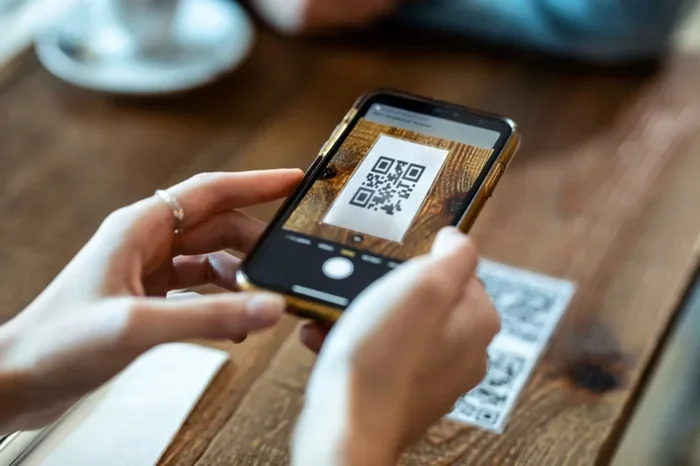
Many Staples locations have self-service printing kiosks. These kiosks let you print directly from your phone using a QR code or a web link. You upload your file to the kiosk system through your phone’s browser. The kiosk prints the document and holds it for you. This is a great option if you need a quick print job and do not want to wait in line for staff help.
The kiosk interface is simple and touch-friendly. You can select color or black-and-white prints, adjust the quality, and pay right at the machine. It is perfect for printing a single page or a short document. The kiosk is also available after store hours in some locations, making it very convenient.
What Printing Options Does Staples Offer for Mobile Users
Staples offers a range of printing options that work well with phones. You can choose the paper type, color mode, and finish. Understanding these options helps you get the best result for every job.
| Printing Option | Best For | Typical Cost per Page |
|---|---|---|
| Black-and-White Prints (Plain Paper) | Documents, emails, text-heavy pages | $0.10 – $0.15 |
| Color Prints (Plain Paper) | Reports, flyers, colorful charts | $0.25 – $0.40 |
| Glossy Photo Prints (4×6) | Photos, memories, presentations | $0.35 – $0.50 |
| Matte Photo Prints (4×6) | Photos without glare, portfolios | $0.30 – $0.45 |
| Large Format Prints (up to 11×17) | Posters, blueprints, graphics | $2.00 – $5.00+ |
| Staple-Bound Booklets | Reports, manuals, booklets | $3.00 – $8.00+ |
All of these options are available for phone printing. You simply select your preferences when you send the job. The print quality is sharp and clear for both documents and photos. Staples uses high-quality printers and fresh paper to ensure every page looks professional. If you are unsure which option to pick, the staff at the copy center can help you choose the right settings for your mobile device.
Black-and-White vs. Color Prints
Black-and-white prints are the most affordable option. They are perfect for text documents, drafts, and internal notes. If you are printing a simple email or a contract, black-and-white is all you need. Color prints cost more but are essential for presentations, flyers, and any document where visual impact matters. Photos are always printed in color unless you choose a black-and-white filter.
Keep in mind that color prints use more ink. If you are printing a long document, the cost adds up. You can save money by printing only the pages that need color. Most phones let you select specific pages before you send the job. This small step can cut your print cost significantly.
How Much Does Phone Printing Cost at Staples
Cost is an important factor when you decide to print off your phone. Staples keeps its pricing clear and competitive. The price depends mainly on the type of print and the paper you choose. Below is a general overview of what you can expect.
- Black-and-white prints: Around $0.10 to $0.15 per page. This is the cheapest option for text documents.
- Color prints on plain paper: Around $0.25 to $0.40 per page. Great for reports and marketing materials.
- Standard 4×6 photo prints: Around $0.35 to $0.50 per photo. You can choose glossy or matte finish.
- Large format prints: Prices start at $2.00 and go up based on size and paper type.
- Finishing options: Binding, stapling, and hole punching cost extra but are affordable.
The print cost can vary slightly by location. Urban stores or airports may charge a bit more. However, the prices remain reasonable for most people. If you print often, consider signing up for a Staples Rewards account. You can earn points and get discounts on printing services. This is a great way to save money on regular mobile printing.
Are There Any Hidden Fees?
Staples does not hide fees. The price you see is the price you pay. There are no extra charges for using Wi-Fi or the mobile app. You only pay for the prints you order. If you use a printing kiosk, the screen will show the total cost before you confirm. This transparency makes it easy to budget for your print jobs.
One thing to watch is the paper size. Standard letter size (8.5 x 11) is the default and included in the per-page price. If you need a custom size or specialty paper, the cost may be higher. Always check the price on the screen or ask a staff member before you print. This simple step prevents surprises.
Printing Photos and Documents from Your Mobile Device
Printing photos from your phone is one of the most popular uses of mobile printing at Staples. Whether you printed a family picture or a product shot for your small business, the results can be excellent. Staples offers both glossy and matte photo paper. Glossy paper gives vibrant colors and a shiny finish. Matte paper reduces glare and feels smooth to the touch. Both options look professional and are available for phone printing.
To print a photo, open your gallery, tap the share button, and choose Print. If you are using AirPrint, select the Staples printer and the number of copies. For the best print quality, make sure your photo is high resolution. Very small or compressed images might look blurry on paper. If you are unsure, you can use the Staples app to enhance the image before printing. The app can also crop and adjust brightness to make your photos pop.
Printing documents from your phone works just as easily. You can print PDFs, Word files, and spreadsheets directly. The Staples app supports many file formats, so you rarely run into issues. If you receive a document in an unusual format, you can often convert it using a free online tool before sending it to the printer. This keeps your print jobs moving smoothly.
Quick Tips for the Best Results
- Check the file size: Very large files may take longer to process. Keep files under 25 MB for the fastest printing.
- Use the right paper: Choose photo paper for images and plain paper for text documents.
- Preview before printing: Always use the print preview to check page layout and avoid wasted pages.
- Bring a backup: Save a copy of your file in the cloud or email it to yourself as a backup.
- Ask for help: The copy center staff can help with settings if you are unsure. They are very familiar with phone printing.
Expert Insights and Common Mistakes to Avoid
Expert Insight: “The most common mistake we see is people not checking their Wi-Fi connection before sending a print job. If your phone is not on the same network as the printer, the job will fail. Always connect to the store’s Wi-Fi or use the app’s direct connection feature.” – Staples Copy Center Associate
Another mistake is sending files with the wrong orientation. If your document is set to landscape but your phone thinks it is portrait, the printout may be cut off. Always check the preview screen. A quick glance can save paper and frustration. Also, remember that some apps do not support AirPrint directly. In those cases, use the Staples app or export the file to a PDF first. PDF files are universally accepted and print reliably.
People also sometimes forget to pick up their prints. The store holds printed jobs for a limited time, usually 24 hours. If you do not return quickly, the job may be discarded. Set a reminder on your phone if you need to run an errand before you collect your pages. Staying on top of your print job ensures you never lose important documents.
Common Mistakes When Printing from Your Phone
- Wrong Wi-Fi network: Make sure you are connected to the store’s guest network, not your home network.
- Unsupported file type: Some printers struggle with rare formats. Convert to PDF if you are unsure.
- Low ink or paper: The printer may be out of supplies. Check the status screen or ask staff.
- Ignoring print preview: Always preview to avoid printing the wrong pages or the wrong number of copies.
- Not picking up in time: Jobs expire after 24 hours. Retrieve your prints promptly.
Avoiding these simple mistakes makes your mobile printing experience smooth and stress-free. You will get your pages quickly and without any extra trips to the counter.
Conclusion
Can You Print Off Your Phone At Staples is a resounding yes. The store offers multiple easy methods, from AirPrint and the mobile app to email and self-service kiosks. You can print documents, spreadsheets, and high-quality photos directly from your phone. The costs are clear and affordable, and the staff is ready to help if you need it. Mobile printing at Staples is fast, reliable, and designed for the way people live and work today.
Next time you need a paper copy, you do not need a computer. Just pull out your phone, pick the method that works best, and send your file. You will be holding your printed pages in minutes. Embrace the convenience of wireless printing and make Staples your go-to print shop for all your mobile printing needs.
Frequently Asked Questions
Do I need to install any software to print from my phone at Staples?
No. If you have an iPhone or iPad, you can use Apple AirPrint without installing anything. Android users can use the free Staples app for the best experience. The app is not required, but it adds helpful features like finding a store and sending print jobs remotely.
Can I print in color from my phone at Staples?
Yes, you can print full-color documents and photos. Just select the color option in your print settings or the Staples app. Color prints cost a bit more than black-and-white, but the quality is vibrant and professional.
How long does it take to print from a phone at Staples?
Most print jobs are ready in just a few minutes. Simple text documents print almost instantly. Photos and large files may take a little longer, but you will rarely wait more than 10 minutes. The printing kiosk is especially fast for single-page jobs.
Can I print from my phone if I am not near a Staples store?
Yes, using the Staples app and email printing, you can send a job from anywhere. The file will be queued at your chosen store. You can pick it up when you arrive. This is a great way to plan ahead and avoid waiting in the store.
What file formats work best for phone printing at Staples?
PDF, JPEG, PNG, and Word documents work very well. The Staples app supports many formats. If you have an unusual file type, converting it to a PDF first is the safest bet for a smooth print job.
Is there a minimum or maximum number of pages I can print from my phone?
There is no minimum. You can print a single page or hundreds. For very large jobs, the copy center staff can assist you. There is also no strict maximum, but extremely large files may need a few minutes to process. Keeping files under 25 MB ensures the fastest turnaround.