How Do I Add A Bluetooth Head To My Device Step By Step
Adding a Bluetooth head to your device is easier than you think. This guide walks you through every step, from checking compatibility to solving common connection problems. You will learn how to pair, troubleshoot, and get the best audio quality from your wireless setup.
Key Takeaways
- Bluetooth heads work with most modern devices: phones, tablets, laptops, TVs, and gaming consoles all support Bluetooth.
- Pairing takes under a minute: just enable Bluetooth, put your head in pairing mode, and select it from your device.
- Distance matters: keep your Bluetooth head within 30 feet of your device for the best connection.
- Audio quality depends on your Bluetooth version: newer versions deliver clearer sound and lower latency.
- Troubleshooting is simple: restarting devices, updating drivers, and resetting Bluetooth settings fix most issues.
📑 Table of Contents
- What Is A Bluetooth Head And Why Should You Add One?
- Check Your Device Compatibility Before You Start
- Step By Step Guide To Adding A Bluetooth Head
- Troubleshooting Common Bluetooth Connection Problems
- Tips For Better Bluetooth Audio Quality
- Using Your Bluetooth Head Across Multiple Devices
- How To Keep Your Bluetooth Head In Good Shape
- Final Thoughts On Adding A Bluetooth Head To Your Device
What Is A Bluetooth Head And Why Should You Add One?
A Bluetooth head is a wireless audio device that connects to your phone, computer, TV, or tablet without any cables. It could be a headset, a pair of headphones, or even a speaker that sits on your head. The idea is simple: you get freedom of movement and clean sound without dealing with tangled wires.
People add a Bluetooth head to their devices for many reasons. Maybe you want to listen to music without disturbing others. Perhaps you need hands-free calling while working. Or you just want to watch movies on your TV late at night without waking the whole house. Whatever your reason, setting one up is straightforward.
The best part? Most devices made in the last decade already have Bluetooth built in. You do not need fancy equipment or technical skills. A few taps and clicks are all it takes to get started.
Check Your Device Compatibility Before You Start
Before you try to add a Bluetooth head, make sure your device can support it. Not every gadget has Bluetooth, and some older models do not include wireless capabilities.
Which Devices Support Bluetooth?
Most modern smartphones and tablets come with Bluetooth already installed. Laptops and desktop computers often have it too, but some budget models may not. Smart TVs and streaming devices like Roku also support Bluetooth in many cases. Gaming consoles such as the PS5 allow you to connect Bluetooth headphones, but you may need a specific setup. You can learn more about this in our guide on Can I Use Any Bluetooth Headphones With PS5.
Here is a quick checklist to help you figure out if your device works with a Bluetooth head:
- Go to your device settings and look for a Bluetooth option.
- If you see it, your device likely supports Bluetooth.
- Check your Bluetooth version in the settings or manual.
- Bluetooth 4.0 or newer works well with most heads.
What If Your Device Does Not Have Bluetooth?
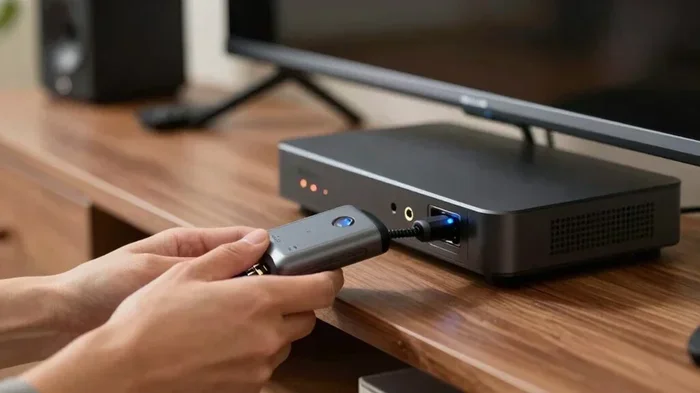
Do not worry if your older device lacks Bluetooth. You can buy a small Bluetooth adapter that plugs into a USB port. These adapters are cheap and easy to use. They turn any device with a USB port into a Bluetooth-capable machine. Just plug it in, install the driver, and you are good to go.
Step By Step Guide To Adding A Bluetooth Head
Now that you know your device is compatible, let us walk through the actual pairing process. This guide works for phones, tablets, laptops, and most Bluetooth-ready devices.
Step 1: Charge Your Bluetooth Head
Before you do anything, make sure your Bluetooth head has enough battery. A low battery can cause pairing problems. Plug it in and wait at least 30 minutes. Most heads charge fully in one to two hours. A full charge gives you the best chance of a smooth connection.
Step 2: Turn On Bluetooth On Your Device
Open your device settings and find the Bluetooth menu. On most phones, you can swipe down from the top of the screen and tap the Bluetooth icon. On a computer, go to Settings and select Bluetooth. Make sure the toggle is turned on.
Step 3: Put Your Bluetooth Head In Pairing Mode
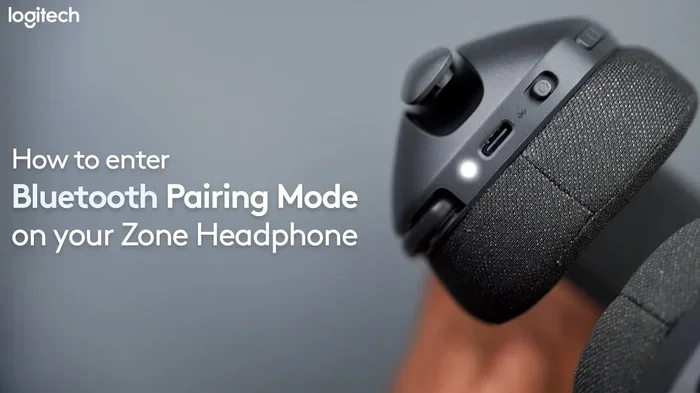
This step trips up a lot of people. Your head will not show up on your device unless it is in pairing mode. Usually, you hold down a button on the head for a few seconds. A flashing LED light means it is ready. Check your head’s manual if you are not sure how to do this.
Step 4: Select Your Bluetooth Head From The List
Go back to your device’s Bluetooth settings. You should see a list of available devices. Tap on your Bluetooth head when it appears. Some heads require you to enter a PIN, but most use the default code 0000 or 1234.
Step 5: Test The Connection
Once paired, play some audio to test the connection. Try music, a video, or a podcast. If you hear sound through your head, you are all set. If not, do not panic. Move on to the troubleshooting section below.
Pro Tip: If you want to use your Bluetooth head for hands-free calling or to talk through it during calls, check out our article on Can I Talk Through My Bluetooth Headphones for helpful tips.
Troubleshooting Common Bluetooth Connection Problems
Even when you follow every step correctly, things can go wrong. Bluetooth connections are not always perfect. Here are the most common issues and how to fix them.
Your Bluetooth Head Does Not Show Up
If your head does not appear in the device list, try these fixes:
- Make sure your head is in pairing mode. The light should be flashing.
- Turn Bluetooth off and back on your device.
- Move closer to your device. Bluetooth range is usually about 30 feet.
- Restart both your device and the Bluetooth head.
Audio Keeps Cutting Out
Intermittent audio is frustrating. It usually happens when something is blocking the signal. Wi-Fi routers, microwaves, and even walls can interfere with Bluetooth. Try moving closer to your device or away from other electronics. Also, make sure your Bluetooth head firmware is up to date.
Sound Quality Is Poor
If the audio sounds fuzzy or distorted, your Bluetooth version might be the culprit. Older Bluetooth versions like 2.1 and 3.0 have lower audio quality. Upgrading to a head with Bluetooth 5.0 or higher can make a big difference. You can also try adjusting the equalizer settings on your device.
Your Head Will Not Disconnect From A Previous Device
Sometimes a Bluetooth head stays connected to an old device and ignores the new one. Go to the Bluetooth settings on the old device and forget the head. Then try pairing again with the new device. This usually solves the problem right away.
If you are having trouble with your TV specifically, you might want to check out our guide on Can I Use Bluetooth Headphones With Roku for device-specific tips.
Tips For Better Bluetooth Audio Quality
Getting your Bluetooth head connected is only half the battle. You also want great sound. Here are some tips to improve your listening experience.
Understand Bluetooth Codecs
A codec is the technology that compresses and sends audio over Bluetooth. Different codecs offer different sound quality. AAC and aptX are two popular codecs that deliver better audio than the standard SBC codec. Check if your device and head support the same codec for the best results.
Keep Your Devices Close
Bluetooth works best at short distances. The closer your head is to your device, the stronger the signal. Try to stay within 15 to 20 feet for the best audio experience. Walls and furniture weaken the signal, so keep that in mind.
Reduce Interference
Other wireless devices can mess with your Bluetooth connection. Wi-Fi, USB 3.0 ports, and even baby monitors can cause interference. Turn off devices you are not using and see if that improves your audio quality.
Update Your Firmware And Drivers
Manufacturers often release updates that improve Bluetooth performance. Check for firmware updates on your head and device drivers on your computer. Keeping everything updated can fix bugs and boost sound quality.
Want to explore more ways to use Bluetooth for audio? Check out our article on Can I Play Radio Using Bluetooth for creative ideas.
Using Your Bluetooth Head Across Multiple Devices
One of the best things about a Bluetooth head is that you can switch between devices. You can listen to music on your phone and then switch to your laptop for a video call. Here is how to manage multiple connections.
Multipoint Bluetooth
Some Bluetooth heads support multipoint connectivity. This means they can connect to two devices at the same time. When a call comes in on your phone, the head automatically switches to your phone. When the call ends, it goes back to your music. Not all heads have this feature, so check before you buy.
How To Switch Between Devices Manually
If your head does not support multipoint, you can still switch devices. Just disconnect from one device in the Bluetooth settings and connect to the other. It takes a few extra seconds, but it works well. Some heads also let you save multiple device profiles for faster switching.
Managing Your Bluetooth Head On Smart TVs
Connecting a Bluetooth head to a smart TV is a bit different than connecting to a phone. Some TVs do not support Bluetooth headphones natively. In that case, you may need a Bluetooth transmitter that plugs into the TV’s audio output. This sends the audio signal wirelessly to your head. It is a simple and affordable solution that works with almost any TV.
How To Keep Your Bluetooth Head In Good Shape
A Bluetooth head is an investment. Taking care of it will help it last longer and perform better. Here are some simple maintenance tips.
- Charge regularly: Do not let the battery drain completely. Charge it before it hits zero.
- Clean the ear pads: Wipe them down with a soft cloth to remove sweat and dirt.
- Store properly: Use a carrying case to protect the head when you are not using it.
- Avoid extreme temperatures: Heat and cold can damage the battery and electronics.
- Update firmware: Keep your head’s software up to date for the best performance.
Taking a few minutes to care for your Bluetooth head can add years to its lifespan. A well-maintained head sounds better and connects more reliably every time.
Final Thoughts On Adding A Bluetooth Head To Your Device
Adding a Bluetooth head to your device is one of the simplest upgrades you can make. It gives you wireless freedom, better sound, and more convenience. Whether you are listening to music, taking calls, or watching your favorite shows, a Bluetooth head makes everything more enjoyable.
The process is quick and does not require any technical expertise. Just follow the steps in this guide, and you will be up and running in minutes. If you run into any issues, the troubleshooting tips above should help you get back on track fast.
Remember to keep your devices updated, stay within range, and take care of your head. With the right setup, you will wonder how you ever lived with wired headphones. Enjoy your wireless audio experience!
Frequently Asked Questions
Can I connect a Bluetooth head to any device?
Most modern devices support Bluetooth, including phones, tablets, laptops, and smart TVs. However, some older or budget devices may not have Bluetooth built in. In those cases, a USB Bluetooth adapter can add wireless capability to your device.
How long does it take to pair a Bluetooth head with a device?
The pairing process usually takes less than a minute. You just need to enable Bluetooth on your device, put your head in pairing mode, and select it from the list. If everything goes smoothly, you will be connected in seconds.
Why does my Bluetooth head keep disconnecting from my device?
Disconnections often happen due to distance, interference from other wireless devices, or a low battery. Try moving closer to your device, reducing interference from Wi-Fi or USB 3.0 devices, and making sure both devices are fully charged. Restarting both devices can also help.
Can I use my Bluetooth head with multiple devices at the same time?
Some Bluetooth heads support multipoint connectivity, which allows them to connect to two devices simultaneously. If your head does not have this feature, you can still switch between devices manually by disconnecting from one and connecting to the other in your Bluetooth settings.
What is the best Bluetooth version for a Bluetooth head?
Bluetooth 5.0 or newer offers the best sound quality, range, and battery efficiency. If you are buying a new head, look for one with Bluetooth 5.0 or higher. It provides a much better experience than older versions like Bluetooth 4.0 or 3.0.
How can I improve the audio quality of my Bluetooth head?
To get better sound, make sure your head and device support the same Bluetooth codec, such as AAC or aptX. Keep your devices close together, reduce wireless interference, and update your firmware and drivers regularly. These steps can significantly improve your audio experience.
=== CONCLUSION ===
Adding a Bluetooth head to your device opens up a world of wireless convenience. From the moment you pair it, you will enjoy freedom of movement and high-quality audio without any cables getting in the way. This guide covered everything you need to know, from checking compatibility to troubleshooting common issues and getting the best audio quality.
Follow the steps outlined above, and you will have your Bluetooth head connected in no time. Remember to keep your devices updated, stay within range, and take good care of your head for the best long-term experience. Wireless audio is the future, and now you are ready to enjoy it.