Can You Add Bluetooth To A TV That Does Not Have It
Yes, you can add Bluetooth to a TV that does not have it. Whether your TV is older or a basic model without wireless features, several simple methods let you stream audio wirelessly. You can use a Bluetooth transmitter, adapter, or even a smart streaming device to get Bluetooth working on any TV. This guide covers every method, product recommendation, and troubleshooting tip you need to connect your wireless headphones, speakers, and soundbars to any television.
Have you ever wanted to watch your favorite show with wireless headphones but realized your TV does not have Bluetooth? You are not alone. Many people own TVs that lack this handy feature, especially older models or budget sets. The good news is that you can add Bluetooth to a TV that does not have it without spending a fortune or hiring a technician.
Adding Bluetooth to your TV opens up a world of possibilities. You can connect wireless headphones, stream music to a Bluetooth speaker, or even send audio to a soundbar without any messy cables. Whether you live in an apartment and need quiet late-night viewing or you simply prefer a clutter-free setup, wireless audio makes a huge difference.
This guide will walk you through every method available to add Bluetooth to your TV. We will cover Bluetooth transmitters, adapters, smart streaming devices, and even soundbars that can do the job. You will also find a step-by-step setup guide, product recommendations, and troubleshooting tips to help you solve any issues along the way.
Key Takeaways
- You can add Bluetooth to any TV: Multiple methods work for TVs without built-in Bluetooth, including transmitters, adapters, and smart devices.
- Bluetooth transmitters are the most popular solution: They plug into your TV’s audio output and send wireless audio to your headphones or speakers.
- Compatibility matters: Check your TV’s audio output options before buying any Bluetooth accessory.
- Setup is simple: Most Bluetooth adapters and transmitters pair in under two minutes with no technical skills needed.
- Audio lag can be an issue: Choose a transmitter with aptX Low Latency for synced video and audio.
- Multiple devices can connect: Many transmitters support pairing with more than one Bluetooth device at a time.
- Wireless TV audio improves convenience: You can watch TV late at night without disturbing anyone in the house.
📑 Table of Contents
Why Bluetooth Matters on Your TV
The Rise of Wireless Audio
Wireless audio has become the standard in today’s home entertainment world. Most people now use wireless headphones, Bluetooth speakers, and soundbars instead of traditional wired setups. TVs have slowly caught up, but many models still do not include built-in Bluetooth. This gap leaves a lot of viewers unable to enjoy the convenience of wireless audio directly from their television.
The demand for wireless TV audio has grown significantly over the past few years. People want the freedom to move around the room while watching their favorite programs. Parents want to put their kids to sleep while still catching the end of a movie. Couples enjoy watching TV at different volumes. Bluetooth solves all of these problems.
Benefits of Adding Bluetooth to Your TV
There are many real-world benefits to adding Bluetooth capability to your TV. Here are some of the most common reasons people make this upgrade:
- Late-night viewing without noise: Use wireless headphones so you can watch TV at full volume while others sleep.
- Better hearing support: People with hearing difficulties can connect their TV directly to wireless headphones for clearer sound at a comfortable volume.
- No cable clutter: Eliminate the mess of wires running from your TV to a speaker or soundbar across the room.
- Easy device switching: Jump between your TV, phone, and tablet without unplugging and replugging cables.
- Portable listening: Some Bluetooth transmitters let you move up to 30 feet away from the TV while still hearing clear audio.
- Improved audio quality: Many modern Bluetooth devices offer better sound than your TV’s built-in speakers.
Adding Bluetooth to your TV is one of the easiest and most affordable upgrades you can make. It transforms your viewing experience and gives you much more flexibility.
Can You Add Bluetooth to a TV That Does Not Have It?
The short answer is yes. You can add Bluetooth to a TV that does not have it using external devices. Your TV does not need to have Bluetooth built in for you to enjoy wireless audio. All you need is a small external device that bridges the gap between your TV’s audio output and your Bluetooth headphones or speakers.
There are several different ways to accomplish this. Each method has its own advantages depending on your TV model, your budget, and what you want to achieve. Let us explore the most popular and effective options below.
Understanding TV Bluetooth Limitations
Before you buy any device, it helps to understand why some TVs do not have Bluetooth. Many budget and older TV models were designed before wireless audio became standard. Manufacturers often leave out Bluetooth to keep costs down. Some TVs do have built-in Bluetooth but only support specific features like connecting wireless controllers or keyboards, not audio streaming.
Also, some smart TVs from certain brands may include Bluetooth but require you to enable it in the settings. If your TV has a settings menu with a Bluetooth option, you might already have the feature without realizing it. Check your TV’s manual or settings before purchasing any additional equipment.
What to Check Before You Start
Before you buy any Bluetooth accessory, check the following on your TV:
- Audio output ports: Look for a 3.5mm headphone jack, RCA audio outputs, or an optical digital output. These are the connection points your Bluetooth device will use.
- USB ports: Some Bluetooth adapters plug directly into a USB port, so check if your TV has one available.
- HDMI ARC or eARC: Newer TVs may have HDMI ports that support audio return channel, which opens up additional Bluetooth options through soundbars.
- TV model and age: Knowing your exact TV model helps you choose the right Bluetooth accessory that is compatible.
Once you know what ports your TV has, choosing the right Bluetooth solution becomes much easier.
Methods to Add Bluetooth to Your TV
Method 1: Bluetooth Transmitter
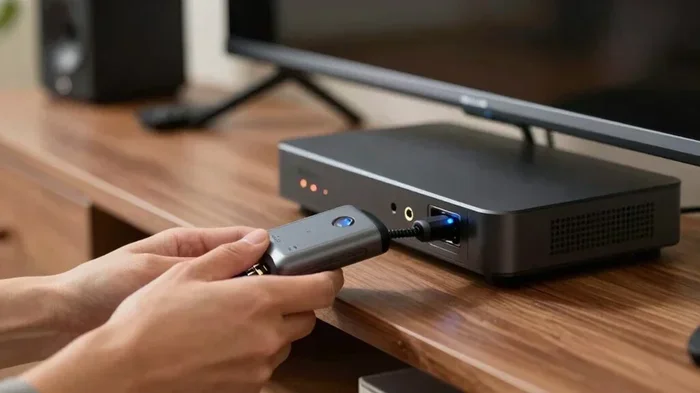
A Bluetooth transmitter is the most popular and effective way to add Bluetooth to a TV without it. This small device connects to your TV’s audio output and sends a wireless Bluetooth signal to your headphones, speakers, or soundbar. Most transmitters plug into a 3.5mm audio jack or connect via an optical cable.
Here is how a Bluetooth transmitter works in simple terms:
- Plug the transmitter into your TV’s audio output port.
- Power the transmitter using a USB cable or wall adapter.
- Put your Bluetooth headphones or speaker into pairing mode.
- Press the pairing button on the transmitter.
- The two devices connect, and audio streams wirelessly.
Bluetooth transmitters are small, affordable, and easy to use. They typically cost between 15 and 50 dollars depending on the features. Many models support Bluetooth 5.0, which gives you a stronger, more stable connection with a longer range.
One important feature to look for is aptX Low Latency support. This technology reduces the delay between video and audio, so you do not experience lip-sync issues. Without low latency, you might notice the sound arriving a fraction of a second after the picture moves.
Method 2: Bluetooth Adapter
A Bluetooth adapter works similarly to a transmitter but often takes a different form. Some Bluetooth adapters plug directly into your TV’s USB port and handle the Bluetooth connection internally. Others connect via the audio output jack. USB-based adapters are especially convenient because they draw power directly from the TV.
Bluetooth adapters are great for people who want a clean, minimalist setup. There are no extra cables running across the room, and the device stays hidden behind the TV. However, USB Bluetooth adapters may not work with all TV models, so check compatibility before purchasing.
Some smart TVs also support Bluetooth through firmware updates. If your TV is relatively recent, check the manufacturer’s website to see if a Bluetooth update is available. This is a free option that could save you from buying any extra hardware.
Method 3: Smart Streaming Devices
Another excellent way to add Bluetooth to your TV is through a smart streaming device. Devices like the Amazon Fire TV Stick, Google Chromecast, Apple TV, and Roku all support Bluetooth audio output in most cases. You simply connect the streaming device to your TV’s HDMI port, and then pair your Bluetooth headphones or speakers through the device’s settings.
This method works especially well if you already own a streaming device or are planning to buy one anyway. It gives you two benefits in one: smart streaming apps and Bluetooth audio support. Some streaming devices even let you use private listening features through connected headphones.
The downside is that streaming devices cost more than a simple Bluetooth transmitter. If you only need Bluetooth audio and nothing else, a dedicated transmitter might be the better choice. But if you also want access to Netflix, YouTube, and other apps, a streaming device is a great two-in-one solution.
Method 4: Soundbar with Built-In Bluetooth
If you are also looking to improve your TV’s overall sound quality, a wireless soundbar with built-in Bluetooth is a fantastic option. Many modern soundbars include Bluetooth receivers, so they can connect to your phone, tablet, or other devices wirelessly. But more importantly, you can use the soundbar as a middleman between your TV and your Bluetooth headphones.
Some soundbars have a feature called “passthrough” or “audio out,” which lets you connect a Bluetooth transmitter to the soundbar. This creates a chain where your TV sends audio to the soundbar, and the soundbar sends audio wirelessly to your headphones. It is a bit more complex but works well for home theater setups.
Soundbars range widely in price from budget options around 50 dollars to premium models costing several hundred dollars. If you already plan to upgrade your TV audio, choosing a soundbar with Bluetooth support solves two problems at once.
Best Bluetooth Transmitters for TV
Top Picks by Budget
Not all Bluetooth transmitters are created equal. Some offer basic functionality at a low price, while others include premium features like aptX Low Latency and multi-device pairing. Here are some of the best options across different budget ranges:
- Budget option (under 20 dollars): Look for simple 3.5mm Bluetooth transmitters that support Bluetooth 4.0 or 5.0. These handle basic audio streaming well and are perfect for casual TV watchers.
- Mid-range option (20 to 40 dollars): Transmitters in this range often include aptX codec support, optical audio input, and longer battery life. They offer a noticeably better audio experience.
- Premium option (40 dollars and up): High-end transmitters feature aptX Low Latency, dual-device pairing, USB-C charging, and extended range. These are ideal for serious viewers who want zero audio delay.
What to Look for in a Bluetooth Transmitter
When shopping for a Bluetooth transmitter for your TV, keep these factors in mind:
- Bluetooth version: Go for Bluetooth 5.0 or newer for the best connection stability and range.
- Audio codecs: Look for aptX, aptX Low Latency, or LDAC support for high-quality wireless audio.
- Connection options: Make sure the transmitter has the right ports for your TV (3.5mm, RCA, or optical).
- Range: Most transmitters offer a range of 10 to 30 feet. Choose one that fits your room size.
- Multipoint pairing: Some transmitters can connect to two Bluetooth devices at once, which is useful for sharing audio.
- Battery life: If you buy a portable transmitter, check how long it lasts on a single charge.
Step-by-Step Setup Guide
Setting up Bluetooth on your TV is easier than most people think. Follow these simple steps to get started with a Bluetooth transmitter or adapter.
Step 1: Choose Your Connection Type
First, identify which audio output your TV has. Check the back or side of your TV for a 3.5mm headphone jack, RCA audio outputs (red and white), or an optical digital audio output. Your choice of Bluetooth device depends on which port is available.
Step 2: Connect the Bluetooth Device
Plug your Bluetooth transmitter or adapter into the appropriate port on your TV. If you are using a 3.5mm transmitter, simply insert it into the headphone jack. If you are using an optical transmitter, connect the optical cable from your TV to the transmitter. Then plug the transmitter into a power source using the included USB cable or wall adapter.
Step 3: Put Your Bluetooth Device in Pairing Mode
Turn on your Bluetooth headphones, speaker, or soundbar and put it into pairing mode. Most devices have a dedicated pairing button or a combination of buttons to hold down. Check your device’s manual if you are unsure.
Step 4: Pair the Devices
Press the pairing button on your Bluetooth transmitter. The LED light will usually start flashing, indicating it is ready to pair. Your devices should connect within a few seconds. Once paired, you should hear audio coming through your Bluetooth device.
Step 5: Adjust Audio Settings
Go to your TV’s audio settings and make sure the audio output is set correctly. If you are using a 3.5mm transmitter, set the TV audio output to headphone or external speaker. If you are using an optical connection, make sure the TV is set to output digital audio. Adjust the volume on both your TV and your Bluetooth device for the best balance.
Step 6: Test and Enjoy
Play a video or some music on your TV and check that the audio comes through your Bluetooth device clearly. Walk around the room to make sure the connection stays stable at different distances. Adjust the volume and audio settings as needed until you are satisfied with the experience.
Troubleshooting Common Bluetooth Issues
Even with the best setup, you might run into some issues when using Bluetooth with your TV. Here are the most common problems and how to fix them.
Audio Lag and Latency
Audio lag, also called latency, is when the sound arrives a split second after the video. This can make dialogue seem out of sync. The most common cause is using a Bluetooth transmitter that does not support low-latency codecs.
To fix audio lag, look for a transmitter that supports aptX Low Latency or similar codecs. These codecs are specifically designed to minimize the delay between video and audio. If your transmitter does not support low latency, try moving closer to the TV or reducing interference from other wireless devices in your home.
Connection Drops
If your Bluetooth connection keeps dropping, try these solutions:
- Move your Bluetooth device closer to the transmitter.
- Remove obstacles between the TV transmitter and your Bluetooth device.
- Reduce interference from Wi-Fi routers, microwaves, and other wireless devices.
- Make sure both devices have fresh batteries or are fully charged.
- Reset both the transmitter and your Bluetooth device and try pairing again.
No Sound or Low Volume
If you connect your Bluetooth device but hear no sound, check a few things first. Make sure the TV volume is turned up and the audio output is set to the correct source. Check that the transmitter is powered on and properly connected. Also, make sure your Bluetooth device is not muted and the volume is turned up on its end.
Some TVs have a setting that controls the volume of external audio outputs separately. Check your TV’s audio settings menu for options related to headphone jacks, optical output, or external speakers. Adjusting these settings often solves low volume issues.
Pairing Problems
If your devices will not pair, try the following steps:
- Turn off Bluetooth on both devices, wait 10 seconds, and turn them back on.
- Put both devices into pairing mode at the same time.
- Reset the Bluetooth transmitter by holding the reset button for 5 to 10 seconds.
- Remove old paired devices from the transmitter’s memory before trying again.
- Make sure your Bluetooth device is not already connected to another source nearby.
Most pairing issues are temporary and easy to fix with a simple reset. Patience and a little trial and error will get you connected in almost every case.
Final Thoughts
Adding Bluetooth to a TV that does not have it is one of the simplest and most rewarding upgrades you can make to your home entertainment setup. Whether you choose a Bluetooth transmitter, a USB adapter, a smart streaming device, or a Bluetooth-enabled soundbar, the process is straightforward and affordable.
The key is to understand your TV’s available audio outputs, choose the right Bluetooth device for your needs, and follow the setup steps carefully. With the right equipment, you can enjoy wireless audio from your TV in under 10 minutes.
Do not let the lack of built-in Bluetooth stop you from enjoying the convenience of wireless TV audio. The solutions in this guide work for almost any TV model, regardless of age or brand. Pick the method that fits your budget and setup, follow the steps, and start enjoying wireless TV audio today.
Remember, the goal is to make your TV watching experience more comfortable and convenient. Whether you are watching late at night with headphones, connecting a portable speaker for a backyard movie, or simply getting rid of cable clutter, adding Bluetooth to your TV makes it all possible.
Frequently Asked Questions
Can I add Bluetooth to any TV model?
Yes, you can add Bluetooth to almost any TV model. As long as your TV has an audio output port like a 3.5mm headphone jack, RCA outputs, or an optical port, you can use a Bluetooth transmitter or adapter to add wireless capability. Even very old TVs can be upgraded with the right device.
Does adding Bluetooth to a TV affect picture quality?
No, adding Bluetooth to your TV has no effect on picture quality at all. Bluetooth only handles audio, so your video signal remains completely unchanged. The Bluetooth device connects to your TV’s audio output and sends only the sound wirelessly to your headphones or speakers.
What is the best Bluetooth transmitter for TV?
The best Bluetooth transmitter depends on your budget and needs. For most users, a transmitter with Bluetooth 5.0, aptX Low Latency support, and a 3.5mm or optical connection is the ideal choice. Popular reliable brands include Avantree, 1Mii, and TaoTronics. Look for one that matches your TV’s audio output ports.
Can I connect multiple Bluetooth devices to my TV at once?
Yes, some Bluetooth transmitters support multipoint pairing, which allows you to connect two or more Bluetooth devices simultaneously. This is great for couples or families who want to share audio from the same TV. Check the specifications of your transmitter to see if it supports this feature.
Why is there a delay between video and audio when using Bluetooth?
Audio delay, or latency, happens because Bluetooth takes a small amount of time to compress and transmit audio data. This delay is usually too small to notice, but some people are sensitive to it. Using a transmitter with aptX Low Latency support significantly reduces this delay and keeps audio and video in sync.
Is it expensive to add Bluetooth to a TV?
No, adding Bluetooth to a TV is very affordable. Basic Bluetooth transmitters cost as little as 15 to 20 dollars. Mid-range options with better features like low-latency audio cost between 25 and 50 dollars. Compared to buying a new TV with built-in Bluetooth, adding Bluetooth is a much cheaper solution.