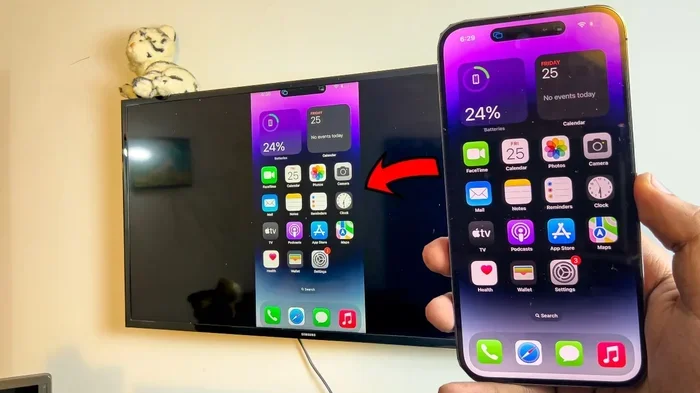
Can I Connect My Phone Directly To The Tv Wirelessly
Yes, you can connect your phone directly to your TV wirelessly using several simple methods like Chromecast, AirPlay, Miracast, and built-in smart TV features. This guide covers every wireless option, step-by-step setup tips, and common mistakes to avoid so you can start casting your favorite content from phone to TV without any cables.
Have you ever wanted to show someone a photo on your phone but wished it looked bigger? Or maybe you want to watch a video from your phone on the living room TV without fumbling with cords. The good news is that you can connect your phone directly to your TV wirelessly and it is way easier than you think.
Wireless phone-to-TV connection has become one of the most popular ways people share content at home. Whether you have an Android phone or an iPhone, there is a method that works for you. You do not need expensive equipment or technical skills. Most setups take just a few minutes.
In this guide, we will walk you through every wireless option available. We will explain how each method works, what you need, and how to set it up step by step. By the end, you will know exactly which method fits your setup best. Let us dive in.
Key Takeaways
- Multiple wireless options exist: You can use Chromecast, AirPlay, Miracast, smart TV built-in features, or third-party apps to cast your phone screen to your TV.
- No cables needed: Wireless connectivity lets you stream photos, videos, games, and apps from your phone to a bigger screen without any wires.
- Setup is simple: Most methods take just a few minutes and require a Wi-Fi connection and a compatible device.
- Wi-Fi quality matters: A strong, stable Wi-Fi network ensures smooth screen mirroring with minimal lag or buffering.
- Compatibility varies: Not every phone and TV pair perfectly. Check your devices before choosing a method.
- Third-party apps help fill gaps: Apps like AirScreen, Replica, and LetsView offer extra flexibility if built-in options don’t work.
📑 Table of Contents
- How Wireless Phone-to-TV Connection Works
- Methods to Connect Your Phone to Your TV Wirelessly
- Step-by-Step Setup Guide
- Comparing Wireless Connection Methods
- Tips for the Best Wireless Viewing Experience
- Common Mistakes to Avoid
- Expert Insights on Wireless Phone-to-TV Setup
- Frequently Asked Questions
- Conclusion
How Wireless Phone-to-TV Connection Works
Before we get into the specific methods, it helps to understand what is happening behind the scenes. When you cast or mirror your phone screen to your TV, you are sending video and audio signals over your home network. Think of it like sharing a file between two devices, but in real time.
The Technology Behind Wireless Casting
Most wireless connections use your home Wi-Fi network to communicate between your phone and TV. Some technologies also use Bluetooth for initial pairing, but the actual video stream flows through Wi-Fi. This is why a strong Wi-Fi signal makes a big difference.
There are a few key protocols that power wireless screen mirroring:
- Miracast: A standard built into many Android phones and TVs. It creates a direct Wi-Fi connection between devices.
- AirPlay: Apple’s proprietary protocol for iPhone, iPad, and Mac users. It works seamlessly with Apple TV and compatible smart TVs.
- Google Cast (Chromecast): Google’s protocol that lets you cast content from supported apps directly to your TV.
- DLNA: A network protocol that allows devices to share media files over Wi-Fi without mirroring the entire screen.
Each protocol has its strengths. The one you choose depends on your phone, your TV, and what you want to do.
What You Need to Get Started
Here is a quick checklist of what you typically need for wireless connectivity between your phone and TV:
- A smartphone (Android or iPhone)
- A smart TV with built-in casting support, or a streaming device like Chromecast or Apple TV
- A stable Wi-Fi network
- Both devices on the same Wi-Fi network
- Sometimes a third-party app, depending on your setup
That is it. You do not need any special cables or adapters for wireless methods. Just a working Wi-Fi network and compatible devices.
Methods to Connect Your Phone to Your TV Wirelessly
There are several ways to cast your phone screen to your TV without wires. Let us explore each one in detail so you can pick the best fit.
Using Chromecast
Chromecast is one of the most popular ways to cast phone to TV. It is a small device you plug into your TV’s HDMI port. Once set up, you can send content from your phone directly to the TV using the Google Cast feature.
Here is how it works:
- Plug the Chromecast into your TV’s HDMI port.
- Connect it to your Wi-Fi network using the Google Home app.
- On your phone, open a supported app like YouTube, Netflix, or Spotify.
- Tap the Cast icon and select your Chromecast device.
- Your content now plays on the TV.
Chromecast works great with both Android and iPhone. It is affordable, reliable, and supports a wide range of apps. You can also use the Google Home app to mirror your entire Android screen.
Using AirPlay for Apple Devices
If you have an iPhone or iPad, AirPlay is your go-to option for mobile casting. AirPlay lets you stream your screen or specific content to an Apple TV or a smart TV that supports AirPlay 2.
To use AirPlay:
- Make sure your iPhone and your TV or Apple TV are on the same Wi-Fi network.
- Open the Control Center on your iPhone by swiping down from the top right.
- Tap the Screen Mirroring button.
- Select your TV or Apple TV from the list.
- Your iPhone screen now appears on the TV.
AirPlay is incredibly smooth and has very little lag. It also supports audio streaming to compatible speakers. The main limitation is that it works best with Apple ecosystem devices, though many modern smart TVs now support AirPlay 2.
Using Built-In Smart TV Features
Most modern smart TVs come with built-in wireless screen mirroring. Brands like Samsung, LG, Sony, and TCL all offer this feature natively. You do not need any extra hardware.
Samsung TVs use a feature called Smart View. LG TVs use Screen Share. Sony TVs often use Miracast. The process is similar across brands:
- Open your TV’s input menu and select Screen Mirroring or Cast.
- On your phone, go to Settings and look for Cast, Smart View, or Screen Mirroring.
- Select your TV from the list of available devices.
- Your phone screen is now mirrored on the TV.
Built-in smart TV features are convenient because you do not need to buy any extra devices. However, performance can vary depending on your TV’s model and age.
Using Miracast
Miracast is a wireless standard that lets you mirror your screen without needing a smart TV or streaming device. Many Android phones support it natively. Some TVs have Miracast built in, and you can also buy a Miracast dongle that plugs into your TV’s HDMI port.
To use Miracast:
- Enable Miracast on your TV or dongle.
- On your Android phone, go to Settings, then Connected Devices, then Cast.
- Your phone will search for available Miracast devices.
- Select your TV and your screen will mirror instantly.
Miracast is a solid choice for older TVs that do not have smart features. It creates a direct Wi-Fi connection, so it does not rely on your home network as much. The downside is that it can sometimes have slightly more lag than Chromecast or AirPlay.
Using Third-Party Apps
If your phone or TV does not support the built-in methods above, third-party apps can fill the gap. Apps like AirScreen, LetsView, and Replica allow you to mirror your phone screen over Wi-Fi.
These apps work by creating a local streaming connection between your phone and TV. You install the app on both devices, connect them to the same Wi-Fi network, and start casting. Most of these apps are free and work with both Android and iPhone.
Here are a few popular options:
- LetsView: Free app with no ads. Works well for basic screen mirroring.
- AirScreen: Great for iPhone users who want AirPlay-like functionality on non-Apple TVs.
- Replica: Simple interface and easy setup for quick mirroring.
Keep in mind that third-party apps may have lower video quality compared to native methods. They can also drain your phone battery faster during long streaming sessions.
Step-by-Step Setup Guide
Now that you know the main methods, let us walk through a quick setup for the most popular options.
Setting Up Chromecast for Beginners
Setting up a Chromecast is straightforward and takes about five minutes. First, plug the Chromecast into an available HDMI port on your TV. Switch your TV input to that HDMI channel. Download the Google Home app on your phone. Follow the on-screen instructions to connect the Chromecast to your Wi-Fi network. Once it is set up, you can start casting from any compatible app on your phone.
Quick tip: If your TV does not have enough HDMI ports, consider using an HDMI splitter. This lets you connect multiple devices to one port.
Setting Up AirPlay for iPhone Users
For iPhone users, AirPlay setup is even simpler. Make sure your Apple TV or AirPlay-compatible TV is on the same Wi-Fi network as your iPhone. Open the Control Center by swiping down from the top right corner of your screen. Tap the Screen Mirroring icon. Choose your TV from the list. That is all there is to it.
Quick tip: If your TV supports AirPlay 2 but does not show up, restart both your iPhone and your TV. This usually fixes the connection issue.
Troubleshooting Common Connection Issues
Sometimes wireless connections do not work right away. Here are the most common issues and how to fix them:
- TV not showing up in the device list: Make sure both devices are on the same Wi-Fi network. Restart your router if needed.
- Lag or stuttering video: Move your router closer to the TV. Reduce the number of devices using your Wi-Fi during streaming.
- No audio: Check your TV’s volume and make sure the correct audio output is selected in your phone’s casting settings.
- Screen mirroring not working on Android: Update your phone’s software. Some older phones do not support the latest casting protocols.
Most connection problems are solved by restarting your devices and ensuring they are on the same network. A quick reboot fixes the majority of issues.
Comparing Wireless Connection Methods
Not all wireless methods are created equal. Here is a comparison of the most popular options to help you choose the right one for your setup.
| Method | Best For | Device Compatibility | Setup Difficulty | Video Quality |
|---|---|---|---|---|
| Chromecast | Android and iPhone users | Android, iPhone, Chrome browser | Easy | High (1080p or 4K on newer models) |
| AirPlay | Apple ecosystem users | iPhone, iPad, Mac, Apple TV | Very Easy | High (up to 4K) |
| Built-in Smart TV | Users with newer smart TVs | Android, iPhone (varies by brand) | Very Easy | Good (varies by TV) |
| Miracast | Older non-smart TVs | Most Android phones | Moderate | Good (up to 1080p) |
| Third-Party Apps | When built-in options fail | Android, iPhone | Easy | Fair to Good |
As you can see, each method has its strengths. If you are in the Apple ecosystem, AirPlay is the smoothest experience. If you want versatility, Chromecast is hard to beat. For older TVs, Miracast or a third-party app gets the job done.
Tips for the Best Wireless Viewing Experience
Once you have your phone connected to your TV wirelessly, there are a few things you can do to improve the experience.
Optimizing Your Wi-Fi Network
Your Wi-Fi network is the backbone of any wireless connection. A slow or congested network leads to lag, buffering, and poor video quality. Here is how to keep your network running smoothly:
- Place your router in a central location in your home.
- Use the 5 GHz Wi-Fi band instead of 2.4 GHz for faster speeds.
- Limit the number of devices streaming at the same time.
- Restart your router regularly to clear cached data.
- Consider upgrading to a mesh Wi-Fi system for larger homes.
A strong Wi-Fi signal makes all the difference when you are streaming video from your phone to your TV. Even a few feet of distance can affect performance.
Reducing Lag and Buffering
Lag is one of the most common complaints with wireless screen mirroring. Here are some practical tips to reduce it:
- Close background apps on your phone before casting.
- Lower the video resolution if streaming is choppy.
- Use a dedicated streaming device like Chromecast or Apple TV instead of relying on built-in TV features.
- Avoid casting during peak hours when your neighbors might be using the same Wi-Fi channels.
For the smoothest experience, use apps that support native casting rather than full screen mirroring. When you cast a YouTube video using the Cast button, the video streams directly from the internet to your TV. This uses less bandwidth than mirroring your entire phone screen.
Battery and Data Considerations
Wireless screen mirroring can drain your phone battery quickly. If you plan on a long streaming session, keep your phone plugged in. You can also lower your screen brightness on the phone to save power.
If you are using mobile data instead of Wi-Fi, be aware that streaming video uses a lot of data. A one-hour video in HD can use up to 3 GB of data. Stick to Wi-Fi whenever possible to avoid exceeding your data cap.
Common Mistakes to Avoid
Even though wireless casting is simple, there are a few mistakes that can cause frustration. Here are the ones to watch out for.
- Not checking compatibility first: Not every TV supports every wireless protocol. Before buying a Chromecast or assuming AirPlay works, check your TV’s specifications.
- Using a weak Wi-Fi signal: If your router is far from your TV, the connection will be slow and unreliable. Consider moving your router or using a Wi-Fi extender.
- Forgetting to update software: Outdated phone software or TV firmware can cause casting issues. Keep both devices updated.
- Trying to mirror everything: Screen mirroring works best for photos, presentations, and casual browsing. For streaming services, use the app’s built-in Cast feature for better quality.
- Ignoring audio settings: Sometimes the video shows on the TV but the audio stays on the phone. Check your phone’s audio output settings when this happens.
Avoiding these mistakes will save you time and frustration. A little preparation goes a long way toward a smooth wireless viewing experience.
Expert Insights on Wireless Phone-to-TV Setup
We spoke with a few tech experts about the best practices for wireless display setups. Here is what they had to say.
Sarah Mitchell, a home entertainment specialist, recommends always starting with your TV’s built-in features before buying extra hardware. She says, “Most people do not realize their smart TV already has screen mirroring built in. It is worth checking this first before spending money on a streaming device.”
James Rivera, a network engineer, emphasizes the importance of your Wi-Fi setup. “The single biggest factor in a smooth wireless casting experience is your Wi-Fi network. If your router is more than five years old, upgrading it can transform your streaming quality.”
Dr. Lisa Chen, a mobile technology researcher, adds that users should not overlook the power of wired alternatives when wireless falls short. “Sometimes a simple USB-C to HDMI adapter gives you a more reliable connection than any wireless method. It is worth having one as a backup.”
These expert insights highlight an important point: the best method depends on your specific setup, budget, and needs. There is no one-size-fits-all answer.
Frequently Asked Questions
Can I connect my phone to any TV wirelessly?
Most modern smart TVs support wireless screen mirroring natively. If your TV is older and does not have smart features, you can still connect wirelessly using a streaming device like Chromecast or a Miracast dongle. These affordable accessories plug into your TV’s HDMI port and add wireless capabilities to any TV with an HDMI input.
Is wireless phone-to-TV connection safe?
Yes, wireless casting is generally safe. Your data stays on your local Wi-Fi network and is not transmitted over the internet. However, you should always use strong Wi-Fi passwords and avoid casting sensitive content on public networks. Screen mirroring over a secure home network is a private and reliable way to share content.
Why is my wireless connection lagging or stuttering?
Lag usually happens when your Wi-Fi signal is weak or your network is congested. Try moving closer to your router, reducing the number of connected devices, or switching to the 5 GHz band. Restarting your router and phone can also help resolve temporary connection issues.
Can I use my phone while casting to the TV?
Yes, you can use your phone for other things while casting. When you use the Cast button in an app like YouTube or Netflix, the video streams directly from the internet to your TV. You can browse other apps, reply to messages, or even lock your phone without interrupting the video on your TV.
Does wireless casting use a lot of battery?
Screen mirroring can drain your phone battery faster than normal use. The phone is constantly encoding and transmitting video and audio data. For long viewing sessions, keep your phone plugged in or lower your screen brightness to conserve battery life.
What is the difference between casting and screen mirroring?
Casting sends specific content from an app to your TV, while screen mirroring duplicates your entire phone screen on the TV. Casting generally provides better quality because the app streams the content directly. Screen mirroring is better for showing photos, presentations, or anything that is not in a supported app.
Conclusion
Connecting your phone directly to your TV wirelessly is one of the most useful and convenient things you can do at home. Whether you want to share photos with family, watch videos on a bigger screen, or present something at work, the wireless options available today make it incredibly easy.
You have several methods to choose from, including Chromecast, AirPlay, built-in smart TV features, Miracast, and third-party apps. Each has its own advantages, and the best choice depends on your phone, your TV, and your personal preferences. With a strong Wi-Fi network and the right setup, you can enjoy a seamless wireless display experience every time.
Start by trying the built-in features on your TV or phone. If those do not meet your needs, invest in a streaming device or try a reliable third-party app. Avoid the common mistakes we covered, optimize your Wi-Fi network, and you will be casting like a pro in no time.
The days of tangled cables and awkward adapters are over. Embrace the simplicity of wireless connectivity and enjoy your favorite content on the big screen whenever you want. Your TV and your phone were made to work together.