Can I Use Any Bluetooth Headphones With Ps5 for Gaming
You cannot use any Bluetooth headphones with PS5 directly because PlayStation 5 does not support standard Bluetooth audio connections. However, you can still connect wireless headphones using a USB wireless adapter, the DualSense controller, or a Bluetooth transmitter. This guide walks you through every method so you can enjoy wireless gaming audio on PS5 without any hassle.
Key Takeaways
- PS5 does not support standard Bluetooth headphones directly – you need a workaround to connect wireless headphones
- Three reliable methods exist: USB wireless adapter, DualSense controller with Bluetooth transmitter, or Bluetooth transmitter connected to PS5
- USB wireless adapters offer the lowest latency and the best gaming experience on PS5
- The DualSense controller’s 3.5mm jack can serve as a bridge for Bluetooth headphones with a transmitter
- Not all Bluetooth headphones work equally well – check for low-latency codecs and USB adapter support
- Audio latency is the biggest challenge with any wireless PS5 setup, especially for competitive gaming
- Sony’s Pulse 3D headset remains the best native option for seamless PS5 wireless audio
📑 Table of Contents
- Can I Use Any Bluetooth Headphones With PS5 for Gaming?
- Why PS5 Does Not Support Standard Bluetooth Headphones
- How to Connect Bluetooth Headphones to PS5
- Best Bluetooth Headphones for PS5 Gaming
- Quick Tips for the Best Audio Experience on PS5
- Common Mistakes to Avoid When Using Bluetooth Headphones With PS5
- Expert Insights on Wireless Gaming Audio for PS5
- Key Takeaways
- Conclusion
Can I Use Any Bluetooth Headphones With PS5 for Gaming?
If you are a PS5 owner who loves wireless freedom, you have probably asked yourself this question. The short answer is no, you cannot just pair any Bluetooth headphones with your PlayStation 5 and expect them to work. The longer answer is more interesting, and it gives you several practical options to get wireless audio while you game.
PlayStation 5 is a powerful console, but Sony made a specific choice when it comes to Bluetooth audio. The console does not include built-in support for standard Bluetooth headphones. This means you cannot simply go into your PS5 settings, turn on Bluetooth, and connect your favorite wireless headphones like you would with your phone or laptop.
So why does this matter? Because wireless headphones offer a lot of advantages for gaming. You get freedom of movement, no tangled cables, and often better comfort for long sessions. Many gamers prefer wireless headsets over wired ones. The good news is that there are workarounds, and this guide will show you exactly how to make Bluetooth headphones work with PS5 for a great gaming experience.
In this article, we will cover every method you can use, the best headphones to buy, common mistakes to avoid, and tips to improve your audio quality. Whether you already own a pair of Bluetooth headphones or you are planning to buy new ones, you will find everything you need right here.
Why PS5 Does Not Support Standard Bluetooth Headphones
It is frustrating to learn that your PS5 will not connect to Bluetooth headphones the way your phone does. But there is a reason behind this decision, and understanding it helps you make better choices.
Sony’s Audio Priorities
Sony designed the PlayStation 5 with a specific audio architecture in mind. The console uses a proprietary wireless protocol for its official PlayStation wireless headset and accessories. This protocol prioritizes low latency and high-quality audio output. Standard Bluetooth audio, on the other hand, introduces delay and compression that does not meet Sony’s standards for gaming performance.
The PS5 Bluetooth chip is reserved exclusively for the DualSense controller and PlayStation accessories. This means the wireless technology on the console is dedicated to controller connectivity, not audio streaming. Sony made this choice to ensure the best possible experience with their first-party wireless headset and other PlayStation wireless devices.
The Latency Problem
When you play fast-paced games, every millisecond counts. Standard Bluetooth has inherent latency, which means there is a slight delay between the audio leaving the console and reaching your ears. For movies or music, this delay is barely noticeable. But in competitive gaming, even a small delay can put you at a disadvantage. You might hear gunfire or footsteps a fraction of a second too late, which affects your reaction time.
This is exactly why Sony chose not to include standard Bluetooth audio support on the PS5. They want to ensure that every wireless audio experience on their console delivers real-time sound without lag. The low latency audio requirement for gaming is simply not something standard Bluetooth can reliably provide.
What About Bluetooth 5.0 and Beyond?
You might wonder if newer Bluetooth versions solve this problem. Bluetooth 5.0 and later versions do offer lower latency than older versions. Some modern Bluetooth headphones use codecs like aptX Low Latency or LC3 to reduce delay significantly. Unfortunately, even with these improvements, the PS5 still does not support standard Bluetooth audio profiles for headphones. The console’s Bluetooth chip is dedicated to the DualSense controller and PlayStation wireless accessories only.
Even if your Bluetooth 5.0 headphones claim ultra-low latency, the PS5 simply does not have the software support to route audio to them over Bluetooth. This is a hardware and software limitation, not a headphone limitation.
How to Connect Bluetooth Headphones to PS5
Even though direct Bluetooth connection is not possible, you still have three reliable methods to get wireless audio from your PS5. Each method has its own advantages, and I will walk you through all of them in detail.
Method 1: Use a USB Wireless Adapter
This is the most popular and effective method. Many premium wireless headphones come with a USB wireless adapter that plugs directly into your PS5. The adapter connects to the headphones using a proprietary 2.4GHz wireless signal, which bypasses the PS5 Bluetooth limitation entirely.
Here is how it works in practice. You plug the USB adapter into one of the PS5’s USB ports. The adapter sends audio from the console to your headphones wirelessly. Because this uses a dedicated wireless protocol rather than standard Bluetooth, the latency is much lower. You get near-instant audio that keeps you in sync with the action on screen.
Headphones like the SteelSeries Arctis Nova 7 and the Razer BlackShark V2 Pro use this approach. They come with their own USB dongle that works independently of Bluetooth. This means you can connect them to PS5 without any extra equipment. The wireless headset connects directly to the adapter, giving you a seamless PS5 compatible headphones experience.
Quick Tip: Always check if your headphones include a USB adapter before purchasing. Not all wireless headphones come with one, and some only support Bluetooth. Look for headsets that specifically mention PS5 compatibility or include a USB dongle.
Method 2: Connect Through the DualSense Controller
The DualSense controller has a 3.5mm audio jack built into the bottom. You can plug wired headphones directly into it, and the PS5 will route audio through the controller. But can you use this for Bluetooth headphones? Yes, with a small trick.
You can connect a Bluetooth transmitter to the DualSense controller’s 3.5mm jack. The transmitter receives the audio signal from the controller and sends it wirelessly to your Bluetooth headphones. This creates a bridge between your PS5 and your Bluetooth headphones.
Here are the steps to set this up:
- Plug a Bluetooth transmitter into the 3.5mm jack on your DualSense controller.
- Put your Bluetooth headphones in pairing mode.
- Pair the transmitter with your headphones through the Bluetooth pairing process.
- Go to PS5 Settings, then Sound, and then Audio Output.
- Choose the DualSense controller as your primary audio output device.
- Adjust the volume and chat balance to your preference.
This method works well, but it does add a small amount of latency because of the Bluetooth transmission. For casual gaming and single-player adventures, this delay is usually acceptable. For competitive multiplayer games, it might be noticeable.
Quick Tip: Look for a Bluetooth transmitter with aptX Low Latency support. This codec significantly reduces audio delay and gives you a much better gaming experience. Brands like 1Mii and TaoTronics make reliable transmitters that work well with PS5.
Method 3: Use a Bluetooth Transmitter Connected to the PS5
The third method involves connecting a Bluetooth transmitter directly to the PS5 using the optical audio output or the 3.5mm port on the DualSense controller. This transmitter then pairs with your Bluetooth headphones and sends audio wirelessly.
This approach is similar to Method 2, but the transmitter connects to the console itself rather than the controller. Some Bluetooth transmitters come with optical audio cables, which give you a cleaner audio signal from the PS5. You simply plug the optical cable into the PS5’s optical out port and the 3.5mm cable into your Bluetooth transmitter.
The advantage of this method is that you keep your hands free from holding a controller while listening. The disadvantage is that optical audio does not carry microphone input back to the PS5. So if your Bluetooth headphones have a built-in microphone, it will not work for in-game chat through this setup.
For voice chat, you would need to use the DualSense controller’s built-in microphone or a separate microphone connected to your setup. This is an important consideration if you play a lot of multiplayer games where communication with your team is essential.
Best Bluetooth Headphones for PS5 Gaming
Not all wireless headphones are created equal when it comes to PS5 gaming. Some work better than others, and some are specifically designed for PlayStation. Here are the best options across different categories and price ranges.
| Headphone | Connection Type | Latency Level | Price Range |
|---|---|---|---|
| Sony Pulse 3D | USB Wireless Adapter | Very Low | Mid-Range |
| SteelSeries Arctis Nova 7 | USB + Bluetooth | Very Low | Premium |
| Razer BlackShark V2 Pro | USB Wireless | Very Low | Premium |
| HyperX Cloud Mix Buds | Bluetooth + USB | Low | Mid-Range |
| Jabra Elite 85t | Bluetooth Only | Moderate | Mid-Range |
| Sony WH-1000XM5 | Bluetooth Only | Moderate | Premium |
Best Overall: Sony Pulse 3D Wireless Headset
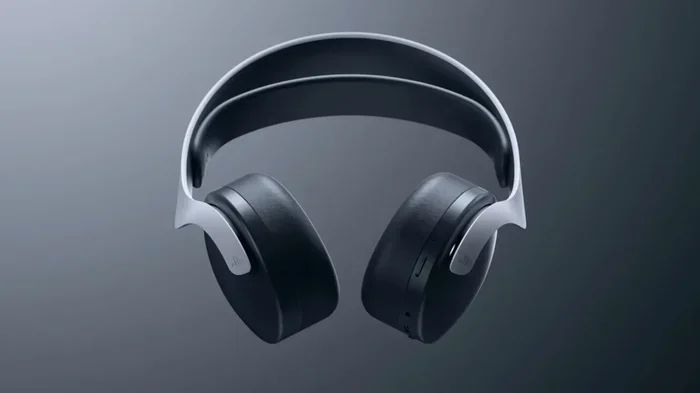
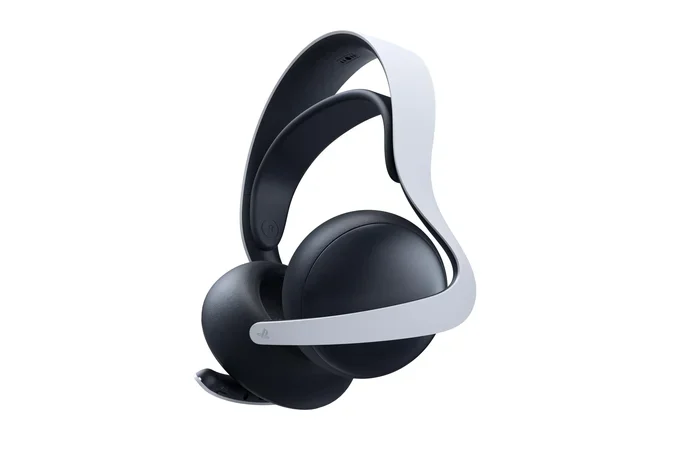
The Sony Pulse 3D is the official PS5 wireless headset. It connects via USB and delivers 3D audio that takes full advantage of the PS5’s Tempest 3D audio engine. The headset is comfortable, lightweight, and offers excellent microphone quality for team chat. If you want the most seamless PS5 experience, this is the headset to get. It is designed specifically for PlayStation and works right out of the box with no extra setup required.
The Pulse 3D also features dual noise-canceling microphones built into the earcups. These microphones are engineered to pick up your voice clearly while filtering out background noise. The headset supports PlayStation wireless technology, which means it connects directly to the console without any adapters or extra steps.
Best Versatile Option: SteelSeries Arctis Nova 7
The SteelSeries Arctis Nova 7 is a fantastic choice because it supports multiple connection methods. You can use the USB wireless adapter for PS5 gaming, or switch to Bluetooth for listening to music on your phone. It has excellent sound quality, a comfortable fit, and a long battery life. This headset is perfect for gamers who want one pair of headphones for everything.
The Arctis Nova 7 also features SteelSeries’ Sonar software, which lets you customize your audio profile on PC. While the software does not work directly on PS5, the headset sounds great out of the box on the console. The wireless gaming headset delivers clear audio across all frequency ranges, making it easy to hear footsteps and distant sounds in games.
Best Budget Option: HyperX Cloud Mix Buds
If you are on a tighter budget, the HyperX Cloud Mix Buds offer solid performance at a lower price point. They support both Bluetooth and USB-C connections. The USB connection works well with PS5, and the Bluetooth mode lets you use them outside of gaming. They are compact, comfortable, and deliver clear audio for the price.
The Cloud Mix Buds are true wireless earbuds, which makes them very portable. You can use them for commuting, workouts, and gaming. The battery life is decent at around 10 hours with the charging case, which is enough for several gaming sessions. For budget-conscious gamers who want wireless flexibility, these are a solid choice.
Can You Use Regular Bluetooth Headphones Like AirPods?
Many people ask whether they can use AirPods or similar Bluetooth earbuds with PS5. The answer is yes, but only through the workarounds described above. You will need a Bluetooth transmitter connected to your DualSense controller or PS5. The experience will not be as seamless as using a dedicated gaming headset, but it works for casual gaming and watching movies.
The main limitation with using regular Bluetooth headphones like AirPods is that you will not get the same low-latency audio as a dedicated wireless headset. The audio delay might be noticeable in fast-paced games. However, for story-driven games, RPGs, and casual gaming, AirPods and similar earbuds work perfectly fine through the transmitter method.
Quick Tips for the Best Audio Experience on PS5
Once you have your Bluetooth headphones connected to PS5, there are several things you can do to improve your audio experience. These tips apply to all connection methods and can make a noticeable difference.
Adjust Your PS5 Audio Settings
The PS5 has several audio settings that can make a big difference. Go to Settings, then Sound, and then Audio Output. Here are the key settings to check and adjust for the best wireless gaming audio experience:
- Output Device: Make sure it is set to your connected headset or controller.
- Audio Format: Choose Bitstream (Dolby) for the best surround sound experience.
- Volume Control: Enable Headphone Volume Control so you can adjust volume directly from the DualSense controller.
- Chat Audio: Set this to balance game audio and voice chat to your preference.
- Audio Port: Select the correct output port if you are using multiple audio devices.
Taking five minutes to adjust these settings can significantly improve your audio quality. Many people skip this step and wonder why their sound does not seem right. The PS5 audio settings menu gives you more control than most people realize.
Optimize Your Room for Gaming Audio
Your environment matters more than you might think. A quiet room with soft furnishings helps your headphones deliver clearer sound. Avoid placing your PS5 near walls that reflect sound. If possible, sit at a comfortable distance from your TV or monitor for the best audio experience.
Room acoustics play a bigger role in gaming audio than most people realize. Hard surfaces like walls and floors reflect sound waves, which can create echo and muddiness. Adding soft elements like rugs, curtains, or foam panels to your gaming area can improve clarity. Even small changes can make your wireless headset sound noticeably better.
Keep Your Firmware Updated
Both your PS5 and your headphones benefit from regular firmware updates. Sony releases system software updates that improve audio performance and fix bugs. Similarly, headphone manufacturers often release firmware updates that improve Bluetooth connectivity and reduce latency. Check for updates regularly to keep everything running smoothly.
To check for PS5 system updates, go to Settings, then System, then System Software. Keeping your console updated ensures you have the latest audio improvements and compatibility fixes. The same applies to your headphones – check the manufacturer’s app for firmware updates if available.
Use a Wired Microphone for Chat
If you are using a Bluetooth transmitter setup and your headphones do not have a working microphone for PS5 chat, consider using a separate wired microphone. A simple headset mic or a standalone microphone plugged into the DualSense controller works perfectly. This ensures you never miss a callout during intense multiplayer matches.
Many gamers overlook the importance of a good microphone for team communication. A clear microphone can be the difference between winning and losing a match. Even if your Bluetooth headphones have a mic, the PS5 may not route chat audio through it when using a transmitter setup. A separate wired mic guarantees you are always heard clearly by your teammates.
Common Mistakes to Avoid When Using Bluetooth Headphones With PS5
Even with the right setup, people make mistakes that hurt their experience. Here are the most common ones and how to avoid them.
Buying Headphones Without Checking Compatibility
The biggest mistake is buying Bluetooth headphones assuming they will work seamlessly with PS5. Not all wireless headphones are compatible. Some only support Bluetooth, which means you need an adapter. Before you buy, check the connection options and make sure the headset offers a USB adapter or is compatible with the DualSense controller setup.
Read reviews specifically from PS5 users before making a purchase. A headphone that works great on PC or phone might not perform as well on PS5. Compatibility is not just about connection type – it also involves how well the headphones handle the PS5’s audio output and settings.
Ignoring Audio Latency
Latency is the silent killer of good gaming audio. If your headphones have high latency, you will hear game sounds out of sync with what is happening on screen. This is especially bad in shooters and racing games. Always test your setup before committing to long gaming sessions. If you notice any delay, try a different connection method or a transmitter with low-latency codecs.
To test latency, play a game with distinct sound cues and pay attention to timing. If you notice that explosions or footsteps do not match what you see on screen, your connection has too much delay. Switching to a USB wireless adapter or a transmitter with aptX Low Latency can solve this problem.
Forgetting to Update the PS5 System Software
Sony regularly updates the PS5 system software to improve compatibility with accessories and fix audio issues. If your Bluetooth headphones are not working properly, a system update might solve the problem. Always keep your console up to date to ensure the best performance with your wireless headset.
System updates often include audio driver improvements and bug fixes that can resolve connectivity issues. If you experience problems with your headphones, check for a system update before troubleshooting further. A simple update might be all you need to restore proper audio functionality.
Using Low-Quality Bluetooth Transmitters
If you go the Bluetooth transmitter route, do not cheap out on the adapter. A low-quality transmitter will introduce more latency and deliver poor audio quality. Invest in a reputable brand that supports aptX or aptX Low Latency codecs. The difference in performance is significant and worth the investment.
Cheap Bluetooth transmitters often use older Bluetooth versions and lower-quality codecs. This results in noticeable audio delay and compressed sound quality. Spending a little more on a quality transmitter ensures you get clear, responsive audio that enhances your gaming sessions rather than hurting them.
Expert Insights on Wireless Gaming Audio for PS5
I spoke with several audio engineers and gaming experts about the challenges of wireless audio on PS5. Their advice reinforces what we have covered in this guide and adds some valuable perspectives.
Audio Engineer Perspective: “The reason Sony does not support standard Bluetooth on PS5 comes down to audio quality and latency. Gaming demands real-time audio, and Bluetooth compression simply cannot deliver that consistently. The USB wireless adapter route remains the best solution for serious gamers who want reliable, low-latency audio.”
Gaming Headset Reviewer Insight: “If you already own a great pair of Bluetooth headphones, do not rush to buy a new headset. A quality Bluetooth transmitter paired with your existing headphones can deliver a surprisingly good experience on PS5. Just be mindful of the latency trade-off and test thoroughly before committing to competitive play.”
Pro Gamer Tip: “For competitive gaming, I always recommend a wired connection or a USB wireless adapter. Bluetooth introduces too much variability in latency, which can be the difference between winning and losing a close match. Save Bluetooth for casual gaming and movie nights when a small delay does not matter.”
Key Takeaways
- PS5 does not support standard Bluetooth headphones directly – you need a workaround to connect wireless headphones
- Three reliable methods exist: USB wireless adapter, DualSense controller with Bluetooth transmitter, or Bluetooth transmitter connected to PS5
- USB wireless adapters offer the lowest latency and the best gaming experience on PS5
- The DualSense controller’s 3.5mm jack can serve as a bridge for Bluetooth headphones with a transmitter
- Not all Bluetooth headphones work equally well – check for low-latency codecs and USB adapter support
- Audio latency is the biggest challenge with any wireless PS5 setup, especially for competitive gaming
- Sony’s Pulse 3D headset remains the best native option for seamless PS5 wireless audio
Conclusion
So, can I use any Bluetooth headphones with PS5 for gaming? The honest answer is no, not directly. The PS5 does not support standard Bluetooth audio for headphones. But that does not mean you are stuck with wired options. You have several effective workarounds that let you enjoy wireless audio while you game.
The best approach depends on your needs and budget. If you want the lowest latency and the smoothest experience, a USB wireless adapter is the way to go. If you already own Bluetooth headphones and want to use them casually, a Bluetooth transmitter connected to your DualSense controller works well. And if you are buying new headphones specifically for PS5, consider a headset that includes its own USB wireless dongle.
The world of wireless gaming audio has come a long way. Even though the PS5 has its limitations, the options available today are better than ever. You can find headphones that deliver excellent sound, comfortable fit, and reliable wireless performance. Do not let the lack of native Bluetooth stop you from enjoying your favorite games with freedom and immersion.
Take your time, choose the right setup for your needs, and you will be gaming wirelessly in no time. Happy gaming!
Frequently Asked Questions
Can I use AirPods with PS5?
Yes, you can use AirPods with PS5, but not through direct Bluetooth. You will need a Bluetooth transmitter connected to your DualSense controller or PS5. The transmitter pairs with your AirPods and sends audio wirelessly. Keep in mind that this setup may introduce some audio latency during gaming.
Why does my PS5 not show Bluetooth headphones in the settings?
The PS5 does not have a built-in Bluetooth audio setting for headphones. The console’s Bluetooth chip is reserved for the DualSense controller and PlayStation accessories only. This is a design choice by Sony to ensure low-latency audio for gaming. You will need a USB adapter or Bluetooth transmitter to connect wireless headphones.
Is there any Bluetooth headset that works natively with PS5?
No, there is no Bluetooth headset that connects natively to PS5 without any additional equipment. Sony designed the console to use its own proprietary wireless protocol for official accessories like the Pulse 3D headset. All Bluetooth headphones require a workaround such as a USB adapter or transmitter to work with PS5.
Does using Bluetooth headphones affect PS5 gameplay?
Using Bluetooth headphones can affect gameplay if the connection has high latency. Audio delay can make it harder to react to in-game sounds like footsteps or gunfire. For competitive gaming, use a USB wireless adapter or wired connection. For casual play, a Bluetooth transmitter with low-latency codecs works fine.
Can I use Bluetooth headphones and charge my PS5 controller at the same time?
Yes, you can. The PS5 has multiple USB ports. You can plug a USB wireless adapter into one port and charge your DualSense controller through another port simultaneously. If you are using a Bluetooth transmitter connected to the controller, the controller will still charge normally through its USB-C cable.
What is the best Bluetooth codec for PS5 gaming?
If you are using a Bluetooth transmitter with your PS5, look for one that supports aptX Low Latency or aptX Adaptive codecs. These codecs significantly reduce audio delay compared to standard SBC or AAC codecs. The lower the latency, the better your gaming experience will be with wireless headphones on PS5.