Can I Print Photos On Hp Tango And How To Do It Now
Yes, you can print photos on HP Tango — and the process is simpler than most people think. The HP Tango is a compact wireless printer designed to work seamlessly with your phone, letting you produce borderless photo prints right from your living room. Whether you use the HP Smart app, cloud services, or direct printing, this guide walks you through every step to get professional-quality results at home.
Have you been wondering whether your HP Tango printer can handle photo printing? The answer is a clear yes. The HP Tango is not just a regular document printer. It is a compact, smart wireless printer built to deliver beautiful photo prints right from your phone. Whether you want to print vacation snapshots, birthday cards, or wall-worthy art, the HP Tango makes it surprisingly easy.
Many people buy the HP Tango because of its sleek design and small footprint. But once they set it up, they discover it is also a capable photo printer. The device uses advanced inkjet technology to produce sharp, colorful images. And with wireless connectivity, you do not need a computer at all. Everything happens through your smartphone.
In this guide, we will walk you through every step of printing photos on the HP Tango. We will cover setup, app usage, paper selection, and troubleshooting tips. By the end, you will feel confident printing photos like a pro. Let us get started.
Key Takeaways
- The HP Tango supports photo printing: You can print high-quality photos directly from your phone, tablet, or cloud storage using the HP Smart app.
- Borderless printing is available: The HP Tango delivers edge-to-edge photo prints that look professional and vibrant.
- Setting up is quick and easy: Download the HP Smart app, connect to Wi-Fi, load photo paper, and you are ready to go.
- Photo paper matters: Using the right paper type — such as glossy or matte HP photo paper — dramatically improves print quality.
- Common issues are easy to fix: Faded prints, paper jams, and alignment problems can usually be solved with simple troubleshooting steps.
- HP Instant Ink helps save money: This subscription service ensures you never run out of ink for your photo printing needs.
📑 Table of Contents
- What Is the HP Tango and Why Does It Matter for Photo Printing?
- Can I Print Photos On HP Tango — The Short Answer
- Setting Up Your HP Tango for Photo Printing
- How to Print Photos from Your Phone
- Tips for Getting the Best Photo Prints
- Common Problems and How to Fix Them
- HP Instant Ink and Cost Savings for Photo Printing
- HP Tango vs Other Home Printers for Photo Printing
- Final Thoughts on Printing Photos with HP Tango
What Is the HP Tango and Why Does It Matter for Photo Printing?
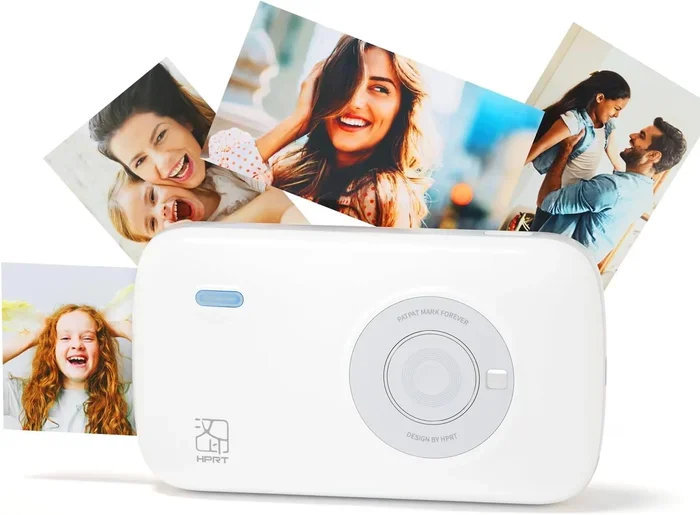
The HP Tango is a compact wireless inkjet printer made by HP Inc. It was designed with modern homes in mind. The printer is small enough to fit on a bookshelf or desk without taking up much space. But do not let its size fool you. Inside this tiny device is a powerful printing engine that handles both documents and photos with impressive quality.
Understanding the HP Tango Design
The HP Tango features a minimalist, cube-like design. It comes in a clean white finish that blends easily into any room. The top of the printer serves as a paper tray, which keeps the footprint very small. On the front, you will find a simple control panel with a few buttons and an LED indicator.
One standout feature of the HP Tango is its direct Wi-Fi connectivity. This means you can connect the printer to your home network without needing a router intermediary in some cases. The printer also supports Bluetooth and HP Wireless Direct, giving you multiple ways to connect your devices.
The HP Tango uses a single ink cartridge system in some models, while others use a tri-color cartridge. This setup keeps things simple. You do not need to manage multiple ink tanks. Just swap out the cartridge when it runs low, and you are back to printing.
Why People Choose the HP Tango
People choose the HP Tango for several reasons. First, the size is perfect for small apartments, dorm rooms, and home offices. Second, the setup process is incredibly beginner-friendly. Third, the printer works well with the HP Smart app, which turns your phone into a powerful printing remote.
For photo printing specifically, the HP Tango offers borderless printing capability. This means your photos have no white borders around the edges. The result looks polished and professional. Combined with a decent print resolution, the HP Tango delivers photo prints that are vibrant and detailed.
Can I Print Photos On HP Tango — The Short Answer
To answer the question directly: yes, you can print photos on HP Tango with ease. The printer supports multiple photo formats and delivers quality prints that rival small photo lab prints. You can print from your phone, from cloud services, or even directly from social media apps. The flexibility makes the HP Tango a great choice for anyone who wants a home photo printer without the bulk.
Supported Photo Formats
The HP Tango accepts several common image formats. JPEG is the most widely used and works perfectly. PNG files also print without issues. If you have photos saved as HEIC files from an iPhone, the HP Smart app can handle those as well. The app converts the files automatically during the print process.
Most users find that standard photo sizes work best. The HP Tango supports 4×6, 5×7, and A4 photo prints. For the best results, use 4×6 prints, which is the most common photo size and the most cost-effective option.
Print Quality You Can Expect
The HP Tango offers a decent print resolution for a compact printer. While it may not match the output of a large-format photo printer, it produces sharp and colorful images for everyday use. Skin tones look natural, and colors are vibrant without being oversaturated.
When you print on proper photo paper, the results are even better. The ink sits on the paper surface and dries quickly, reducing the chance of smudging. Your photos will have a professional finish that looks great framed or shared with friends and family.
Setting Up Your HP Tango for Photo Printing
Before you can print photos, you need to set up your HP Tango properly. The good news is that the setup process is straightforward and takes only a few minutes. Follow these steps to get your printer ready for photo printing.
Downloading the HP Smart App
The HP Smart app is the central hub for managing your HP Tango. You can download it for free from the Apple App Store or Google Play Store. Once installed, open the app and follow the on-screen instructions to add your printer.
The app will detect your HP Tango automatically if both your phone and the printer are on the same Wi-Fi network. If it does not find the printer, you can use the HP Wireless Direct option to connect directly from your phone to the printer.
Connecting to Wi-Fi
Wi-Fi connectivity is essential for wireless photo printing. During setup, the HP Smart app will guide you through connecting the HP Tango to your home network. Make sure you have your Wi-Fi password ready.
Once connected, your printer will appear in the app under available devices. You can now send print jobs from anywhere in your home as long as your phone is on the same network. This wireless capability is one of the biggest advantages of the HP Tango.
Loading Photo Paper
Loading photo paper is the next step. The HP Tango has a small input tray at the top. Open the tray, slide in a stack of photo paper, and make sure the paper is aligned properly. Most users prefer glossy photo paper for vibrant colors, while matte paper gives a more subtle, artistic finish.
Check that the paper size matches the settings in the HP Smart app. If you are loading 4×6 photo paper, make sure the app is set to print at that size. Mismatched settings are one of the most common causes of poor print results.
How to Print Photos from Your Phone
Now that your HP Tango is set up, it is time to print your first photo. The process is simple and intuitive. Here is exactly how to do it.
Using the HP Smart App
Open the HP Smart app on your phone. Tap the print icon or the “Print” option from the home screen. The app will ask you to select the photo you want to print. You can choose from your phone’s gallery, or you can take a new photo right then and there.
After selecting the photo, choose your print settings. You can adjust the quality, paper type, and number of copies. For the best photo prints, select the highest quality setting and make sure the paper type matches what you loaded. Tap print, and the HP Tango will start working.
Printing from Social Media and Cloud Services
One of the coolest features of the HP Tango is the ability to print directly from social media. Found in the HP Smart app, you can pull photos from Instagram, Facebook, Google Photos, and Dropbox without downloading them to your phone first.
This feature is incredibly convenient. Say you see a photo on Instagram that you want to print. Tap the share button, select HP Print, and the HP Tango will handle the rest. You can also print photos stored in Google Photos or Apple iCloud through the app. The cloud printing capability makes the HP Tango feel truly modern and smart.
Tips for Getting the Best Photo Prints
Getting great photo prints on the HP Tango is easy once you know a few tricks. These tips will help you maximize print quality and get the most out of your printer.
Choosing the Right Photo Paper
The type of photo paper you use has a huge impact on the final result. Glossy paper produces vivid colors and sharp details. It is the most popular choice for photo prints. Matte paper, on the other hand, gives a softer look and reduces glare, which is great for framed photos.
HP-branded photo paper is optimized for HP printers. It works best with the HP Tango ink system. However, you can also use third-party photo paper. Just make sure it is the correct thickness and size for your HP Tango input tray.
Adjusting Print Settings
Always check your print settings before hitting the print button. The HP Smart app gives you several options to fine-tune your output. For photos, select the highest print quality available. This uses more ink but produces noticeably better results.
If you are printing a lot of photos, consider using the draft mode for everyday prints and reserving the best quality setting for special photos. This simple adjustment can help your ink cartridges last longer while still delivering good results.
Maintaining Your Printer
Regular maintenance keeps your HP Tango running smoothly. Clean the print heads through the HP Smart app if you notice any streaks or color gaps in your prints. The app has a built-in maintenance tool that makes this process easy.
Also, keep your printer in a clean, dust-free environment. Dust can accumulate on the print head and affect print quality. If you use the printer frequently, run a cleaning cycle once a week. If it sits idle for long periods, run one before your next photo print job.
Common Problems and How to Fix Them
Even with the best setup, you may run into occasional issues. Here are some common problems and their solutions.
Prints Are Faded or Blurry
If your photo prints look faded or blurry, the first thing to check is the ink level. Low ink cartridges produce weak prints. Replace them if needed. Next, make sure you are using the correct paper type in the print settings. Printing on plain paper as if it were photo paper will give dull results.
Also, check that the print quality setting is set to high. If it is set to draft or fast mode, the output will not be as sharp. Adjust the settings and try printing again.
Paper Jams and Alignment Issues
Paper jams can happen if you overfill the input tray or if the paper is not aligned properly. Do not load too much paper at once. Keep the stack flat and aligned with the guides in the tray.
If your photos are printing crooked or misaligned, check the paper size setting in the HP Smart app. A mismatch between the app setting and the actual paper size will cause alignment problems. Adjust the setting, reload the paper, and try again.
HP Instant Ink and Cost Savings for Photo Printing
Printing photos at home can be cost-effective, especially if you use HP Instant Ink. This is a subscription service offered by HP that delivers ink cartridges to your door before you run out. The service is based on the number of pages you print, not the amount of ink you use.
For photo printing, HP Instant Ink can save you a surprising amount of money. Ink cartridges for the HP Tango can be expensive if bought individually. With the subscription, you pay a fixed monthly fee and get cartridges shipped automatically. This means you never have to worry about running out of ink right when you want to print a batch of photos.
HP offers several plans, including options tailored for photo printing. Some plans include extra cartridges, which is great if you print photos frequently. You can cancel the service anytime, so there is no long-term commitment.
HP Tango vs Other Home Printers for Photo Printing
How does the HP Tango compare to other home printers for photo printing? Let us look at a quick comparison.
| Feature | HP Tango | Standard Inkjet | Compact Photo Printer |
|---|---|---|---|
| Size | Very compact | Medium | Small |
| Wireless Printing | Yes | Often | Yes |
| Borderless Prints | Yes | Sometimes | Yes |
| Print Quality | Good | Good to Great | Very Good |
| Phone App Support | Excellent | Varies | Good |
| Price Range | Affordable | Moderate | Higher |
The HP Tango stands out for its combination of compact size, wireless convenience, and solid photo quality. It is an excellent choice for people who want a simple, all-in-one home printer that handles both documents and photos well.
Final Thoughts on Printing Photos with HP Tango
So, can you print photos on HP Tango? Absolutely. The HP Tango is a versatile, user-friendly printer that handles photo printing with ease. From setup to printing, the entire process is designed to be simple and intuitive. Whether you are a beginner or a seasoned tech user, you will find the HP Tango to be a reliable companion for your photo printing needs.
Remember to use the right photo paper, adjust your print settings, and keep your printer maintained. These small steps make a big difference in the quality of your prints. With the HP Smart app, printing photos from your phone takes just a few taps. It is fast, convenient, and genuinely enjoyable.
If you have not tried printing photos at home with the HP Tango yet, now is the perfect time. The results are better than most people expect from a compact wireless printer. Grab some photo paper, pick your favorite photos, and start printing today.
Frequently Asked Questions
Can I Print Photos On HP Tango Without a Computer?
Yes, you can print photos on HP Tango without a computer. The HP Smart app lets you send print jobs directly from your phone or tablet. You can also print from cloud services like Google Photos and Dropbox, making the HP Tango a fully wireless photo printer.
What Type of Photo Paper Works Best with the HP Tango?
HP-branded glossy or matte photo paper works best with the HP Tango. These papers are specifically designed for HP inkjet printers and produce the most vibrant and sharp results. You can also use compatible third-party photo paper, but stick to the recommended thickness for the best outcome.
How Long Does It Take to Print a Photo on the HP Tango?
A standard 4×6 photo print on the HP Tango usually takes about one to two minutes. The exact time depends on the print quality setting you choose. High-quality prints take slightly longer but deliver much better color and detail.
Does the HP Tango Support Borderless Photo Printing?
Yes, the HP Tango supports borderless printing for photos. This means your images print right up to the edges of the paper with no white borders. Borderless printing gives your photos a clean, professional finish that looks great framed or displayed.
Can I Print Photos Directly from Instagram on the HP Tango?
Yes, you can print photos directly from Instagram using the HP Smart app. The app has a built-in integration that lets you browse and print photos from your Instagram feed without downloading them first. Simply find the photo, tap print, and the HP Tango does the rest.
Is the HP Tango Good for Printing Large Batches of Photos?
The HP Tango is better suited for occasional and moderate photo printing rather than large batches. It has a small input tray and uses standard ink cartridges, which can run out faster with heavy use. For large batches, consider having extra cartridges on hand or subscribing to HP Instant Ink for convenient replacements.