How To Connect Alexa Echo Dot To Wifi Without The App
Connecting your Alexa Echo Dot to WiFi without the app is simpler than you think. You can use the Alexa voice interface, a web browser on your phone or computer, or even a Bluetooth connection to set up your smart speaker. This guide covers every practical method so you can get your Echo Dot online quickly, whether you have lost the app or prefer not to download it.
Setting up a smart speaker should feel easy. But when you cannot find the app or your phone is acting up, it can turn into a frustrating experience. If you have been searching for a way to get your Alexa Echo Dot connected to WiFi without the app, you are in the right place. This guide gives you multiple working methods that anyone can follow.
The Amazon Echo Dot is one of the most popular smart speakers in the world. It plays music, answers questions, controls smart home devices, and makes your daily life more convenient. But before any of that works, you need a solid WiFi connection. Most people simply download the Alexa app and follow the prompts. What happens when that is not an option?
Maybe your phone storage is full. Maybe the app keeps crashing. Or maybe you just do not want to install another app on your device. Whatever the reason, there are real, tested ways to connect your Echo Dot to WiFi without using the Alexa app. You will learn how to use voice commands, a web browser, and even your computer to get the job done.
Before you start, make sure you know your WiFi network name and password. You will also want to place your Echo Dot within a reasonable distance from your router. A strong wireless signal makes the entire setup process much smoother. If you are unsure about your signal, you can check your WiFi signal strength using your phone or computer before beginning.
Key Takeaways
- Use the Alexa voice setup: You can let Alexa walk you through the WiFi connection process using voice commands alone.
- Try the web browser method: Accessing the Amazon Echo setup page through your phone or computer browser works without downloading any app.
- Check your WiFi signal: A weak signal causes most setup failures, so always verify your connection strength first.
- Reset if needed: A factory reset can solve stubborn connection problems and let you start fresh.
- Use Bluetooth as a backup: Bluetooth pairing offers a temporary workaround when WiFi setup hits a wall.
📑 Table of Contents
- Method 1: Use the Alexa Voice Setup Feature
- Method 2: Connect Using a Web Browser
- Method 3: Use Bluetooth as a Temporary Bridge
- Troubleshooting Common Connection Problems
- Tips for a Strong and Stable WiFi Connection
- Why Connect Without the App?
- Comparing the Three Methods
- Expert Insights on Echo Dot WiFi Setup
- Common Mistakes to Avoid
- Final Thoughts
Method 1: Use the Alexa Voice Setup Feature
Amazon built a voice-guided setup into the Echo Dot for exactly this kind of situation. This method works when you have another Alexa-enabled device already connected to your WiFi network. The existing device acts as a bridge to help your new Echo Dot get online.
Step-by-Step Voice Setup
- Plug in your new Echo Dot and wait for the orange light ring to appear. This light means the device is ready for setup.
- Go to any Alexa device already connected to your WiFi network. This could be an Echo Show, an Echo speaker, or even the Alexa app on another phone.
- Say, “Alexa, setup a new device.”
- Alexa will respond with instructions. Follow the voice prompts to select your new Echo Dot from the list of devices found.
- When asked, choose your WiFi network name from the list.
- Speak your WiFi password clearly when prompted.
- Wait for the confirmation tone. The light ring should turn solid blue and then off, meaning the connection was successful.
This method is the most hands-free option available. You do not need a computer or a second phone. You just need one working Alexa device on the same WiFi network. It is also the fastest method if everything goes smoothly.
Quick Tip: If your WiFi network does not appear in the list, try moving the new Echo Dot closer to your router. Walls and furniture can block the wireless signal and prevent the device from scanning properly.
What If Voice Setup Does Not Find Your Device?
Sometimes the existing Alexa device cannot detect the new one. This usually happens when the two devices are too far apart. Try moving them closer together and running the voice setup again. Also make sure both devices are on the same electrical circuit or at least in the same room during setup.
Method 2: Connect Using a Web Browser
This method works well when you have a computer or a phone with a web browser but no Alexa app installed. Amazon provides a web-based setup portal that mirrors the app experience. You will use your browser to configure the WiFi settings for your Echo Dot.
Setting Up Through a Computer
- Plug in your Echo Dot and wait for the orange light ring to appear.
- Open a web browser on your computer or phone.
- Type alexa.amazon.com into the address bar and press Enter.
- Sign in with your Amazon account credentials.
- The page should detect your new Echo Dot automatically. If it does not, click on “Devices” and then “Add Device.”
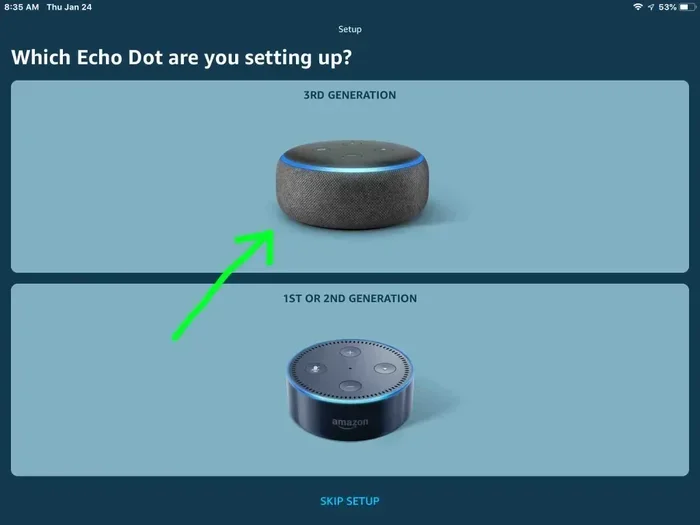
- Select “Echo” and then choose your specific Echo Dot model.
- Follow the on-screen prompts to select your WiFi network.
- Enter your WiFi password carefully and click “Connect.”
- Wait for the confirmation screen. Your Echo Dot should now be online.
This approach is very similar to using the app. The main difference is that you are working through a browser instead of a dedicated application. Everything else works the same way.
Quick Tip: Make sure your computer is connected to the same WiFi network you want the Echo Dot to join. If your computer is using a different network, the setup page might not be able to communicate with the Echo Dot properly.
Setting Up Through a Phone Browser
The browser method on a phone works almost identically. Open Chrome, Safari, or any browser you prefer. Go to alexa.amazon.com and sign in. The setup process will guide you through each step just like the app would. The advantage here is that you do not need to download anything. You can complete the entire Echo Dot wireless setup using only your browser.
If you are trying to connect to the internet without Ethernet and using your computer as the setup device, make sure your computer itself has a working wireless connection first. The browser setup depends on your computer being online so it can communicate with Amazon’s servers and your Echo Dot.
Method 3: Use Bluetooth as a Temporary Bridge
Bluetooth is not a permanent WiFi replacement, but it can help you get through the initial setup in tricky situations. This method is especially useful when your WiFi password is not available or when you are trying to set up the device in a location with poor wireless coverage.
How Bluetooth Setup Works
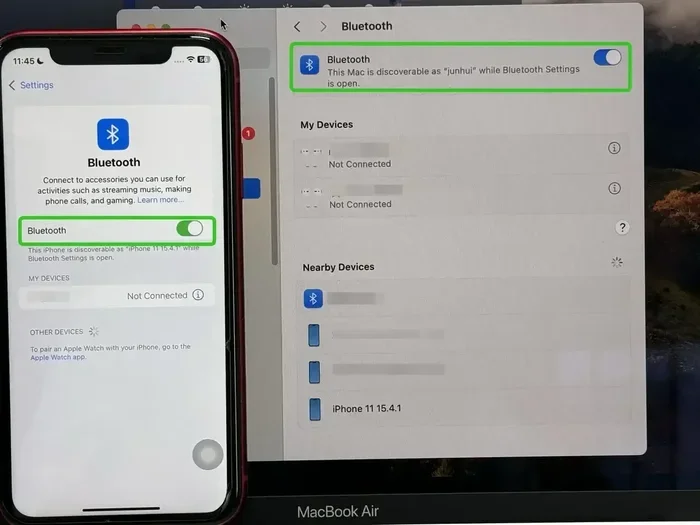
When you first power on an Echo Dot, it creates its own temporary Bluetooth hotspot. You can pair your phone directly to the Echo Dot through Bluetooth. Once paired, the Echo Dot can route your setup instructions through the Bluetooth connection. This gives you enough access to configure the WiFi settings.
- Plug in your Echo Dot and wait for the orange light.
- On your phone, go to Bluetooth settings.
- Look for a device named something like “Echo Dot-XXXX.”
- Tap to pair your phone with the Echo Dot.
- Once connected, open your phone’s browser and go to alexa.amazon.com.
- Complete the WiFi setup through the browser as described in Method 2.
This is a clever workaround that Amazon does not advertise heavily. It is especially helpful when your phone does not have the Alexa app and you cannot access the web setup portal directly. The Bluetooth bridge gives your phone a temporary way to talk to the Echo Dot.
Important Note: Bluetooth pairing is not a long-term solution. Once your Echo Dot is connected to WiFi, it will use the wireless network for all its functions. Bluetooth is only a temporary bridge to help you complete the initial setup.
Troubleshooting Common Connection Problems
Even with the right method, you might run into issues. This section covers the most common problems and how to fix them quickly.
Echo Dot Will Not Connect to WiFi
If your Echo Dot keeps failing to connect, the first thing to check is your WiFi password. A single wrong character will cause the setup to fail. Double-check the password by looking at your router or by changing your WiFi password to something simpler during setup.
Another common cause is a 5GHz network. Some Echo Dot models only support 2.4GHz WiFi. If your router broadcasts both frequencies, try connecting to the 2.4GHz network name instead. You can usually find this in your router settings.
Echo Dot Keeps Disconnecting
A loose connection often means your Echo Dot is too far from the router. Move the device closer and test again. If the problem persists, your router might be overloaded. Try restarting your router by unplugging it for 30 seconds and plugging it back in.
You should also consider whether too many devices are using your network at the same time. Smart TVs, phones, tablets, and computers all compete for bandwidth. If your network is crowded, your Echo Dot might drop the connection intermittently.
Orange Light Stays On After Setup
The orange light ring means the Echo Dot is still in setup mode. If it stays orange after you have entered your WiFi credentials, the connection did not go through. Try the setup process again from the beginning. If the problem continues, a factory reset might be necessary.
Device Not Found During Setup
If your phone or computer cannot find the Echo Dot during setup, make sure you are on the same network. Also check that your device is not blocking the connection through a firewall or VPN. Temporarily disabling these security features during setup can help.
Tips for a Strong and Stable WiFi Connection
Once your Echo Dot is connected, you want to keep that connection strong. Here are some practical tips to maintain a reliable wireless experience.
- Place your Echo Dot in a central location: The closer it is to your router, the stronger the signal will be. Avoid placing it in corners or behind thick walls.
- Keep it away from interference sources: Microwaves, baby monitors, and cordless phones can interfere with your WiFi signal. Give your Echo Dot some breathing room.
- Restart your router regularly: A simple restart once a week can improve your overall network performance and keep your Echo Dot running smoothly.
- Update your router firmware: Old router software can cause compatibility issues with smart devices. Check your router manufacturer’s website for updates.
- Use a WiFi extender if needed: If your Echo Dot is far from the router, a simple extender can boost the signal and prevent dropouts.
If you are dealing with a larger home or a spotty connection, you might want to explore ways to extend your wireless coverage. A WiFi extender or mesh system can make a big difference. For more information on boosting your signal, you can read about extending your WiFi range with a wired connection or learn how to extend your WiFi up to 300 feet outside your home.
Why Connect Without the App?
You might wonder why anyone would want to set up an Echo Dot without the Alexa app. There are several perfectly valid reasons.
Some people prefer to keep their phones clutter-free. They do not want another app taking up space or running in the background. Others might be using a device that does not support the Alexa app, such as a work computer or a shared family tablet.
There is also the privacy factor. Some users are uncomfortable giving an app full access to their phone’s network settings. The browser-based method gives you more control over what permissions you grant. And in some cases, the app simply does not work properly due to software bugs or compatibility issues.
No matter your reason, knowing these alternative methods gives you flexibility and confidence. You are never truly stuck just because the app is not available.
Comparing the Three Methods
Each method has its own strengths. Here is a quick comparison to help you choose the best approach for your situation.
| Method | Best For | Device Needed | Difficulty Level |
|---|---|---|---|
| Voice Setup | Quickest hands-free option | Another Alexa device | Easy |
| Web Browser | Most flexible and universal | Computer or phone with browser | Easy |
| Bluetooth Bridge | Tricky situations or no WiFi password | Phone with Bluetooth | Medium |
For most users, the web browser method is the most reliable. It does not require any other Alexa device, and it works on virtually any modern phone or computer. The voice setup is fastest if you already have an Alexa device running. Bluetooth is your backup plan when the other two methods fail.
Expert Insights on Echo Dot WiFi Setup
Many people assume the Alexa app is the only way to set up an Echo Dot. This is simply not true. Amazon has built multiple pathways into the setup process for exactly this reason. The voice-guided setup and the web portal are both officially supported by Amazon and work reliably when followed correctly.
One thing many guides overlook is the importance of your router’s DHCP settings. Your router assigns IP addresses to connected devices. If your router has a limited pool of addresses, it might not be able to assign one to your Echo Dot. Restarting your router before setup clears out old assignments and frees up an address for your new device.
Another expert tip is to rename your WiFi network to something simple and short before starting setup. Special characters and long names can sometimes cause parsing errors during the Echo Dot setup process. A clean, simple network name avoids this problem entirely.
If you are still having trouble, consider whether your WiFi password contains special characters that might be difficult to enter through voice commands. Switching to a simpler password temporarily during setup can save you a lot of frustration. You can always change it back to a complex password once the Echo Dot is connected.
It is also worth noting that some Echo Dot models have slightly different setup requirements. The Echo Dot (4th generation and newer) supports both 2.4GHz and 5GHz networks, while older models are limited to 2.4GHz only. Knowing which model you have can save you a lot of trial and error.
For those managing a larger smart home setup, you might also want to learn how to connect to AT&T WiFi or manage your network settings for optimal smart device performance. Understanding your network basics makes every future setup smoother.
Common Mistakes to Avoid
- Skipping the router restart: A quick restart can resolve 80% of setup issues. Do not skip this step.
- Using a 5GHz network with an older Echo Dot: Older models simply cannot connect to 5GHz bands. Check your model specifications first.
- Entering the WiFi password incorrectly: Passwords are case-sensitive. Double-check before hitting connect.
- Placing the Echo Dot too far from the router: Distance and obstacles weaken the signal. Keep them close during setup.
- Ignoring the orange light: The orange light is your setup indicator. If it is not showing, the device is not in setup mode.
- Not updating the Echo Dot firmware after setup: Once connected, check for firmware updates to ensure optimal performance and security.
Final Thoughts
Connecting your Alexa Echo Dot to WiFi without the app is entirely possible. You have three solid methods to choose from: voice setup, web browser setup, and Bluetooth bridging. Each method works well in different situations, and none of them require downloading the Alexa app.
The key is to be patient and follow the steps carefully. Most setup failures come from simple issues like wrong passwords, weak signals, or being too far from the router. If you run into trouble, a factory reset and a fresh start usually solves the problem.
Your Echo Dot is a powerful smart home tool. Once it is connected to your WiFi network, it opens up a world of possibilities. Voice-controlled music, smart home automation, news updates, and so much more are all just a voice command away. Take your time with the setup, and you will be enjoying all the benefits of your Echo Dot in no time.
Remember that a strong, stable WiFi connection is the foundation of everything your Echo Dot does. Invest a little time in understanding your network, and every future smart device setup will be that much easier. You now have the knowledge to handle this setup without any app at all. That is a skill that will serve you well with all your smart home devices.
Go ahead and try the method that fits your situation best. Whether you use voice commands, a web browser, or Bluetooth, you will have your Echo Dot online and ready to go. The process is straightforward once you know the steps, and you are now fully equipped to handle it.
Frequently Asked Questions
Can I set up an Echo Dot without any smartphone at all?
Yes, you can. If you have another Alexa device already connected to your WiFi, you can use the voice setup feature to configure a new Echo Dot without touching a phone or computer. The existing Alexa device acts as your guide through the entire setup process using only voice commands.
Why does my Echo Dot only show the 2.4GHz WiFi network?
Older Echo Dot models only support the 2.4GHz WiFi band. If your router broadcasts both 2.4GHz and 5GHz under the same network name, your Echo Dot will connect to the 2.4GHz band automatically. If you have a newer Echo Dot model and still only see 2.4GHz, check your router settings to make sure the 5GHz band is enabled.
What should I do if the Echo Dot orange light never turns off?
The orange light means the device is still trying to connect. If it stays orange for more than a few minutes, the setup did not complete successfully. Try running the setup again. If the problem persists, press and hold the Action button for 20 seconds to reset the Echo Dot and start fresh.
Do I need the Alexa app after connecting the Echo Dot to WiFi?
No, you do not need the app to keep your Echo Dot running. Once the WiFi connection is set up, the Echo Dot works independently. However, the Alexa app is useful for managing settings, adding skills, and updating firmware. You can use the web browser at alexa.amazon.com as an alternative to the app for most management tasks.
Can I connect my Echo Dot to a WiFi network that requires a login page?
Some public or guest WiFi networks require you to open a browser and accept terms before connecting. Echo Dot devices do not support captive portal networks well. If you are trying to connect to a hotel or office WiFi that requires a login page, you may need to use a different network or connect a device to that network first to complete the login, then set up the Echo Dot on the same network.
How do I reset my Echo Dot if the setup keeps failing?
To factory reset your Echo Dot, press and hold the Action button (the button with a dot) for about 20 to 25 seconds. The light ring will turn orange and then blue. Once it turns off, the device is reset to its original factory settings. You can then run the setup process again using any of the methods described in this guide.